
How to Record YouTube Audio in a Reaction Video on Mac (Without QuickTime or Plugins)
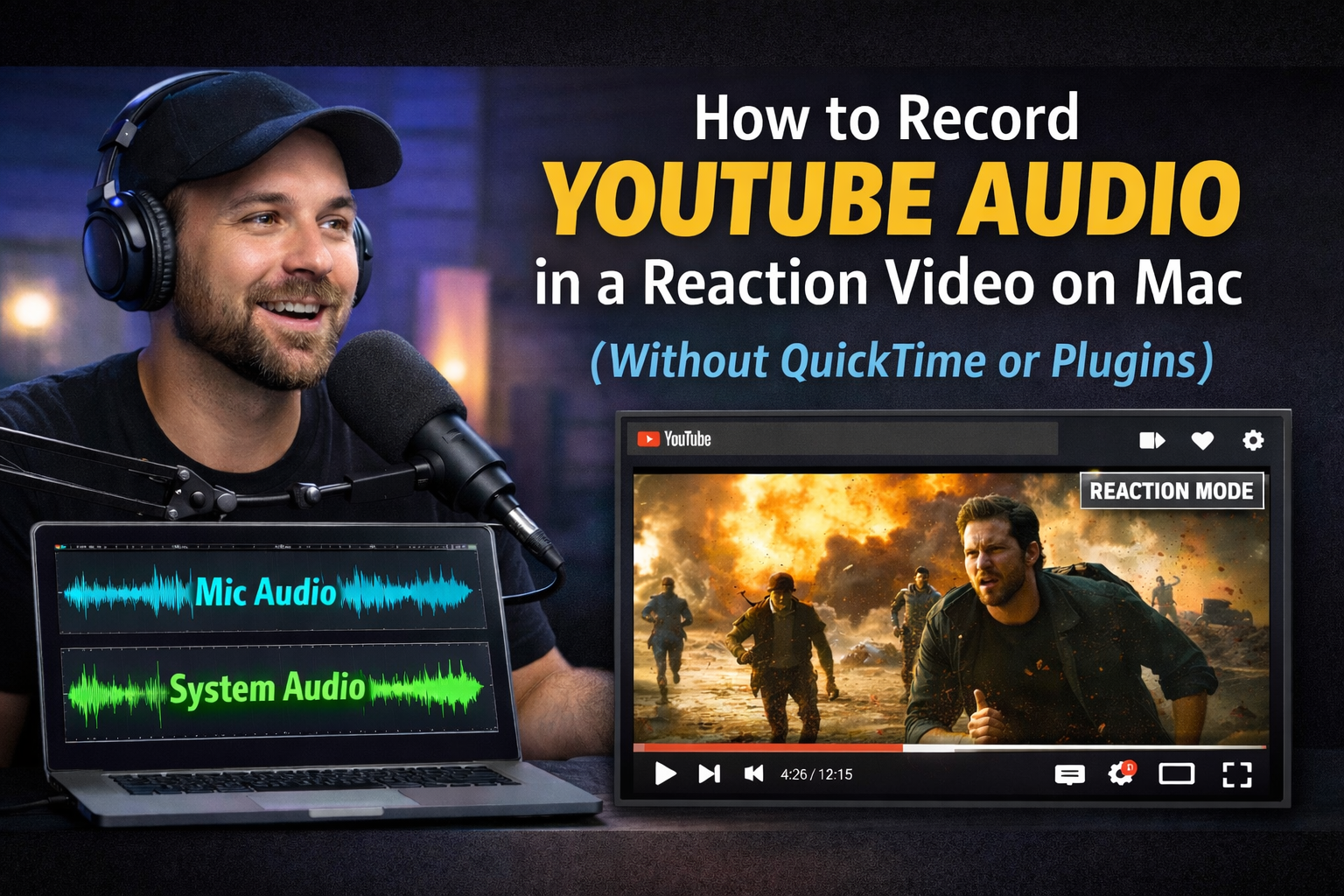
Quick answer: Use Podsplice. It runs in your browser (Safari, Chrome, Edge) and records everything you need—no QuickTime workarounds, no OBS plugins, no Soundflower/BlackHole.
What Podsplice Captures (in the browser)
Podsplice records four separate, local tracks and syncs them automatically:
🎤 Mic (your commentary)
📷 Camera (your face)
🖥️ Screen (what you’re reacting to)
🔊 System audio (the actual YouTube audio)
Want the full walkthrough? See How to Make a Reaction Video (Step-by-Step)
The Mac Recording Problem
QuickTime Player: Records screen + mic, not internal/system audio (unless you install Soundflower/BlackHole).
OBS Studio (Mac): Can work, but setup is complex and usually requires virtual audio devices.
Canva, Riverside, Descript (on Mac): Record mic/webcam, but generally miss system audio—so your YouTube clip is silent.
I learned this the hard way—recorded a full reaction in Canva, opened it to edit, and the YouTube audio wasn’t there at all. Then I tested others and realized this is common.
Why System Audio on Mac Is Harder Than You’d Guess
Browser limitations: Safari/Chrome/Edge don’t hand over system audio easily for privacy/technical reasons.
Sync complexity: Keeping mic + camera + screen + system audio perfectly aligned is non-trivial. Many tools just skip system audio to avoid drift and support headaches.
How Podsplice Solves It (Mac-Friendly)
Works in Safari, Chrome, Edge—no plugins, no drivers.
Captures all four feeds locally in full quality; auto-syncs them.
Same simple workflow on MacBook, iMac, or Mac mini.
Quick Start on Mac
Open your YouTube video (Safari/Chrome) and queue it.
Open Podsplice in another tab.
Select mic + camera and enable Share system audio.
Record, react, stop—Podsplice saves separate tracks for clean editing.
Bottom Line
Mac tools like QuickTime (no system audio), OBS (complex setup), and Canva/Riverside/Descript (skip system audio) make reaction videos harder than they should be. Podsplice records the screen, face, mic, and YouTube audio—all in sync—right in your browser.
👉 Try Podsplice now and capture reaction videos the way your audience expects to hear them.

About the Author
Andrew Best
Andrew Best is an entrepreneur, educator, and AI expert with over two decades in online marketing. He co-founded China232 — a podcast and learning platform with 10M+ downloads — and later 88Herbs, a premium supplement company. Andrew now focuses on helping creators leverage AI for podcasting, screen recording, and YouTube content through Podsplice.
More from Podsplice
How to Make Your Screen Recordings Sound Incredible (The Easy Way)
Article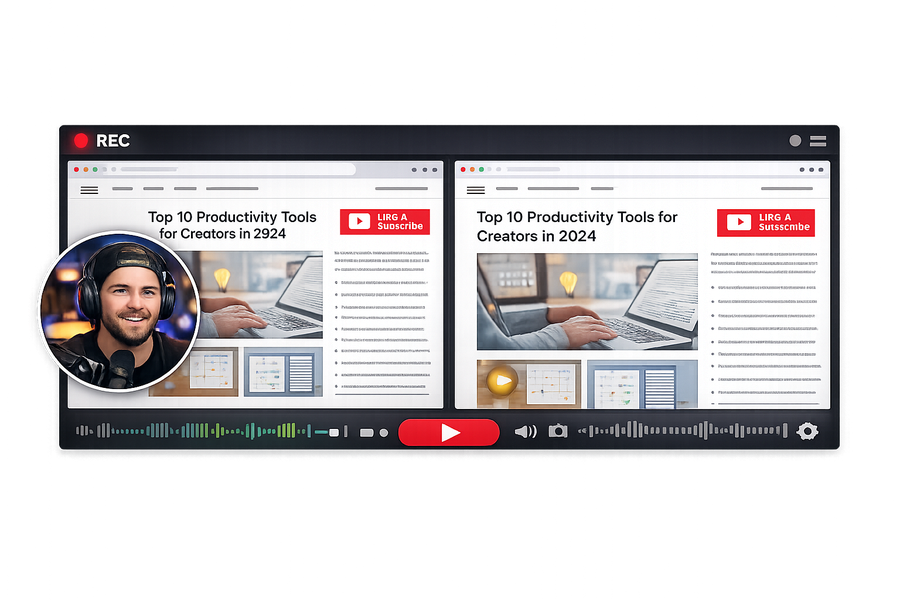
Mastering the Podsplice Multi-Track Video Editor
Article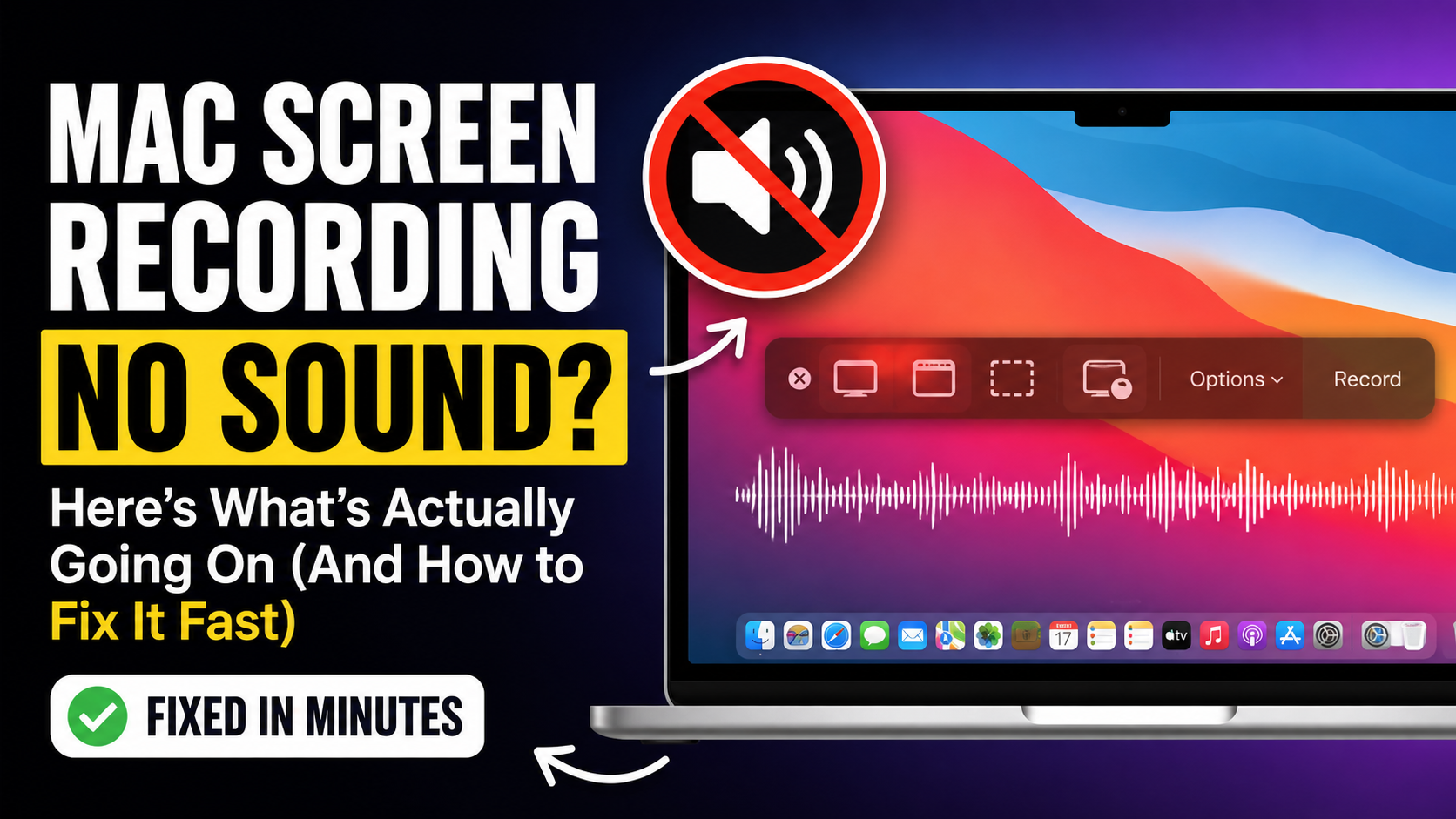
Mac Screen Recording No Sound? Here’s What’s Actually Going On (And How to Fix It Fast)
Article
How to Make a Reaction Video
Article
How to Record a Reaction Video with System Audio
Article
Start Recording in Seconds
No downloads. No setup. Just hit record and share your story with the world in studio quality.
Looking for a Screen Recorder or Remote Recording tool?