
Podsplice Articles
Timeless content and in-depth articles from Podsplice.
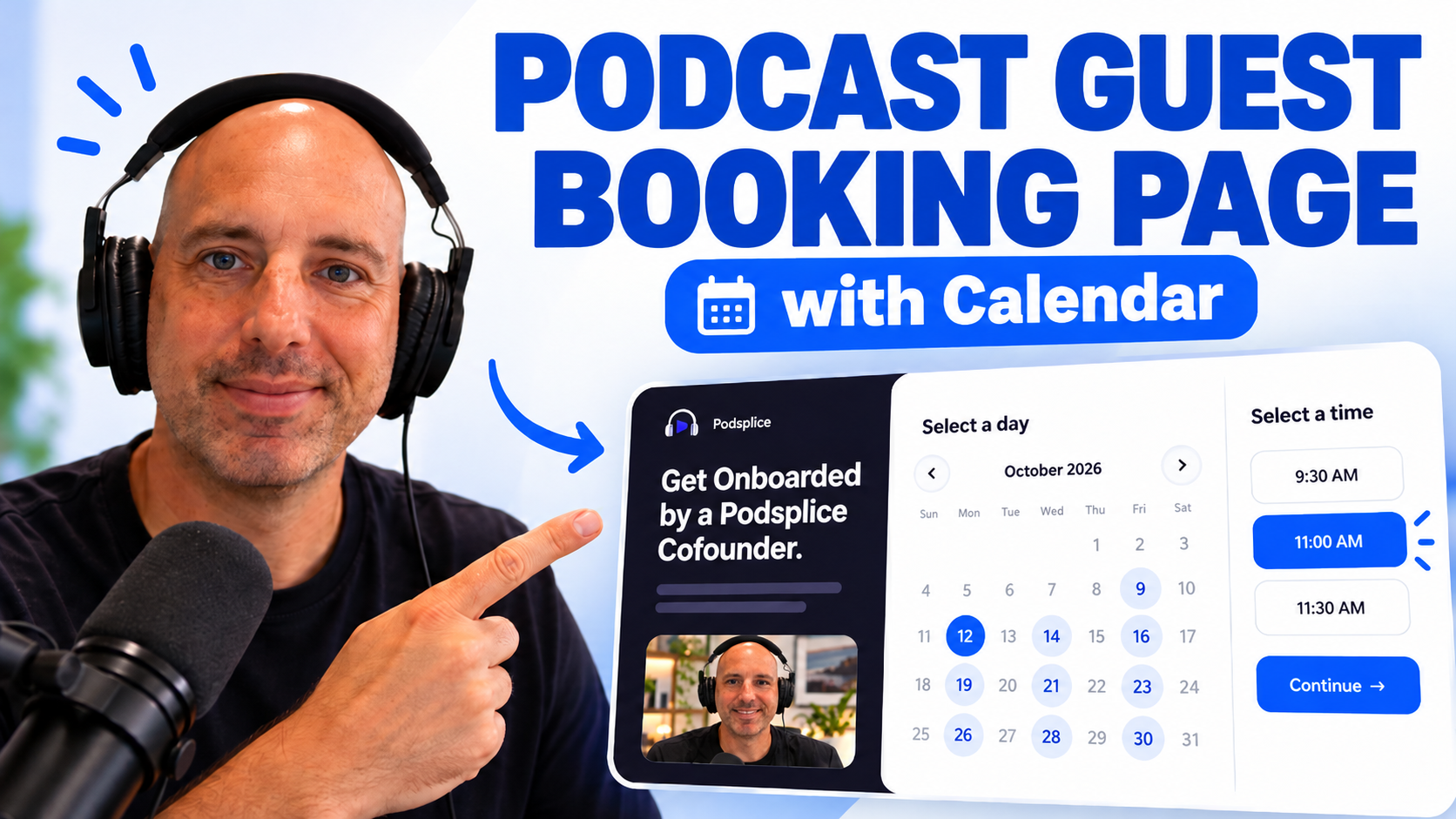
Booking podcast guests shouldn’t require 10 emails just to find a time that works. With Podsplice Pods, you can create a simple branded guest booking page, add a calendar with your available times, ask guests a few questions, and send them one link to book.
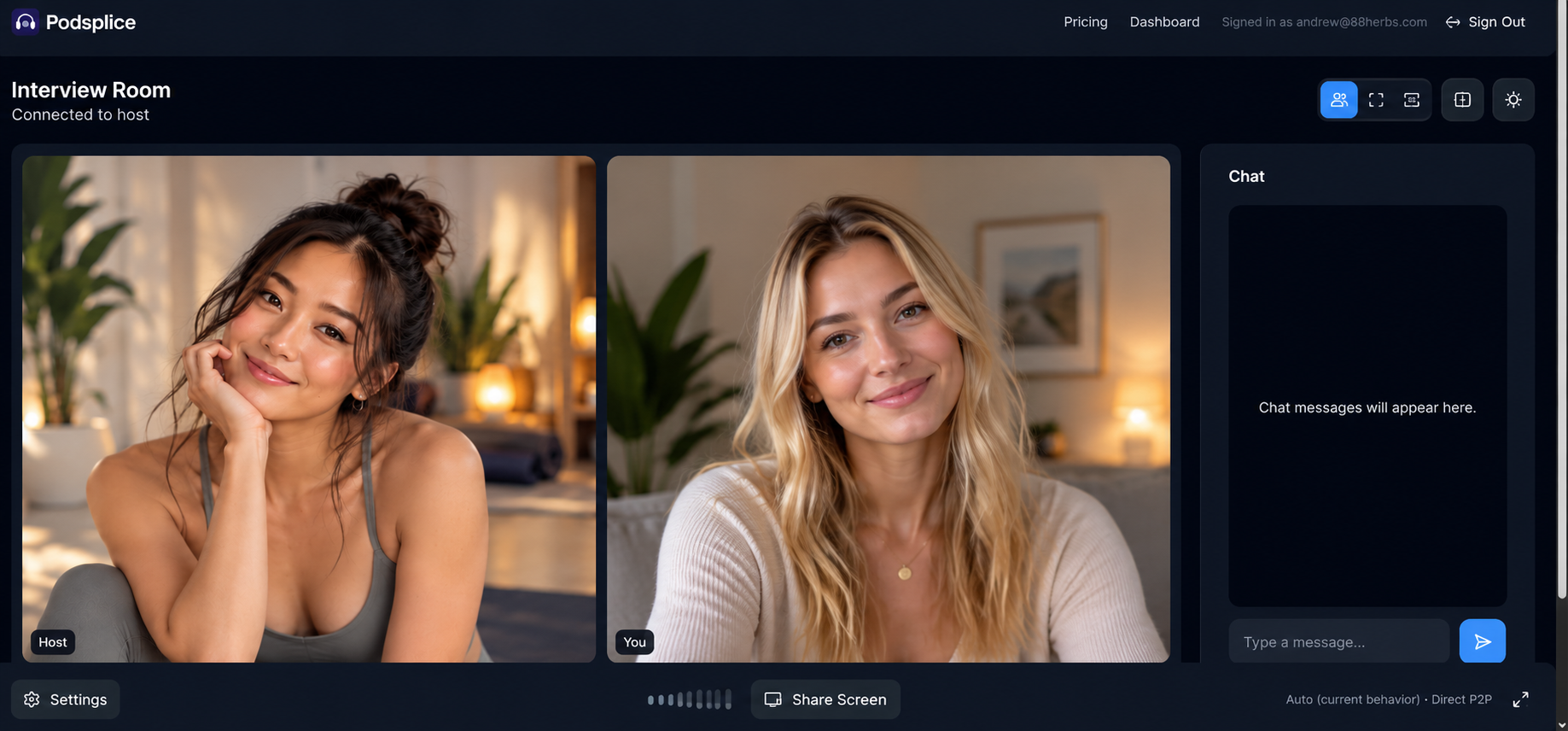
Learn how to record professional one-on-one coaching calls with Podsplice. Get high-quality local recording, easy client onboarding, screen sharing, separate tracks, and tools to turn coaching calls into social media content.
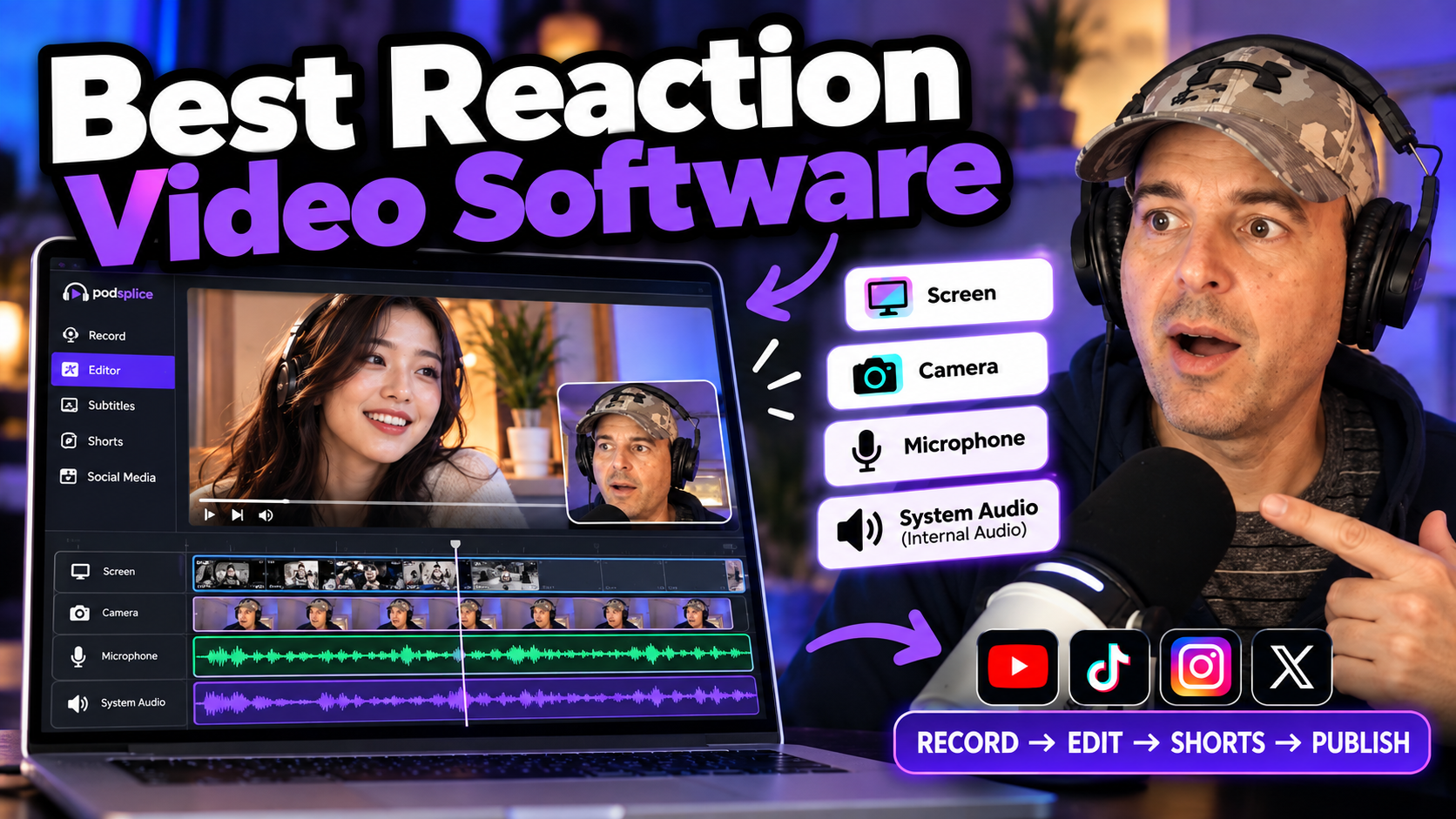
Podsplice is the best reaction video software for creators who value speed and quality. Record screen, camera, mic and system audio separately, edit in the cloud, create Shorts with animated subtitles, and publish directly to social media.
Zoom might be great for meetings, but it wasn't built for podcasts. Here's why I don't recommend recording podcasts in Zoom, and how Podsplice makes it easier to record high-quality remote interviews, edit your podcast, create Shorts, and publish your content.
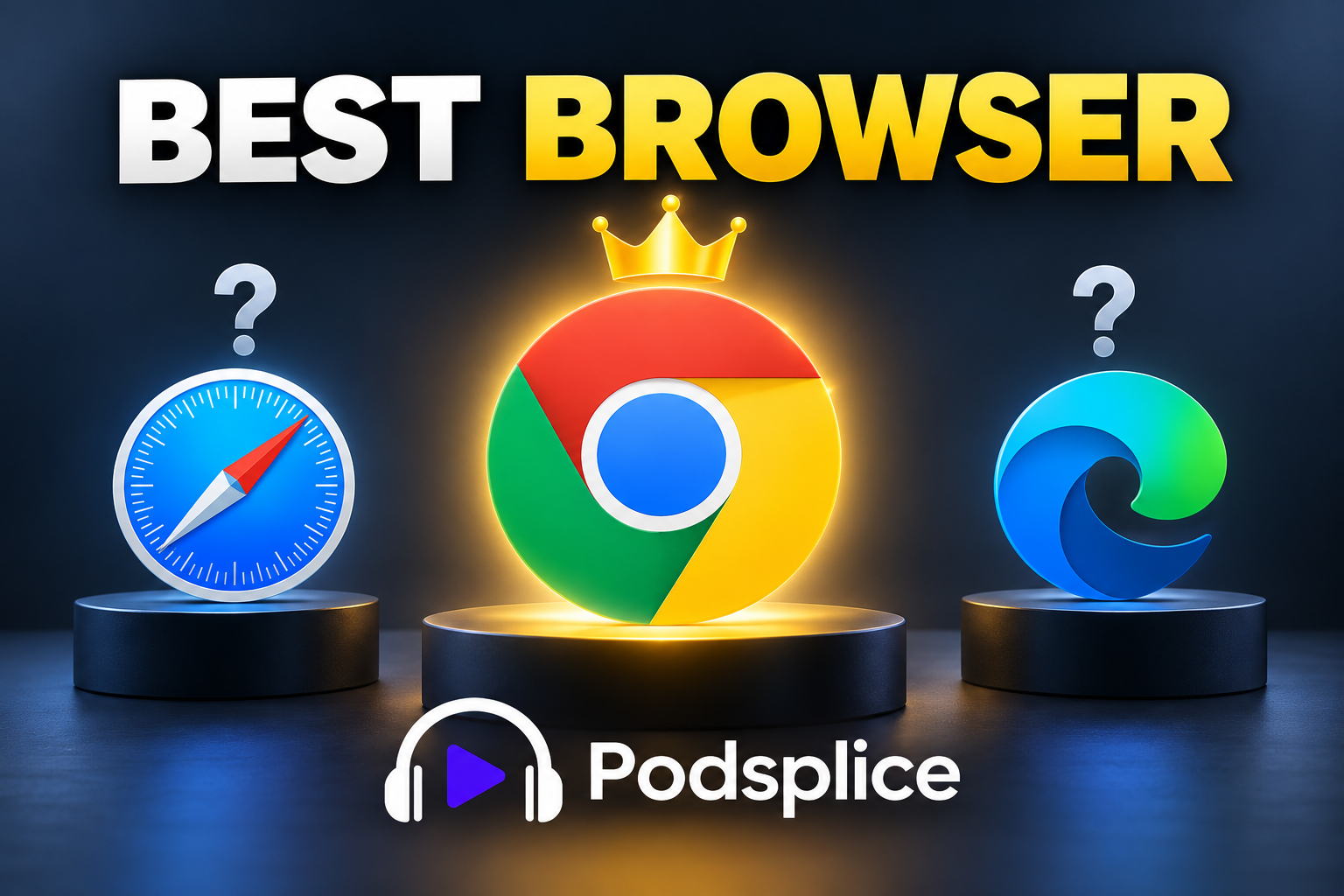
Google Chrome is our recommended browser for recording system audio (internal audio) on both Mac and Windows. Learn why Chrome works so well with Podsplice for recording your screen, microphone, webcam, and computer audio in high quality.
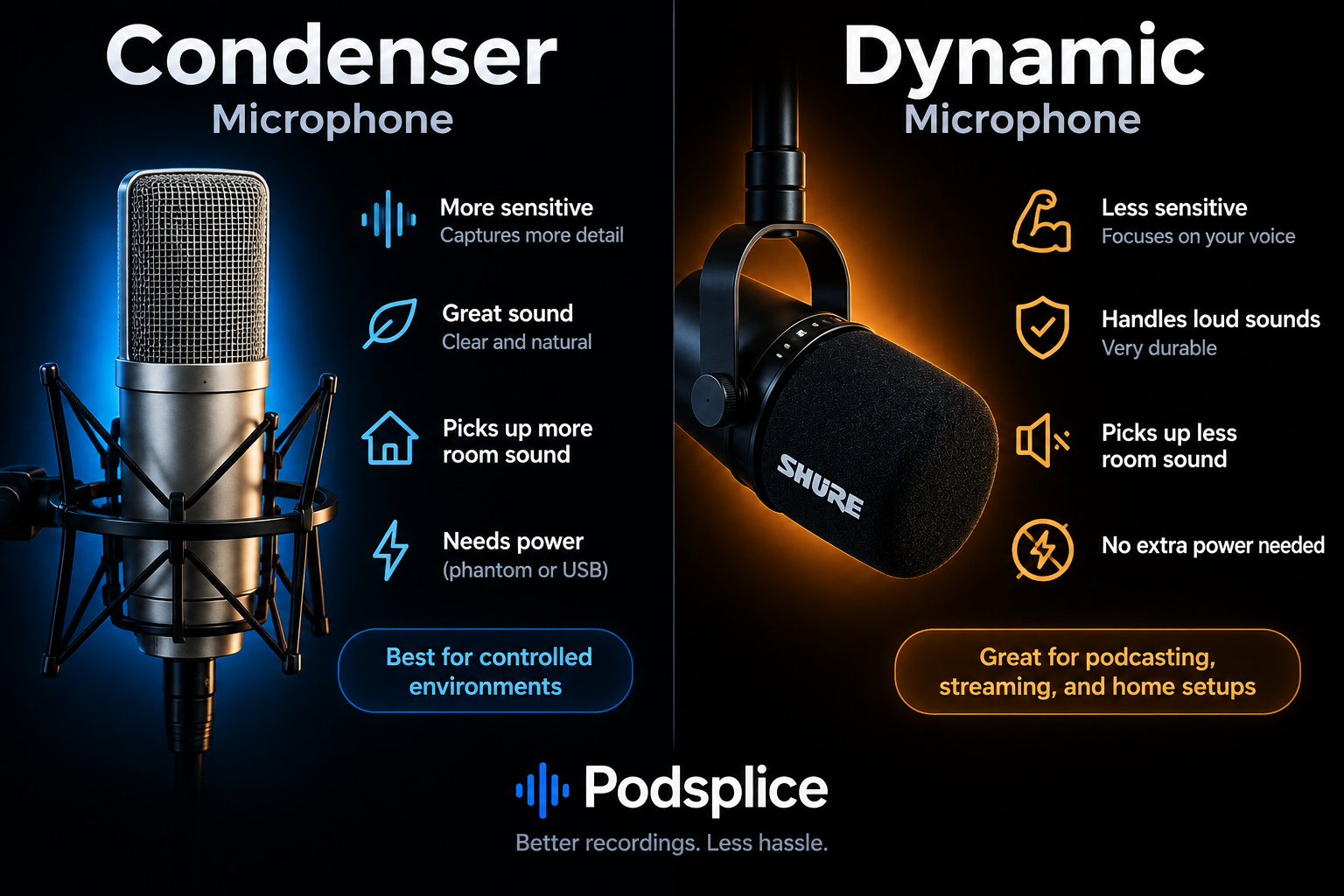
Learn the difference between directional, omnidirectional, dynamic, condenser, and cardioid microphones—and how to choose the right setup for better podcast audio with Podsplice.
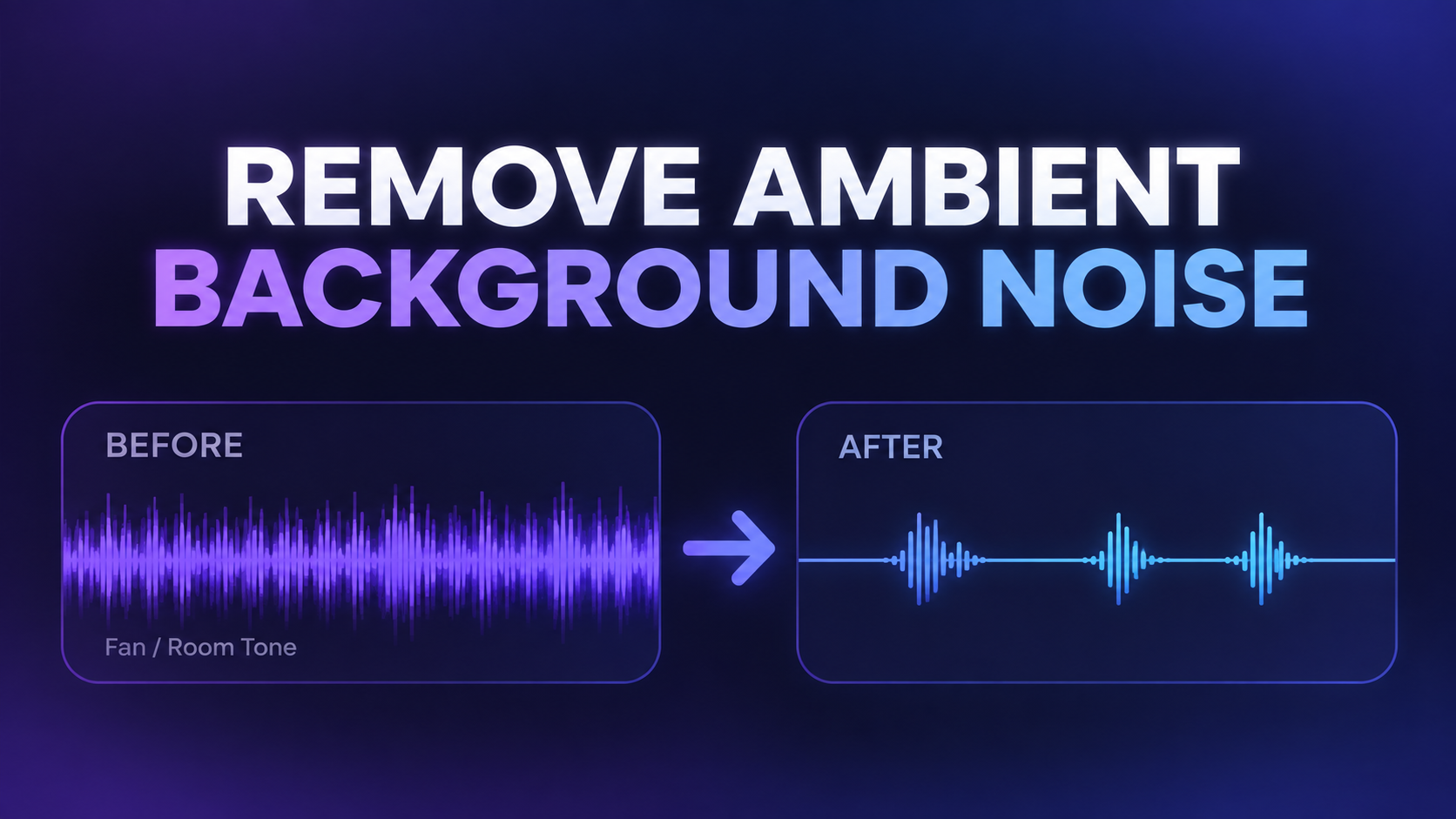
Clean up fan noise, HVAC hum, computer hiss, and room tone directly in Podsplice. Use automatic cleanup or teach Podsplice what the background noise sounds like from a quiet section of your recording.

Learn the key differences between system audio and tab audio, why the capture path can affect sound quality, and when Podsplice Stereo Tab Audio can deliver better results for high-quality screen recording.

Install the approved Podsplice Stereo Tab Audio Chrome extension and capture sound from a chosen tab in the V2 Recorder. Setup steps for reactions, demos, and interview content.

With Podsplice and Zapier, adding a recording link to a new Notion database item retrieves its completed transcript and adds the text to that same page. No copying and pasting the entire transcript.
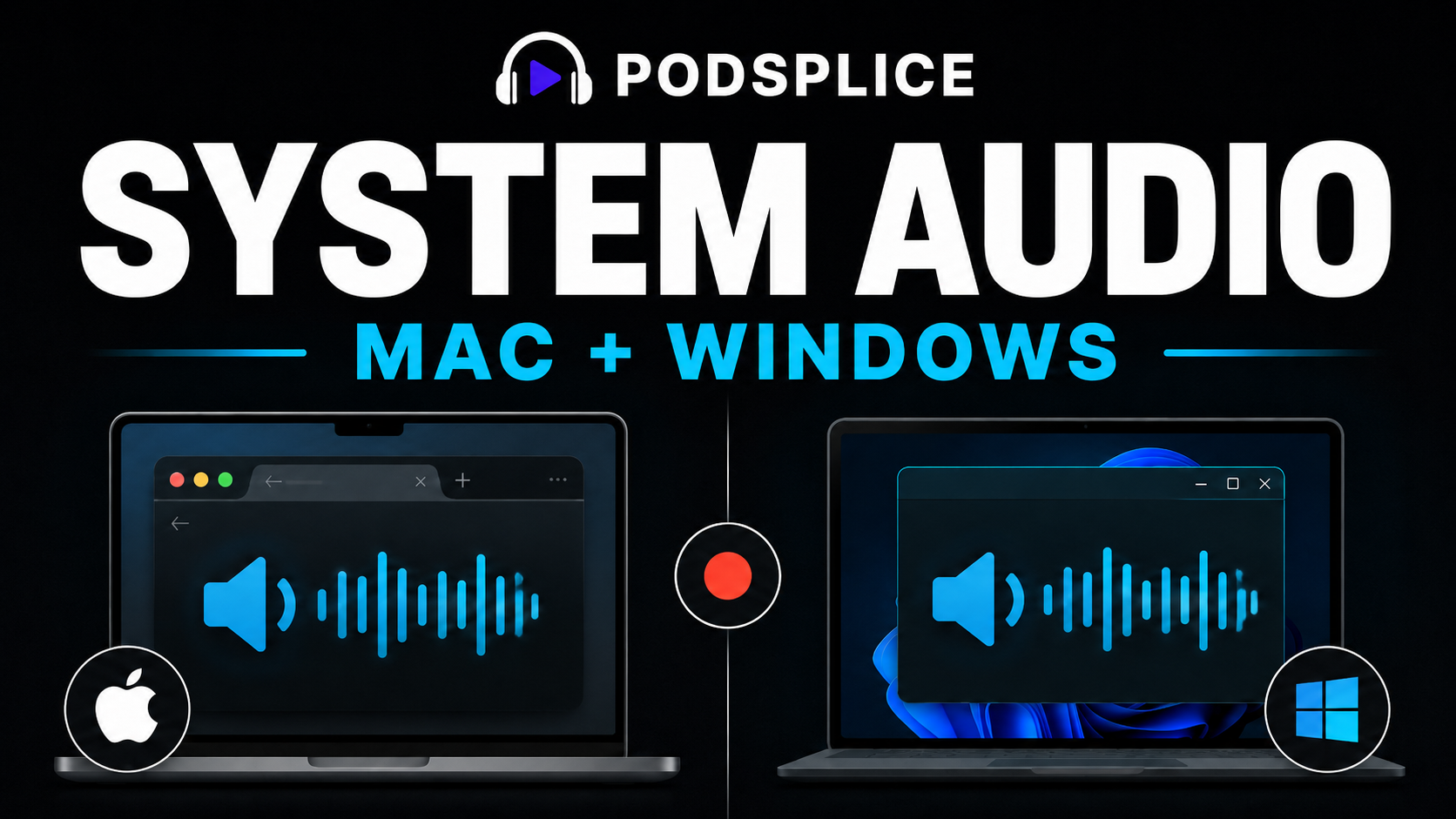
Podsplice lets you record your screen, webcam, microphone, and computer audio at the same time. This is useful when you want to record: YouTube videos Website demonstrations Tutorials Reaction videos Screen-share videos Faceless videos Presentations with audio
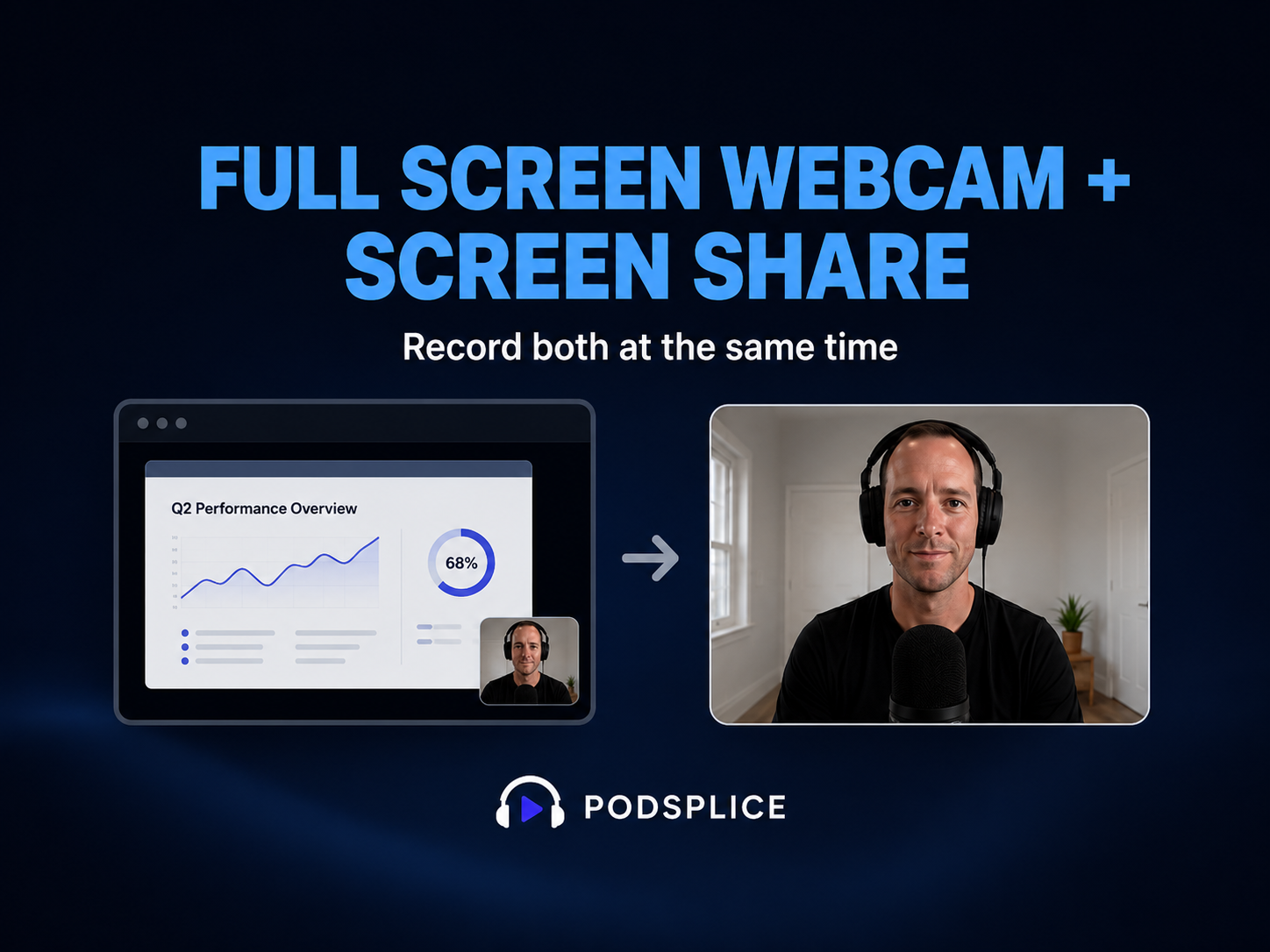
Sometimes you want to record your screen, but you also want to show your face clearly. For example, you may want to start a video by talking full screen, then switch to your screen share, then come back to your face again when you explain something important.
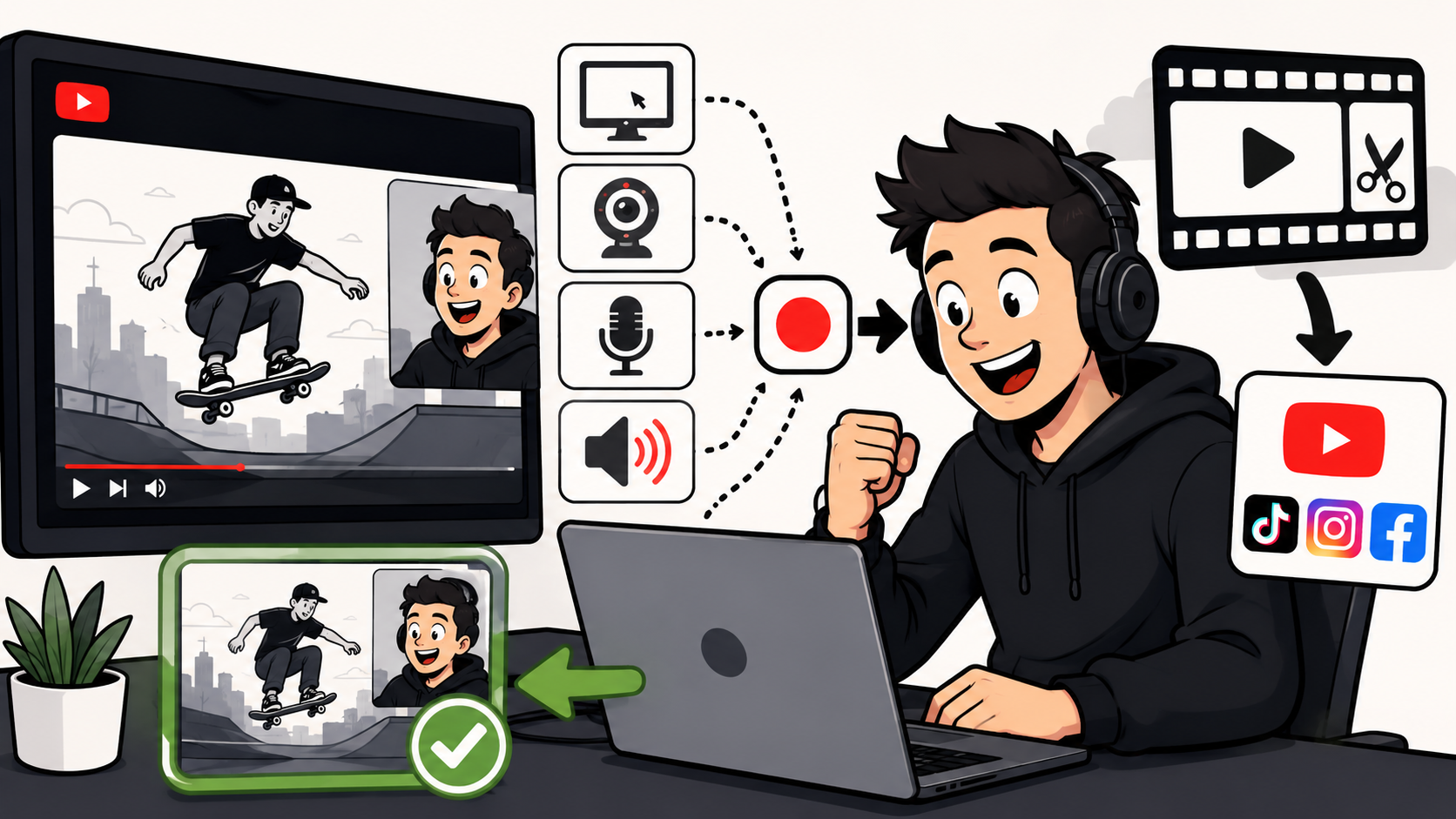
Making reaction videos on a Mac sounds easy until you try recording system audio. This guide compares OBS, QuickTime + BlackHole, and Podsplice, and shows why many creators use Podsplice to record, edit, create Shorts, and publish reaction videos faster.
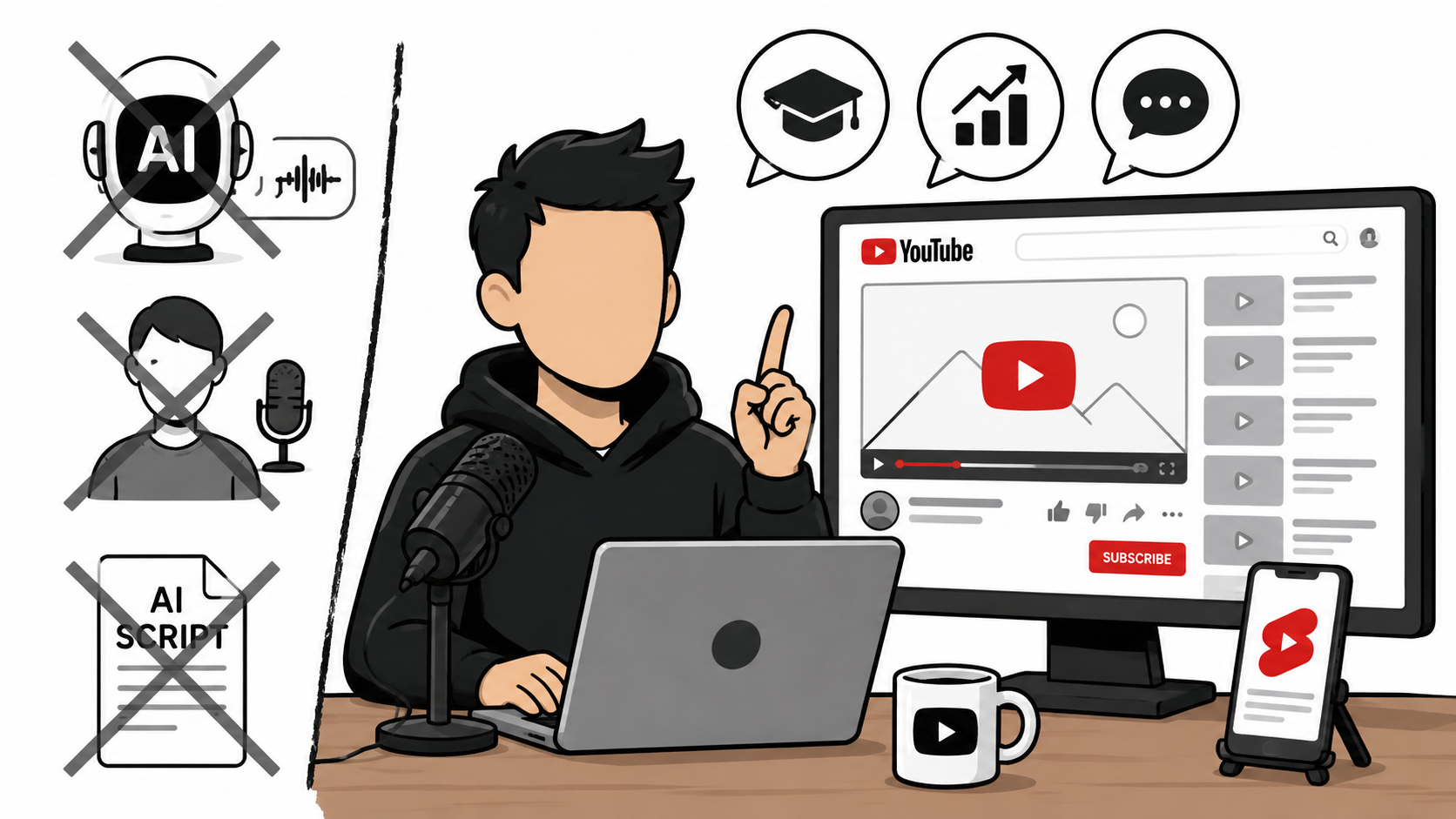
Most people think faceless YouTube channels require AI voices and automated content. They don't. Learn why real human insight may be a better long-term strategy, how to create faceless screen recordings and reaction videos, and how I use Podsplice to do it.
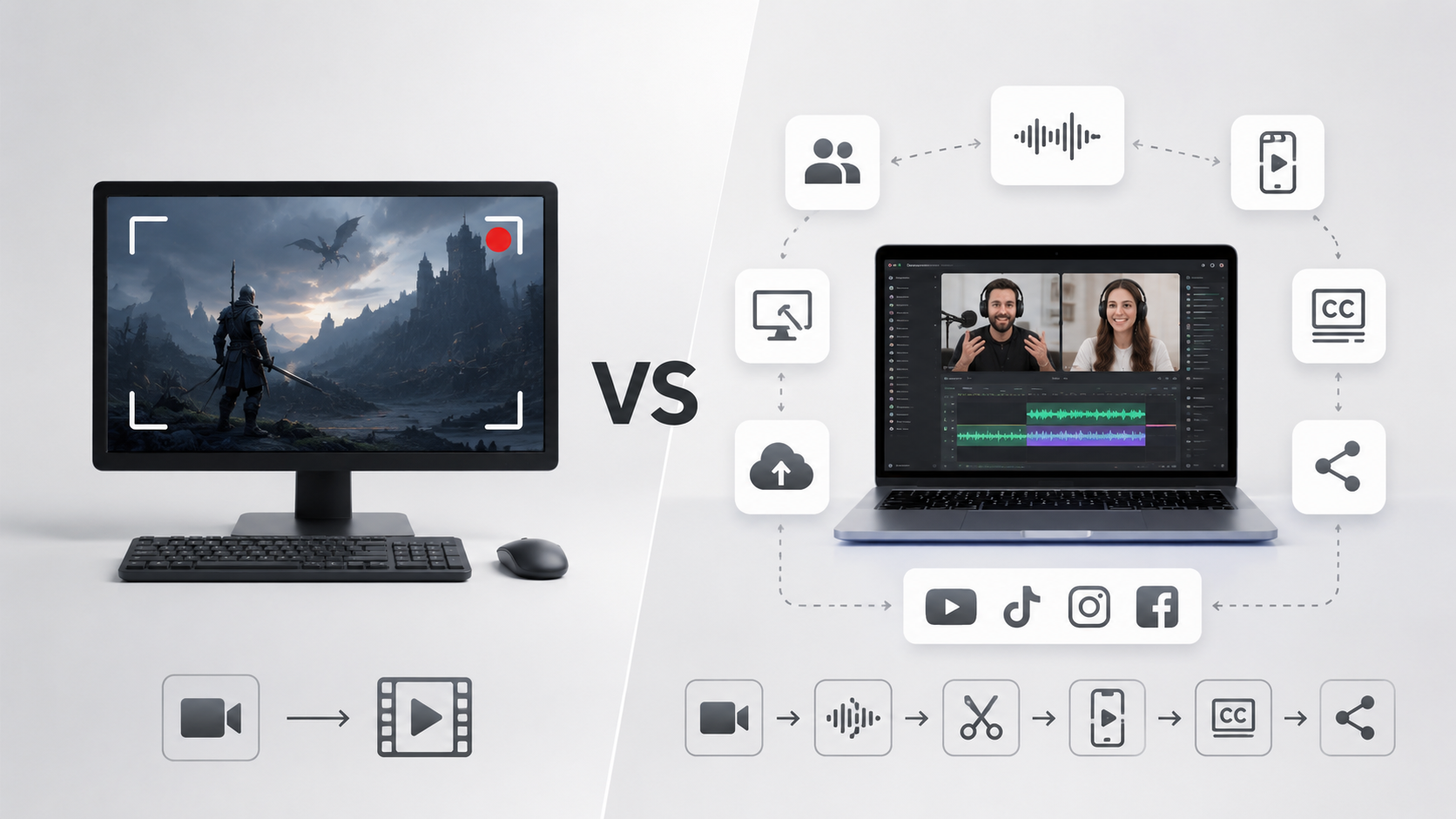
Bandicam is a popular screen recorder known for game recording and reliability. In this comparison, we look at what Bandicam does well and why Podsplice is a better choice for many creators with podcast recording, AI shorts, karaoke subtitles, and social media publishing.
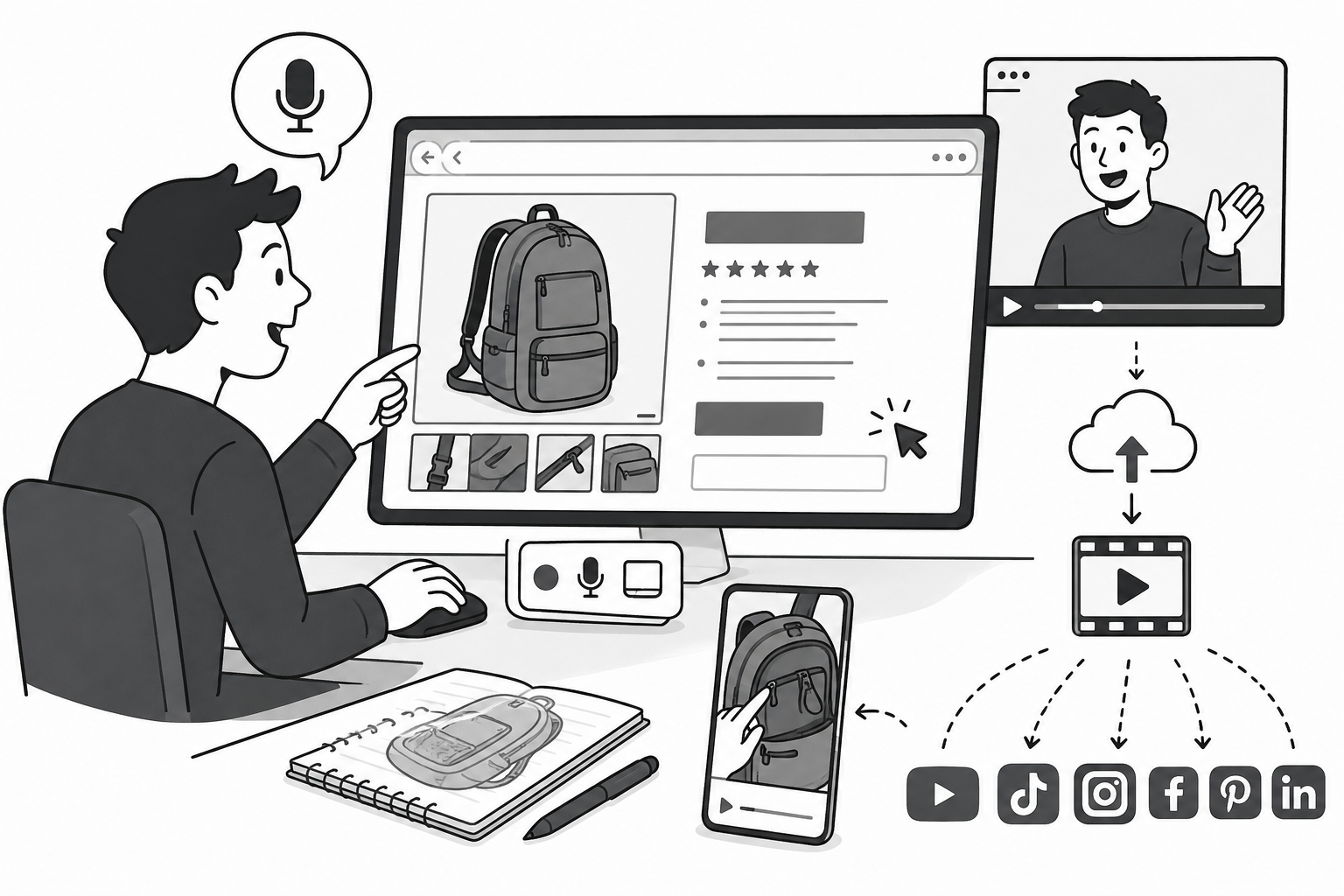
Looking for the best screen recording software for Shopify? Use Podsplice to easily record browser-based product walkthroughs that hijack free organic traffic. Capture crisp mic and system audio on separate tracks to educate buyers and train Google AI to rank your store over competitors.
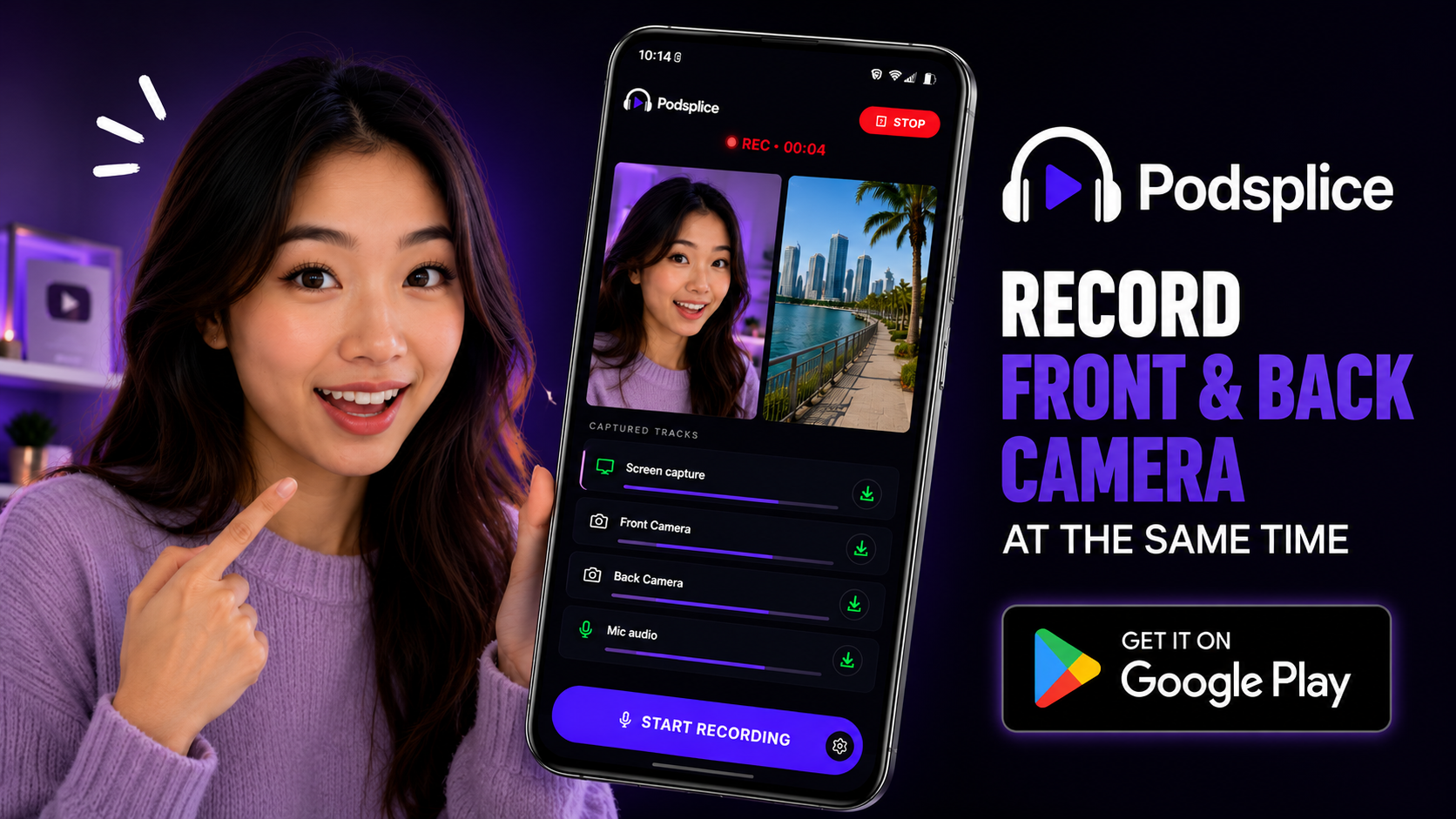
Learn how to record the front and back camera at the same time on Android. See how creators use Podsplice to capture both perspectives, add automatic subtitles, create short clips, and publish to YouTube Shorts, TikTok, Instagram, Facebook, and LinkedIn.
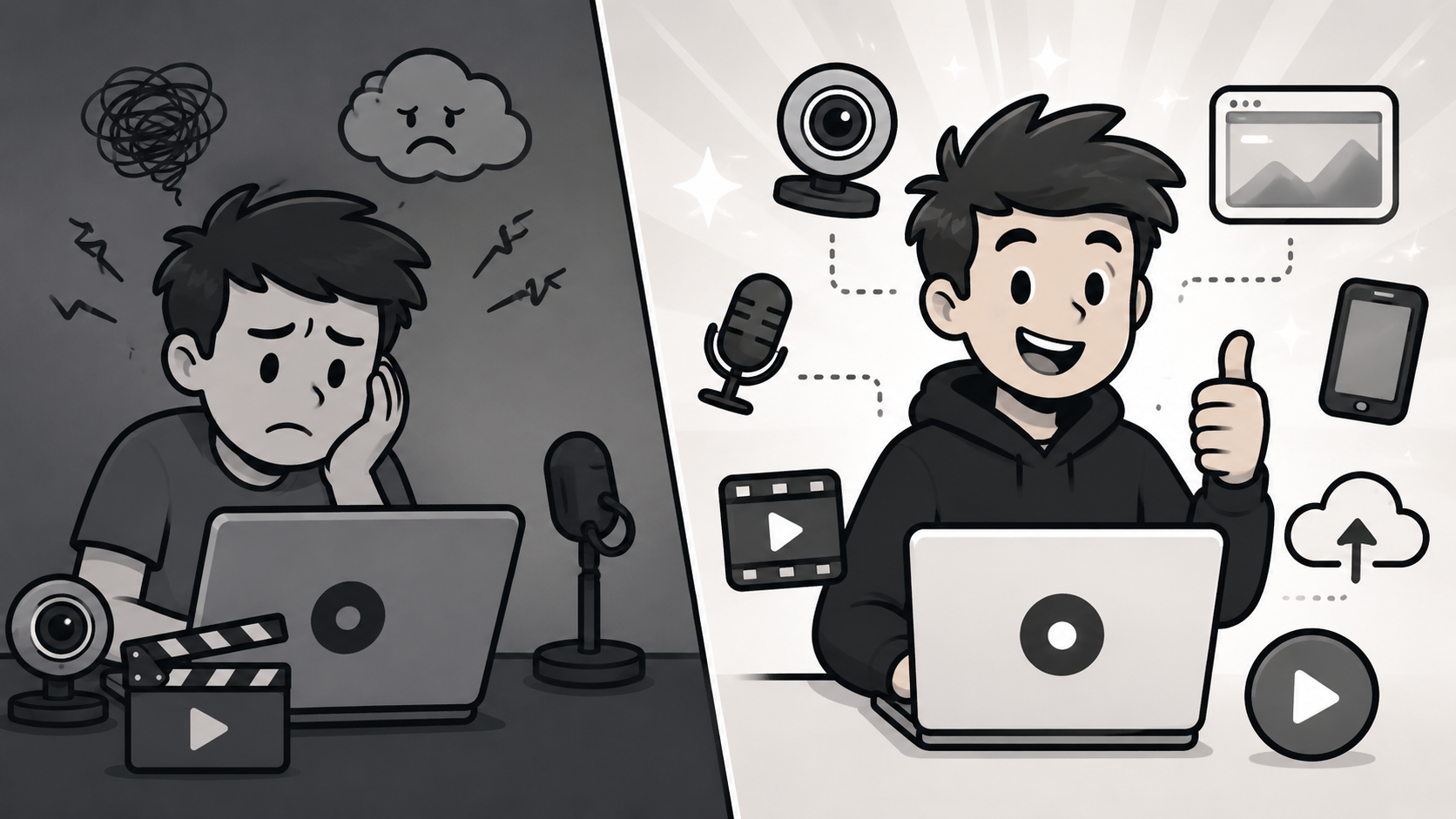
Most screen recorders were built for corporate teams, not YouTube creators. Here's why that matters — and why Podsplice is the only recorder designed for creators who publish publicly.

Choosing between Kommodo and Podsplice? Kommodo is built for corporate team SOPs, Podsplice is best for creators. With Podsplice, enjoy high-resolution screen capture, 192kbps multi-track audio isolation, an Android app, and 1-click publishing directly to 6 major social media channels.
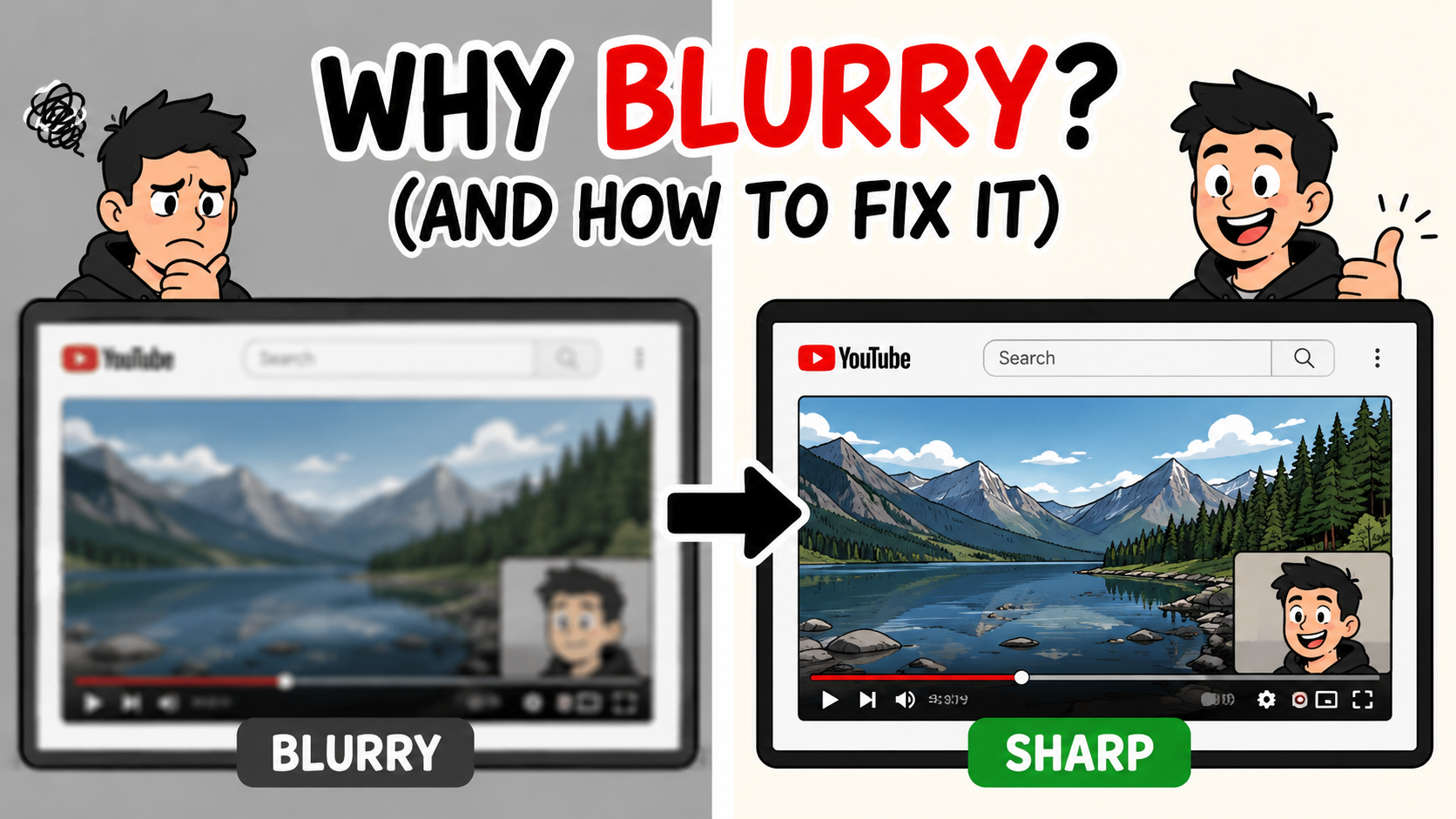
How to stop your screen recordings from looking blurry — why compression ruins quality and how Podsplice helps you fix it.
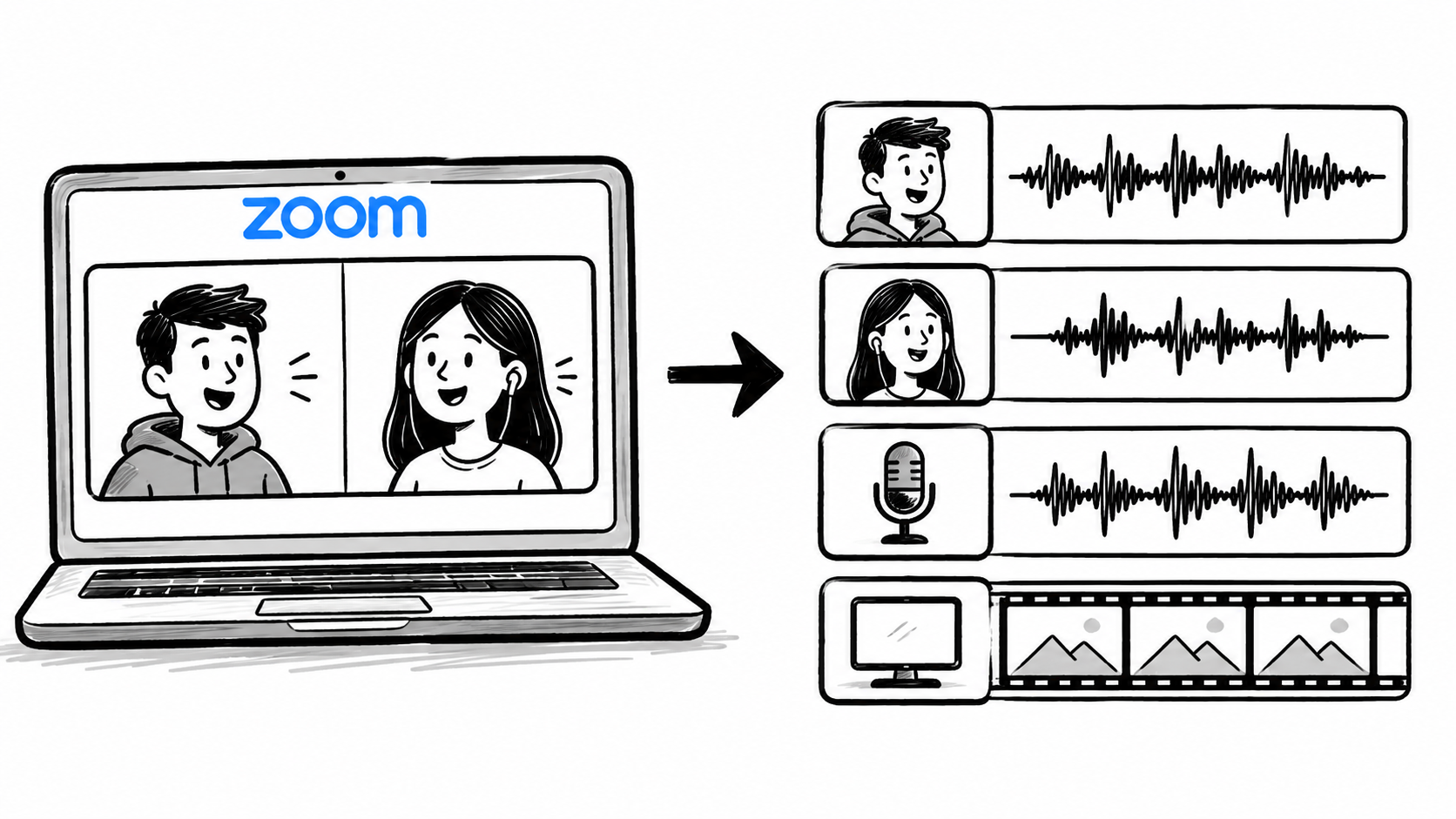
Recording Zoom meetings for podcasts and YouTube is frustrating to edit. Here's why separate audio tracks fix that — and how to record them using Podsplice without a complicated setup.
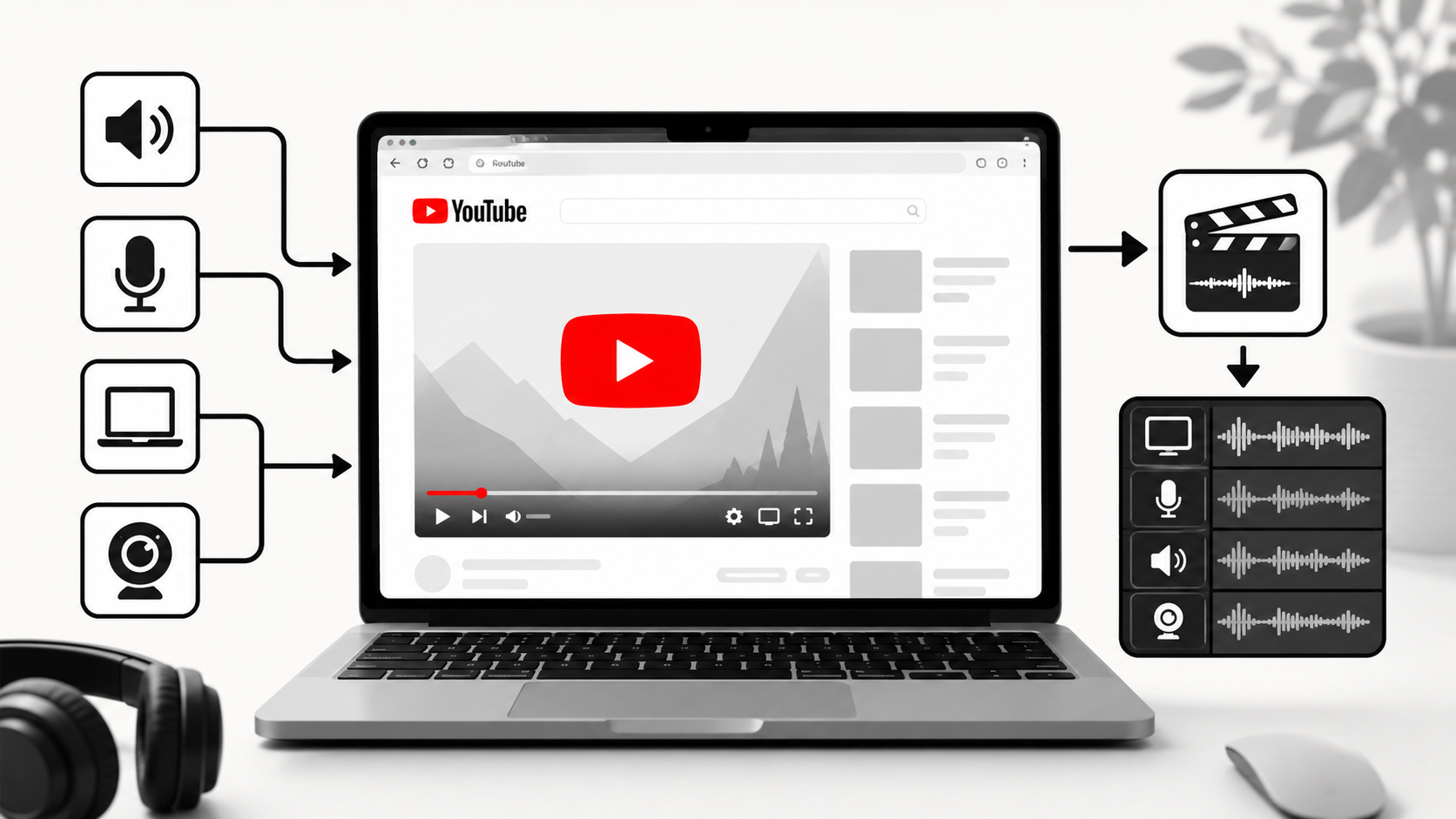
Learn how to record YouTube audio on a Mac, including internal audio and your microphone. Learn why Podsplice is the easiest BlackHole alternative and the fastest way to capture browser audio, screen recordings, tutorials, and reaction videos without a complicated setup.
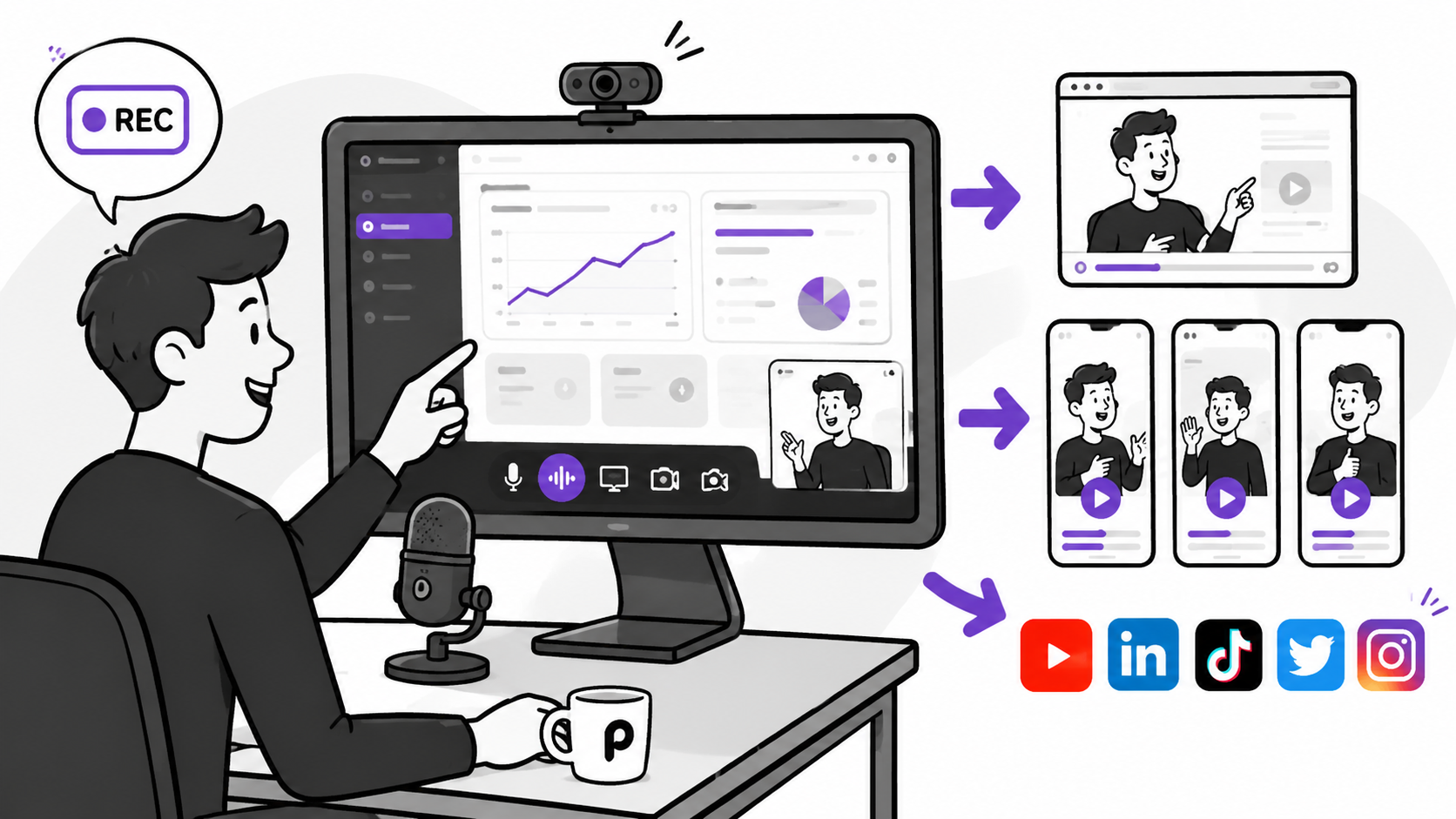
Learn how SaaS companies use screen recording demo videos to attract customers, explain their product, and increase signups. See why Podsplice is the best screen recording software for creating product demos, tutorials, webinars, shorts, and social media content.

Mortgage brokers can use Podsplice to record Loan Estimate walkthroughs, mortgage podcasts, client education videos, and social media clips. Capture your screen, webcam, microphone, and system audio in high quality—directly in your browser with no downloads or technical setup required.
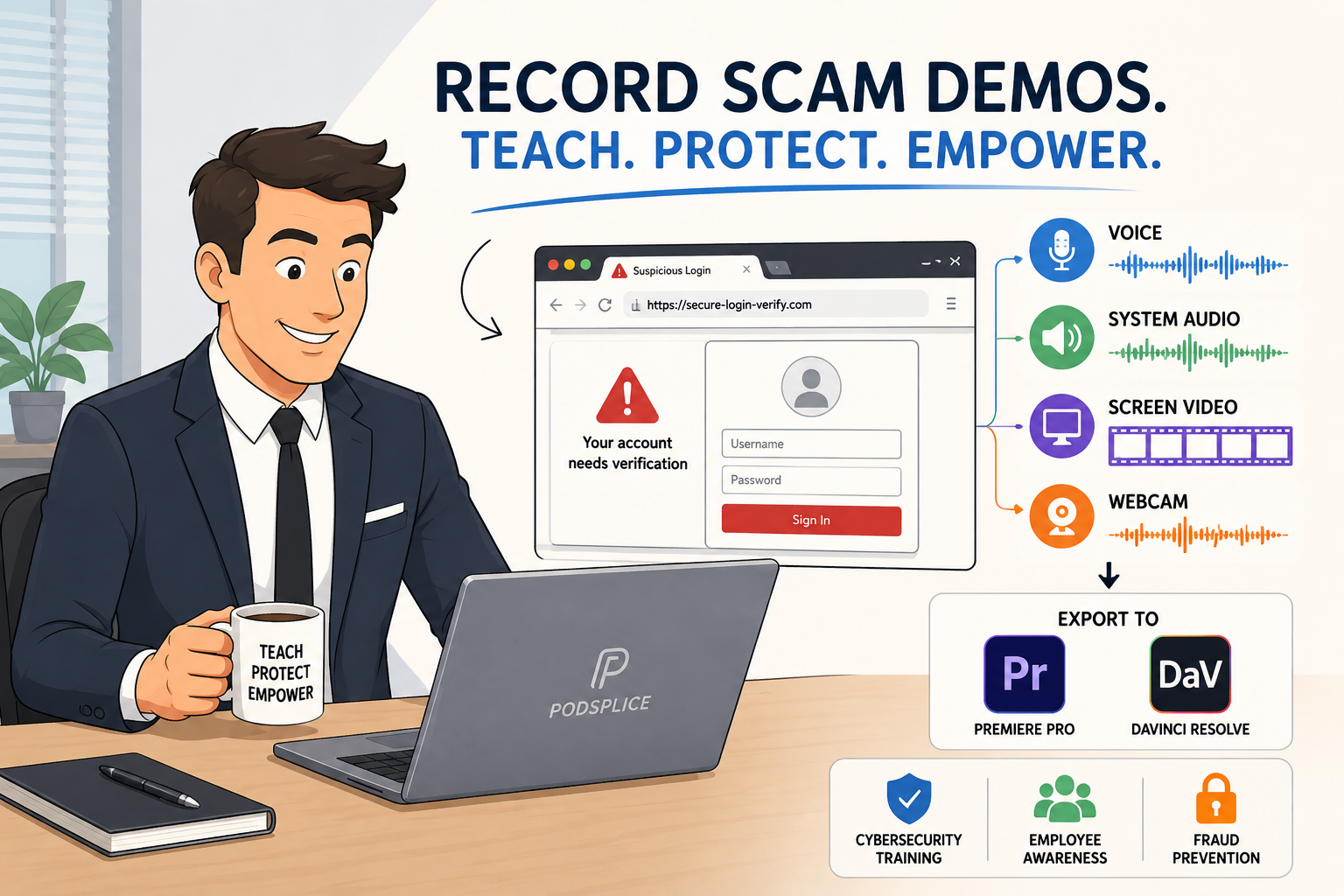
Learn how to record a scam website demo with your screen, microphone, and any website audio. Podsplice runs in the browser, requires no installation, and creates separate tracks that edit perfectly in Adobe Premiere Pro and DaVinci Resolve.
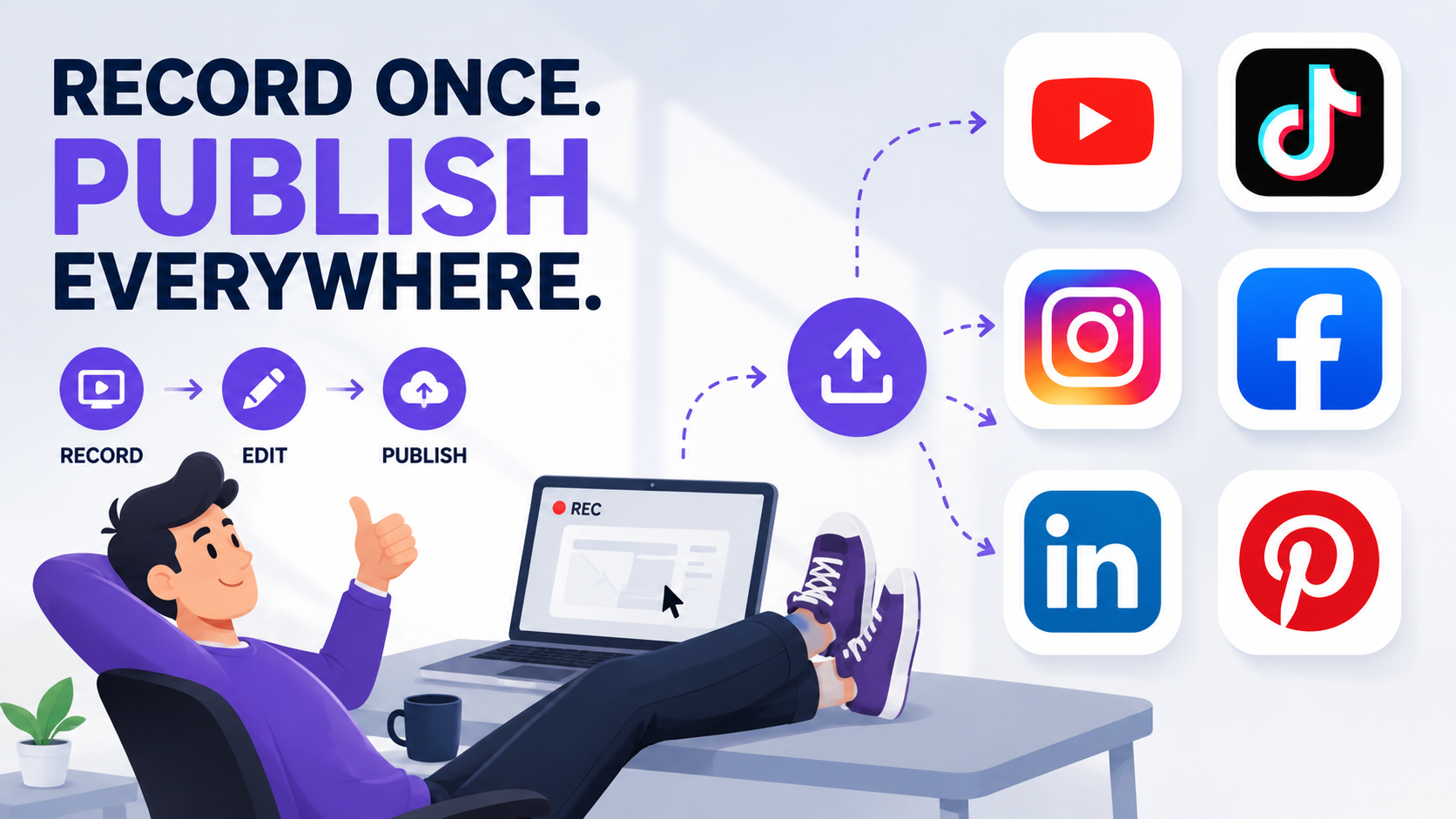
Podsplice is screen recording software that automatically posts your videos to YouTube, TikTok, Instagram, Facebook, LinkedIn, and Pinterest. Record once, add your title and thumbnail, and publish everywhere without logging in over and over again.
Browser-based recordings often export WebM files that create headaches in Premiere Pro, DaVinci Resolve, and Final Cut Pro. This guide explains why WebM causes editing problems, why separate tracks matter, and how Podsplice exports editing-ready MP4 and WAV files for smoother workflows.
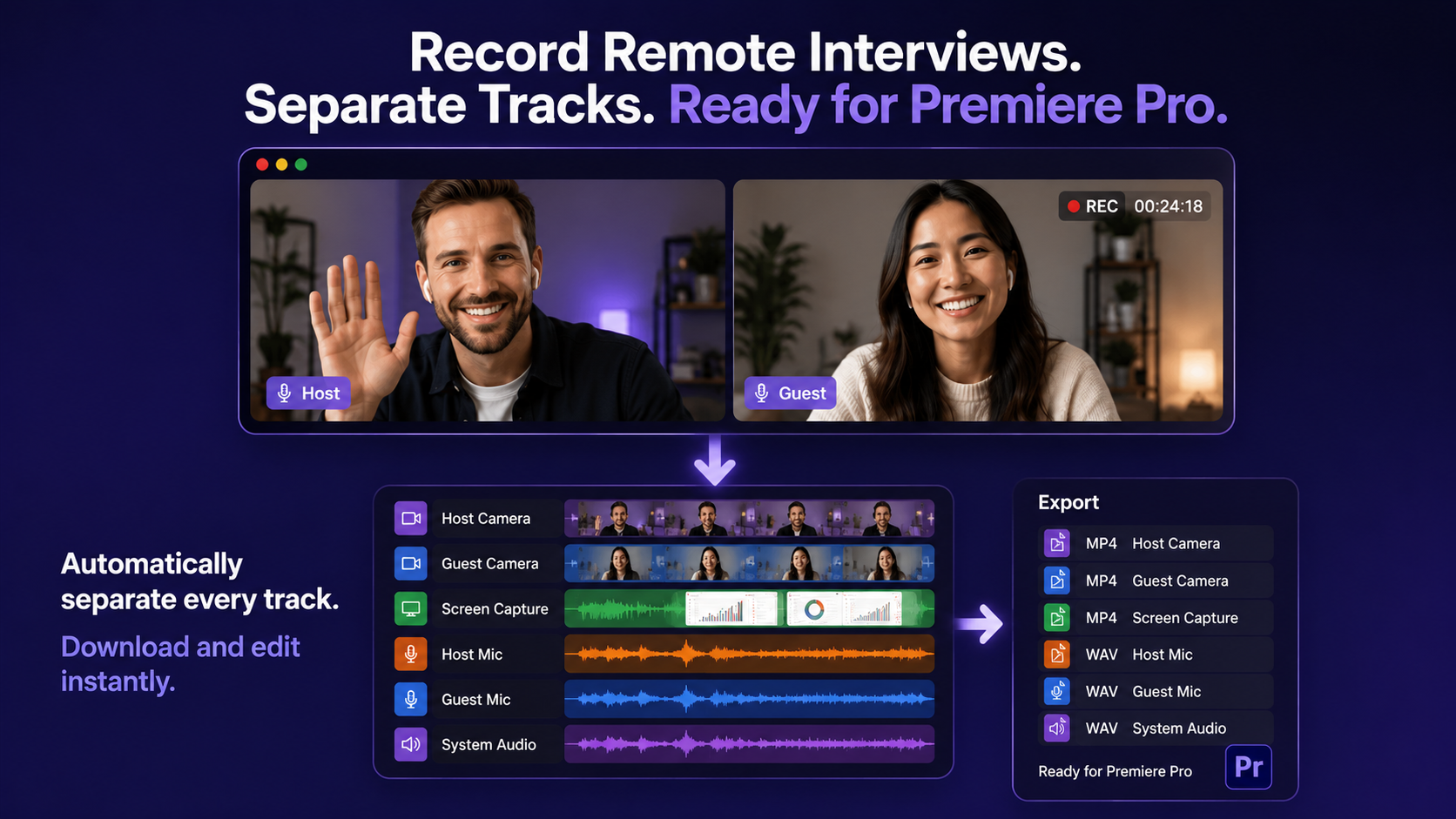
Most browser recorders export WebM — a format Premiere Pro doesn't support natively — and merge everything into one file. No separate tracks. No clean edit. Here's the workflow that actually works for professional remote interviews.
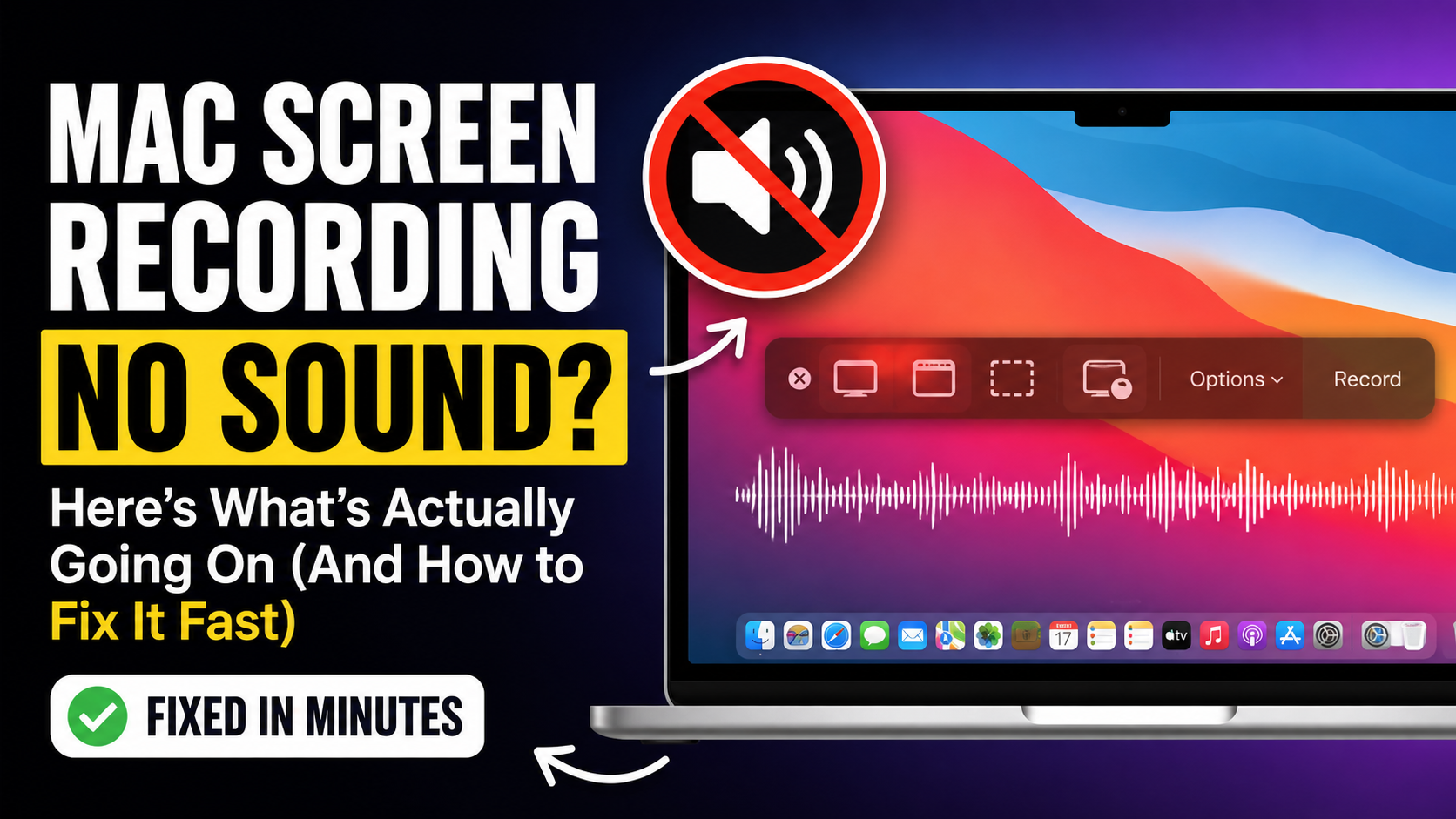
Mac screen recording no sound? Discover why system audio isn’t captured by default—and how to fix it fast without BlackHole, OBS, or complicated setup.
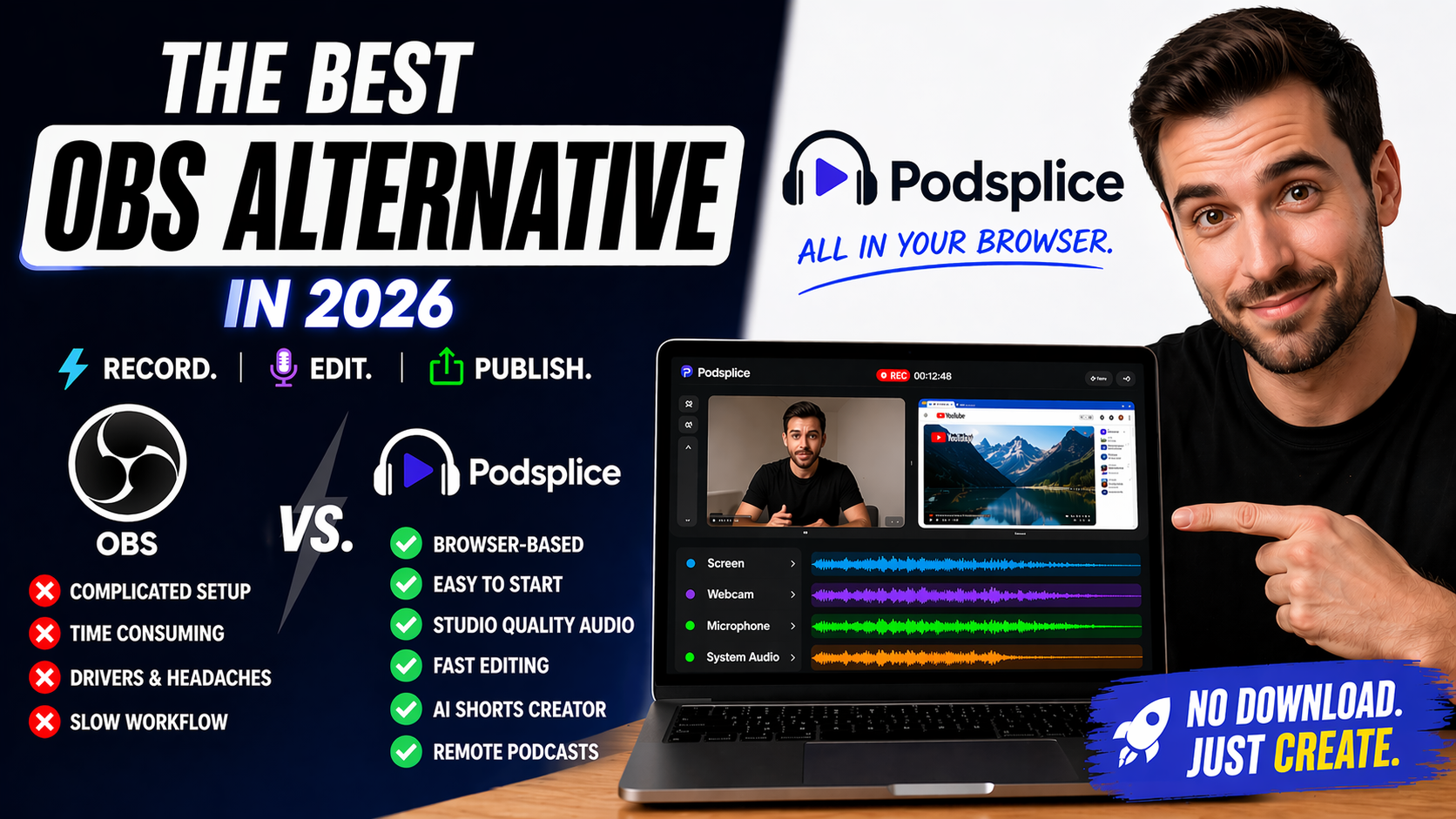
Looking for the best browser-based OBS alternative in 2026? Podsplice helps creators record screen, webcam, mic, and system audio with no download required. Faster workflow, easier setup, separate tracks, remote podcasts, and AI shorts creation—all directly in your browser.

Need to record system audio in 2026? Learn why Podsplice is the best and easiest way to capture internal audio on Mac or Windows without BlackHole, OBS, or downloads. Record your mic and computer audio on separate tracks using a browser-based workflow that saves hours of editing.
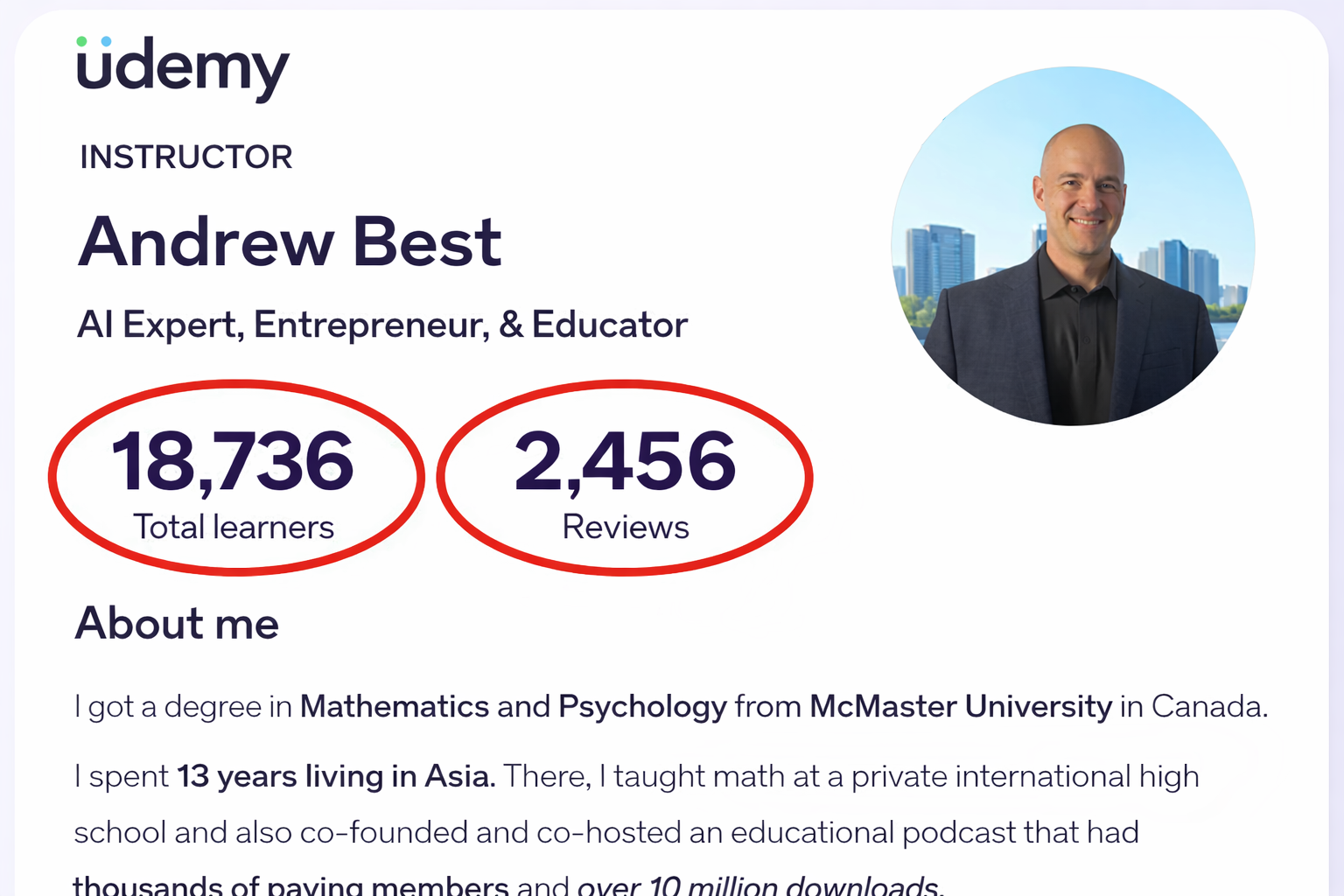
Stop fighting with software. Udemy instructor Andrew Best shares why Podsplice is the easiest screen recorder for online course creators. Record system audio, separate tracks, and 4K video without downloads.
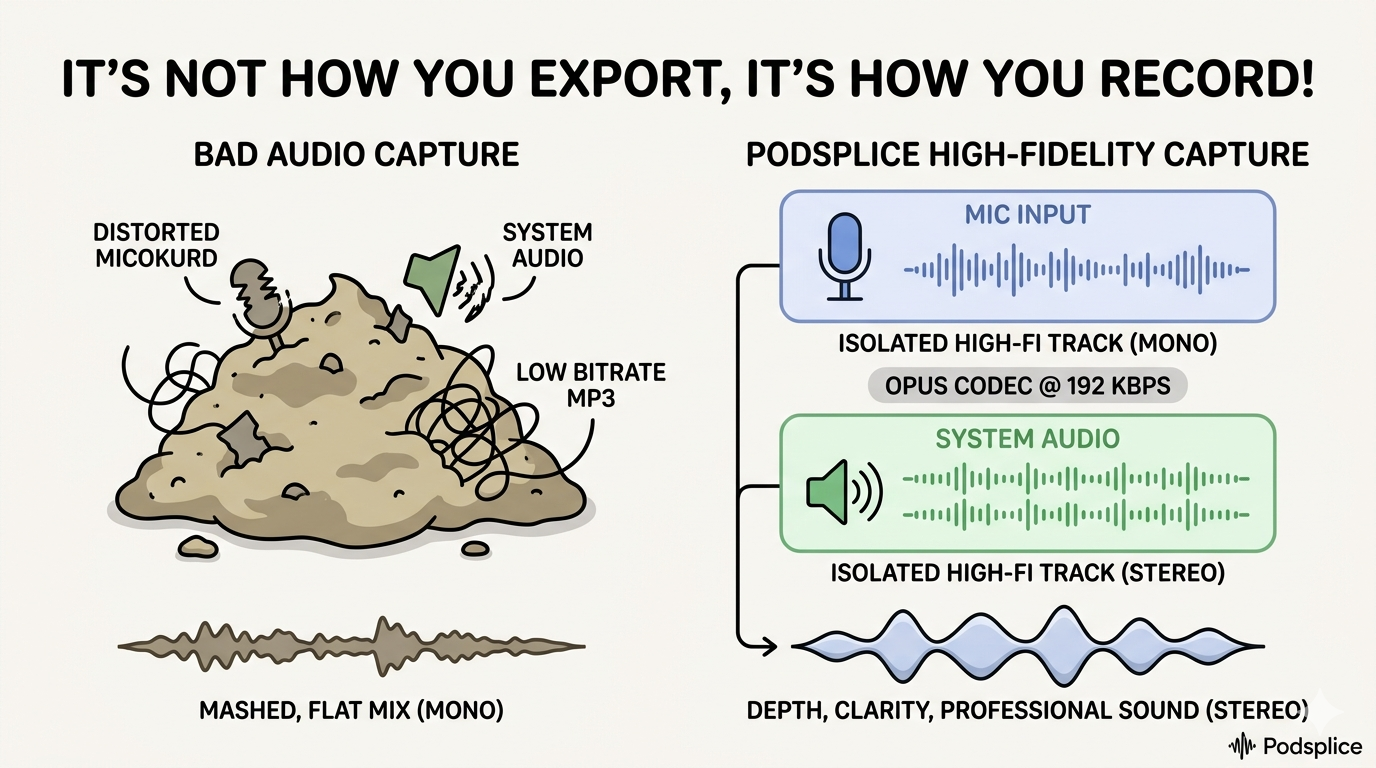
For podcasters and course creators, the "Capture" is everything. Stop recording to legacy MP3s that cause audio drift. Podsplice uses 192kbps Opus in a WebM container for crash-proof, studio-grade masters. Whether for YouTube or affiliates, record the best—then export to AAC or MP3.
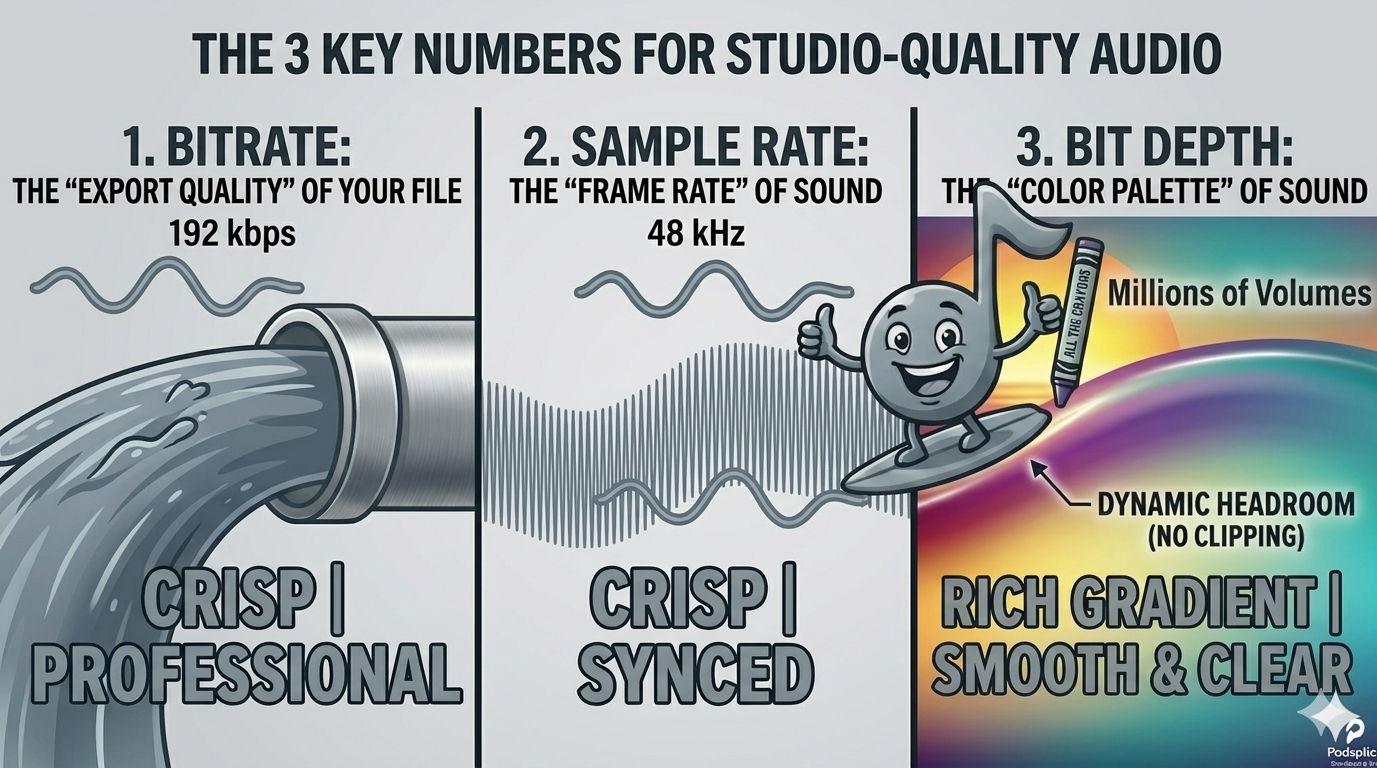
Master studio-quality audio! Learn how Bitrate, Sample Rate, and Bit Depth impact your podcast, online course, or screen share reaction video. This guide breaks down technical jargon into simple analogies, helping creators eliminate muffled sound and "digital hiss" for a professional finish.
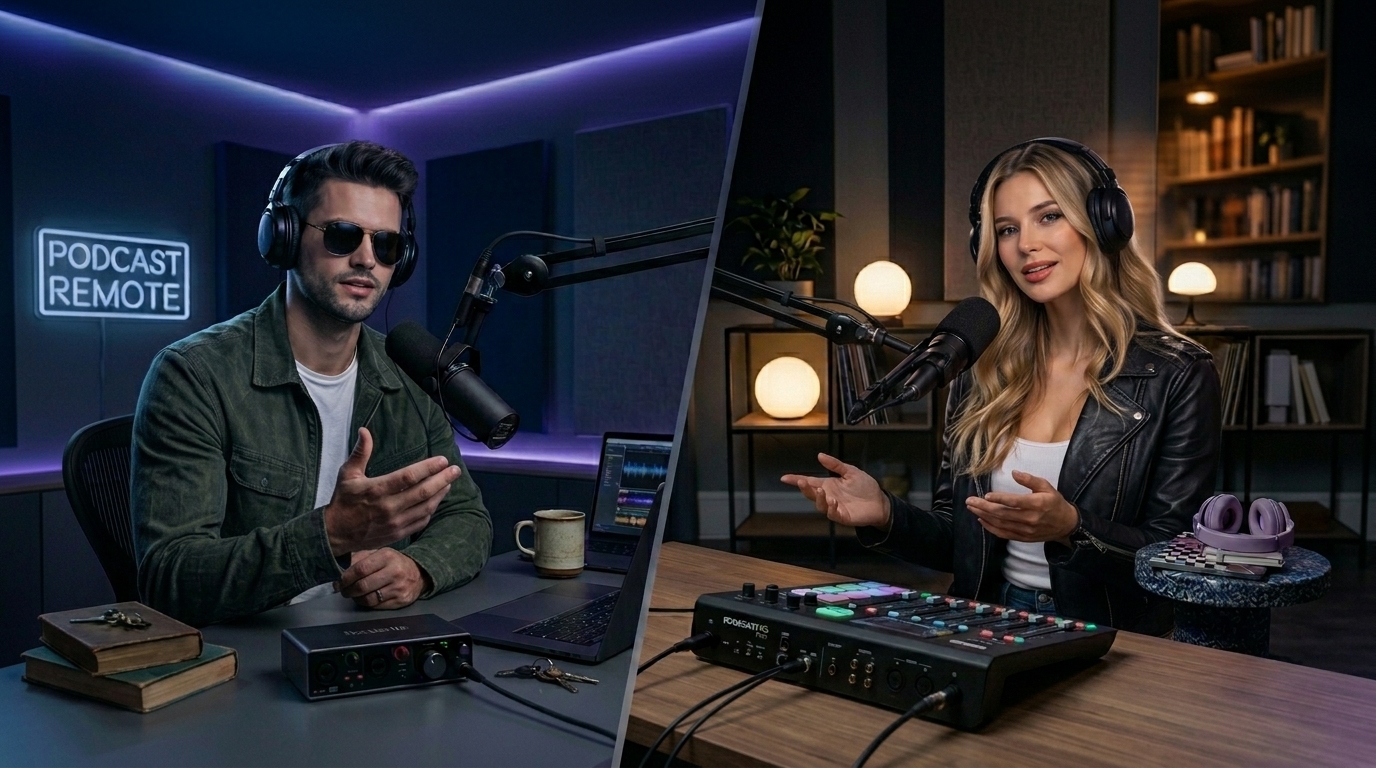
Achieve studio-grade audio and frame-perfect 4K video by recording guests locally using the double-ender method.
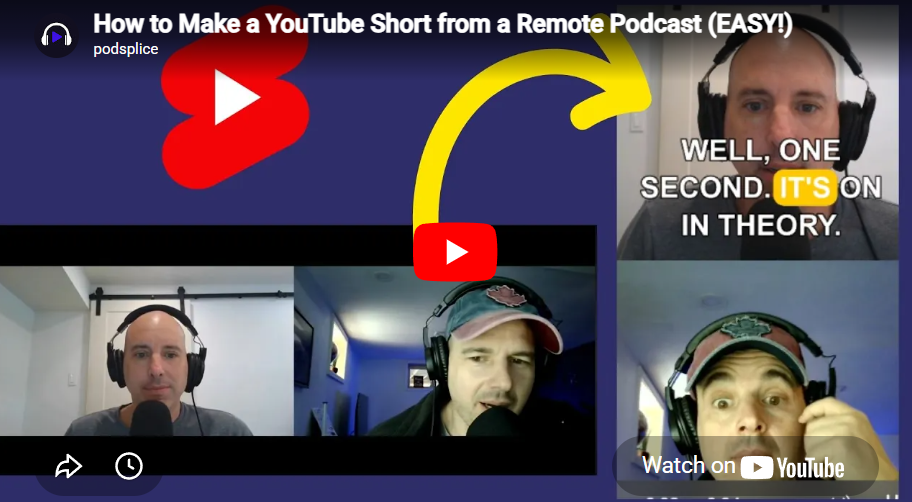
Use our AI text editor to instantly convert long-form videos into engaging vertical Shorts with karaoke subtitles.
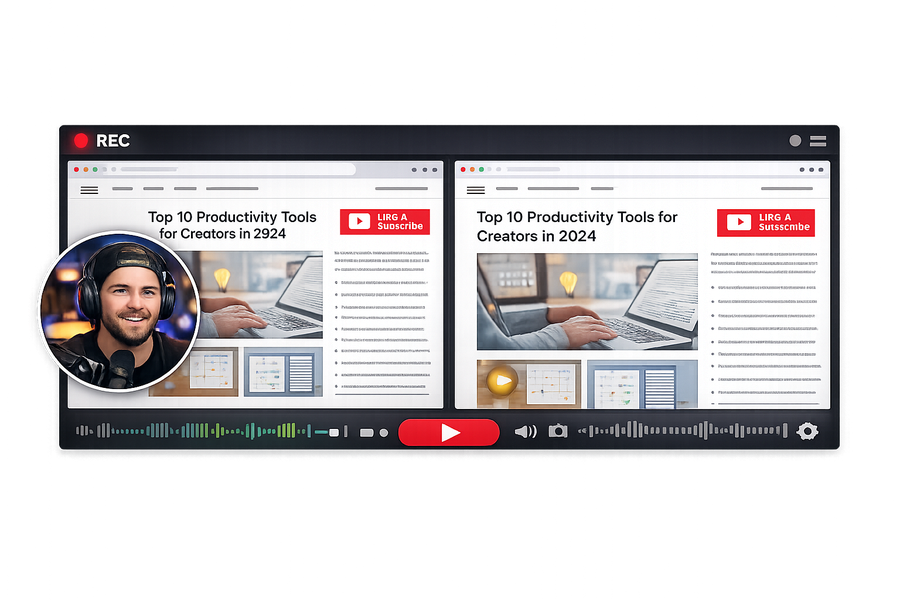
Learn how to use our multi-track video editor to adjust sizing, crop layers, and mix separate audio tracks easily.
Step-by-step guide on recording engaging faceless content like software tutorials or gameplay without being on camera.
Learn how to capture YouTube system audio flawlessly while recording your reaction using your mic and webcam.
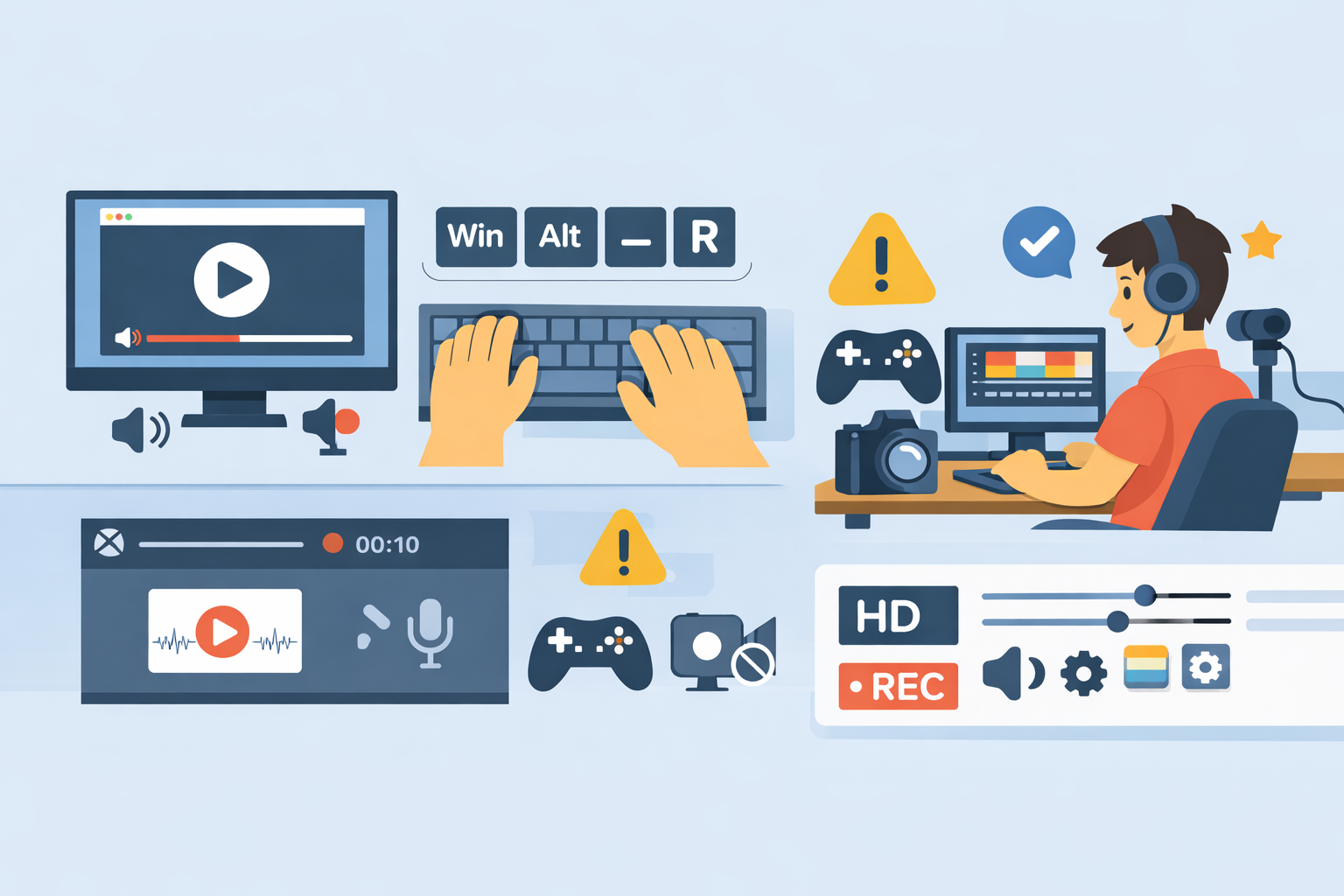
How to record screen with system audio on Windows using Windows + Alt + R. Step-by-step guide, limitations of Game Bar, and a better option for creators who need high-quality recordings.
Stop wasting money on fancy gear. You can get studio-grade sound for your courses and YouTube videos with a $25 mic and the right software. Learn why separate tracks, 192 kbps, and proper placement are the real secrets to making your screen recordings sound incredible.
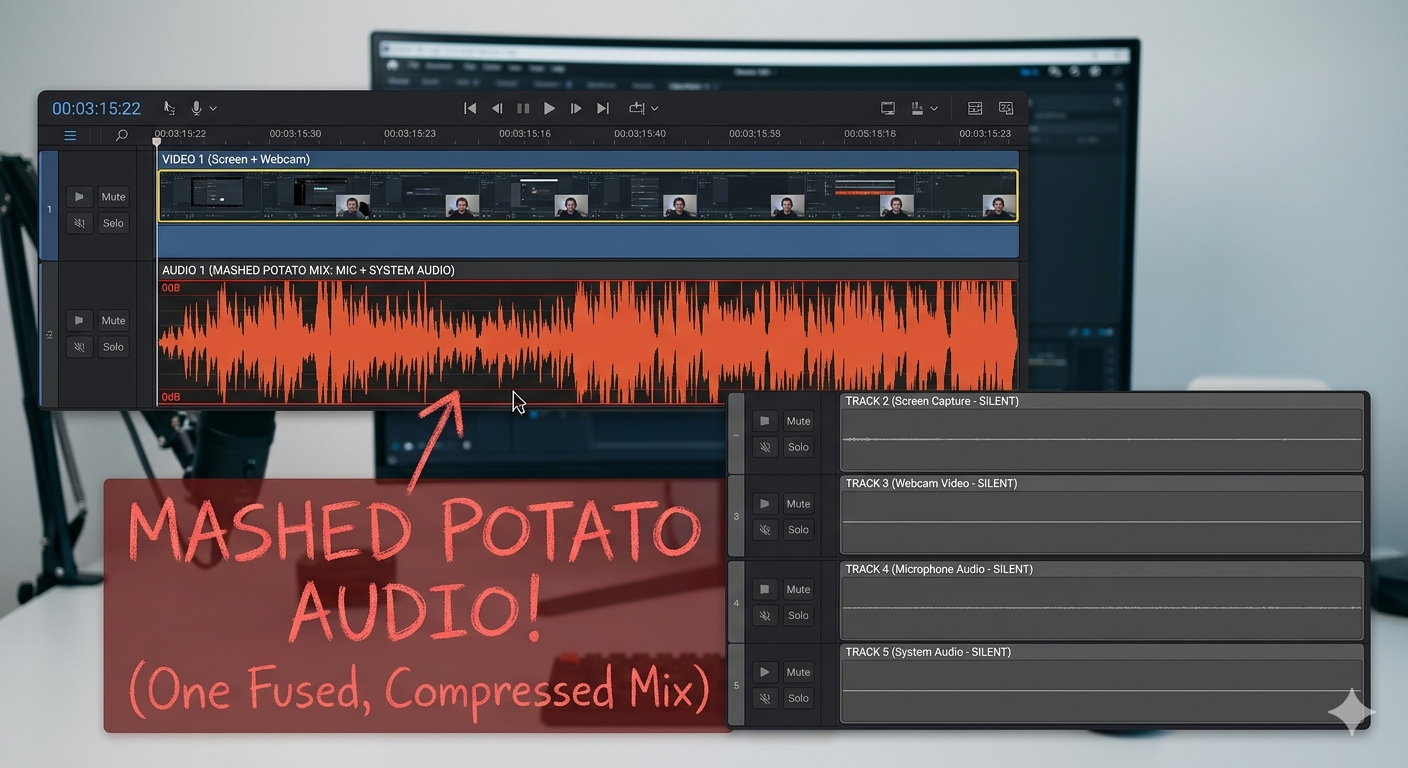
Stop recording "silent movies." Most screen recorders miss the sound coming from your computer—known as system audio. Learn why tools like Mac’s QuickTime fail, how to escape the "Mashed Potato" audio mix, and why Podsplice’s 2026 browser-native approach is the 1-click fix for creators.
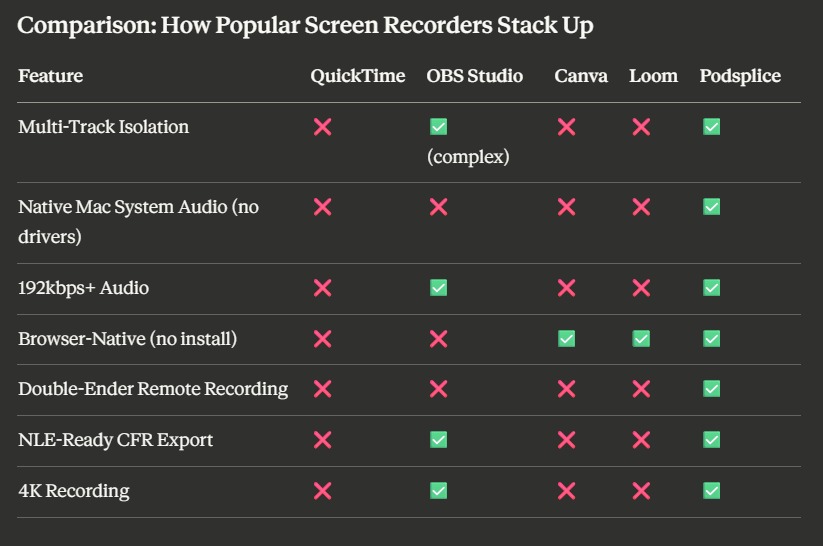
Don't settle for meeting-grade tools. Learn the exact features—from multi-track isolation to native Mac system audio—that separate professional screen recorders from the rest.
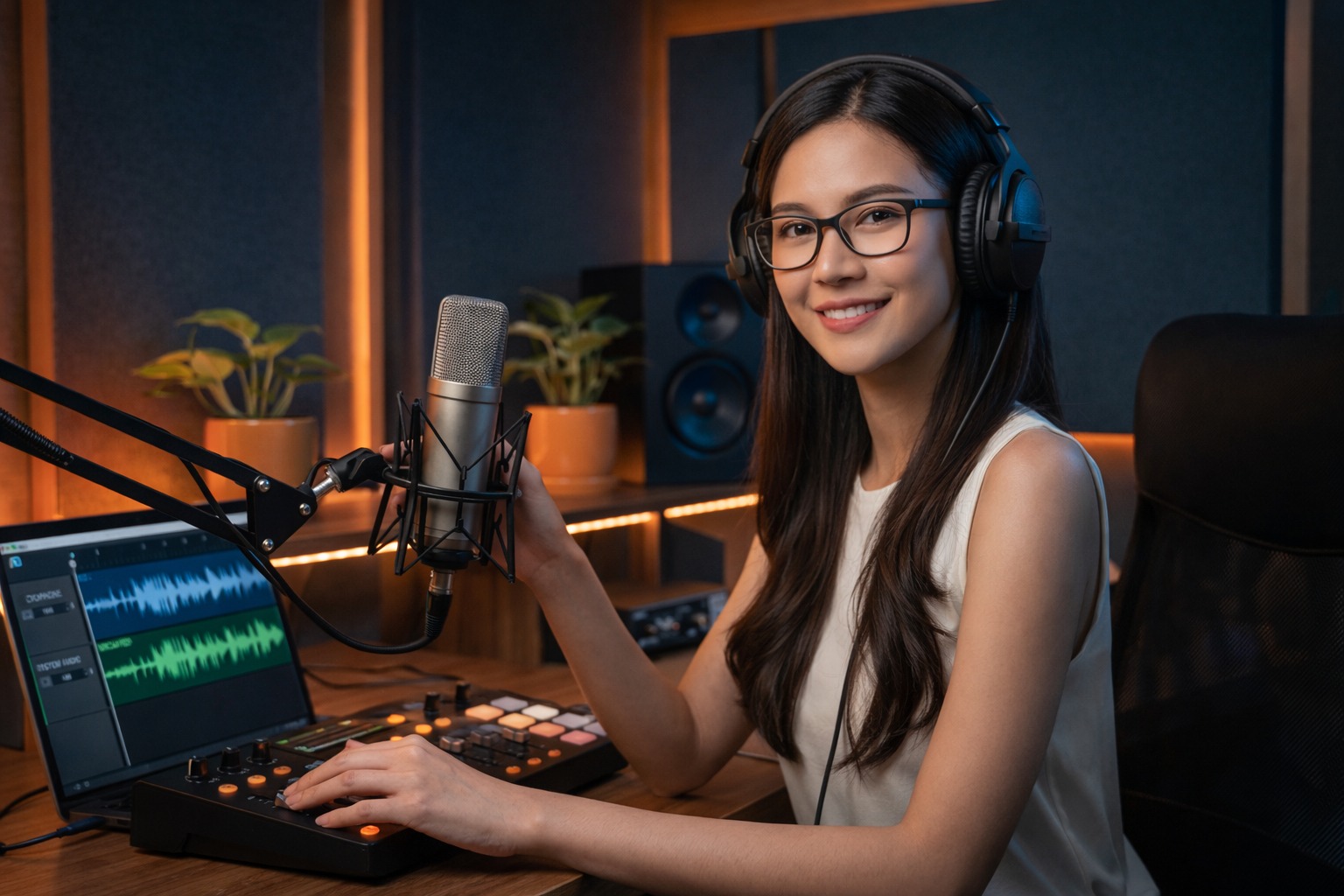
Most screen recorders "bake" your voice and system audio into one unfixable file. Learn what multi-track isolation is, why it matters for reaction videos and podcasts, and how Podsplice captures 4 separate tracks with zero configuration.
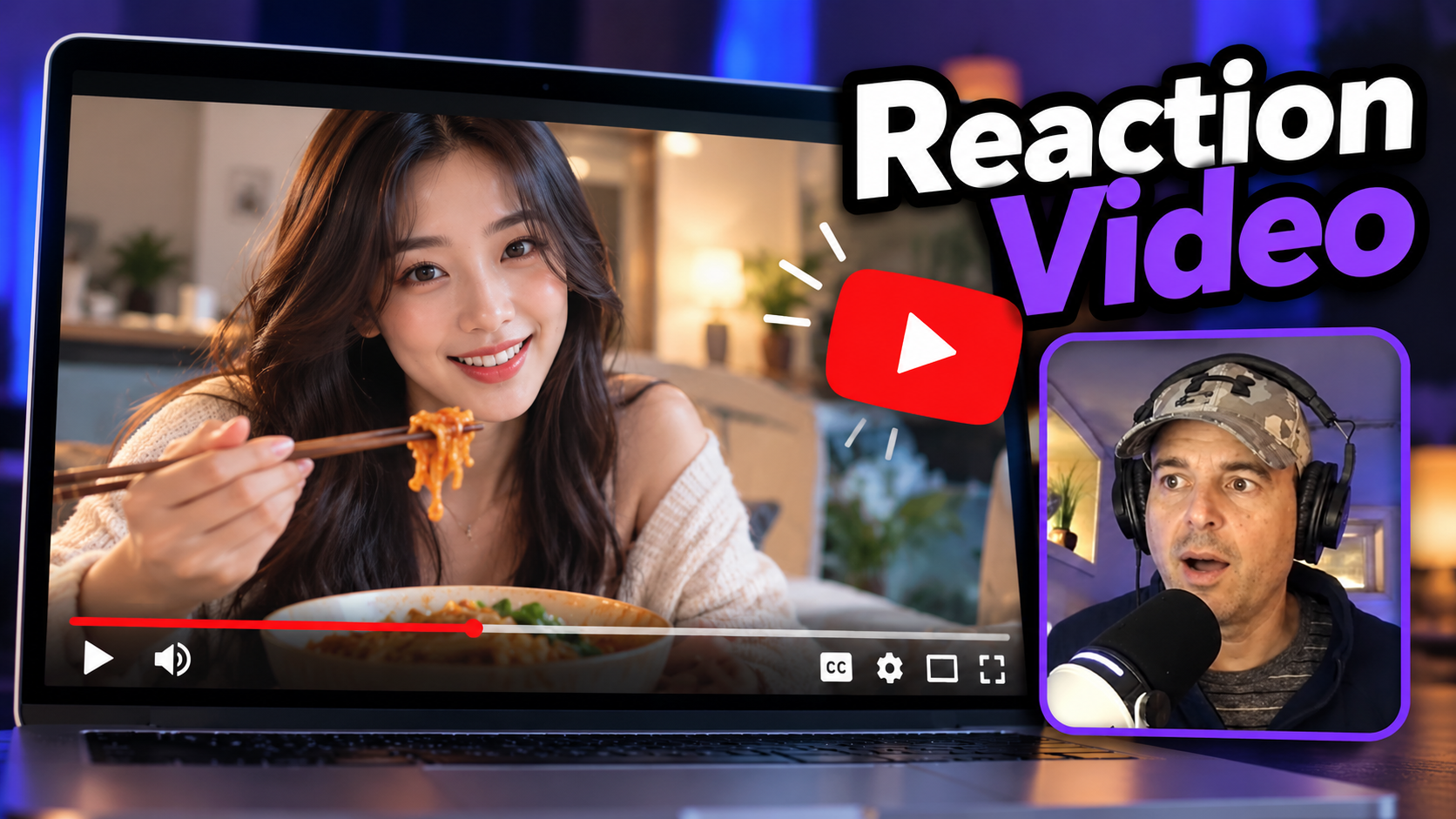
The best and easiest way to make a reaction video is to do it in your browser with Podsplice. Podsplice lets you capture system audio (the sound from the video you’re reacting to) along with your mic, camera, and screen.