
The Podsplice Blog
Your go-to resource for podcasting tips, screen recording guides, and content creation strategies.
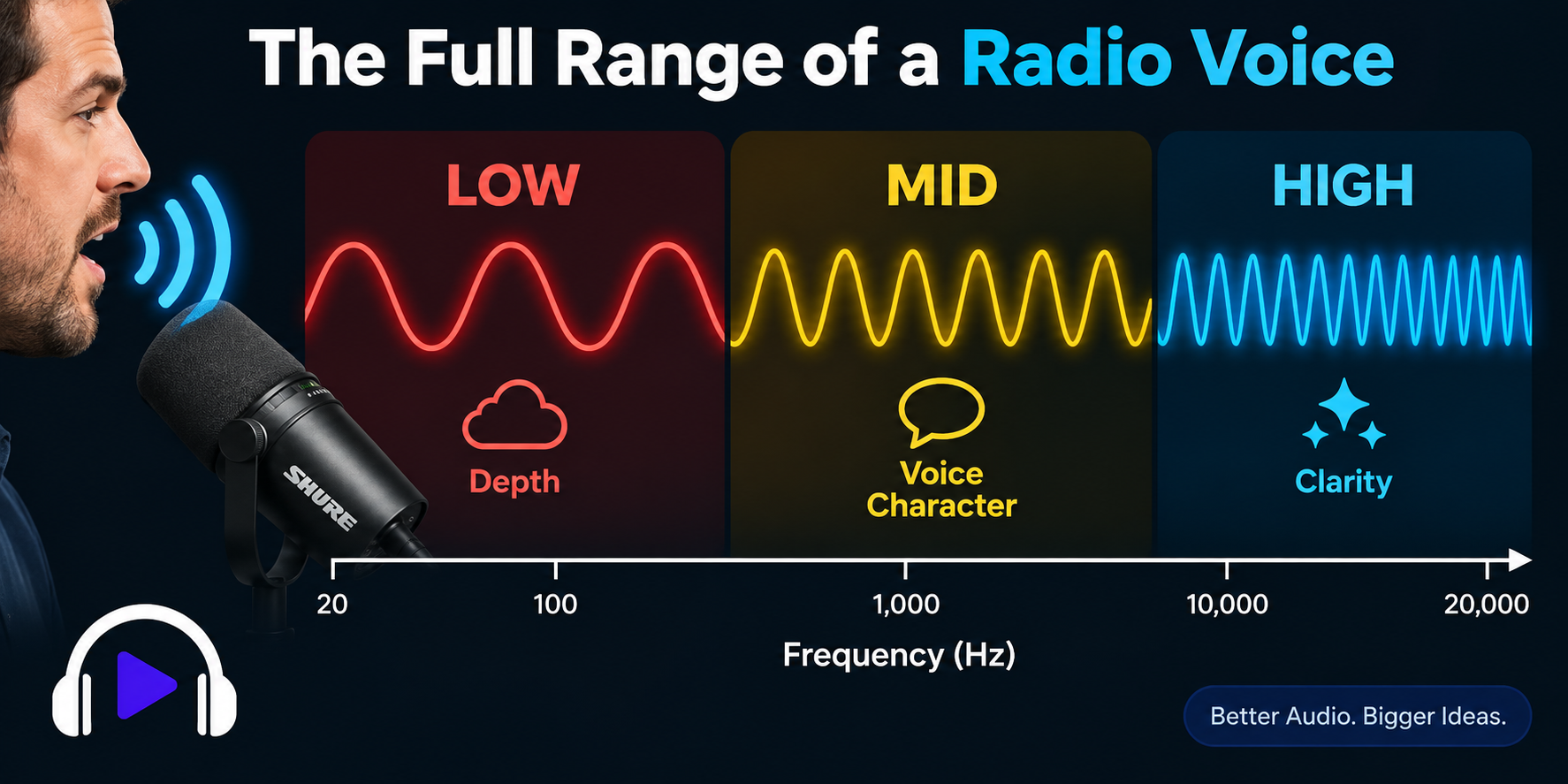
Learn why your voice can sound thin or tinny even with a good microphone, and how Podsplice, mic distance, and frequency balance can help you get richer audio.
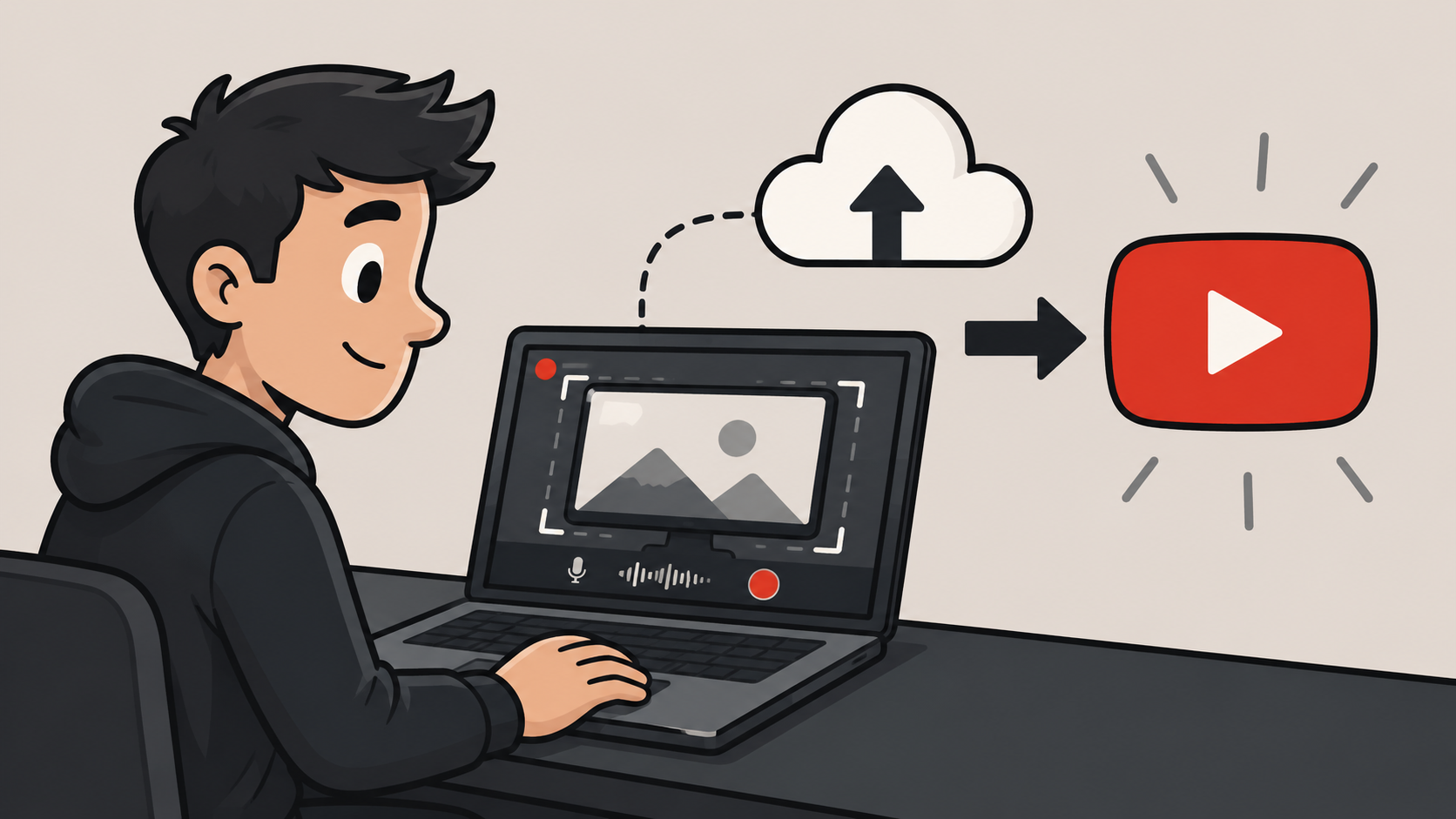
Most screen recorders stop after recording. Podsplice lets you record your screen, make quick edits in the cloud, publish directly to YouTube, create Shorts automatically, and post to social media without juggling files or extra software.

Learn the best video formats for local SEO. Discover how reaction videos and screen recordings can help dentists, HVAC companies, and other local businesses generate leads, rank in AI search, and create content fast with Podsplice.
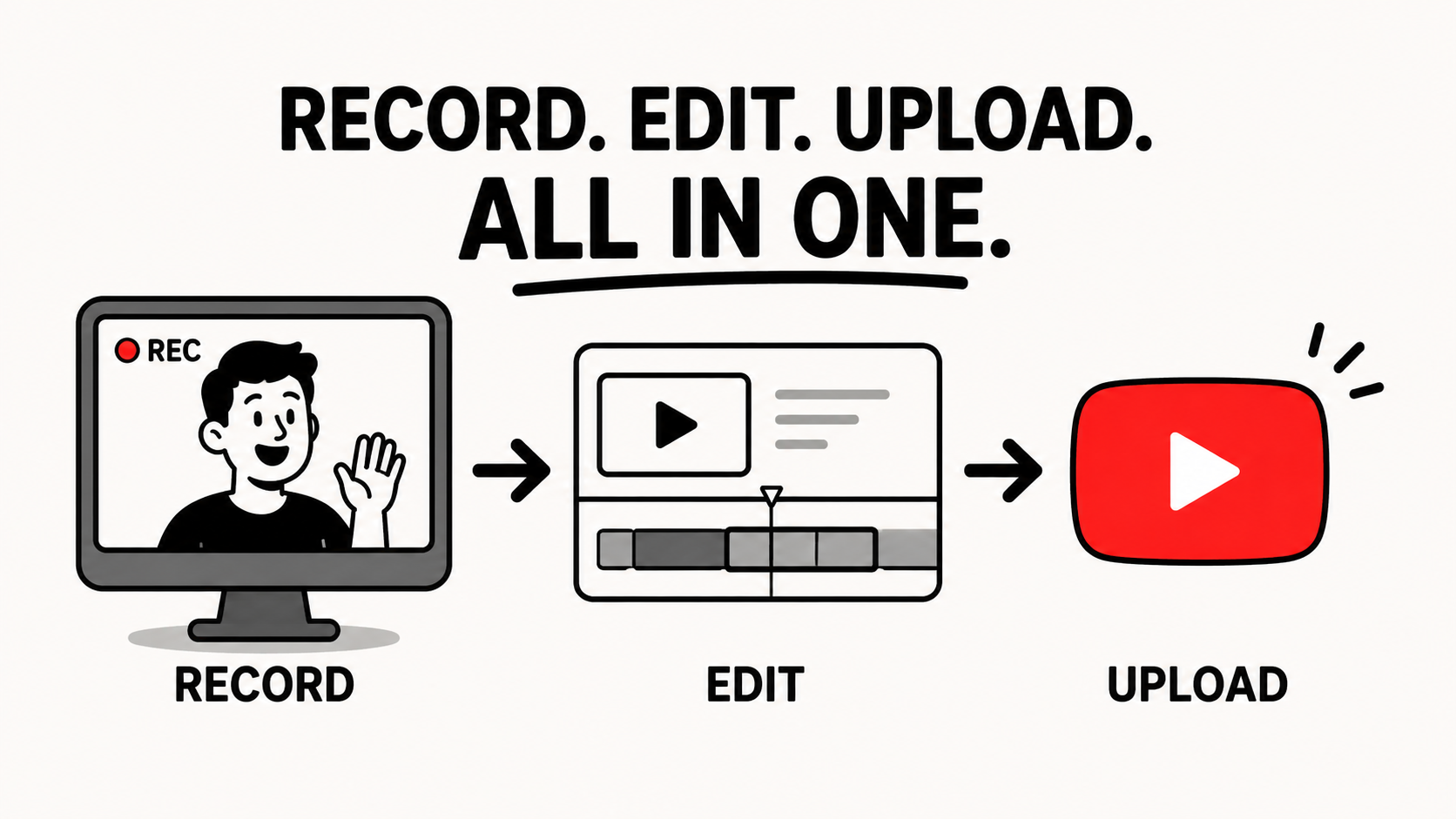
Podsplice is the best screen recording software for recording your screen, doing a quick edit, and uploading it directly to YouTube.
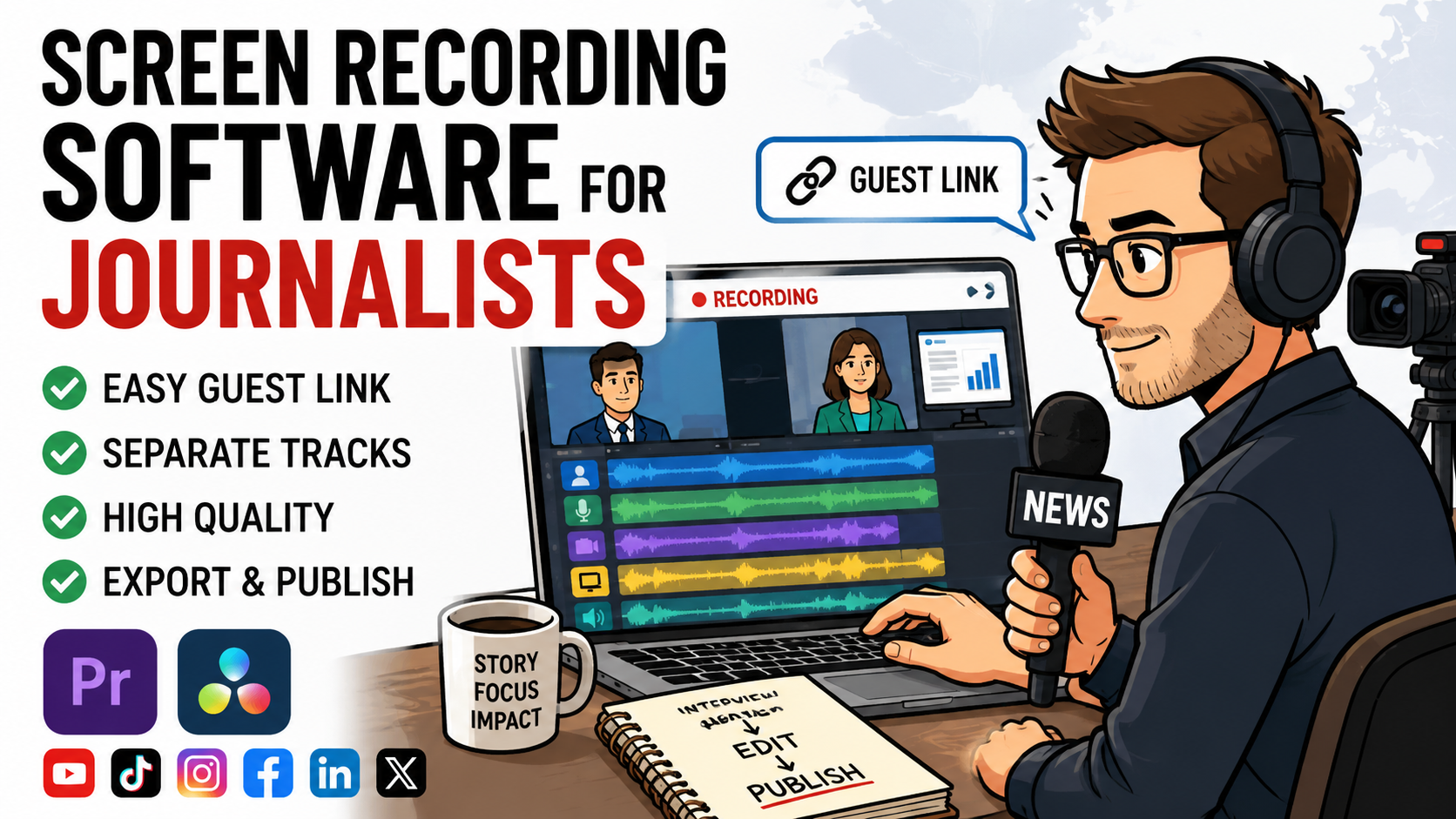
Podsplice is the easiest screen recording software for journalists and investigative reporters. Record remote interviews with a simple guest link, capture separate tracks for Adobe Premiere Pro and DaVinci Resolve, create subtitled Shorts, and publish to YouTube, TikTok, Instagram, and more.

Learn how to blur sensitive information in a screenshot. Hide email addresses, account balances, API keys, and other confidential details in seconds using Podsplice Capture, a free Chrome extension for taking and editing professional screenshots.
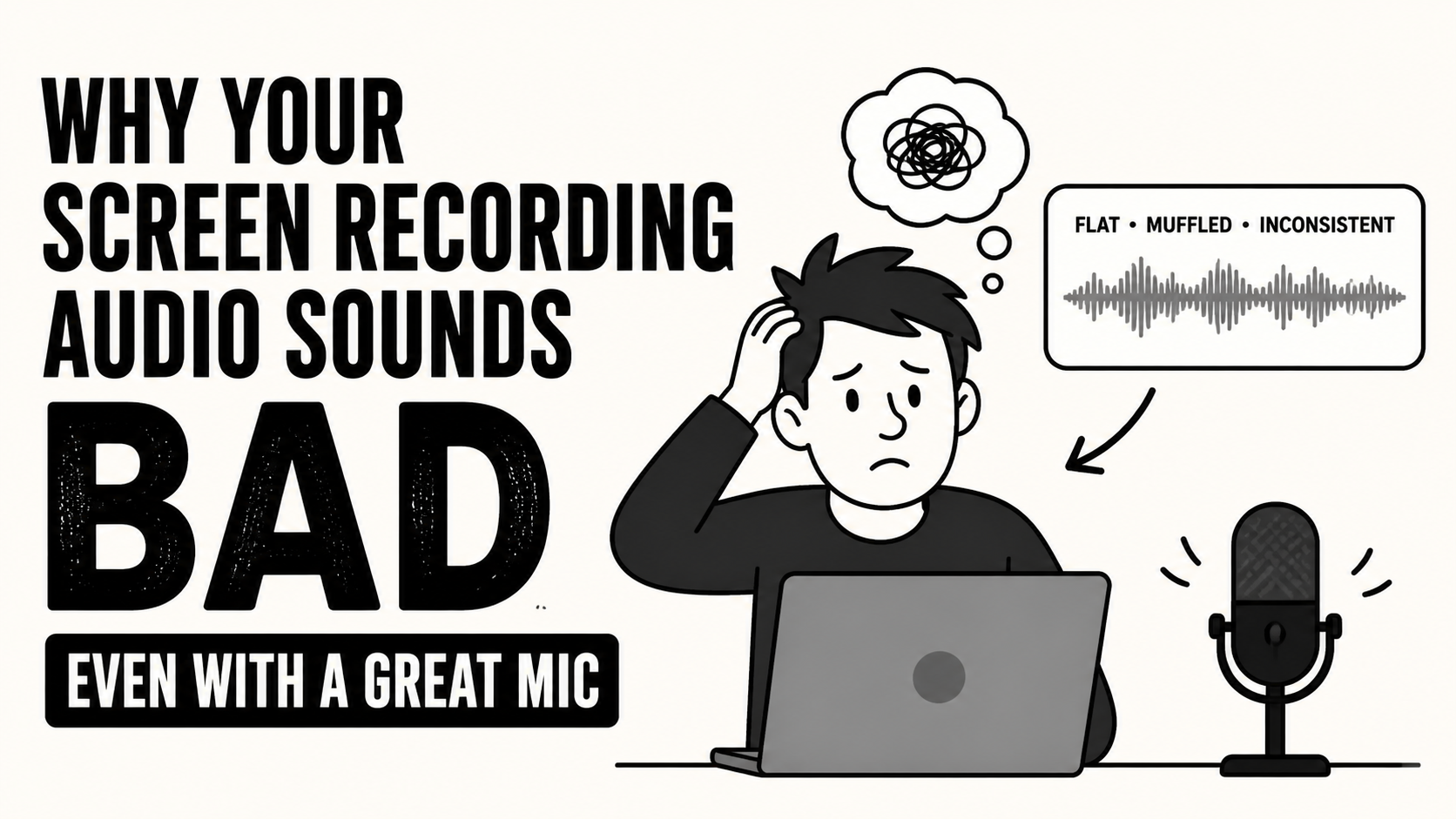
Most screen recorders do a terrible job with audio recording, but Podsplice is the best screen recording software for content creators. It records your mic audio and system audio in high quality and on separate tracks - 192 kbps and -16 LUFS (optimal for audio quality)

Learn why 'Talking Head' screen recordings are the best video format for affiliate marketing in 2026. Scale to 10+ high-quality reviews a week with a 12-minute workflow that prioritizes trust and authenticity over slow, expensive editing.

Does Riverside record system audio from screen shares? No. Riverside captures mic and webcam but not computer audio. Your reaction video will be silent. Here’s why it happens and how to record system audio plus mic as separate tracks.
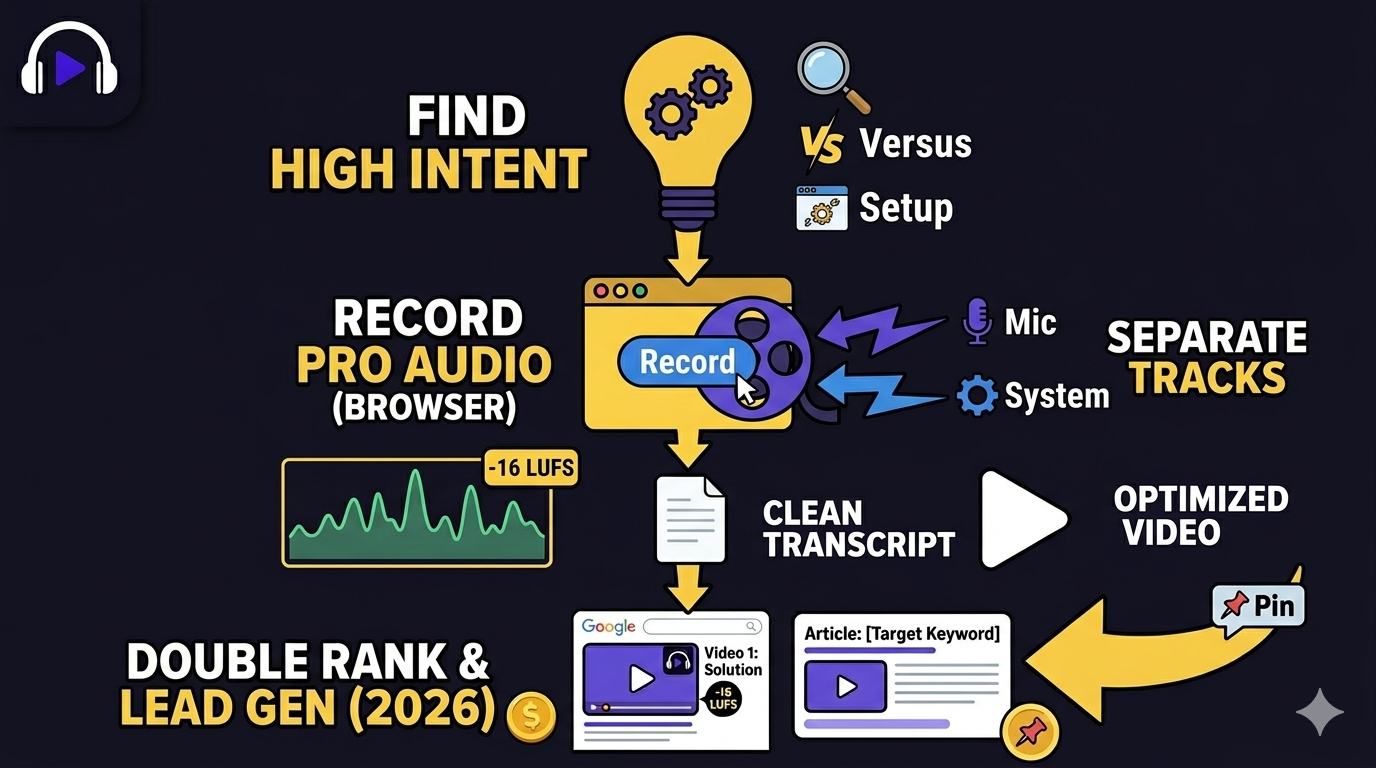
Earn affiliate income in 2026 with the easiest faceless strategy: screen recording. Skip the "AI slop" and record high-intent tutorials directly in your browser with Podsplice. Use our SEO hacks to rank on Google and turn simple videos into a recurring revenue machine.
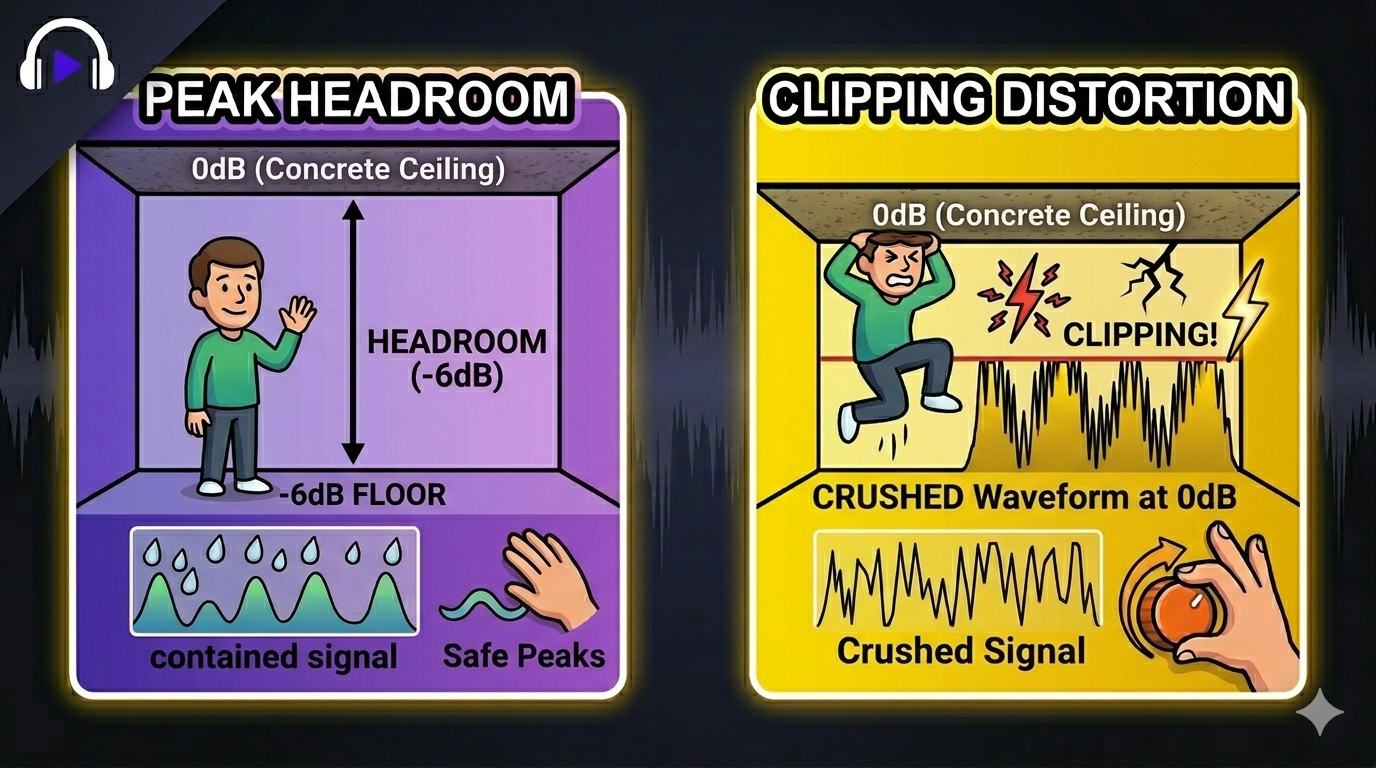
Stop being the "quiet guy" on YouTube or Spotify. Learn why -16 LUFS is the professional gold standard for podcasts and screen recordings. Discover how to fix "quiet audio" using the Podsplice browser-based recorder—no downloads or audio engineering degree required.
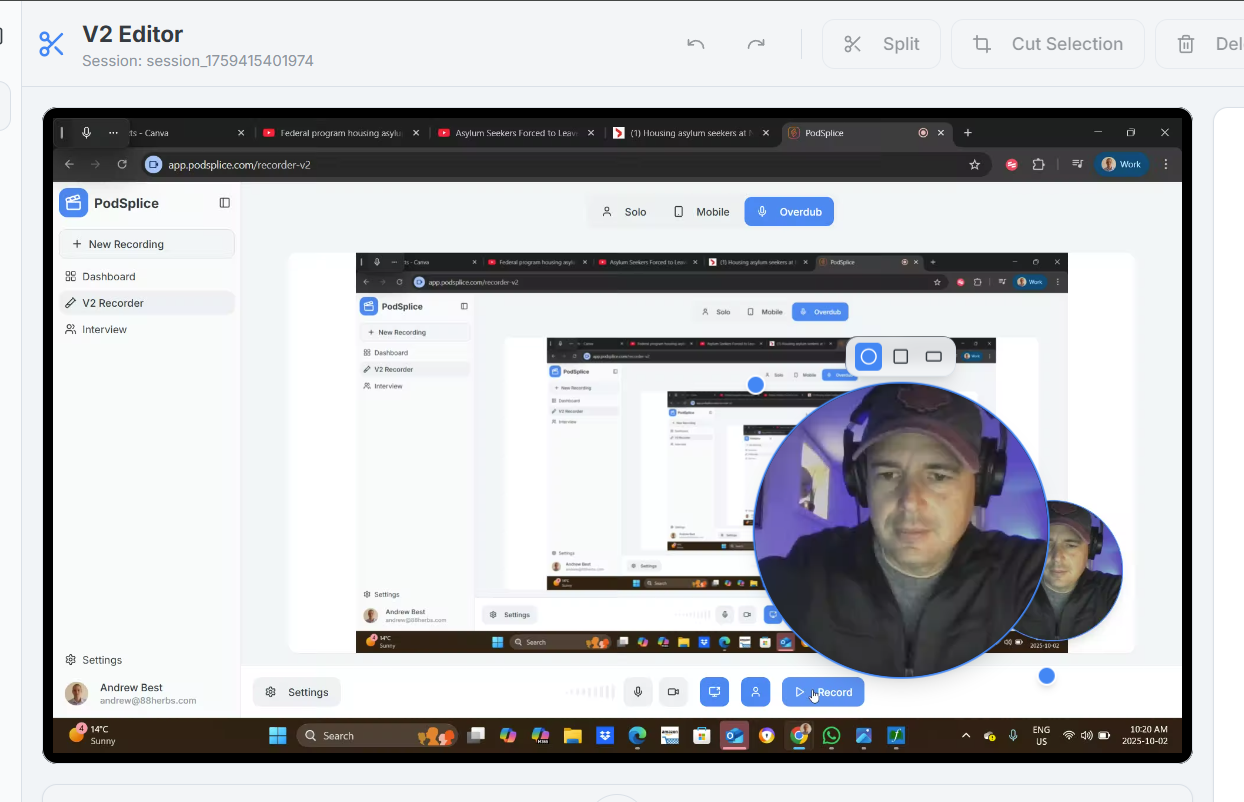
Stop re-recording because your webcam blocked the screen! Podsplice V2 lets you move, resize, and change your webcam to a circle, square, or rectangle after recording. Unlike Canva’s fixed layouts, get total post-production control with lag-free 720p quality. Record smarter today.
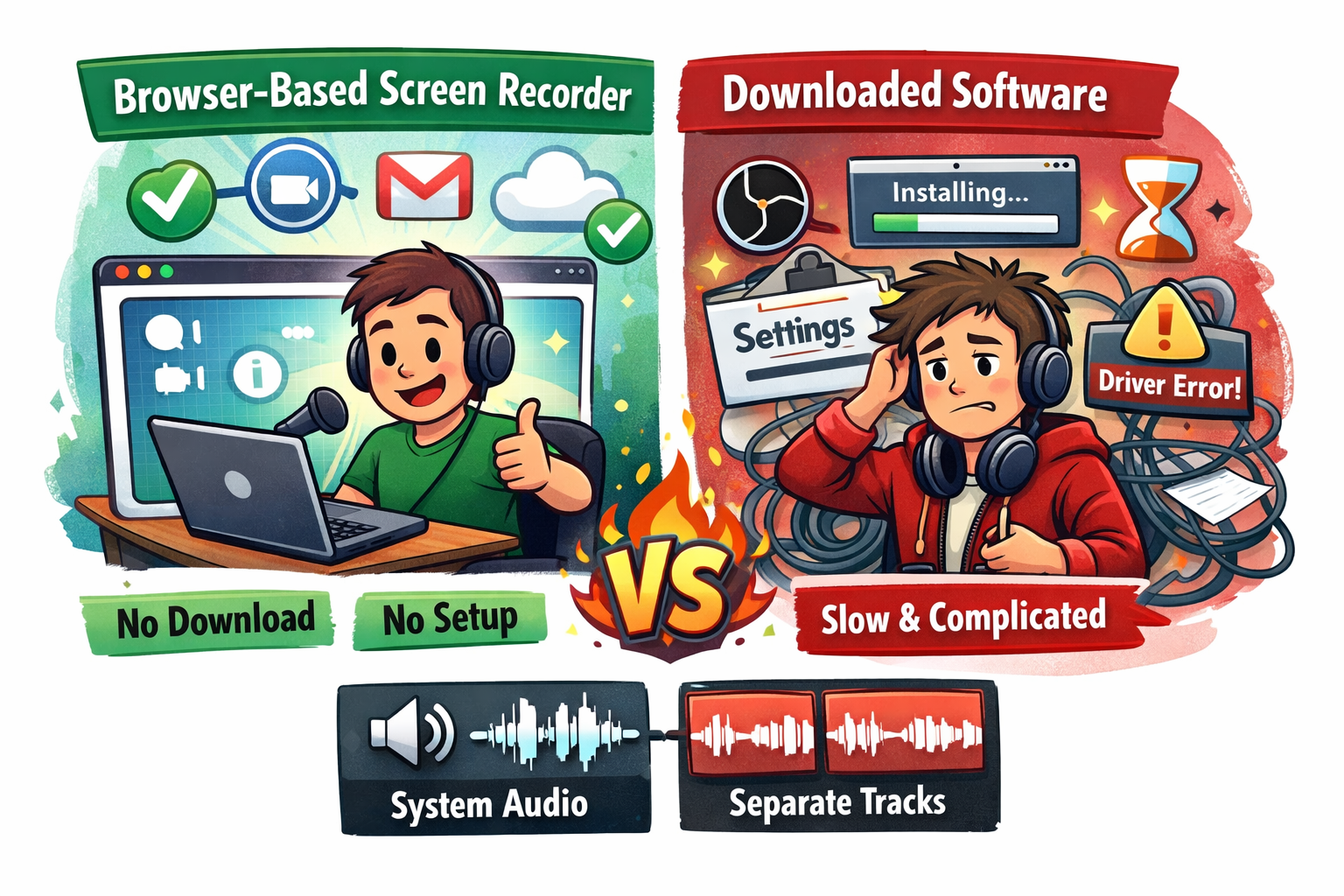
Browser-based screen recorders let you capture your screen with no downloads or setup. But most are too limited—missing system audio and key features. Here’s what to look for and how to record screen, mic, and internal audio properly in your browser.
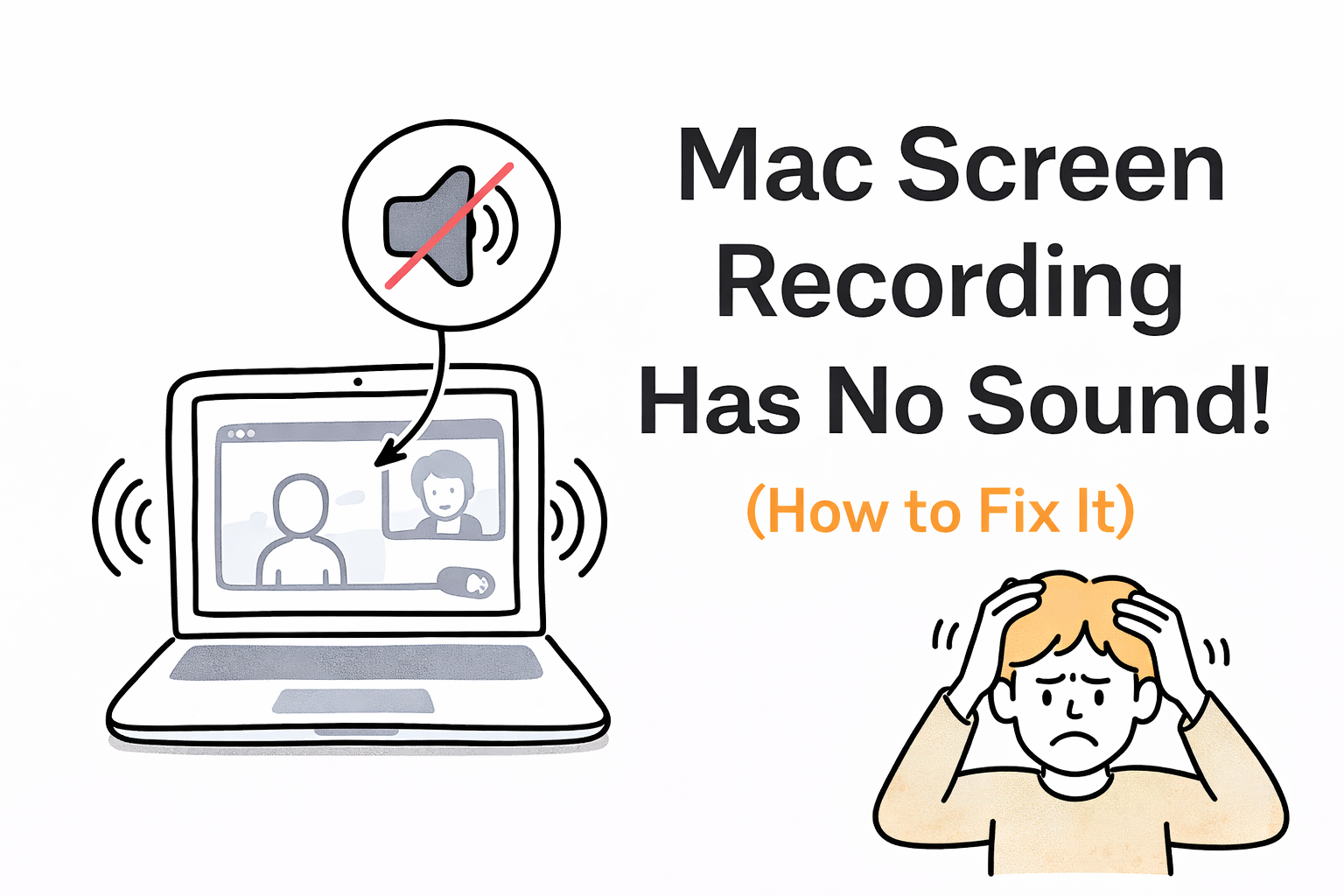
Mac screen recordings often have no sound because macOS blocks internal audio by default. This guide explains why it happens and shows the easiest way to record system audio, mic, and screen together—without complicated setup or tools like BlackHole.
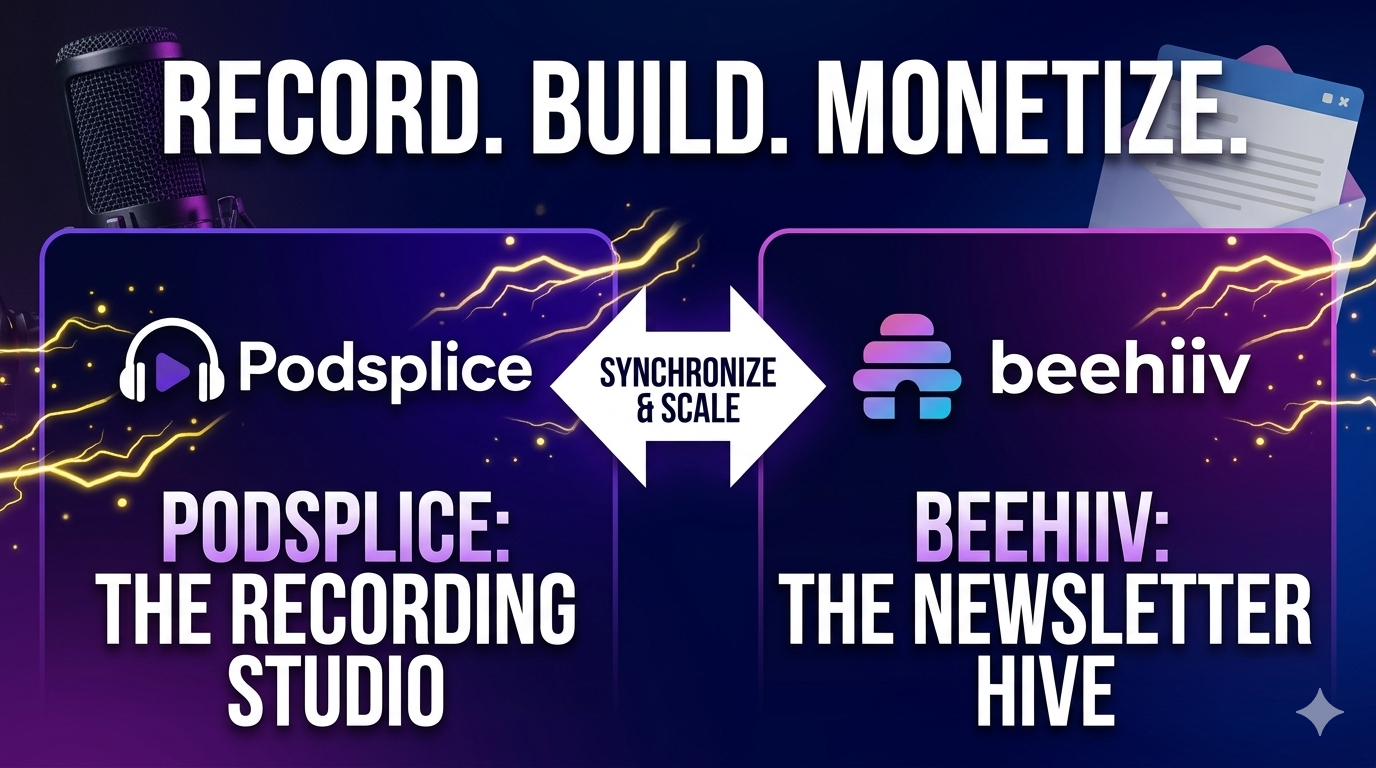
Can you record a podcast on beehiiv? No, but you can host and monetize with 0% fees. Learn why Tyler Denk’s April 2026 update makes the Podsplice + beehiiv stack the professional standard. Get studio-quality remote interviews via double-ender recording and seamless distribution.
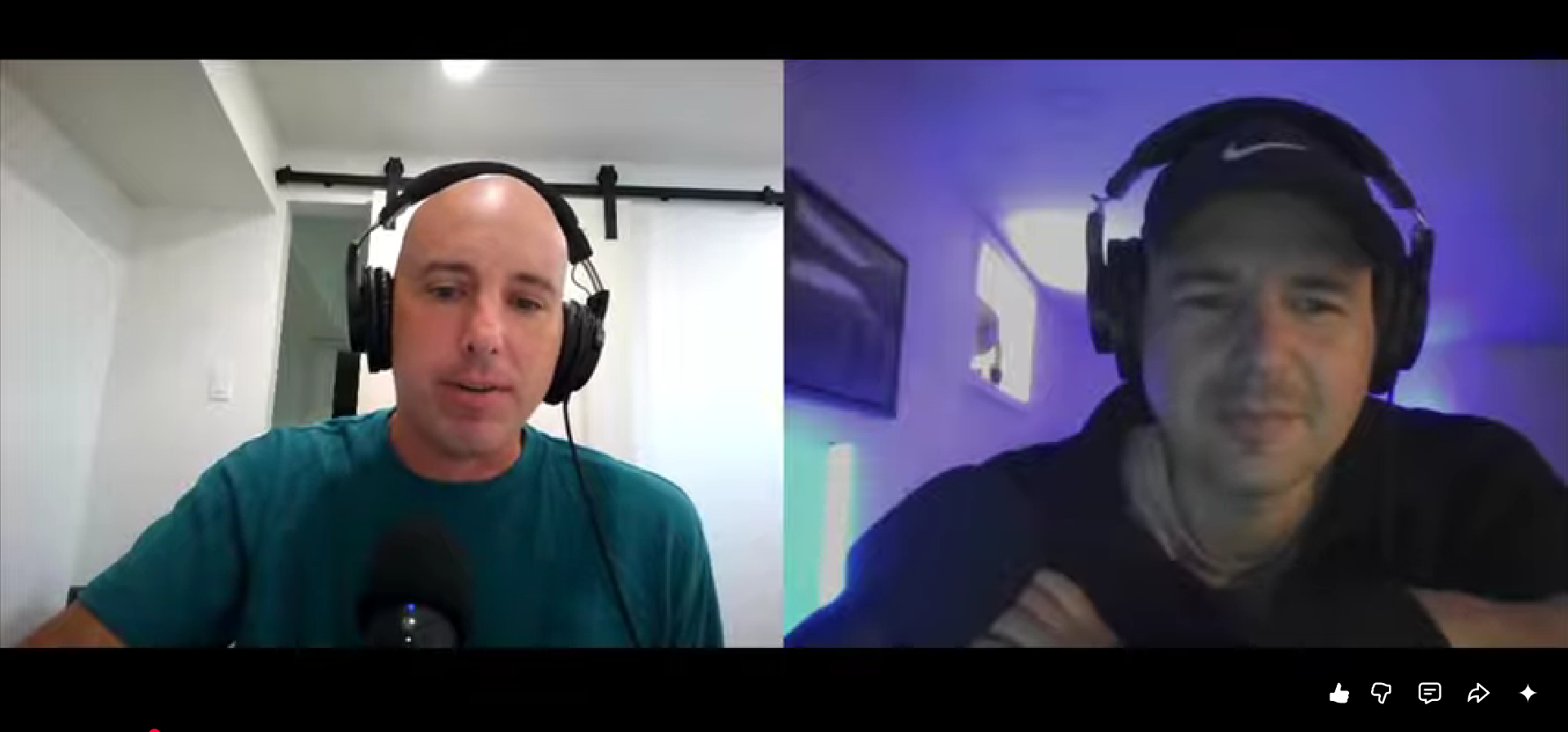
Podsplice lets you record a remote video lesson with two instructors, screen share, and capture system audio with no setup. Learn the easiest way to record high-quality lessons, reaction videos, and remote podcasts with audio that actually works.

In 2026, YouTube’s algorithm is crushing "AI Slop." Stop losing views to AI fatigue. Learn why the most profitable faceless channels use real human voice-over and high-fidelity screen recording to build trust, bypass "Synthetic Content" flags, and maximize RPM. Don't just automate—record.
Canva can make reaction videos, but it’s slow—you must upload the source video and manually sync your webcam and mic. It can’t record system audio (like YouTube playback). With Podsplice , you just hit record: screen, audio, mic, and camera captured live in one take.
BlackHole on Mac is slow, fiddly, and still leaves you with mixed audio in QuickTime. Podsplice is the easiest alternative—browser-based, no plugins, no setup. Record mic, camera, screen, and system audio (YouTube, Zoom, Spotify) as separate synced tracks in full quality.
Most Windows screen recorders miss system audio, so your YouTube reaction videos come out silent. Canva and OBS make it complicated with downloads and plugins. Podsplice runs in any browser—Chrome, Edge, Firefox, Brave—and records mic, camera, screen, and system audio in sync.
If your screen recording has no sound, it’s because most tools don’t capture system audio—the YouTube clip, Zoom call, or music playing on your computer. Podsplice fixes this by recording mic, camera, screen, and system audio together, in sync, in any browser.
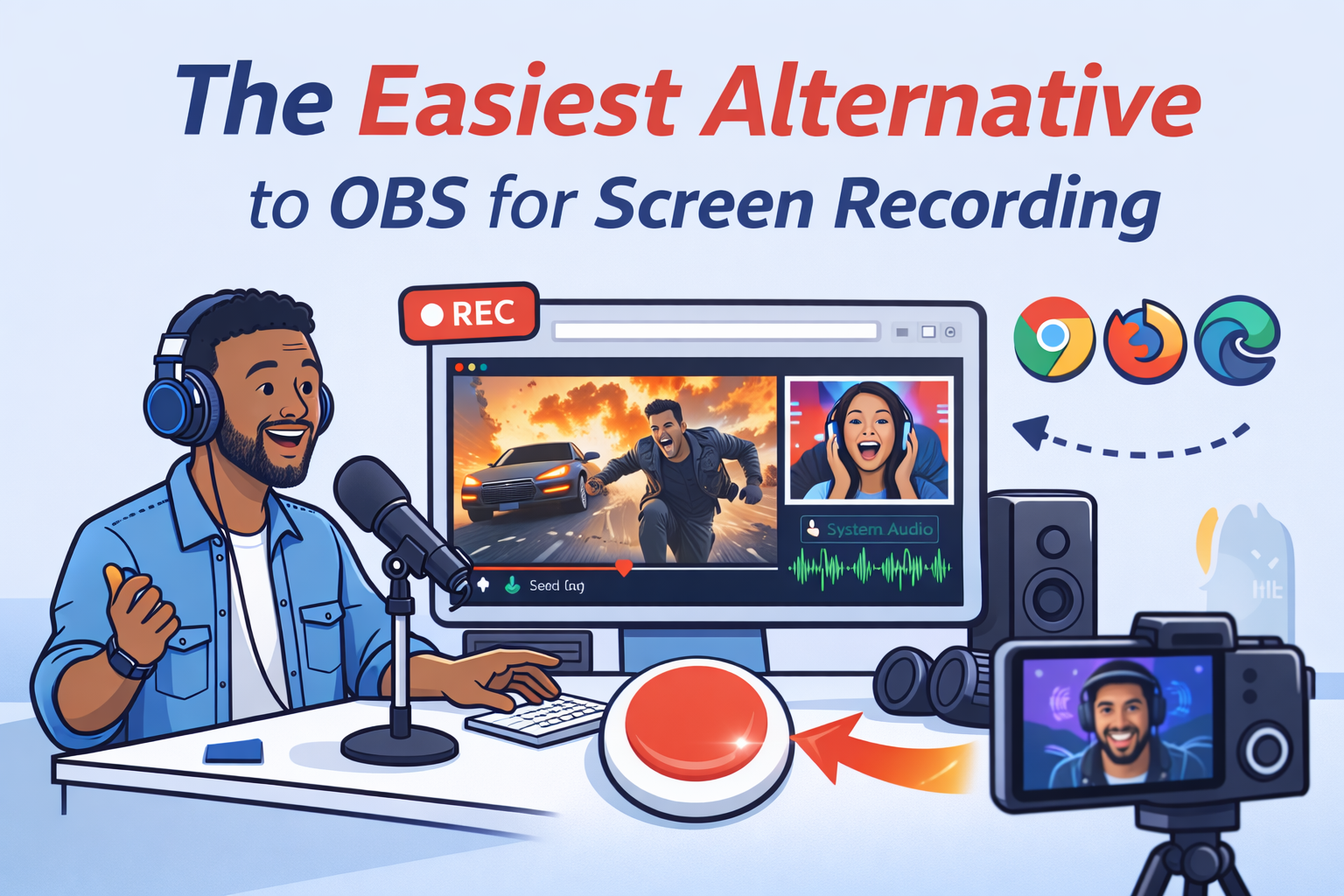
Looking for an easy OBS alternative on Mac or PC? Most tools can’t capture system audio without extra plugins or complex setup. Podsplice runs in any browser—Chrome, Safari, Edge, Firefox, or Brave—and records mic, camera, screen, and system audio in full quality, all synced.
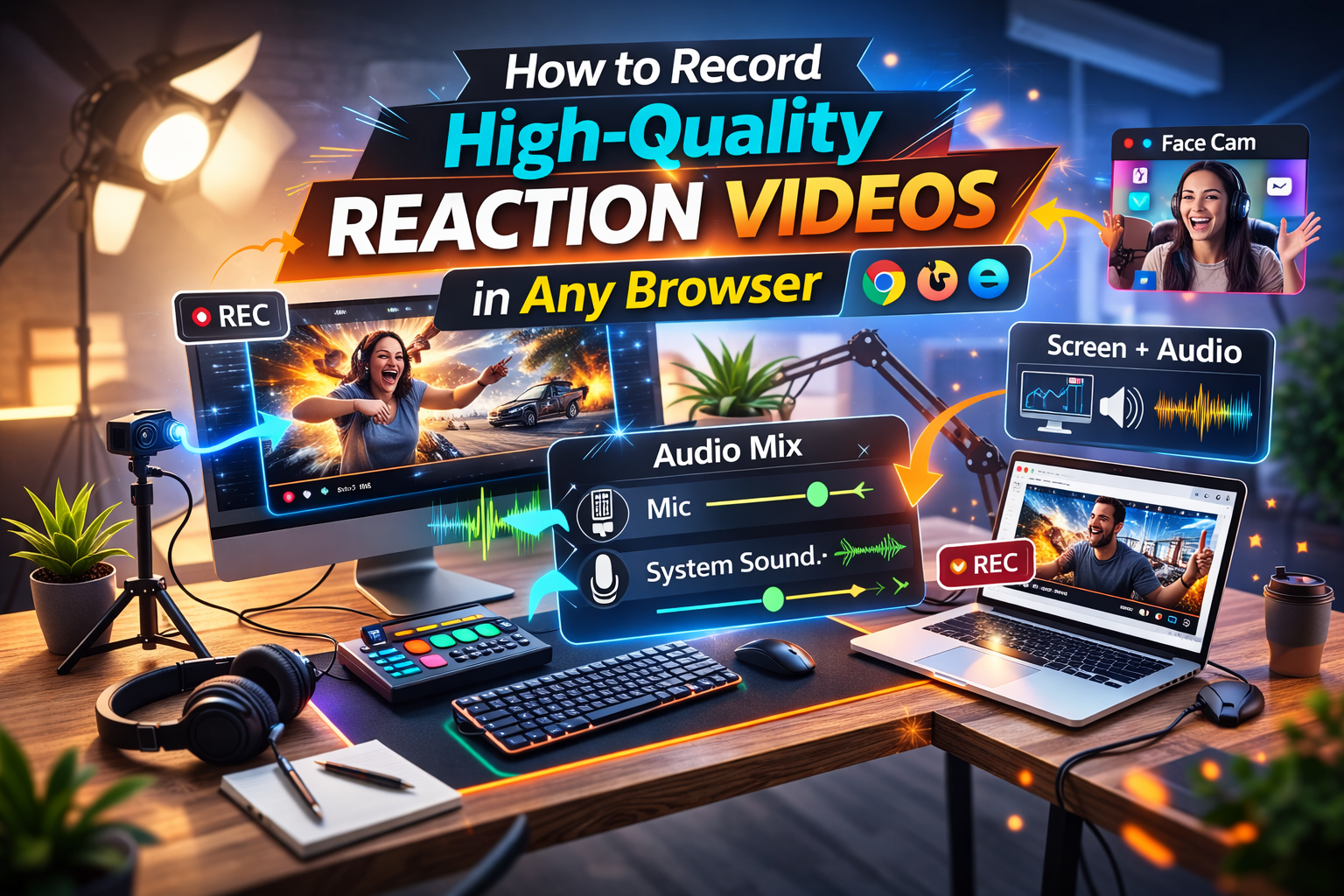
Podsplice lets you record high-quality reaction videos in any browser—Chrome, Safari, Edge, Firefox, and more. It captures mic, camera, screen, and system audio as separate, synced tracks. No downloads, no plugins, just clean local recording your audience can see and hear.
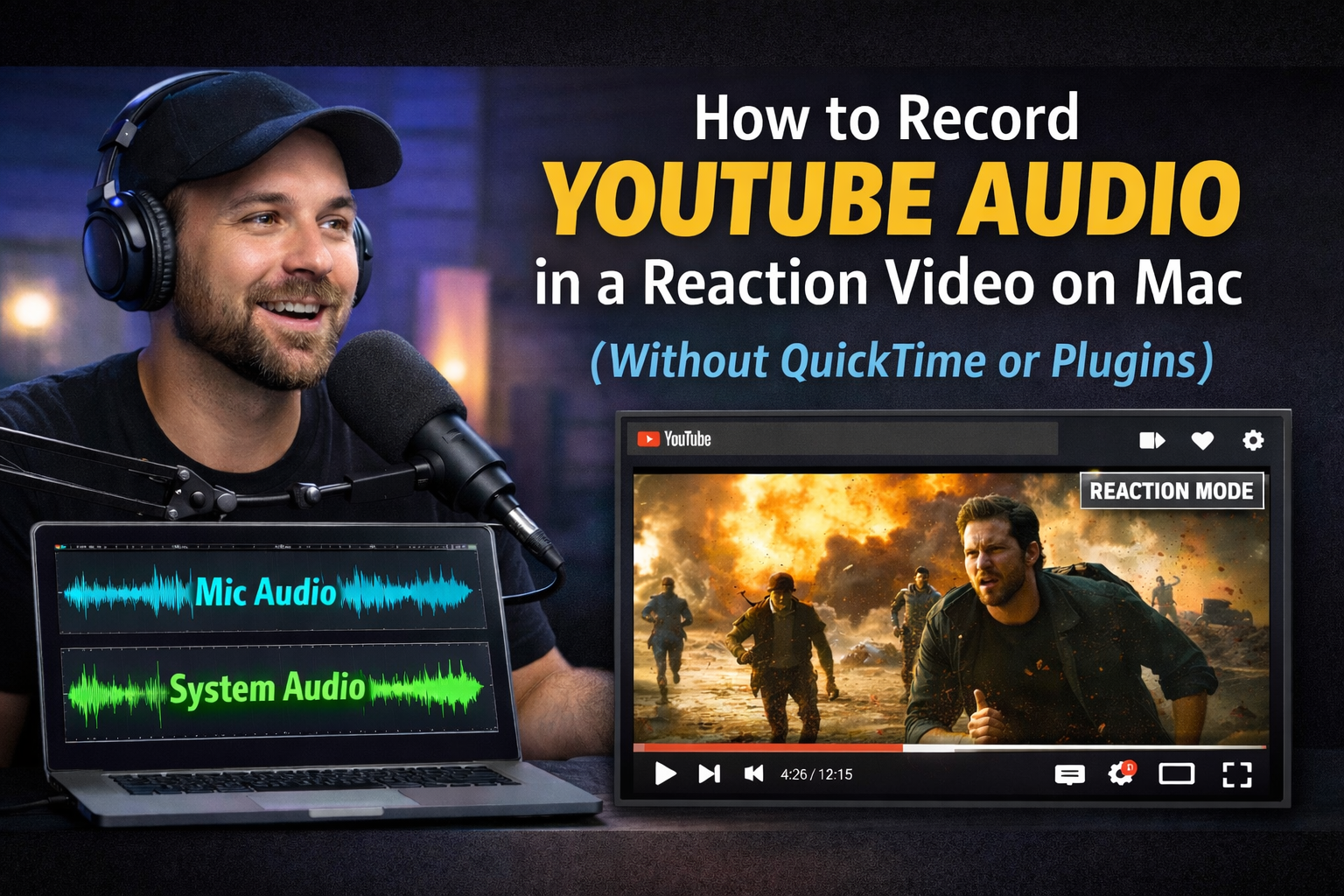
Podsplice lets you record reaction videos on Mac, right in the browser. It captures mic, camera, screen, and system audio on separate, synced tracks—no QuickTime plugins or OBS setup. Stop losing YouTube sound; hit record in Safari/Chrome/Edge and export clean, edit-ready files.
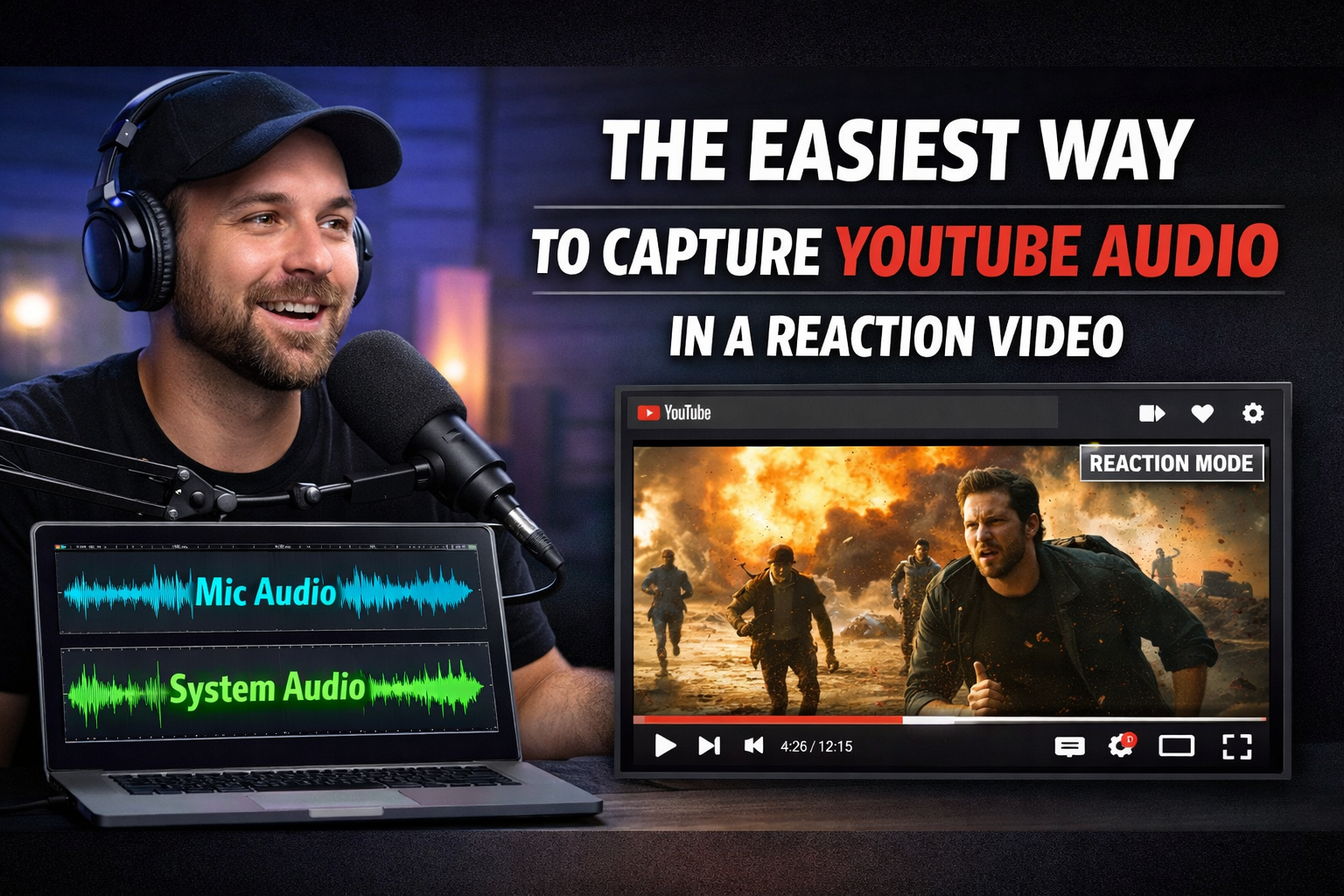
Podsplice is the easiest way to record YouTube reaction videos with sound. Unlike Canva, Riverside, or Descript, it captures your mic, camera, screen, and system audio in full quality on separate tracks — so your videos look sharp and your viewers actually hear the YouTube clip.