
Not All Screen Recorders Are Equal: Why Multi-Track Isolation is the Secret to Professional Content
The "Single Track" Illusion That's Killing Your Content
Most creators record their screen with Loom, Zoom, or a basic browser extension. They see a record button, they click it, and they think they're good to go.
But unlike humans, not all screen recorders are created equally.
If your screen recorder delivers one video file with all the sound mixed together, you aren't recording — you're gambling.
One fundamental difference between a basic screen recorder and a professional tool is Multi-Track Isolation.
Standard tools "bake" your voice (your microphone) and computer audio (also called system audio or internal audio) into a single, unfixable stereo track.
Podsplice captures them as discrete, high-fidelity streams — giving you total control in post-production.
What Is "Baked Audio"? (The Mashed Potato Problem)
In professional video editing, "baking" means merging your microphone audio and your system audio (the sound your computer plays, such as the sound coming from a YouTube video) into a single, permanent file.
Think of it like mashed potatoes: once the ingredients are mashed together, you can't separate them.
If the game music in your reaction video is too loud, or the YouTube clip you're reacting to is blasting at full volume while your voice is a whisper, a baked file is a permanent mistake. You can't boost your voice without also boosting all the background noise.
The result? You either publish a video where no one can hear you clearly, or you scrap the entire 40-minute recording.
This is the #1 audio problem that kills new content channels. And it's entirely avoidable.
And this is if you are lucky!
Most screen recording software doesn't even record the "system audio" at all.
For example, if you use Canva's screen recorder, you won't be able to create a YouTube reaction video at all. You will hear your voice coming from your microphone, but there will be no sound at all on the YouTube video you are reacting to. (I'm not picking on Canva, I like it for many things, but not for screen recording. And it's not just Canva, like I said, most screen recording software has this problem.
Why Separate Audio Tracks Are the Secret to Viral Content
Professional editors don't just use separate tracks as a safety net — separate tracks are the core ingredient for polished, viral-worthy pacing. Here are the three specific workflows you unlock the moment you stop baking your audio:
1. The Loud Music Fix Independently lower the system audio (a gameplay clip or reaction video) by -10dB without touching your voice level. You can also "duck" background audio during your most important commentary moments — a standard technique in broadcast production.
2. AI Audio Enhancement Compatibility AI tools like Adobe Speech Enhance and Descript's voice isolation perform dramatically worse on baked files. When your microphone audio is mixed with system audio, AI denoisers hallucinate robotic artifacts. With a clean, isolated vocal track, you get studio-quality AI enhancement every time.
3. The Cough-and-Sneeze Edit If you cough while your remote podcast guest is mid-sentence, or your dog barks during the best moment of your reaction — just mute your mic track for two seconds. The system audio and your guest's audio stay completely intact. No retake needed.
How Podsplice Captures 4 Isolated Tracks With Zero Configuration
To achieve multi-track recording in OBS, you need a degree in sound engineering: Advanced Audio Properties, virtual audio cables (like BlackHole on Mac), complex routing matrices. It breaks constantly, and troubleshooting it can eat an entire afternoon.
Podsplice was built to deliver the exact same studio-grade, multi-track audio — with the simplicity of a light switch. No installs. No drivers. No settings to configure.
Because Podsplice is browser-native, it identifies and separates your system audio stream and microphone stream at the hardware level, before either hits your disk.
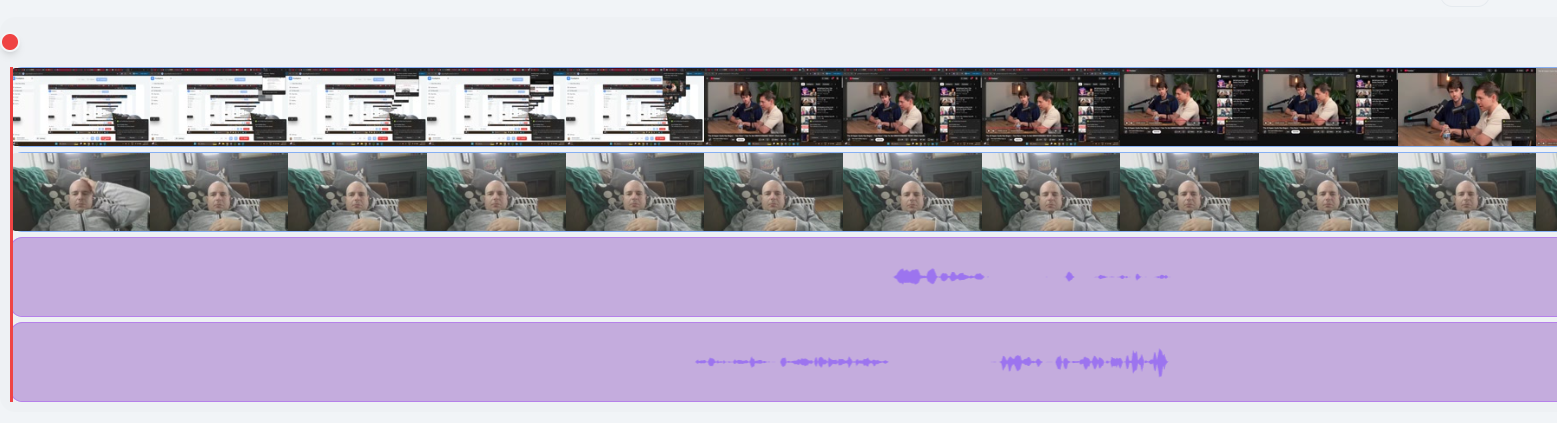
When you hit Record, Podsplice captures 4 discrete tracks simultaneously:
| Track | What It Captures | Quality |
|---|---|---|
| Track 1 | Microphone Audio | 192 kbps isolated voice |
| Track 2 | System Audio | Native browser audio, no virtual drivers |
| Track 3 | Webcam Video | Isolated; scalable in post |
| Track 4 | Screen Capture | Frame-perfect sync via Unified Media Clock |
Podsplice also automatically applies:
A True Peak Limiter (-1.0 dB) to prevent clipping when you raise your voice
An 80Hz High-Pass Filter to cut low-end room rumble and "mud"
-16 LUFS normalization on export, matching YouTube's loudness standard
Here is a screenshot of Podsplice's multi-track recording
Frequently Asked Questions About Multi-Track Screen Recording
Do I need separate tracks for a simple reaction video? Yes, if you want the video to be watchable. Every high-performing reaction video uses isolated tracks to ensure the creator's voice stays crisp and the source content doesn't drown it out. Podsplice makes this professional standard available to anyone, with no setup.
Most screen recorders are free. Why is Podsplice's multi-track worth paying for? "Free" recorders cost you hours in post-production. If your audio is baked, you'll spend that time manually trying to fix levels — often unsuccessfully. Podsplice gives you clean, editable tracks the moment you click Stop. Podsplice also gives better sound quality. Most screen recorders don't record your voice in 192 kbps high-fidelity audio - Podsplice does. Also, Podsplice isn't just a screen recorder. It has many features, like remote podcast recording, creating YouTube shorts, etc.
Can I record system audio on a Mac and keep my microphone on a separate track? Yes. This is one reason Podsplice is so good and easy to use. MacOS normally requires third-party virtual audio drivers (like BlackHole or Loopback) to capture internal audio at all. Podsplice captures Mac system audio natively in the browser and keeps it fully isolated from your microphone — no drivers required.
Will the 4 tracks be out of sync? No. Podsplice uses a Unified Media Clock — every track is anchored to the same hardware timestamp. Unlike software recorders that introduce drift over long sessions, Podsplice guarantees frame-perfect sync regardless of recording length.
What file format do I get? Do I have to manually sync the tracks? No manual syncing required. You can download a single container file with all tracks perfectly aligned, or download individual .wav and .mp4 files for a professional NLE workflow.
Is Podsplice compatible with Adobe Premiere Pro and DaVinci Resolve? Yes. Multi-track files from Podsplice are formatted to industry standards. When dragged into Premiere or Resolve, tracks appear stacked and labeled, ready for mixing.
Does recording 4 tracks at once slow down my computer? No. Podsplice's browser-native architecture is significantly lighter on CPU than running OBS or any desktop recording software, making it reliable even while recording GPU-intensive games or 4K video content.
Can I record a guest on a separate track from my system audio? Yes. Podsplice creates a "Double-Ender" track for guests and an isolated System Audio track for your browser content. Every source stays in its own lane.
The Bottom Line
If you enjoy spending your evenings troubleshooting OBS settings and installing virtual audio cables, OBS will serve you well.
But if you want to hit Record, do your thing, and have clean, professionally isolated tracks waiting for you when you're done — Podsplice is the best multi-track screen recorder for content creators.
No more audio disasters. No more Mashed Potato Audio.

About the Author
Andrew Best
Andrew Best is an entrepreneur, educator, and AI expert with over two decades in online marketing. He co-founded China232 — a podcast and learning platform with 10M+ downloads — and later 88Herbs, a premium supplement company. Andrew now focuses on helping creators leverage AI for podcasting, screen recording, and YouTube content through Podsplice.
More from Podsplice

Best Screen Recorder for Mortgage Brokers: Record Loan Walkthroughs, Podcasts, and Social Clips
Article
Mac Screen Recording No Sound? Here’s What’s Actually Going On (And How to Fix It Fast)
Article
Best Browser-Based Screen Recorder (No Download, No Setup)
Blog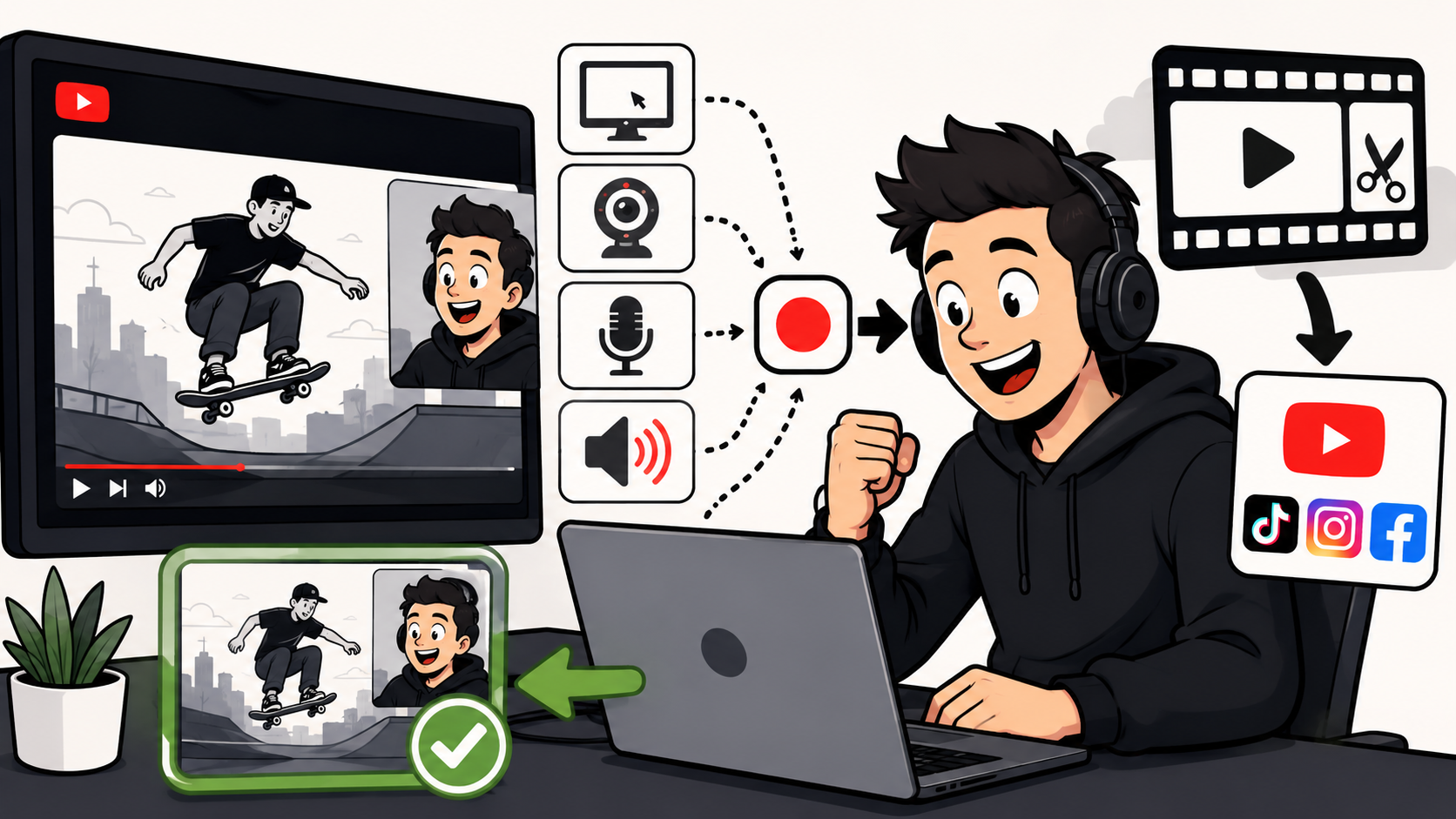
How to Make Reaction Videos on a Mac: The Easiest Way in 2026
Article
Record Stereo Tab Audio in Chrome
Article
Start Recording in Seconds
No downloads. No setup. Just hit record and share your story with the world in studio quality.
Looking for a Screen Recorder or Remote Recording tool?