
Bitrate vs. Sample Rate: The Creator’s Guide to Crisp Audio
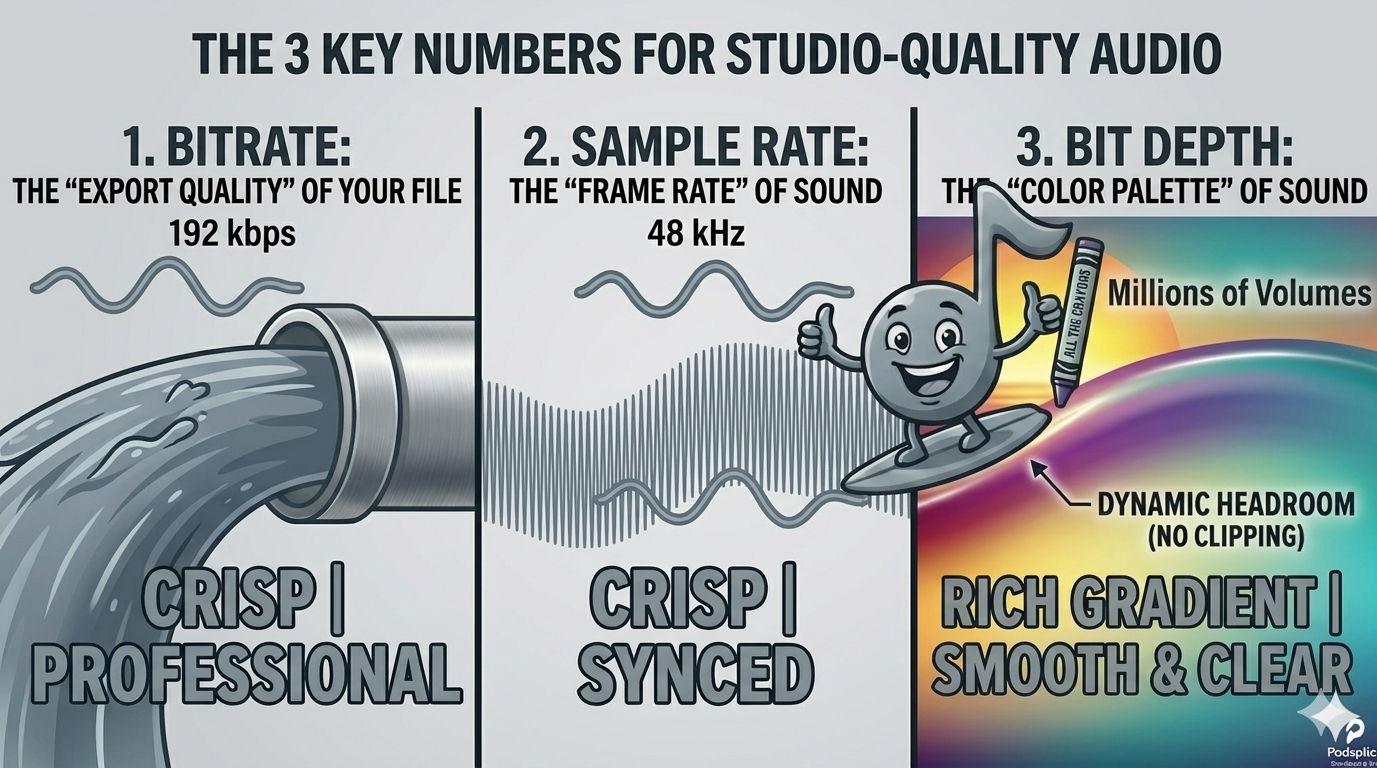
The 3 numbers that make your audio sound studio-quality
If you want your podcast, YouTube video, or online course to have great audio, you need to understand bitrate, sample rate, and bit depth.
Most content creators have no idea what these terms mean or how to optimize them. Let me help you understand.
You can see bad video instantly. Blurry, laggy, or pixelated frames—your eyes catch them in a second. Bad audio is sneakier. Listeners can’t always point to what’s wrong, but they feel it. Their ears get tired. They start skimming. Eventually, they leave.
Studies on digital media consistently show that audio quality is the number one reason people stop watching or listening—ranking ahead of lighting, pacing, and even the topic relevance. Whether you’re building an elite online course or a viral reaction channel, muffled audio costs you authority.
The good news? There are only three numbers you need to understand to fix this forever.
1. Bitrate: The "Export Quality" of Your File
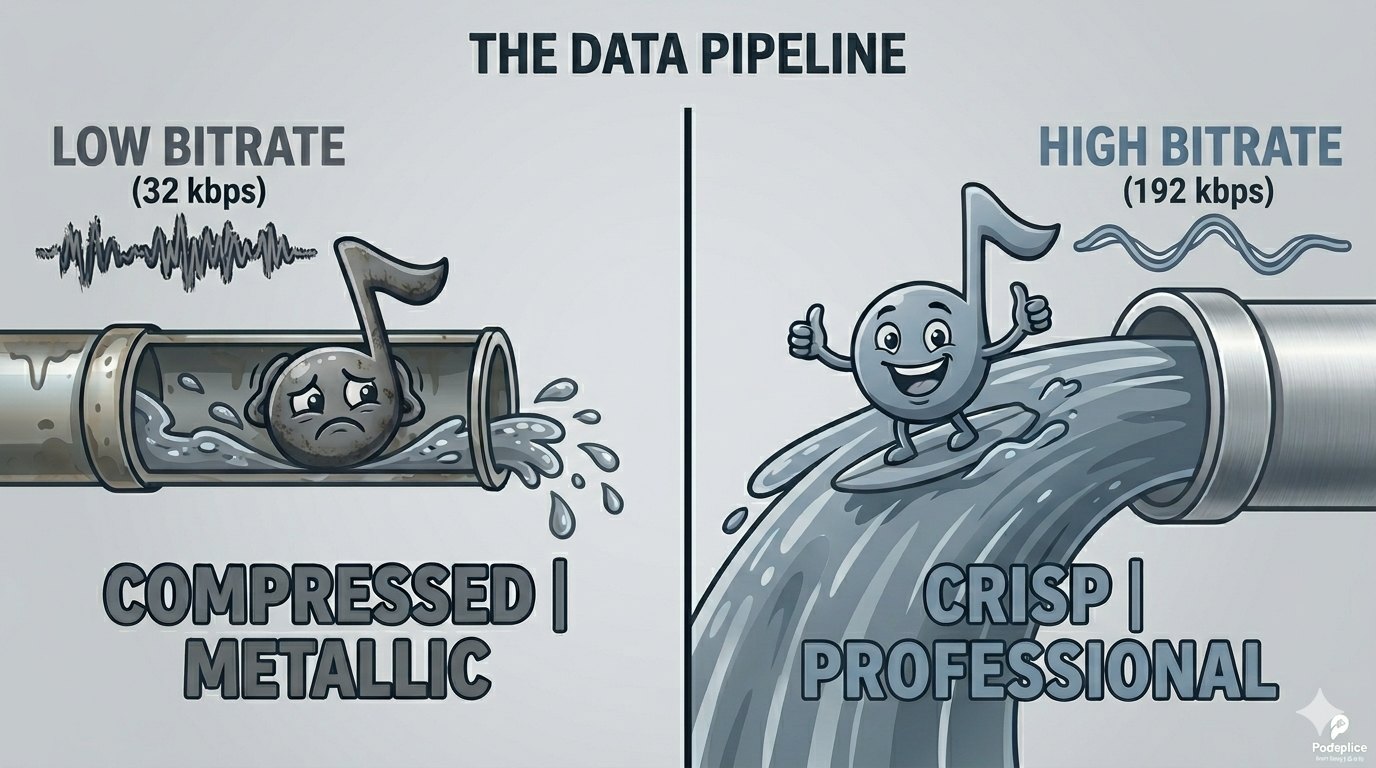
What is Bitrate? In the simplest terms, bitrate is the speed at which data is processed. If audio is a stream of water, bitrate is the size of the pipe. It tells you exactly how much data is being "poured" into the listener's ears every second.
How is it measured? Bitrate is measured in kilobits per second (kbps).
Low kbps: A thin pipe that has to squeeze and distort the water to get it through.
High kbps: A wide pipe that lets the water flow naturally and clearly.
The Video Equivalent: Resolution & Compression In video terms, bitrate is like the difference between a low-res, pixelated 360p video and a sharp 1080p stream. Even if you shot the video on a high-end camera, if the bitrate is too low, the image looks "blocky" and blurry during movement. Audio bitrate works the same way; it’s the final layer of polish that keeps your sound from falling apart.
Every content creator knows they'd never upload a video to YouTube in 240p, and they would always aim for at least 1080p or 4k. That's because every creator knows what these terms mean. But these same creators don't even know what bitrate means, so it's no surprise when their audio sounds terrible.
The Suitcase Analogy: Think of bitrate like packing a suitcase for a trip. A high bitrate is a large trunk: everything fits, nothing gets wrinkled, and the listener receives exactly what you recorded in the studio.
What happens at a low Bitrate? To truly understand bitrate, I find it helps to imagine an extreme case. A very low bitrate is the "Underwater" effect. If you go too low (like 32 kbps), it’s like trying to stuff a wedding tuxedo into a tiny carry-on—things get crushed. To make the file small enough to fit, the computer has to throw away huge chunks of "unnecessary" data. Your voice will start to sound watery, metallic, or robotic, like you’re calling from a submarine on a bad 3G connection.
The Sweet Spot: 192 kbps This is the professional benchmark for creators. At 192 kbps, the "pipe" is wide enough that the human ear can't distinguish the stream from the original recording, but the file is still lean enough to upload quickly to Spotify, YouTube, or Apple Podcasts.
Most screen recording software doesn't record in 192 kbps. They get away with it because most creators don't know what that means in the first place.
Fortunately, Podsplice records screen recordings and podcasts at 192 kbps as a default.
2. Sample Rate: The "Frame Rate" of Sound
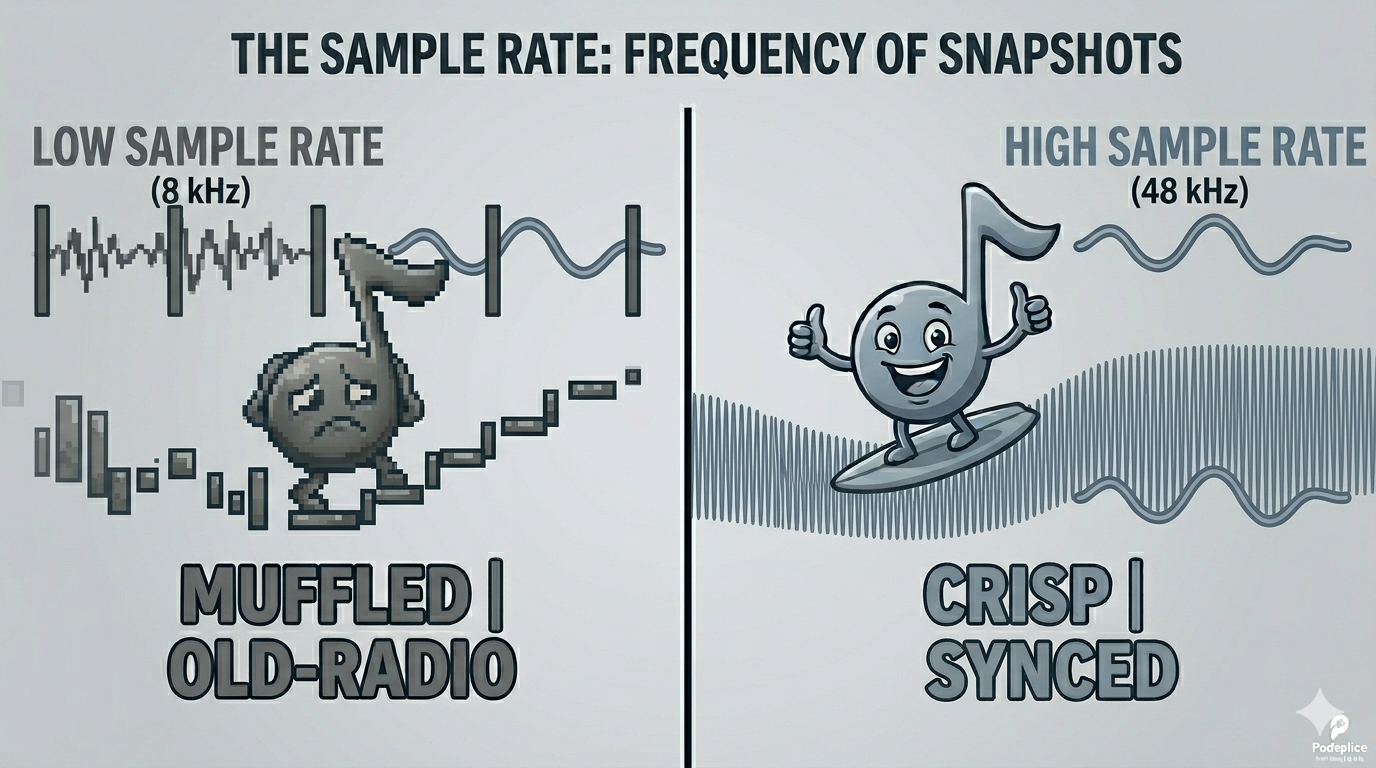
What is Sample Rate? If bitrate is the "pipe," Sample Rate is the frequency of snapshots. Digital audio isn't one continuous line; it is actually a series of thousands of tiny dots that your computer connects to recreate a sound wave. Sample rate tells the computer how many of these dots to draw every second.
How is it measured? Sample rate is measured in kilohertz (kHz).
44.1 kHz: The CD standard.
48 kHz: The Professional Video standard.
The Video Equivalent: Frame Rate (FPS) In video terms, Sample Rate is exactly like Frames Per Second (FPS).
60 FPS video looks fluid, lifelike, and smooth because there are 60 "snapshots" of motion every second.
10 FPS video looks like a jerky security camera feed. You can still tell what's happening, but the "motion" is missing.
Most creators obsess over shooting in 60 FPS or 24 FPS for that "cinematic" look, yet they completely ignore their audio's frame rate, which is arguably more important for keeping a viewer engaged.
The Flipbook Analogy Imagine a flipbook of someone running. If that book has 60 pages for every second of movement, the action looks fluid and lifelike. If it only has 5 pages, it looks like a jerky slideshow because the details are lost in the gaps between pages. Your brain has to work harder to "fill in" the missing pieces of the movement.
Think of cartoons made in the 1920s. You can see how choppy they look. Don't do the same thing with your audio!
What happens at a low Sample Rate? To understand why this matters, imagine the extreme: 8 kHz. This is the "Muffled Intercom" effect.
At 8 kHz, your computer is only taking 8,000 snapshots per second. Because there are so few "pages" in the flipbook, the computer completely misses the fast-moving high frequencies of your voice. All the "crispness" of your consonants (like T, S, and K sounds) and the "air" in your tone disappear. It sounds like you are speaking through a thick wool sock or a 1940s telephone line. It’s exhausting for an audience to listen to for more than a minute.
The Sweet Spot: 48 kHz This is the gold standard for creators. At 48,000 snapshots per second, you capture the full, natural spectrum of the human voice.
Why 48 kHz specifically? It syncs perfectly with video. If you record at 44.1 kHz (the music standard), you run the risk of "drift," where your audio slowly loses sync with your lips over a long recording.
Podsplice defaults to 48 kHz for every recording. Whether you’re recording a remote guest or a screen share, we ensure your audio "frame rate" is dense enough to capture every detail without the muffled, "old-radio" vibes.
3. Bit Depth: The "Color Palette" of Sound
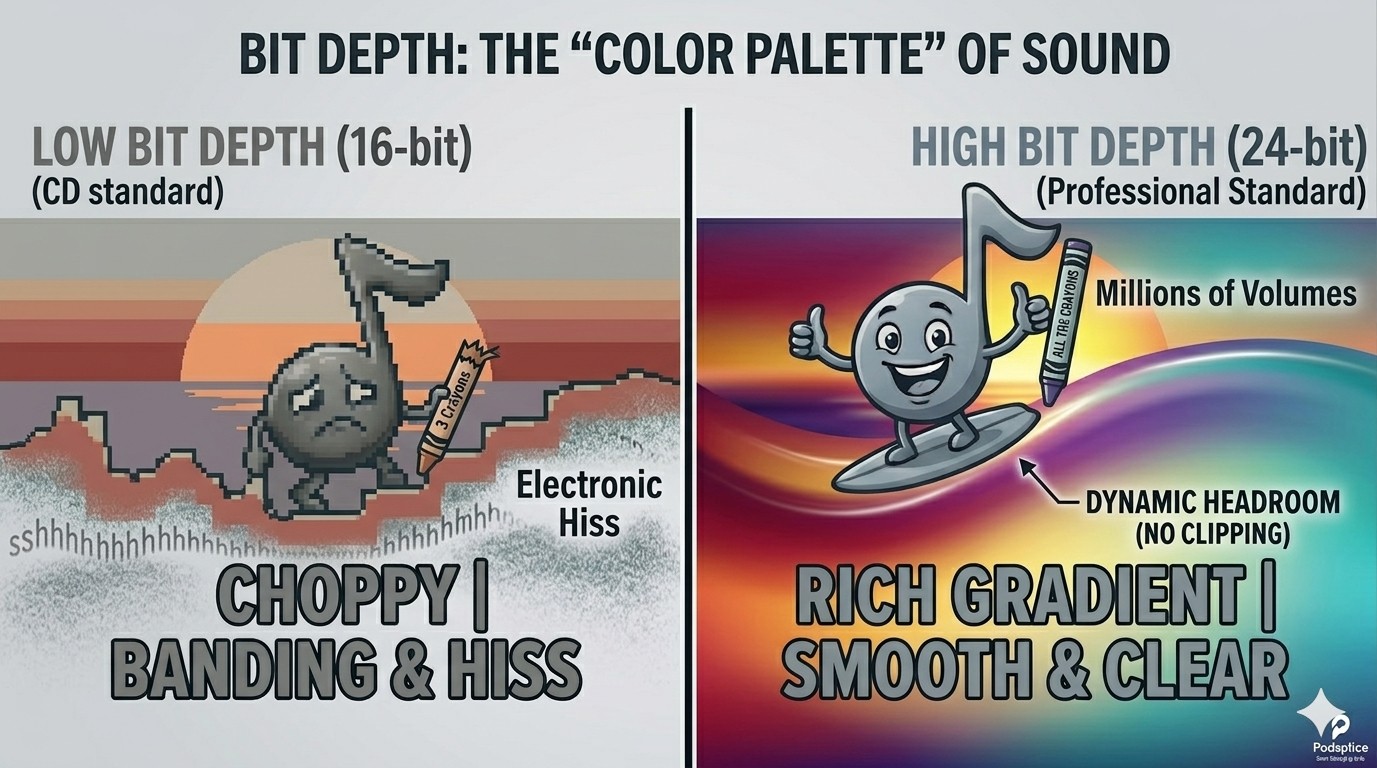
What is Bit Depth? If the Sample Rate is how often we take a snapshot, Bit Depth is how accurate each snapshot is. It determines the dynamic range of your audio—the distance between the absolute quietest sound and the loudest possible peak.
How is it measured? Bit Depth is measured in bits.
16-bit: The standard for CDs (65,536 possible volume levels).
24-bit: The professional recording standard (16,777,216 possible volume levels).
The Video Equivalent: Color Depth (Bit Depth) In video and photography, this is exactly like 8-bit vs. 10-bit color. Have you ever seen a low-quality photo of a sunset where the orange sky looks "choppy"? Instead of a smooth fade, you see ugly, chunky "bands" of color. That is banding. It happens because the camera didn't have enough "colors" in its palette to represent the smooth transition, so it had to "round off" to the nearest color it knew.
It would be like trying to draw a beautiful and accurate picture with only 3 crayons.
The Sunset Analogy Bit Depth is the color palette for your audio. It determines how many distinct "shades" of volume your recording can capture. When you record at a high bit depth, the transition from a whisper to a shout is a smooth, beautiful gradient. When you record at a low bit depth, the computer has to "round off" the sound, and that rounding creates digital garbage.
What happens at a low Bit Depth? This is the "Electronic Hiss" effect. To understand this, imagine recording in 8-bit (the quality of a 1980s GameBoy).
Because the computer has so few "volume levels" to work with, it can’t accurately map the tiny vibrations of your voice. This creates "quantization noise"—a constant, fuzzy "shhh" or hiss that sits underneath everything you say. Even worse, as your voice fades out, the audio doesn't just get silent; it turns into a crunchy, robotic crackle. It makes your professional mic sound like a broken toy.
The Sweet Spot: 24-bit For creators, 24-bit is your safety net. When you’re recording a reaction video and you scream at a jump-scare, or you're hosting a podcast and your guest laughs unexpectedly loud, 24-bit gives you "headroom." It allows the audio to get loud without "clipping" (turning into that harsh, ear-piercing static).
At Podsplice, we record in 24-bit by default. It means you can record in a room that isn't perfectly silent, or react with high energy, and your audio will still have the "room to breathe" that a professional studio production requires.
Now that you understand bitrate, sample rate, and bit depth, you need to know what LUFS you should use for screen recording and podcasting.
The Podsplice Logic: Why This Matters for You
As a creator, you shouldn't have to be a sound engineer. When you use a platform like Podsplice, we prioritize these settings automatically so you can focus on your content.
For Course Creators: High-quality audio reduces "cognitive load." When your audio is crisp, students stay focused longer and retain more information because their brains aren't working overtime to decode a muffled signal.
For Reaction Channels: The "Safety Net" of 24-bit depth means your genuine reactions—the gasps, laughs, and shouts—stay clean and professional instead of peaking into painful static.
For Podcasters: A solid 192 kbps bitrate ensures you sound like a pro, whether your audience is listening on $500 studio headphones or a noisy car stereo.
Quality audio is just one piece of the puzzle; finding a tool that handles the technical side for you is key.
Learn what to look for when choosing a screen recording software.

About the Author
Andrew Best
Andrew Best is an entrepreneur, educator, and AI expert with over two decades in online marketing. He co-founded China232 — a podcast and learning platform with 10M+ downloads — and later 88Herbs, a premium supplement company. Andrew now focuses on helping creators leverage AI for podcasting, screen recording, and YouTube content through Podsplice.
More from Podsplice
Best Browser for Recording System Audio on Mac and Windows
Article
Kommodo Alternatives: Why Creators Are Choosing Podsplice
Article
How to Record Front and Back Camera at the Same Time on Android (for Creators)
Article
Easiest Way to Earn Money from Affiliate Marketing in 2026 (Faceless Screen Recording Videos)
Blog
How to Create a Podcast Guest Booking Page With a Calendar
Article
Start Recording in Seconds
No downloads. No setup. Just hit record and share your story with the world in studio quality.
Looking for a Screen Recorder or Remote Recording tool?