
Recording a Remote Double-Ender Podcast Interview
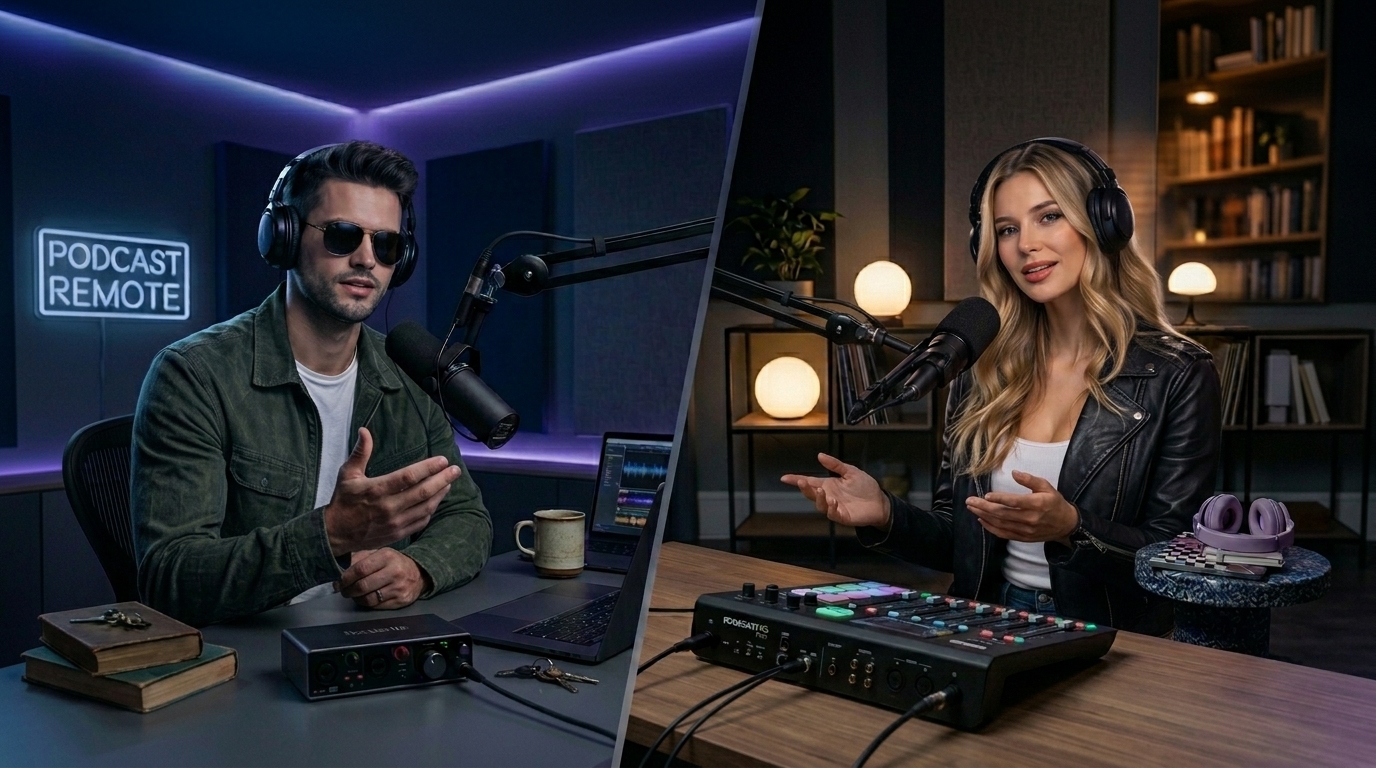
Want to record a high-quality podcast interview with a guest, but you're not in the same room or even the same city?
You might think you need a $1,000 camera and a complicated studio setup. But the truth is... it's all about the software! 🤯
Here is how you can get studio-grade recordings using cheap $20 webcams and mics. Let's break it down 👇
🚫 The Problem With Standard Video Calls
Most podcasters just hop on Zoom, Skype, or Google Meet and hit "Record".
❌ The connection lags and people cut each other off.
❌ The video gets compressed and looks fuzzy.
❌ The audio drops out or sounds like a tin can.
Why? Because standard apps only record from ONE side over the internet.
✨ The "Double-Ender" Magic
The secret to perfect remote interviews is a technique called a Double-Ender.
This means your computer records YOU in perfect quality, and your guest's computer records THEM in perfect quality—locally. No internet compression!
Normally, doing this requires everyone to download complex software like OBS and perfectly sync their audio with a clap 👏. But with Podsplice, it happens automatically in your browser!
🟢 Step-by-Step: Recording Your Remote Interview
1. Create a Studio Link
Podsplice is 100% browser-based. You just click Start Recording and it creates a lobby.
2. Invite Your Guest
👉 Send the special link to your guest.
👉 They click it. That's it! No software for them to install.
They just pick their microphone and camera, and they are in.
3. Hit Record & Talk
The connection in Podsplice is lightning-fast, making it feel like you are in the exact same room. No awkward overlapping or internet lag.
4. Automatic Syncing
When you finish your amazing conversation, Podsplice instantly uploads and stitches the high-quality local recordings together for you. Perfectly in sync.
🎛️ The 6-Track Advantage & Screen Share Secret
Podsplice gives you exactly what you need to edit effortlessly. Instead of one baked-in video file, you get six completely separate tracks:
🗣️ Host Video & Audio
🎙️ Guest Video & Audio
🖥️ Screen Share Video & Audio
Wait, Screen Share Audio? Yes! 🚀
If you want to watch a YouTube video together and react to it on your podcast, Podsplice will capture the high-quality video and audio of that screen share flawlessly. (Most expensive alternatives like Riverside or Descript can't even do this!)
🚀 Stop Tinkering, Start Recording
You truly don't need expensive gear. A $25 mic and a $20 webcam can look and sound like a Hollywood studio if you use the right software.
More from Podsplice
Beehiiv Podcasts: What You Need to Know
Blog
Record Stereo Tab Audio in Chrome
Article
How to Record Front and Back Camera at the Same Time on Android (for Creators)
Article
Mac Screen Recording No Sound? Here’s What’s Actually Going On (And How to Fix It Fast)
Article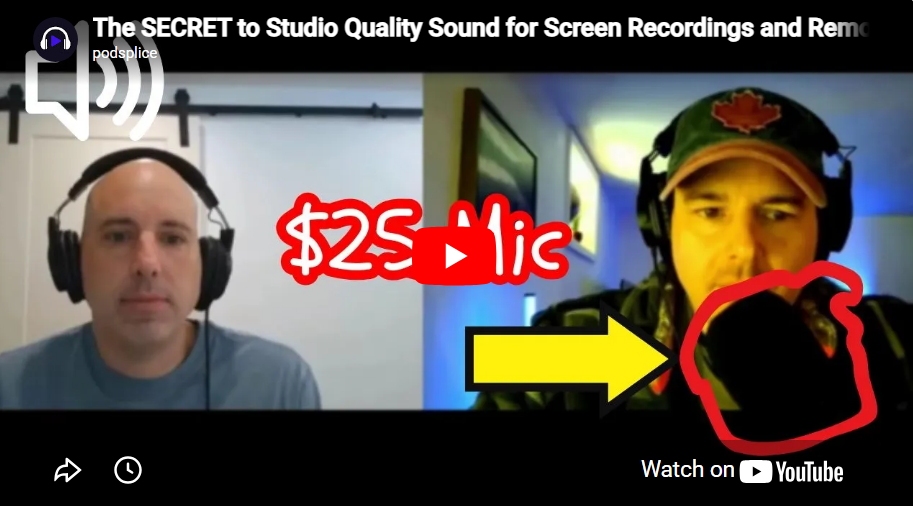
How to Make Your Screen Recordings Sound Incredible (The Easy Way)
Article
Start Recording in Seconds
No downloads. No setup. Just hit record and share your story with the world in studio quality.
Looking for a Screen Recorder or Remote Recording tool?