
Mac Screen Recording No Sound? Here’s What’s Actually Going On (And How to Fix It Fast)
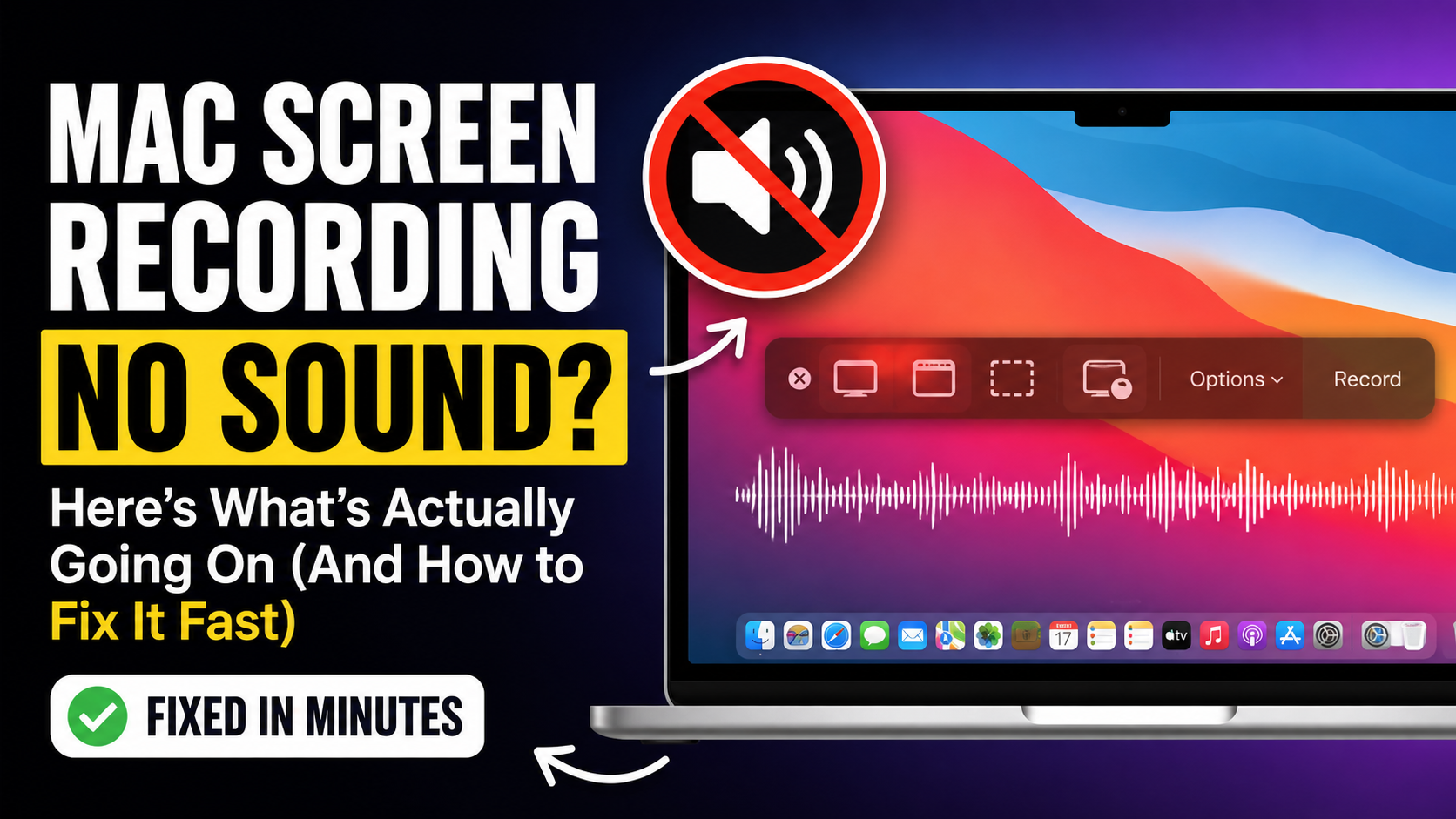
If your Mac screen recording has no sound, here’s the first thing to know: it’s probably not your microphone.
That’s where most people waste time — digging through mic settings and permissions when the real culprit is something else entirely.
First, Understand the Two Types of Audio
Every Mac recording involves two completely separate audio sources, and knowing the difference will save you a lot of time.
System audio (also called internal audio) is everything playing through your computer — YouTube videos, Spotify, Zoom calls, app sounds, game audio, and notification sounds. It’s anything your Mac is outputting through its speakers.
Mic audio is your voice, captured through your built-in microphone or an external one.
These are recorded through entirely different channels, and macOS handles them very differently.
Which One Is Your Problem?
You are probably having trouble recording your system audio (internal audio) on your Mac screen recording.
Here’s a quick test: record a short clip, play a YouTube video, talk over it, then stop and play it back.
Hear nothing at all? → Microphone problem.
Hear your voice but not the video or app audio? → System audio problem.
Recording your mic audio on your Mac is easy. Most people landing on this page have a system audio problem.
Why This Happens
macOS cannot record system audio by default.
That means YouTube videos, Zoom calls, music, and app sounds — none of it gets captured, no matter what you do with your mic settings.
Your recording isn’t broken. It’s working exactly as Apple designed it. Most Mac screen recorders just record what you see on your screen visually, NOT the audio coming from your browser tab.
macOS was never built to capture internal audio on its own.
This catches people off guard because everything looks like it should work. You hit record, play the video, talk over it — then watch the playback and hear nothing but your voice where the video audio should be.
The Easy Fix for System Audio
The traditional workaround involves installing a virtual audio driver like BlackHole, opening Audio MIDI Setup, creating an aggregate device, and manually routing your audio. It can work — but it’s also where most people give up. One wrong step and you’re troubleshooting a new problem.
Podsplice is the simpler answer. It records your screen, microphone, and system audio all at once, with no configuration required. You open it, hit record, and everything — your voice, the YouTube video, the app sounds — comes through clearly.
No BlackHole. No MIDI routing. No extra setup.
If you’re making tutorials, recording reactions, building courses, or capturing anything that involves video or app audio, this is the fix.
Read more about why Podsplice is a better and easier alternative to blackhole
If It Really Is Your Microphone
If your test showed no audio at all — not even your voice — then it’s a mic issue, and the fix is quick.
Press Shift + Command + 5, click Options, and select your microphone from the list. Then go to System Settings → Privacy & Security → Microphone and confirm your recording app has permission.
That’s usually all it takes.
Here is a video of me showing how easy it is to use Podsplice to record both your mic and system audio (internal audio) during a Mac screen recording. Also, Podsplice records your mic audio and system audio on separate tracks, which makes editing easier and the quality better.
The Bottom Line
Mac screen recording with no sound is almost always a system audio problem, not a microphone problem.
macOS doesn’t capture internal audio by default, which means YouTube, apps, and music go silent in your recordings even when everything else seems fine.
Skip the manual workarounds.
Podsplice handles system audio, mic audio, and screen recording together, right out of the box.

About the Author
Andrew Best
Andrew Best is an entrepreneur, educator, and AI expert with over two decades in online marketing. He co-founded China232 — a podcast and learning platform with 10M+ downloads — and later 88Herbs, a premium supplement company. Andrew now focuses on helping creators leverage AI for podcasting, screen recording, and YouTube content through Podsplice.
More from Podsplice

System Audio vs. Tab Audio: Important Differences for High-Quality Screen Recording
Article
Mastering the Podsplice Multi-Track Video Editor
Article
How to Screen Record with System Audio in 2026: The Easiest Way (Complete Guide)
Article
Beehiiv Podcasts: What You Need to Know
Blog
How to Record Full Screen Webcam and Screen Share at the Same Time
Article
Start Recording in Seconds
No downloads. No setup. Just hit record and share your story with the world in studio quality.
Looking for a Screen Recorder or Remote Recording tool?