
Best Screen Recording Software with System Audio (2026 Mac & PC Guide)
The Biggest Screen Recording Myth
Most people think that screen recording software would automatically record both what you see on your screen and the sound coming from your screen.
This is wrong.
Most screen recording software does not record the sound coming from your screen at all.
The sound coming from your screen or computer is called "system audio".
I was someone who believed this myth until about a year ago. I wasted a lot of time and found out the hard way that "record your screen" just refers to the visual part you see.
In this guide, I'm going to tell you all you need to know about the best and easiest way to record your screen with system audio.
I will also tell you why Podsplice is the best software for doing this.
What Is System Audio?
Direct answer: System audio is any sound that originates from your computer — not from your microphone.
Different platforms use different names for the same thing, which makes searching for a solution frustrating. Here is the complete terminology map:
Mac users typically use the term "internal audio".
Lay people often say, "computer audio" or "computer sound."
PC users say "system audio".
Important: system audio, internal audio, and computer audio all mean the same thing.
Real-World Examples of System Audio
The dialogue and soundtrack of a YouTube video you're reacting to
A guest's voice coming through Zoom, Google Meet, or Discord
Music, sound effects, and commentary in a video game
UI sounds and audio cues in a software tutorial
Podcast clips or music tracks playing in your DAW
If it comes out of your speakers, it's system audio. If it goes into your mic, it isn't.
The 3-Part Audio Nightmare (And Why Most Software Fails)
If you’ve ever wondered why your recordings sound "off," it’s likely because standard software falls into one of these three technical traps. Most "meeting-grade" tools aren't built for creators—they are built for speed, which means they take shortcuts with your sound.
1. The "Silent Movie" (The Security Blackout)
This is the most frustrating failure. You record a 30-minute reaction video, but on playback, the system audio is 100% silent.
The Technical Wall: macOS and Windows treat internal sound as a private data stream. To prevent malware from "spying" on your private calls or copyrighted movies, the OS literally "gaps" the connection between your speakers and your recorder.
The Result: Unless your software has a specific "loopback" driver or browser-native permissions, it simply cannot "hear" your computer. You’re left with a video that has half the story missing.
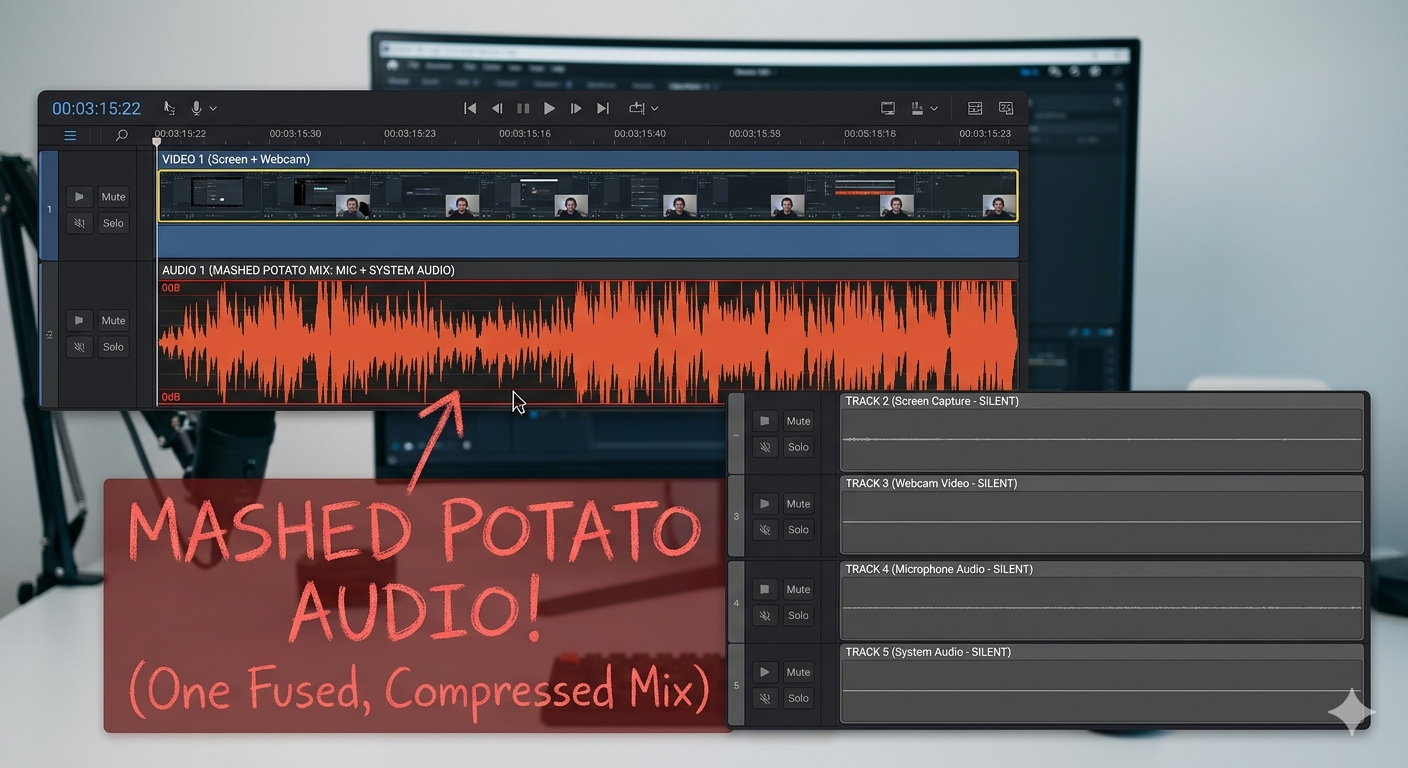
2. The "Mashed Potato" Mix (The Isolation Failure)
Some tools can record system audio, but they "smush" your microphone and your computer sound into a single, flat audio track. In the industry, we call this Single-Track Compression.
The "Unscramble the Egg" Problem: Because your voice and the background video are fused together, you cannot adjust them independently in editing. If the YouTube video you’re reacting to is too loud, it buries your voice forever. You can't "turn down" the video without also muting yourself.
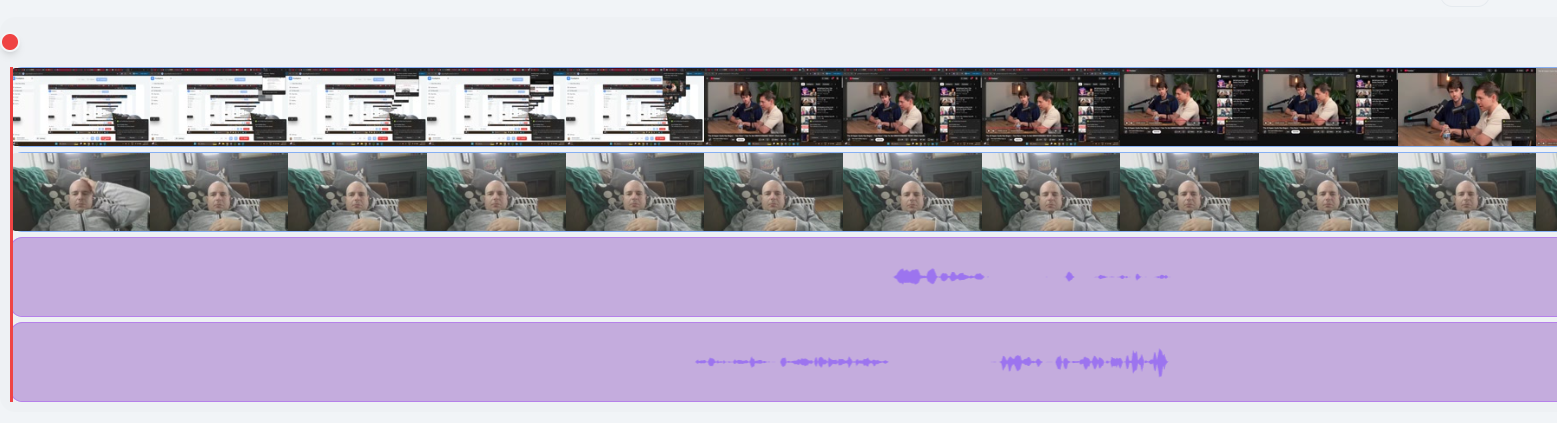
The Creator Solution: Professional tools like Podsplice use Multi-Track Isolation, giving you separate, clean files for your mic and your system audio so you have total control in post-production.
Here is a screenshot of a Podsplice multi-track file recording. You can see the 2 separate audio tracks. One is your mic, the other is the system audio.
A single-track "mashed potato" file (which you don't want) would look something like this:
3. The "Radio Across the Room" (The Echo Trap)
This is the "fake" way many free recorders handle system audio. Instead of capturing the digital signal, they simply leave your microphone on and record the sound physically coming out of your laptop speakers.
The Quality Gap: It sounds exactly like recording a song from a 1950s radio sitting across a cold, empty room. It’s thin, tinny, and plagued by "room noise"—your chair creaking, your AC humming, or your dog barking in the background.
The Direct Fix: You need Direct Digital Capture. Your system audio should be recorded at 192kbps directly from the source, making it sound identical to the original file, with zero "mud" or echo.
Who Needs High-Fidelity System Audio in 2026?
YouTube Creators & Reaction Channels
Reaction content lives or dies by audio quality. If your source clip sounds like it's playing from a phone across a room, your audience will click away before the reaction lands. You need the original audio crisp, isolated, and synced — exactly as it played on your screen.
Educators, Coaches & Course Creators
Software tutorials depend on audio cues. The "ding" when a process completes, the error tone when something goes wrong, the notification sound that contextualizes a workflow — these aren't decoration. They're instruction. Losing them means your learners miss context you can't easily re-explain.
Remote Podcasters & Interviewers
Recording a remote guest through Zoom or Riverside is not the same as recording them cleanly. "Internet quality" audio — with its compression artifacts and packet-loss warble — is what most tools capture. With proper system audio recording, you're capturing the output of the call at its highest local quality, not the degraded mic feed.
Gamers & Streamers
Game audio is a performance layer. The balance between your live commentary, the game's soundtrack, and in-game sound effects determines the watchability of your content. If those sources are merged, you can't re-balance them when the music spikes or a notification sound intrudes. Separate capture means full control in the edit.
Note: Recording system audio is necessary but not sufficient. Learn more about how to choose the best screen recording software in 2026
The Old Way vs. The 2026 Browser-Native Approach
The Old Way: Virtual Audio Drivers (The MIDI Nightmare)
For years, the standard answer for system audio capture on Mac was a virtual audio driver — software like BlackHole or the now-deprecated Soundflower. The workflow looked something like this:
Install a kernel extension (requires OS security bypass)
Open the Audio MIDI Setup utility
Create a Multi-Output Device combining your speakers and the virtual driver
Set that device as your system default
Configure your recorder to take input from the virtual driver
Hope that a macOS update doesn't break all of the above
This workflow is technically sound. It's also brittle, confusing, and hostile to anyone whose primary job isn't audio engineering. Virtual drivers frequently break during macOS updates. They can disable your hardware volume keys. They introduce latency. And when something goes wrong — which it does — the debugging path is not friendly.
On Windows, the situation is only marginally better. WASAPI loopback recording is more natively supported, but configuration still varies by application and audio device, and the average creator shouldn't need to know what WASAPI stands for.
The 2026 Modern Way: Browser-Native System Audio
The Web Media API — the audio/video capture layer built into Chromium browsers — now supports system audio capture through a single browser permission prompt. Tools built on this foundation, like Podsplice, take full advantage of it.
Here's what changes:
No Downloads or Driver Installation The recording runs entirely in Chrome or Edge. There's no kernel extension, no Audio MIDI Setup, no virtual device to configure.
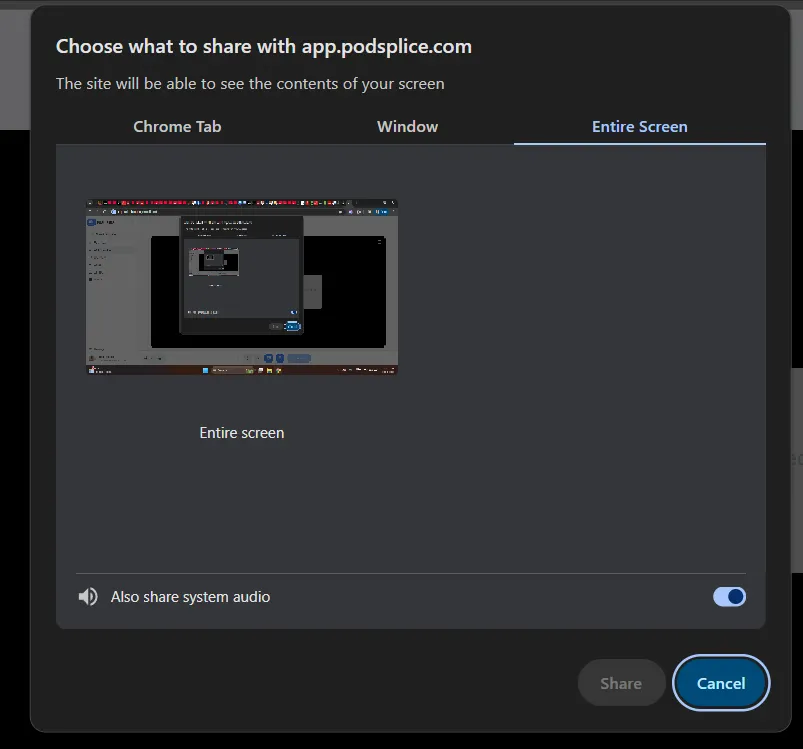
One-Click System Audio Toggle When you initiate a screen share or recording, the browser's native permission dialog includes a "Share system audio" checkbox. Enable it. Done. No routing, no multi-output devices, no configuration.
Zero Audio Drift — where audio gradually slides out of sync with video over the course of a long recording — happens when two separate systems (your recorder and your audio interface) run on slightly different clocks. Because the browser handles both video and audio capture in a single unified pipeline, there's no clock mismatch to cause drift. A 60-minute recording ends as synced as it started.
Isolated Tracks by Default Modern browser-based tools like Podsplice capture your microphone and system audio as separate sources from the start, giving you the clean, editable tracks that professional post-production requires.
With Podsplice, recording high-fidelity system audio, on a separate track to your mic audio, is as easy as clicking one button. Just toggle "system audio" to on - like in the screenshot here:
FAQ: Quick Answers for Search Engines
Can I record system audio on Mac for free?
Yes — but the free methods involve either the virtual audio driver setup described above (free but complex) or a browser-based tool like Podsplice that handles the capture without drivers. If your time has value, the browser approach is the faster path.
Is "Internal Audio" the same as "System Audio"?
Yes. Apple uses the term "Internal Audio" in some permission dialogs, but it refers to the same thing: audio produced by your Mac's software and applications. "System audio," "desktop audio," "computer sound," and "internal audio" are all describing the same source.
Why is my screen recording silent on Mac?
The most common cause is a missing or revoked Screen Recording permission. Go to System Settings → Privacy & Security → Screen Recording and confirm your recording app is listed and enabled. In macOS Sequoia and later, you may need to re-grant this permission after system updates. If permissions are correct but audio is still missing, the recorder likely doesn't support system audio capture without a virtual driver.
Why does my system audio sound muffled in my recordings?
This usually means the audio is being captured through your microphone picking up your speakers rather than through a true loopback. The fix is using a recorder with native system audio support — not one that relies on your mic to "hear" your computer.
Does recording system audio violate copyright?
Recording system audio for personal use, review, commentary, or education generally falls under fair use principles. Distributing or monetizing copyrighted material you've recorded is a separate legal question. When in doubt, consult a media attorney — but for standard creator workflows, capturing your own playback is standard practice.
Conclusion: Professional Audio Is No Longer Optional
In 2026, your audience's tolerance for poor audio is functionally zero. They'll forgive a slightly shaky zoom, an imperfect camera angle, even a background that's less than studio-perfect. What they won't forgive — and what drives the fastest drop-off in viewer retention — is audio that sounds like a radio playing across a room.
System audio is the difference between a recording and a production. Between content people share and content people abandon. And with browser-native tools, capturing it cleanly no longer requires a degree in audio engineering or an afternoon fighting virtual driver installations.
The barrier is gone. The question is just whether your workflow reflects that.
→ Try one-click system audio capture with Podsplice — no downloads, no drivers, no drift.

About the Author
Andrew Best
Andrew Best is an entrepreneur, educator, and AI expert with over two decades in online marketing. He co-founded China232 — a podcast and learning platform with 10M+ downloads — and later 88Herbs, a premium supplement company. Andrew now focuses on helping creators leverage AI for podcasting, screen recording, and YouTube content through Podsplice.
More from Podsplice

Best Screen Recorder for Mortgage Brokers: Record Loan Walkthroughs, Podcasts, and Social Clips
Article
Screen Recording Software for Shopify: The Easiest Way to Get Free Organic Traffic & Sales
Article
What is the Easiest Screen Recorder to use for Making Online Courses
Article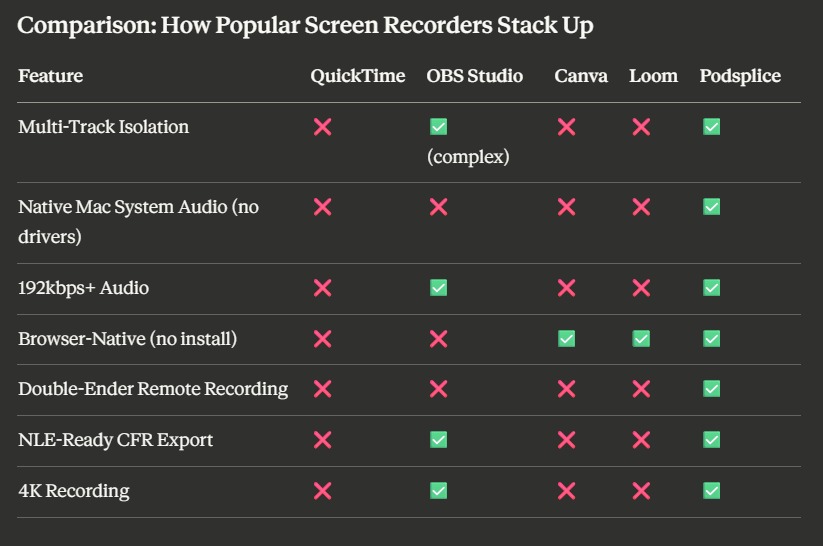
Best Screen Recording Software: What to Look For in 2026
Article
Screen Recording Software That Automatically Posts to Social Media (2026)
Article
Start Recording in Seconds
No downloads. No setup. Just hit record and share your story with the world in studio quality.
Looking for a Screen Recorder or Remote Recording tool?