
What is the Easiest Screen Recorder to use for Making Online Courses
Why Most Course Creators Fail Before They Even Record
Podsplice is the easiest screen recorder for online course creators because it is 100% browser-based, requires no downloads or drivers, and automatically records your microphone and system audio on separate tracks for studio-quality results without the technical headache.
Online course creators want to spend their time creating awesome courses. They don't want to fiddle around with screen recording software and wonder where the proper driver is, or try to figure out why they can't record system audio.
I’ve spent years creating online courses on platforms like Udemy, and I can tell you the #1 killer of a great course isn't the content—it's the friction.
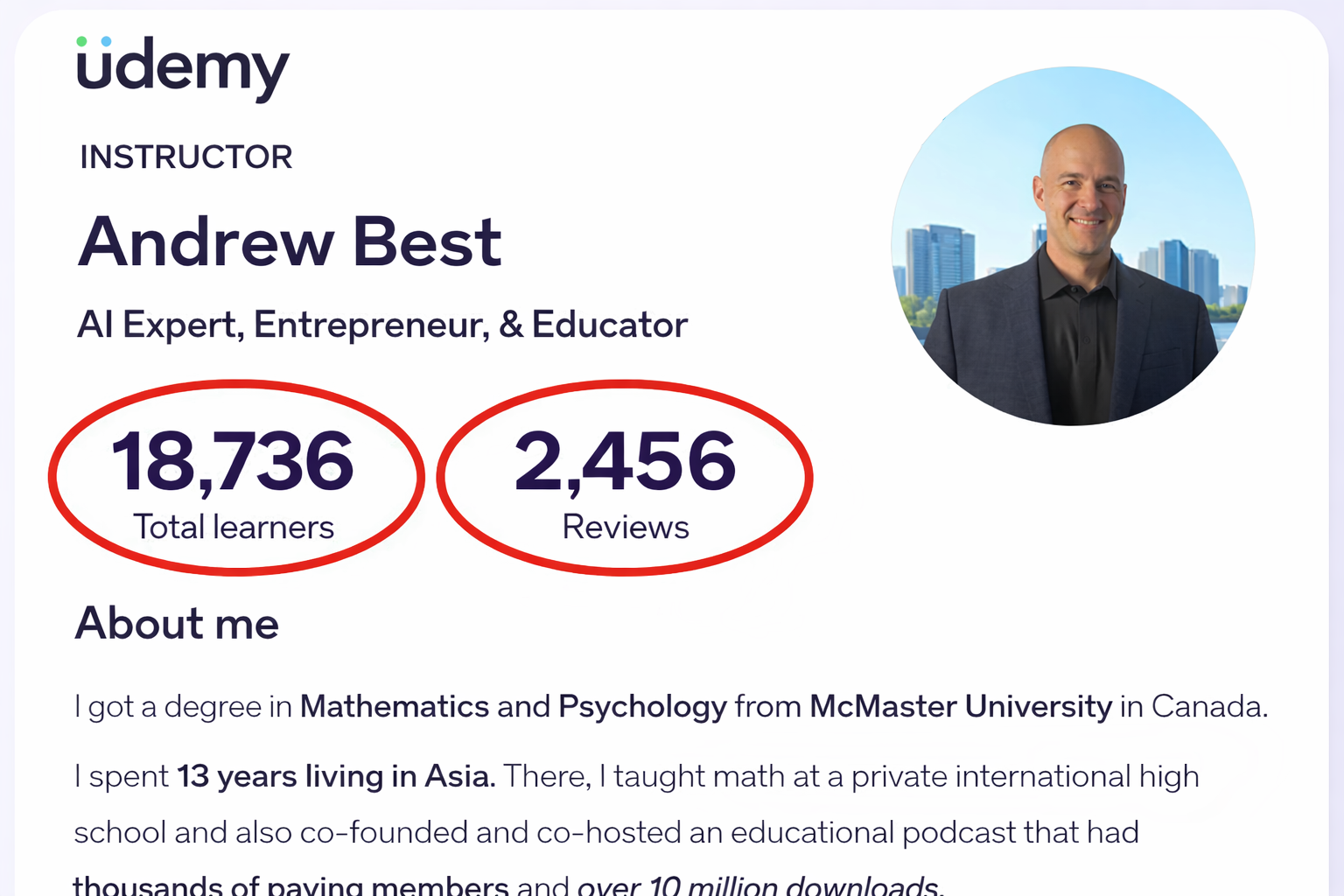
Here is my Udemy instructor bio where you can see I have almost 20 000 students and almsot 2500 great reviews.
Most course creators get stuck in "Software Hell." They spend four hours trying to get their computer to record its own audio, or they realize after a 30-minute session that their voice was drowned out by the video they were reacting to. I know because this used to happen to me.
If you want to scale your course business, you need a recorder that is super easy to use and gives you a high-quality recording without needing to waste time figuring out settings or doing much editing.
Podsplice is the best and easiest screen recording software to use for online course creators. Here are 4 reasons why:
1. The "Mashed Potato" Audio Problem
In online education, audio quality is more important than video quality. Students will forgive a slightly grainy webcam, but they will refund a course with "muddy" or "peaking" audio.
Most screen recorders "mash" your microphone and your system audio (the sounds from your computer) into one single track. This is a disaster for course creators. If your system audio is too loud, you can't "turn it down" later—your voice is buried forever.
To be honest, a lot of screen recorders don't even record system audio in the first place. System audio and internal audio are the same thing. They mean the sounds coming from your computer, for example, the sound coming from a YouTube video on your screen.
The Podsplice Fix: Podsplice records your Microphone and System Audio on separate, isolated tracks. You can edit the tracks separately if you want. You get perfect, 192 kbps high-bitrate voice quality and crisp system sound. When you are finished with your recording, Podsplice will also combine the tracks together into a finished course video automatically.
Podsplice records 4 separate tracks when you record your course video:
Your mic - (in high-quality 192 kbps and -16 LUFS)
Your screen - (high res. finished course uploads up to 4k)
Your system audio - (high res sterio sound of your system/internal audio)
Your webcam - (high res)
Learn more about high-quality audio for your online course.
2. Reaction-Style Teaching: The New Standard
The best courses today aren't just slides; they are active. Sometimes you need to:
Pull up a YouTube video to show an example.
Listen to a podcast clip and pause it to explain a concept.
React to a software demo in real-time.
Most standard recorders (including the built-in ones on Mac and Windows) struggle to capture system audio (internal Audio) without complex workarounds like virtual cables. Podsplice captures it natively in the browser. You hit play on the video, you talk over it, and both are captured crystal clear.
3. Faceless vs. "Talking Head" Flexibility
Whether you want to be the face inside your course or remain a "faceless" creator, your software should handle both without a setup change.
The Faceless Creator: Record your screen and high-quality mic audio. Use the On-Screen Annotation tools to draw, circle, and highlight as you speak.
The Hybrid Creator: Record your webcam in a separate track. This allows you to move your "bubble" around in the edit or go full-screen for the intro and then shrink down to the corner for the demo.
Note: for drawing and highlighting over your screen, we have a free Chrome extension to use called Podsplice Highlight.
4. No Downloads, No Drivers, No "Where is my file?"
As a course creator, your time is worth hundreds of dollars an hour. You shouldn't spend it:
Updating drivers.
Figuring out why a "Virtual Cable" isn't routing.
Searching for where a file saved on your hard drive.
Podsplice is 100% browser-based. It works on Mac, PC, and Chromebook. You record, it uploads to the cloud in the background, and it mixes your tracks perfectly when you're done.
Bonus course creator features
If you want a lot of students for your online course (who doesn't?), you'll need to promote your course.
Podsplice lets you record remote interview podcasts, and it can create short clips of your course with AI. It also puts karaoke-style subtitles on those clips, making them perfect for YouTube shorts, Instagram Reels, or TikTok
The Course Creator’s Checklist:
When choosing your setup, don't settle for less than this:
Browser-based: Start recording in under 10 seconds.
Separate Tracks: Keep your webcam, screen, mic, and system audio isolated.
Cloud-First: No risk of losing a 2GB file because your computer crashed.
Studio Sound: Built-in high-pass filters to remove "hum" and "muffled" tones.
Podcasts and Shorts creator: Helps promote your online course to more students

About the Author
Andrew Best
Andrew Best is an entrepreneur, educator, and AI expert with over two decades in online marketing. He co-founded China232 — a podcast and learning platform with 10M+ downloads — and later 88Herbs, a premium supplement company. Andrew now focuses on helping creators leverage AI for podcasting, screen recording, and YouTube content through Podsplice.
More from Podsplice

The Best Video Format for Affiliate Marketing YouTube Videos in 2026: The "Talking Head" Edge
Blog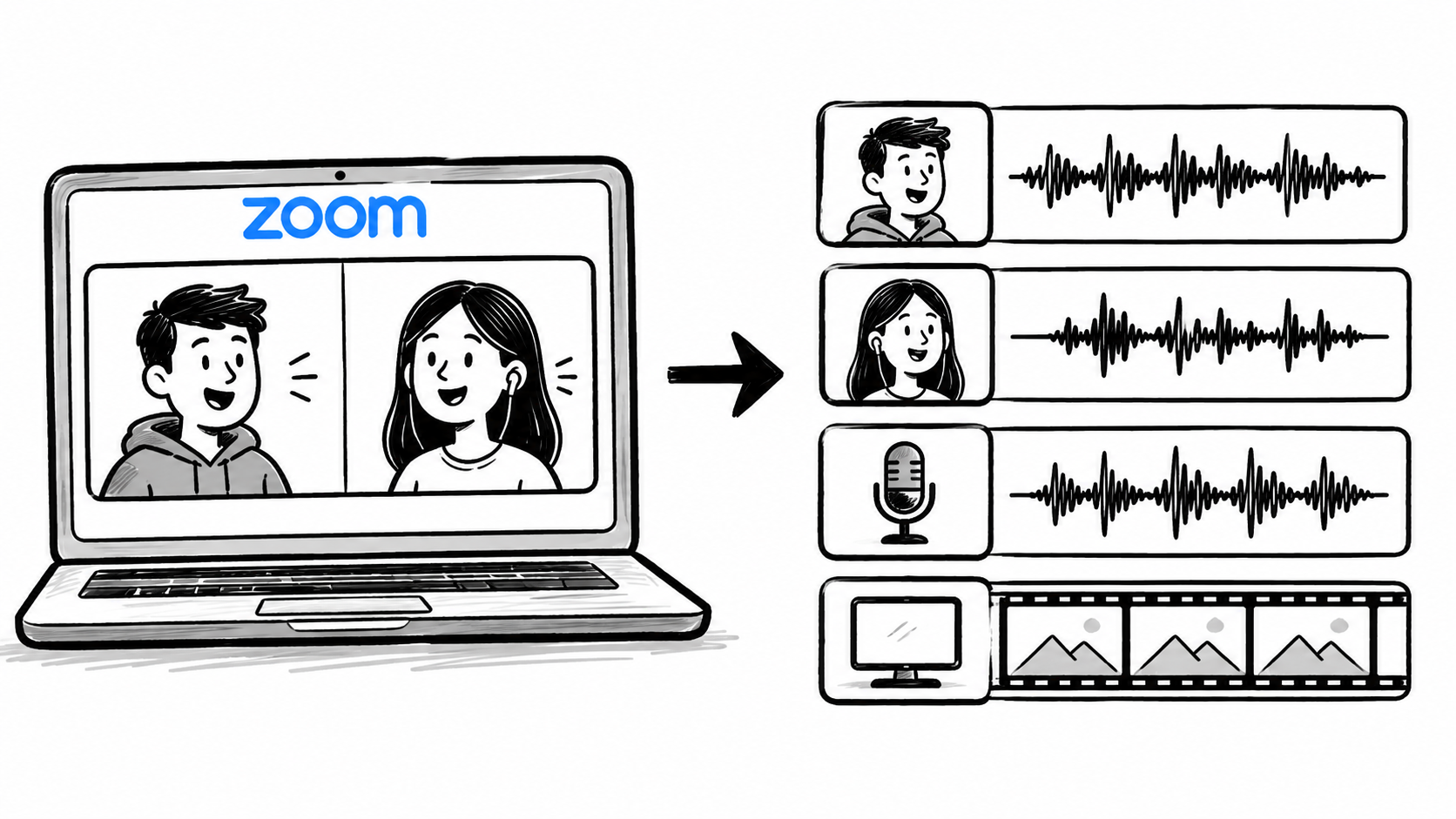
How to Record Zoom Meetings With Separate Tracks for Editing
Article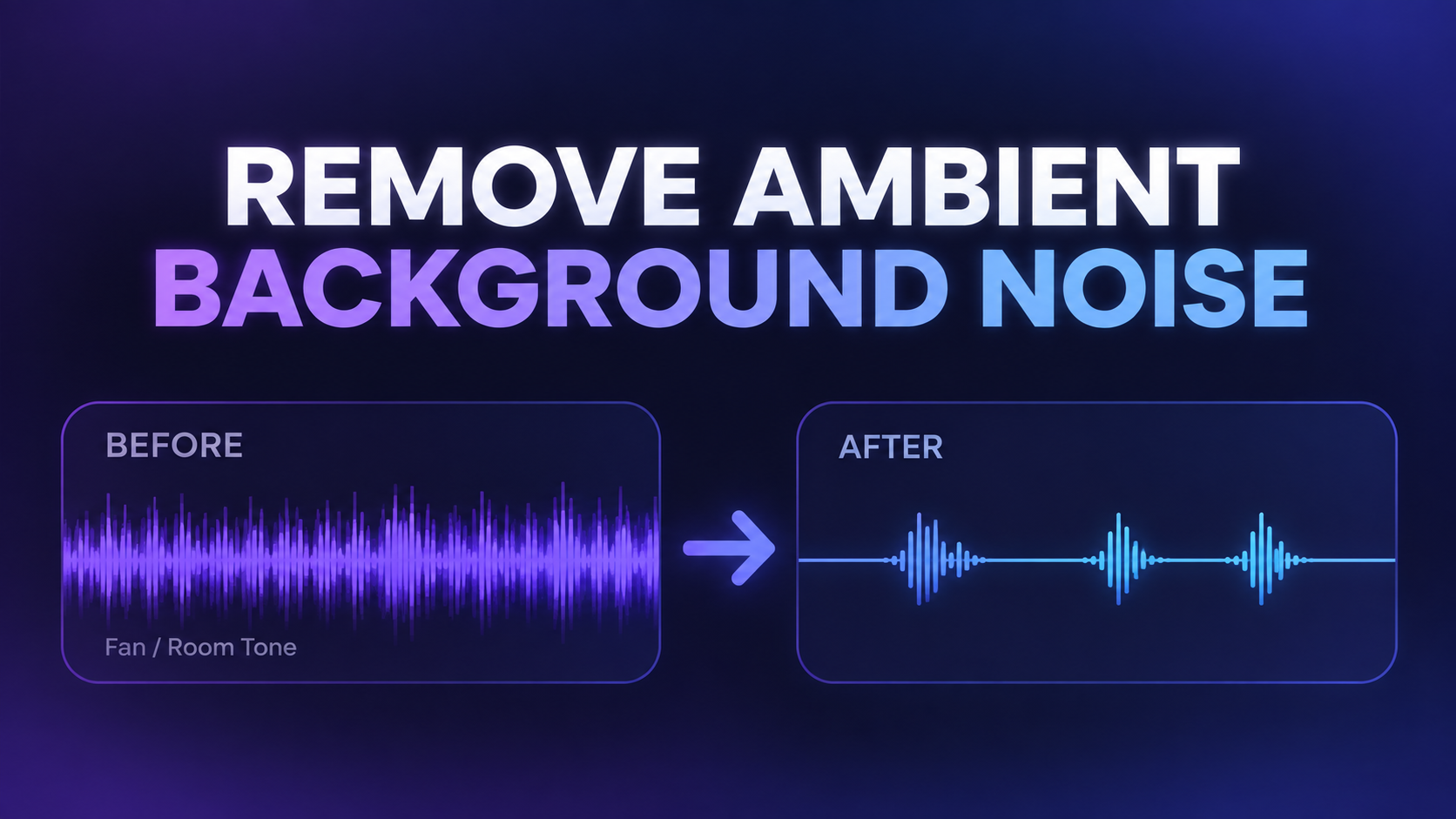
Remove Ambient Background Noise From Your Videos
Article
Record Stereo Tab Audio in Chrome
Article
Why You Should NEVER Record a Podcast in Zoom
Article
Start Recording in Seconds
No downloads. No setup. Just hit record and share your story with the world in studio quality.
Looking for a Screen Recorder or Remote Recording tool?