
Why WebM Files Break Your Premiere Pro Workflow (And the Easy Fix)
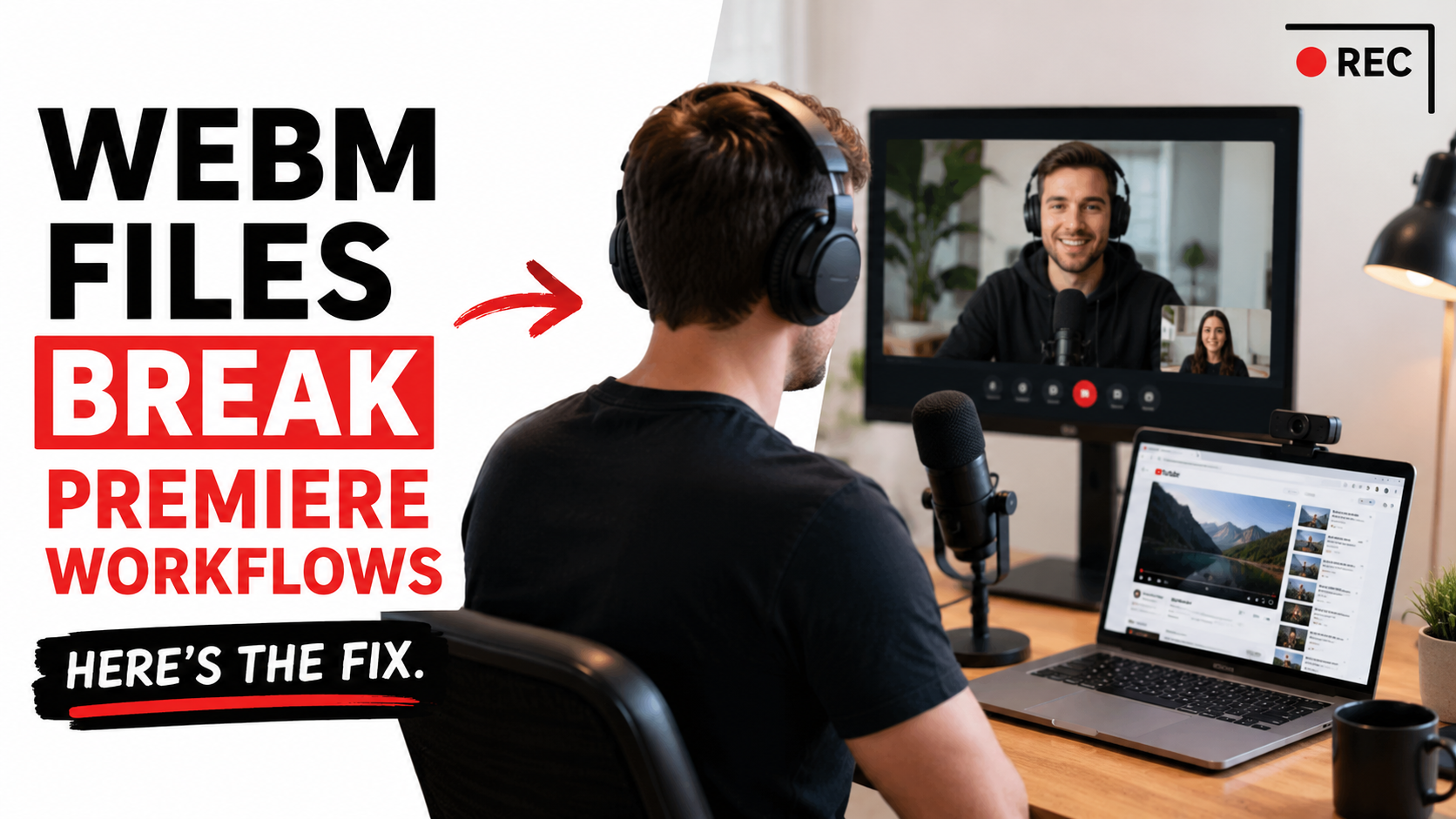
Recording remote interviews in a browser has become incredibly easy.
You open a tab, invite your guest, and hit record. The problem usually starts later, when you try importing the files into Adobe Premiere Pro.
A lot of creators run into the exact same issue. Premiere refuses the WebM file, the audio behaves strangely, Media Encoder fails, or the entire project suddenly needs plugins and conversion steps before editing can even begin.
This has become common for journalists, podcasters, YouTubers, and interview creators because most browser-based recording software exports WebM files. WebM works well for browsers, but it was never really designed for professional post-production workflows.
That is where the friction starts.
Content creators need an easy solution to this.
In this article, I'll show exactly why Podsplice is the easiest solution for both recording remote interviews and screen recording videos in separate tracks AND exporting these tracks in one click to Adobe Premiere Pro or Davinci Resolve in one click in the right formats (mp4 and wav)
Why Browsers Use WebM
Browsers like Chrome commonly record in WebM because it is lightweight, browser-native, and reliable for web capture. From the browser's perspective, it is actually a smart format.
The problem is that professional editing software evolved around completely different formats. Premiere Pro workflows were built mostly around MP4, MOV, WAV, H.264, and ProRes, not browser-native recording formats.
So creators end up stuck between browser recording formats and editing-native formats. That mismatch is what creates the workflow headache.
Why Premiere Pro Workflows Break
A lot of creators assume:
“If Chrome records it, Premiere should open it.”
But as of 2026, Premiere Pro still does not properly support WebM as a smooth native editing workflow. That forces creators into annoying workarounds involving plugins, conversion tools, codec troubleshooting, and broken imports.
DaVinci Resolve and Final Cut Pro can run into similar friction because professional editing workflows still strongly prefer MP4 video and WAV audio.
The issue is not that WebM is “bad.” It is simply optimized for browser recording instead of editing pipelines.
The Bigger Problem: Merged Tracks
File formats are only half the problem.
A lot of browser recording tools also export a flattened video with merged audio tracks. That becomes painful inside Premiere because editors need independent control over microphones, webcams, screen recordings, browser audio, and system audio.
Without separate tracks, even simple edits become frustrating. Removing a cough from one speaker becomes harder. Adjusting browser audio independently becomes impossible. Cleaning up one microphone affects the entire recording.
The difference between merged recordings and separate tracks is basically the difference between something you recorded and something you can professionally edit.
What Professional Editors Actually Want
Over the past several months, we started hearing the same thing repeatedly from Podsplice users.
Journalists, interview creators, podcast editors, and YouTubers kept asking:
“Can I export MP4 instead of WebM?”
“Where are the separate tracks?”
“How do I get WAV files for Premiere?”
Those are not casual creator questions. They are professional workflow questions.
It became obvious that the recording process itself was no longer the problem. The export workflow was.
Professional editors do not just need a video file. They need clean editing assets.
The Easy Fix
The cleanest workflow we found was surprisingly simple.
Record inside the browser, then export editing-ready MP4 video and WAV audio tracks immediately afterward.
Instead of converting WebM manually, installing plugins, or fighting codec problems, the workflow becomes:
Record → Export → Edit
That is it.
How Podsplice Handles Editing Exports
Podsplice records every source separately, including microphones, cameras, screen recordings, and system audio.
After recording, creators can either export individual tracks manually or click:
Export Tracks for Editing
Podsplice then automatically converts video tracks to MP4 and audio tracks to WAV while downloading each file as it finishes. The software handles the entire conversion process automatically, which keeps the workflow simple even with multiple tracks and guests.
The exported files are designed specifically for professional editing workflows. Video exports use H.264 High Profile with CRF 16 settings for visually near-lossless quality, while audio exports use uncompressed 24-bit 48kHz PCM WAV.
The goal was simple:
browser-simple recording with professional editing flexibility afterward.
System Audio Is a Huge Advantage
This part gets overlooked constantly.
A lot of journalists and creators need to play clips during interviews, react to YouTube videos, review media live, or demonstrate software while recording remotely.
Most browser recording tools either cannot capture system audio properly or permanently merge it into the main mix.
Podsplice records system audio separately, which means editors can independently adjust clip volume, trim referenced media, and process browser audio separately from microphones.
For interview creators and journalists especially, this becomes extremely useful.
The Bottom Line
WebM files are not inherently bad. They are simply optimized for browser recording instead of professional editing workflows.
That mismatch is what creates the frustration.
If you record remote interviews and edit professionally afterward, the cleanest workflow is:
Record in the browser → Export editing-ready MP4 + WAV tracks → Edit normally
No plugin drama. No conversion headaches. No merged-track nightmare.
That is the workflow Podsplice was built around.

About the Author
Andrew Best
Andrew Best is an entrepreneur, educator, and AI expert with over two decades in online marketing. He co-founded China232 — a podcast and learning platform with 10M+ downloads — and later 88Herbs, a premium supplement company. Andrew now focuses on helping creators leverage AI for podcasting, screen recording, and YouTube content through Podsplice.
More from Podsplice
Why Your Screen Recordings Look Blurry (And How to Fix It)
Article
The Best Video Format for Local SEO (And the Easiest to Make)
Blog
How to Make a Reaction Video
Article
Best Screen Recorder for Mortgage Brokers: Record Loan Walkthroughs, Podcasts, and Social Clips
Article
Best Screen Recording Software with System Audio (2026 Mac & PC Guide)
Article
Start Recording in Seconds
No downloads. No setup. Just hit record and share your story with the world in studio quality.
Looking for a Screen Recorder or Remote Recording tool?