
What LUFS Should I Use for Podcasts and Screen Recordings?
The short answer: You should use -16 LUFS for podcasts and screen recordings.
Whether you are recording a professional podcast for Spotify or a high-stakes demo using a browser-based screen recorder, -16 LUFS is the industry "Goldilocks Zone."
-16 LUFS is the universal standard used by YouTube, Apple Podcasts, and Spotify to ensure your audio sounds consistent and professional.
This is exactly why we built Podsplice. We wanted a pro-level recorder that lives entirely in your browser (no downloads, no setup) but automatically handles the complex "loudness" math that usually requires a sound engineer.
Let's unpack a few things and make this interesting and easy to understand.
I. What is LUFS in sound recording?
LUFS stands for Loudness Units relative to Full Scale.
If that sounds like a mouthful of engineering jargon, don't worry. In the "old days" of radio and TV, we measured Volume. In the modern digital age, we measure Loudness. While they sound like the same thing, there is one massive difference that can make or break your recording.
The "Thunder vs. Rain" Difference
Think of it this way:
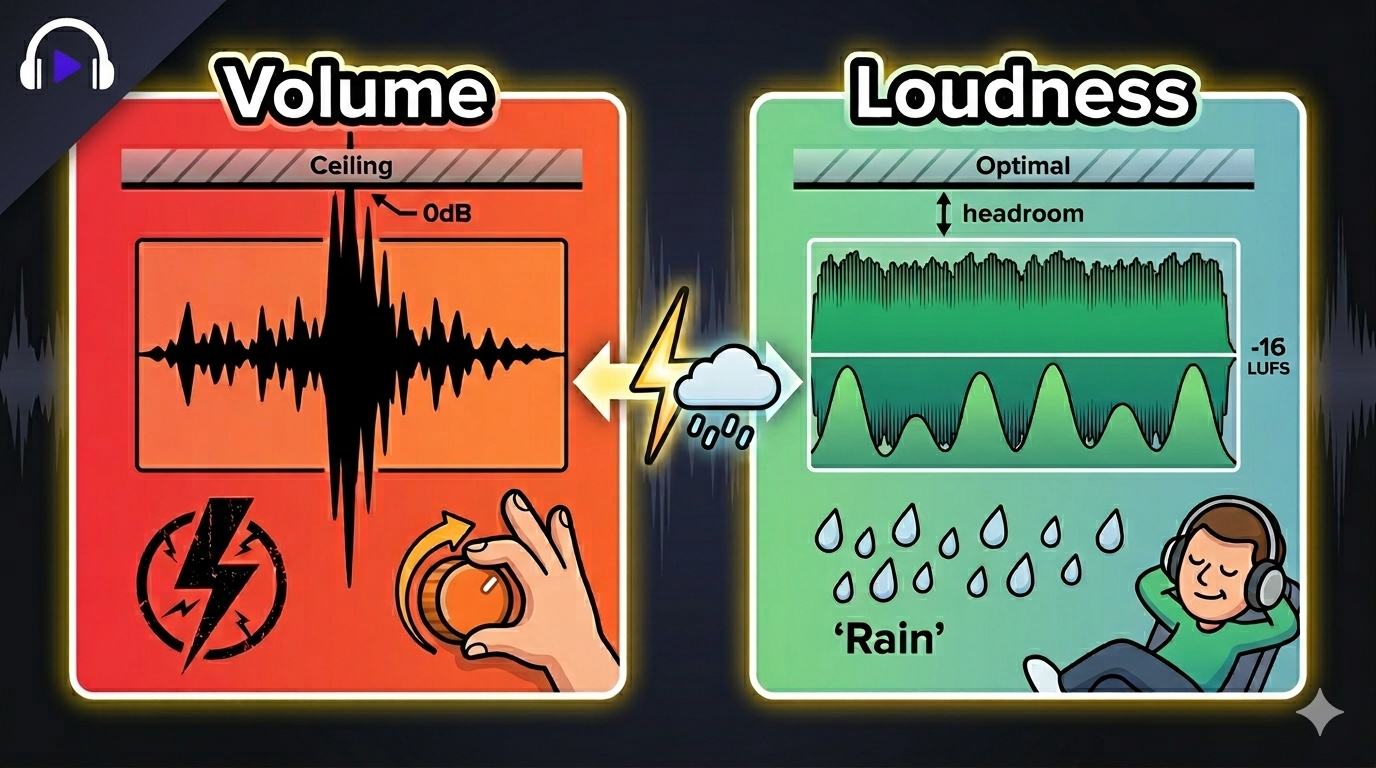
Volume (dB) is a Snapshot: Imagine a single, massive crack of thunder. It is incredibly loud for exactly one second, then it's gone. If your recording software sees that "spike," it thinks your video is "full" and won't let you make it any louder.
Loudness (LUFS) is an Average: Imagine a steady, heavy rainstorm. It might not have the "spike" of the thunder, but because it is consistent and constant, it feels much louder over time.
The Problem with "Spikes"
If you laugh suddenly or hit a hard "P" sound (a plosive), you create a "Thunder" moment. Most basic recorders see that one loud second and "cap" your entire recording there.
The result? One second of your video is loud, and the other 10 minutes sound like a quiet whisper. This is why you often have to turn your volume up to hear a person talking, only to have your ears blasted when they laugh.
The LUFS Solution
LUFS ignores those tiny "Thunder" spikes and looks at the total energy of your voice. When we say Podsplice targets -16 LUFS, it means we are ensuring your "average volume" is at the perfect level so your audience never has to touch their volume knob.
2. Why are Decibels (dB) Negative? (The "Concrete Ceiling")
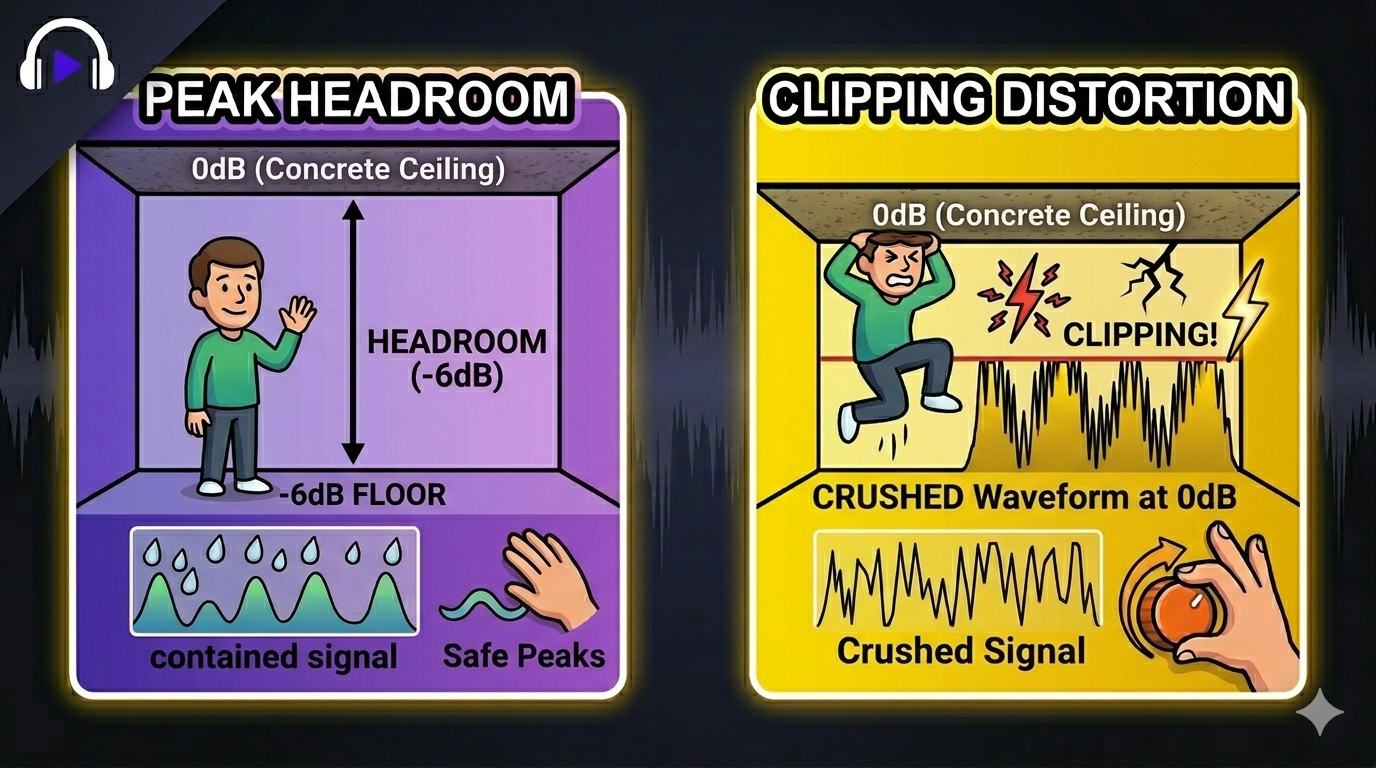
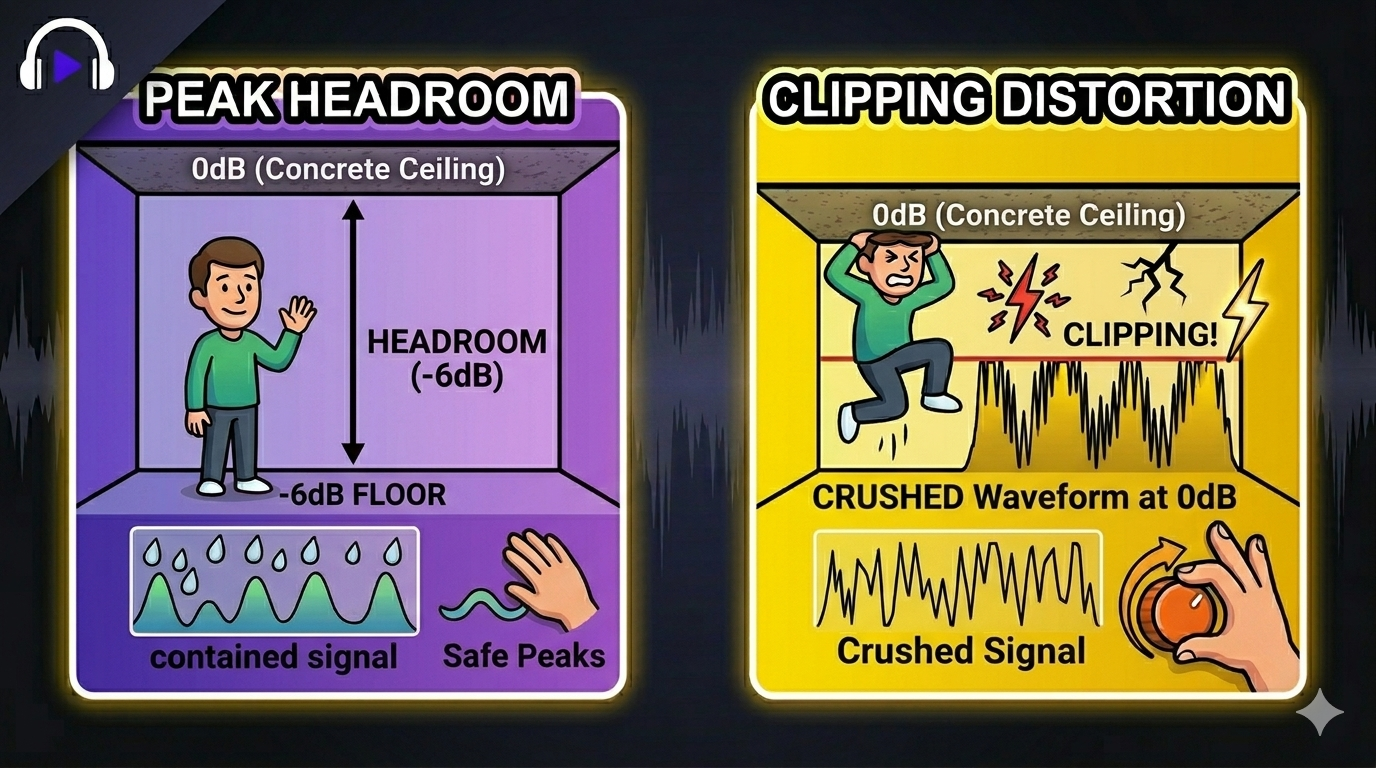
In the real world, "zero" means silence. In the digital world, 0 dB is the absolute maximum limit. Think of 0 dB as a Concrete Ceiling. * You are measuring how much "Headroom" you have before your head hits the concrete.
If you are at -6 dB, you have 6 decibels of breathing room. You can jump, laugh, or shout, and you’re safe.
If you hit 0 dB, you've hit the ceiling.
If you try to go to +1 dB, the sound wave gets "crushed" against the concrete. This is called Clipping, and it sounds like harsh, crunchy static that ruins a recording.
3. Volume vs. Loudness: The Speedometer Analogy
This is the #1 reason amateur videos sound "quiet" even when the volume bars are hitting the top.
Volume (Peak dB): This is your Speedometer. It tells you exactly how loud you are at one specific second. If you hit a loud "P-pop," your needle jumps to 100mph for a split second.
Loudness (LUFS): This is your Average Speed for the whole trip.
The Problem: If you have one giant "spike" that hits the 0 dB ceiling, most recorders think the video is "at max volume." But if the rest of your speech is a whisper, your Average Speed (LUFS) is only 10mph. Your listeners will have to crank their speakers to hear you, which also turns up background hiss and hum.
4. The -16 LUFS Standard: Your "Cruise Control"
If you record too quiet (e.g., -30 LUFS), people will tune out. If you're too loud (e.g., -10 LUFS), you’ll sound distorted and "exhausting."
By targeting -16 LUFS, your audio sounds "thick," warm, and professional. It’s the perfect balance of power and clarity that makes your content sound like a high-end production.
5. How Podsplice Does the Engineering for You
Normally, hitting -16 LUFS requires expensive software downloads and years of practice with "Compressors" and "Limiters."
Podsplice changes that. Because it is a fully browser-based tool, you get professional results with zero friction. It acts as your Automated Sound Engineer:
The Safety Net: It keeps your "peaks" away from that 0 dB Concrete Ceiling so you never clip.
The Intelligence: It scans your entire recording to calculate your "Average Speed."
The Normalization: It automatically lifts your voice to the perfect -16 LUFS standard.
Learn more about why Podsplice is the ultimate screen recording software.
6. The Checklist for a Great Audio Recording
DO keep your mouth about 4-6 inches (one hand-width) from the mic.
DON'T try to stay at 0 dB while recording. Aim for -6 dB to -12 dB to give the software "room to work."
DO wear headphones so you can hear background noise before it's too late.
DO use a recorder that supports separate audio tracks so you can edit your voice and computer sound independently.
Summary: Expert Audio, Zero Effort
You don't need to be a sound engineer to sound like one. By understanding the "Ceiling" and the "Average," you’re already ahead of 90% of creators.
Podsplice was built to handle the math of LUFS and dB in the background, so you can focus on your story. Best of all? There’s nothing to download. You just open a tab and start recording.
Try Podsplice for your next screen recording or podcast

About the Author
Andrew Best
Andrew Best is an entrepreneur, educator, and AI expert with over two decades in online marketing. He co-founded China232 — a podcast and learning platform with 10M+ downloads — and later 88Herbs, a premium supplement company. Andrew now focuses on helping creators leverage AI for podcasting, screen recording, and YouTube content through Podsplice.
More from Podsplice
Best Browser for Recording System Audio on Mac and Windows
Article
Creating High-Quality Faceless Videos
Article
How to Make Reaction Videos on a Mac: The Easiest Way in 2026
Article
How to Screen Record with System Audio in 2026: The Easiest Way (Complete Guide)
Article
Screen Recording Software That Posts Directly to YouTube
Blog
Start Recording in Seconds
No downloads. No setup. Just hit record and share your story with the world in studio quality.
Looking for a Screen Recorder or Remote Recording tool?