
Best Browser-Based Screen Recorder (No Download, No Setup)
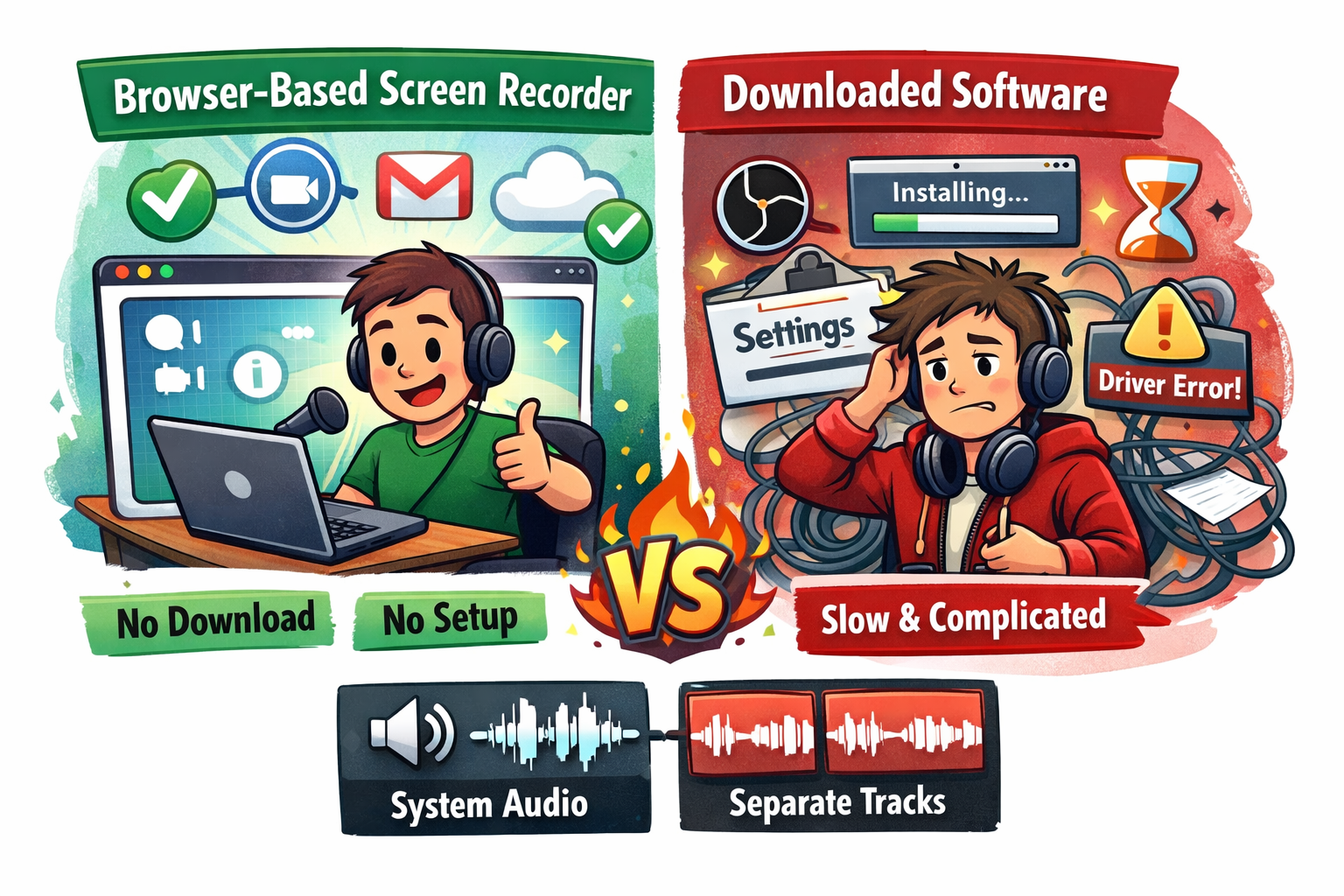
If you want to record your screen without installing software, a browser-based screen recorder is the easiest way to do it.
It runs directly in your browser—just like Gmail or Google Docs.
You don't need to download or install anything. You don't need to worry about drivers.
You open a tab and start recording.
I've used both browser-based screen recorders, like Canva, as well as screen recorders you download, like OBS.
In 2026, browser-based is the way to go.
Browser-Based vs Downloaded Screen Recorders
Traditional screen recording software usually requires:
downloading an app
installing it
setting permissions
sometimes configuring audio or video settings
That adds friction. It also slows down your computer, which makes for a garbage recording.
Browser-based tools remove all of that.
You just open a page and record.
They’re faster to start, easier to use, and don’t clutter your computer with extra software.
They are also lighter, since you’re not running a heavy app in the background.
Why Browser-Based Screen Recording Is Awesome (and Less Annoying)
The biggest advantage is simplicity.
You don’t need to:
install anything
update software
deal with compatibility issues
It works across devices and machines with the same workflow every time.
That’s especially useful if you:
record frequently
switch computers
just want something that works immediately
I'm a content creator. I want to focus my time and energy on recording, not setting up and figuring out complicated software.
Here is a video I made about how I make reaction videos. I made it with Podsplice, and the whole thing took 30 seconds to set up.
The Problem With Most Browser-Based Recorders
Most browser-based screen recorders are too limited.
They’re easy—but they sacrifice important features and aren't built for serious content creators.
A big one is system audio, which is the sound coming from your computer, like the sound from a YouTube video, for example.. (System audio is also called internal audio or computer audio)
If your recordings are coming out silent, here’s why: Why Mac screen recording has no sound (and how to fix it)
Most browser-based screen recorders don’t record the sound coming from your computer.
So if you’re recording a YouTube video, a Zoom call, or anything with audio, it either doesn’t get captured.
Another issue is flexibility.
You often get very basic layouts and controls.
For example, the webcam is usually fixed in a small circle with no real customization.
And most tools don’t support separate audio tracks, which lowers the overall quality in a major way.
Example: Canva Screen Recorder
Canva is a good example of a browser-based tool done right in some ways.
It’s simple, clean, and easy to use.
In fact, I started a couple of YouTube channels using Canva’s screen recorder.
But after a few recordings, I realized I needed a better screen recorder.
Canva doesn’t record system audio at all, so I couldn't make a YouTube reaction video.
It has limited layout control.
And it doesn’t give you separate audio tracks for editing.
So while it’s great for getting started, it becomes restrictive as you try to do more.
What a Good Browser-Based Screen Recorder Should Do
If you want something that actually replaces downloaded software, it needs to go further.
It should:
record system audio reliably
record your microphone at the same time
capture your screen and webcam
give you control over layout and positioning
save separate audio tracks for editing
Without those, you’re going to hit limitations quickly.
Learn what to look for in a good screen recorder.
Where Podsplice Fits In
Podsplice is built to keep the simplicity of browser-based recording—but remove the limitations.
It records:
system audio (what’s playing on your computer)
your microphone
your screen
your camera
All directly in your browser.
You can also adjust your layout, instead of being stuck with a fixed webcam position.
And everything is saved as separate, synced tracks, so you can edit cleanly later.
When Browser-Based Recording Makes the Most Sense
This approach works especially well if you’re:
recording tutorials
making YouTube videos
doing reaction videos
teaching or presenting
recording remote conversations
In all of these cases, speed and simplicity matter—but so does capturing everything properly.
Bottom Line
Browser-based screen recording is the easiest way to get started.
No downloads. No setup. Just open and record.
But most tools are too limited once you need more than the basics.
The real advantage comes from using a browser-based recorder that still gives you full control—especially when it comes to system audio and separate tracks.
That’s where the difference shows.
Get the Podsplice screen recorder

About the Author
Andrew Best
Andrew Best is an entrepreneur, educator, and AI expert with over two decades in online marketing. He co-founded China232 — a podcast and learning platform with 10M+ downloads — and later 88Herbs, a premium supplement company. Andrew now focuses on helping creators leverage AI for podcasting, screen recording, and YouTube content through Podsplice.
More from Podsplice
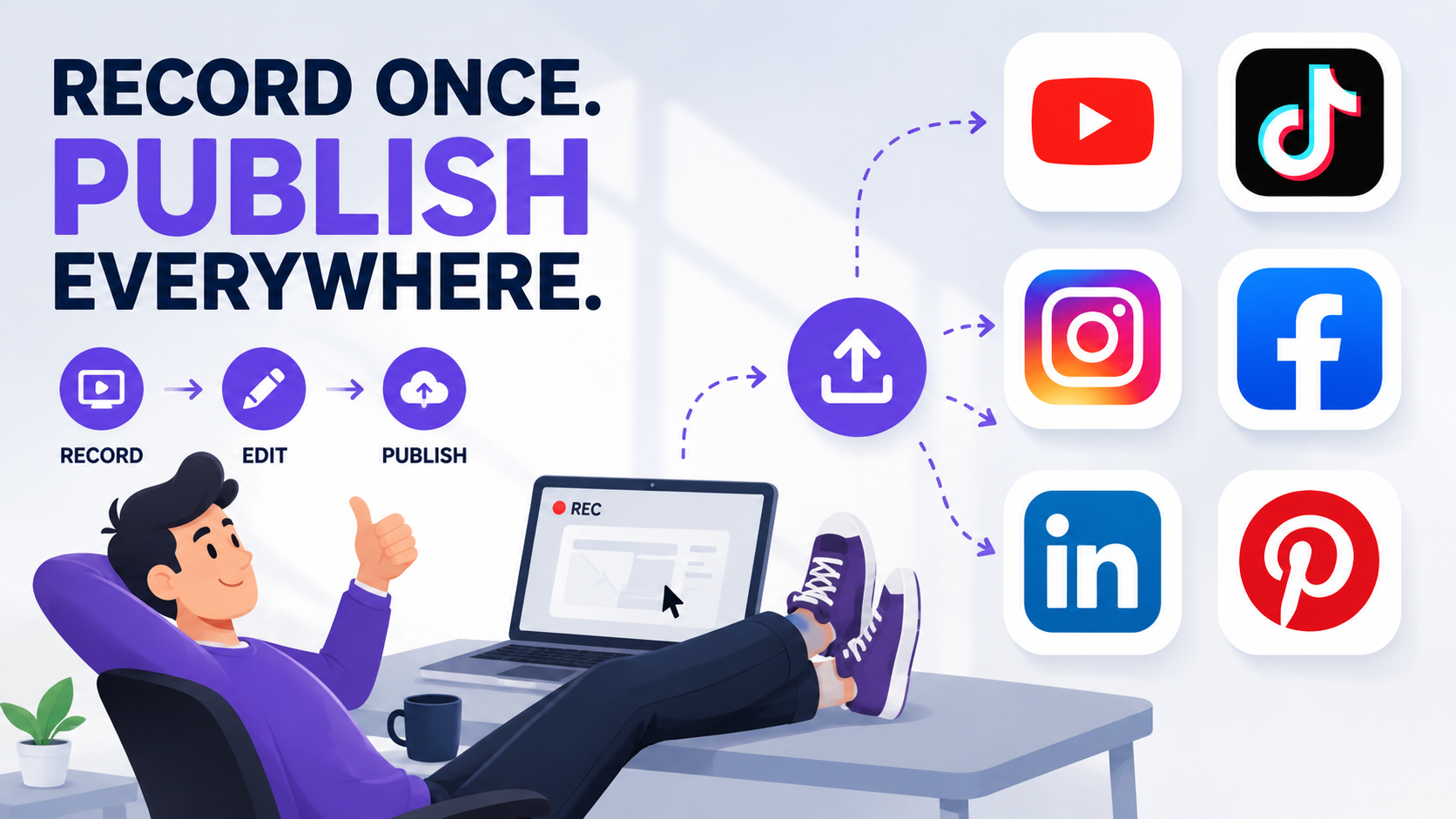
Screen Recording Software That Automatically Posts to Social Media (2026)
Article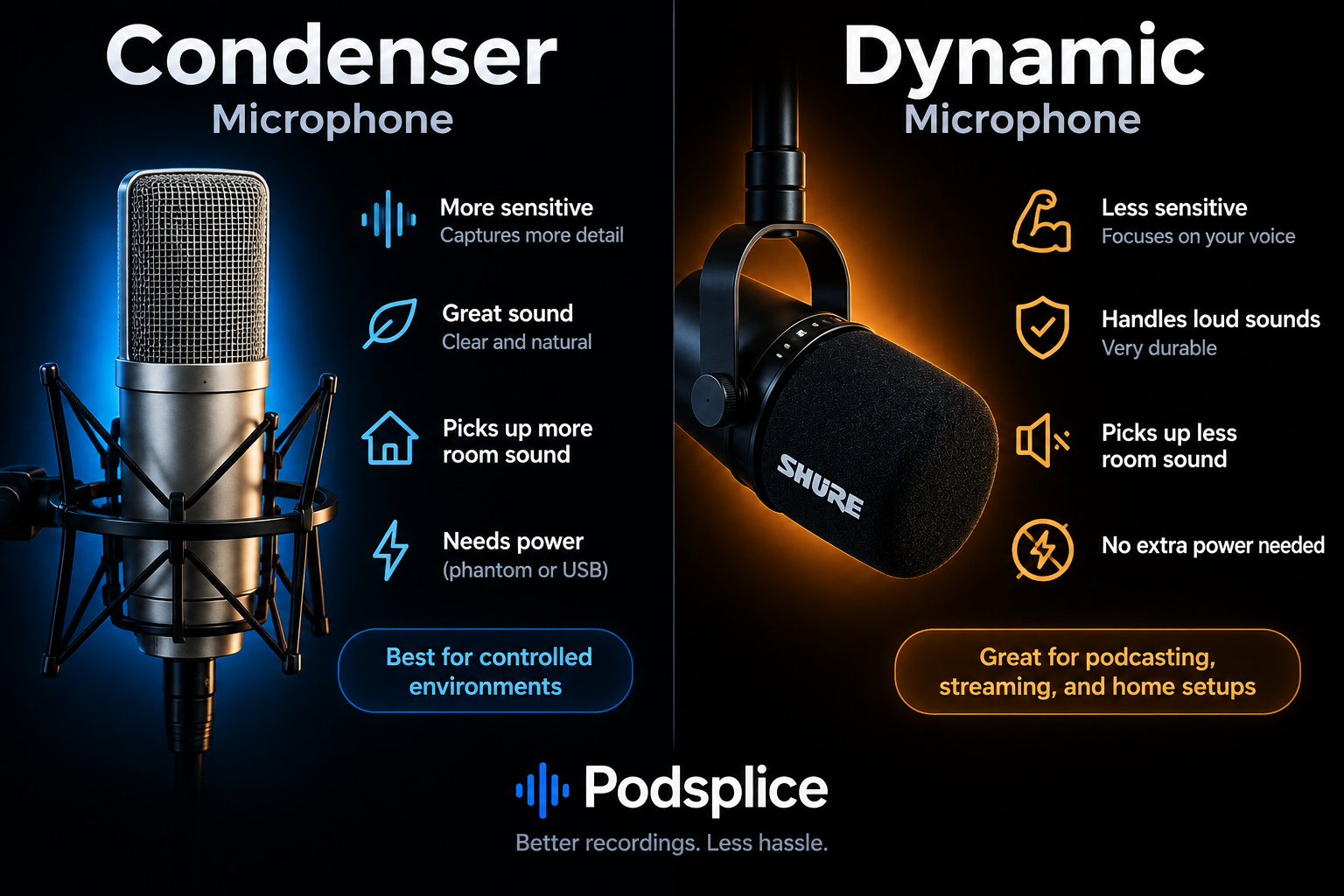
Understanding Directional, Dynamic, and Condenser Microphones for Podcasting
Article
Why Most Screen Recording Software Is Terrible for YouTube Videos (And What Creators Actually Need)
Article
Why Your Screen Recordings Look Blurry (And How to Fix It)
Article
The Easiest Way to Capture YouTube Audio in a Reaction Video
Blog
Start Recording in Seconds
No downloads. No setup. Just hit record and share your story with the world in studio quality.
Looking for a Screen Recorder or Remote Recording tool?