
Why Mac Screen Recording Has No Sound (Fix Internal Audio Fast)
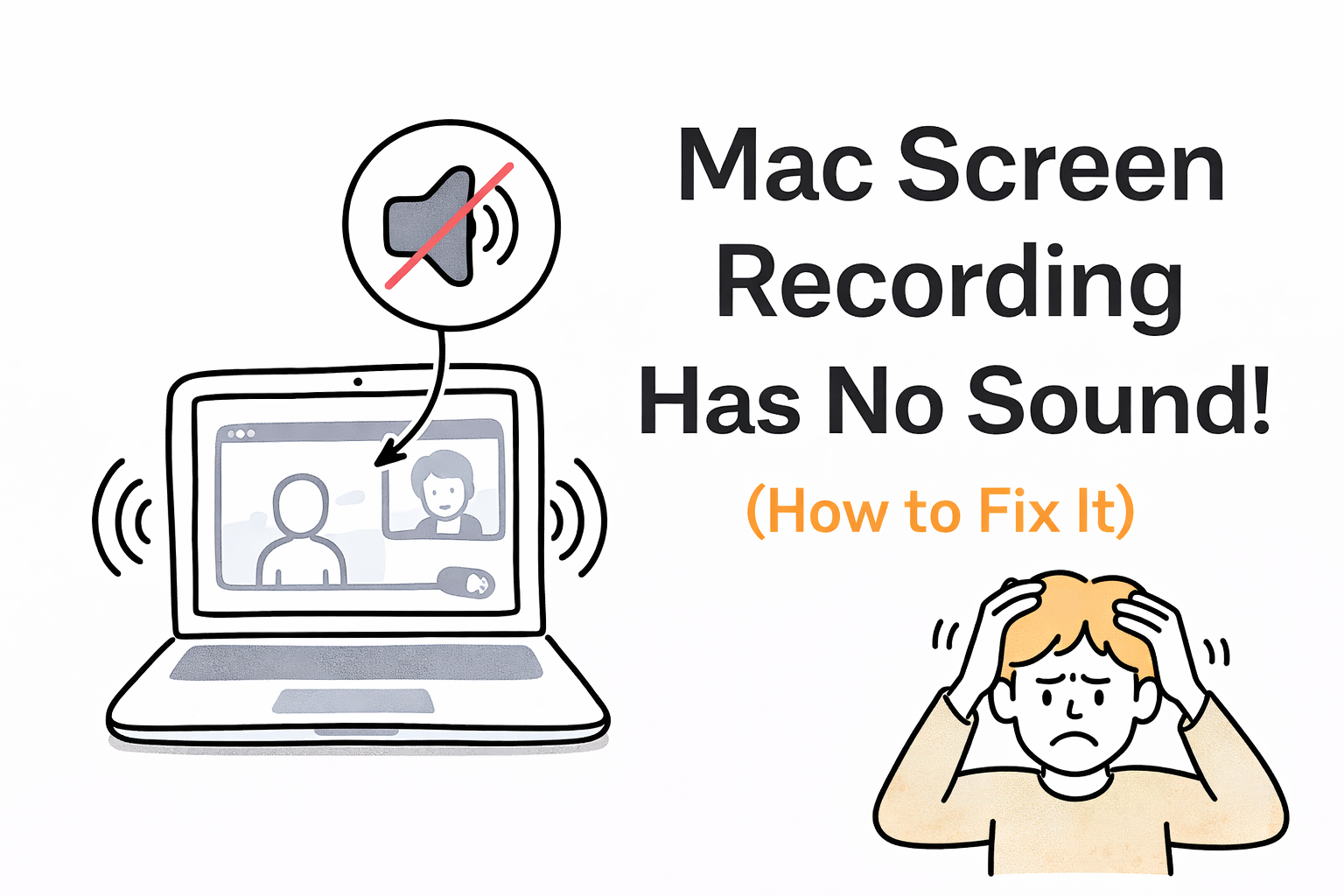
If your Mac screen recording has no sound, you’re not doing anything wrong.
There are actually two types of audio involved when you record your screen:
1. Microphone audio — your voice
2. Internal audio — the sound coming from your computer (YouTube, Zoom, Spotify, a video, etc.)
Most Mac users have no problem recording their microphone.
The issue is internal audio.
That’s why your recordings come out silent when you try to capture what’s playing on your screen.
Mac users use the term "internal audio". You will also read terms like "computer audio" or "system audio". All three terms mean the same thing.
Why Mac Screen Recording Has No Sound
macOS blocks internal audio recording by default.
This is a deliberate design choice by Apple.
The reason is security and privacy.
If apps could freely record internal audio, they could potentially capture:
private calls
meeting audio
system sounds without your knowledge
So Apple restricts access to internal audio unless you use special routing tools.
As a result:
QuickTime only records your microphone
The built-in screen recorder doesn't record internal audio
Most simple tools don’t capture what’s playing on your Mac
So when you record your screen, your voice will be there (unless you didn't toggle on your mic - lol) —but your video or app audio will be missing.
Fix Option 1 (The hard way): Use BlackHole (Manual Workaround)
One way to solve this is by using tools like BlackHole, Soundflower, or Loopback.
These tools create a virtual audio device that reroutes your system audio into your recording.
But this comes with friction.
You have to install drivers, configure Audio MIDI settings, and manage output devices. It’s easy to misconfigure, and small changes can break your setup.
If you’ve tried this and ended up with no sound—or the wrong sound—you’re not alone.
For a simpler approach, see:
Easist blackhole alternative for recording internal audio on Mac
Fix Option 2 (Easy way): Record Internal Audio Directly
The easier solution is to use a tool that captures internal audio without routing it manually.
Podsplice screen recorder records:
internal audio (what’s playing on your Mac)
your microphone
your screen
your camera
Everything is captured together and saved as separate synced tracks.
There’s no need to install drivers or configure audio devices.
You just record.
Here is a video I made showing the easiest way to record your mic and internal audio on a Mac.
When This Matters
This problem shows up anytime you need both your voice and your internal audio in the same recording.
For example:
recording a YouTube reaction video
teaching from slides or a video
creating tutorials or demos
recording a Zoom or remote conversation
If internal audio is missing, the recording isn’t usable.
It's not only about internal audio. Learn more about the best screen recorder with system audio
Quick Summary
Mac screen recordings have no sound because macOS blocks internal audio recording by default.
Your microphone works, but your system audio doesn’t get captured.
You can work around this with tools like BlackHole, or use a tool like Podsplice that records internal audio directly without setup.
Bottom Line
This isn’t a bug. It’s how macOS is designed.
Once you understand the difference between microphone audio and internal audio, the problem becomes clear.
The fix is simply choosing a method that captures both.
If you want the easiest way to record internal audio, mic, and screen together without setup, Podsplice is built for exactly this.

About the Author
Andrew Best
Andrew Best is an entrepreneur, educator, and AI expert with over two decades in online marketing. He co-founded China232 — a podcast and learning platform with 10M+ downloads — and later 88Herbs, a premium supplement company. Andrew now focuses on helping creators leverage AI for podcasting, screen recording, and YouTube content through Podsplice.
More from Podsplice
How to Record High-Quality Reaction Videos in Any Browser
Blog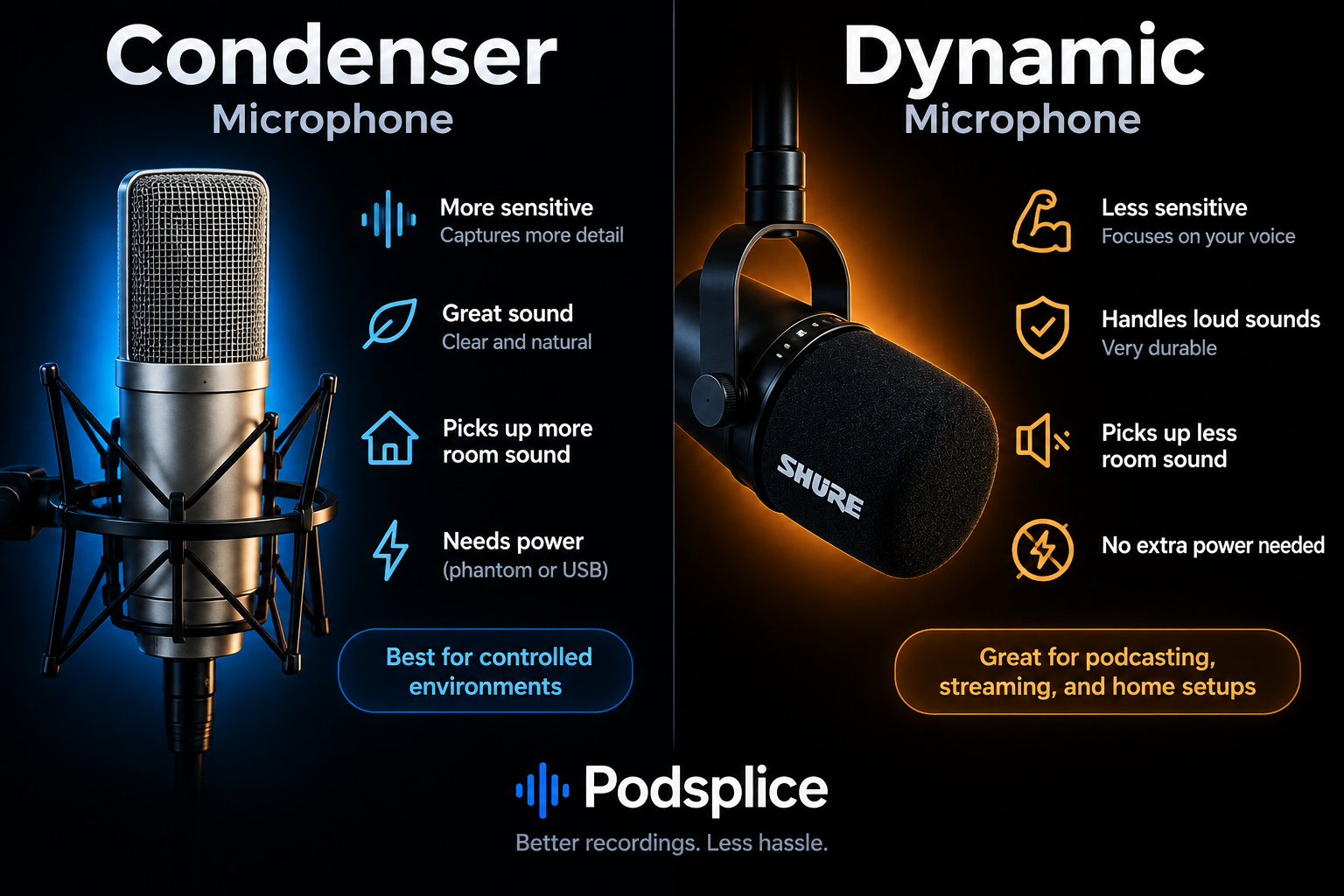
Understanding Directional, Dynamic, and Condenser Microphones for Podcasting
Article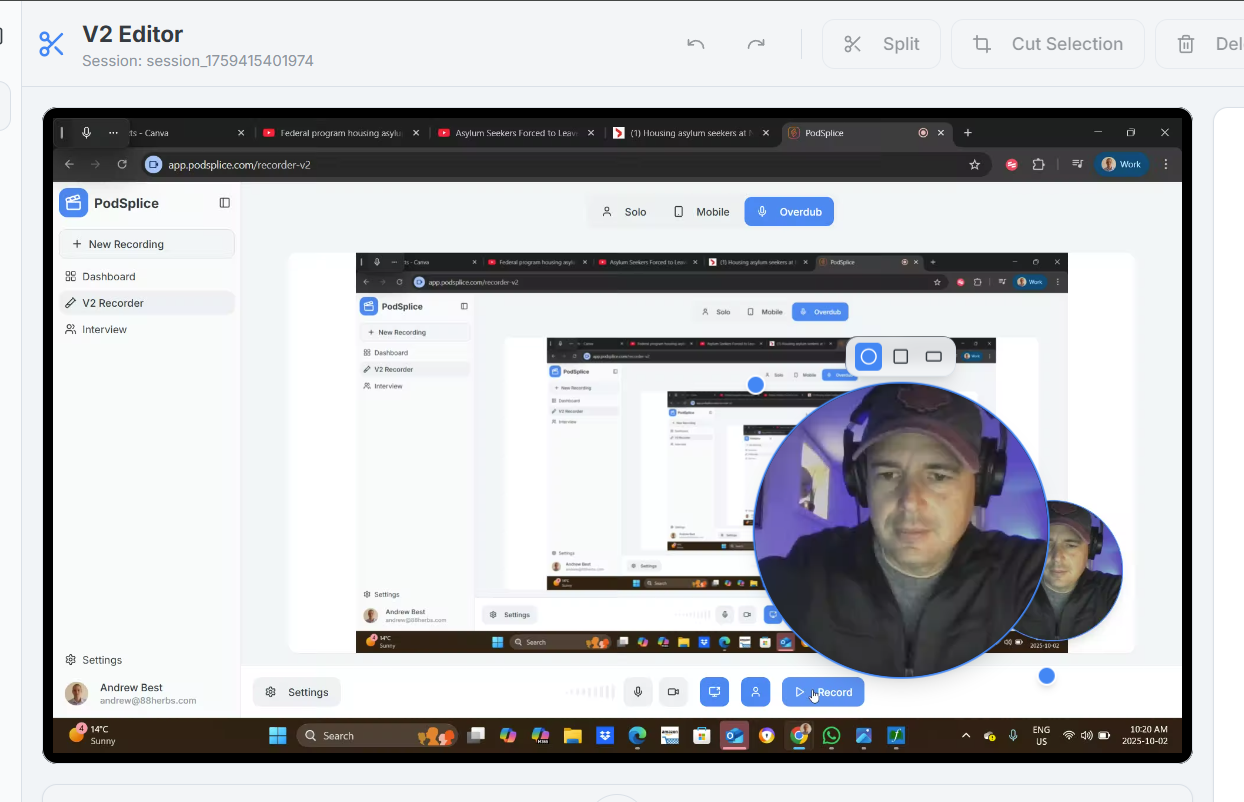
How to Change the Size and Shape of Your Webcam Recording Circle in a Screen Recording Video
Blog
Mastering the Podsplice Multi-Track Video Editor
Article
Screen Recording Software That Automatically Posts to Social Media (2026)
Article
Start Recording in Seconds
No downloads. No setup. Just hit record and share your story with the world in studio quality.
Looking for a Screen Recorder or Remote Recording tool?