
Why Your Riverside Screen Share Has No Audio — And the 10-Second Fix

Riverside doesn’t record system audio from screen shares. If your reaction video is silent, here’s why it happens and how to capture computer audio plus your mic audio as separate tracks.
Does Riverside Record System Audio or Computer Audio?
No. Riverside records each participant’s microphone and camera locally in high quality, but it does not capture system audio from screen shares.
Riverside does not record system audio from a solo screen share reaction video either.
Riverside’s official docs cover “Share your screen” for video, but system audio isn’t listed as a supported input. On G2 reviews of Riverside, reviewers also flag this issue. “Shared screen audio could be made stronger” is a common complaint.
So if you screen share a YouTube video with Riverside, you’ll get the video of it, but the audio track will be silent or missing.
Without complicated and annoying workarounds, you can't make a YouTube reaction video with Riverside.
You also can't react to a YouTube video with a guest if you are recording a remote podcast.
Note: System audio, internal audio, and computer audio all mean the same thing. It is the sound coming from your computer, like the sound from a YouTube video playing in your browser tab during a screen recording video.
Why Your Riverside Reaction Video Is Silent
What Riverside actually records
Riverside captures each person’s audio and video locally for quality, but it does not capture everything on your screen. Here’s the breakdown:
Your webcam: Yes, it records. Quality up to 4K.
Your microphone: Yes, it records. Quality is 48kHz WAV and it’s recorded locally on your computer.
Your guest’s microphone and webcam: Yes, it records. Same 48kHz WAV quality, recorded locally on their end.
Your screen video: Yes, it records the video from your screen share. Quality is 1080p.
System or computer audio: No, it does not record. Audio from YouTube, Netflix, Zoom, or any app you’re sharing will not be captured. The track will be silent or missing.
That last one is why reaction videos come out broken. You see the video you shared, but you don’t hear it.
What users expect vs what happens
Most podcasters assume “share screen” means “share screen plus the audio playing on it.”
In Riverside, you end up talking over a silent video. Your reaction is there, but the thing you’re reacting to isn’t. For commentary, gaming, or breakdown videos, that kills the content.
Why Doesn’t Riverside Have System Audio?
This is speculation, but there are 3 likely reasons:
1. Technical tradeoff: Riverside’s core tech is local recording. Each person’s mic gets recorded on their own device and uploaded later. That guarantees no internet glitches ruin audio. System audio can’t be “local” to one person if you’re watching a YouTube video together. Capturing it requires browser-level permissions that are buggy and vary by OS.
2. Product focus: Riverside was built to replace Zoom for remote interviews. The main pain was “Zoom audio sounds like a phone call.” So they solved for mic quality first. Screen share plus system audio is an edge case for their core user.
3. Complexity vs reliability: Chrome’s tab audio permission is notoriously unstable. It breaks every few Chrome updates. Adding it could make Riverside feel less reliable, which is the opposite of their brand.
Should they add it? For reaction creators, absolutely. For 1:1 interview shows, it’s not needed. They chose to be excellent at one thing instead of mediocre at two.
3 Workarounds That Don’t Really Work
If you Google this, you’ll find these suggestions. Here’s why they suck:
1. Play audio out loud for your mic to catch
You’ll get echo, room reverb, and your keyboard clicks. Sounds like a 2007 screen recording. Unusable for client work.
2. Use OBS plus virtual audio cables with Riverside
Technically possible. You route system audio into a virtual mic, mix it with your real mic, and feed that to Riverside. Now you’re managing 3 apps, latency, and sample rate drift. You bought Riverside to avoid being a broadcast engineer.
3. Record system audio separately and sync in post
Use QuickTime, Audacity, or another recorder just for system audio, then line it up with your Riverside files. That’s 3 times the editing time and drifts out of sync on long recordings.
How to Record System Audio Plus Mic Plus Screen as Separate Tracks
If you need the audio from the video you’re watching, you need software built for that workflow.
The tool built for this: Podsplice
Podsplice records 4 discrete tracks by default, in the browser:
Track 1: Your microphone, isolated.
Track 2: System or computer audio, whatever’s playing on your screen.
Track 3: Screen video
Track 4: Webcam video
No BlackHole, no virtual cables, no checkboxes. It works with guests too. Everyone’s mic is separate, and the shared system audio is its own track.
Why separate tracks matter for editing
With one mixed file, you can’t turn down the YouTube video without turning yourself down. With separate tracks you can:
Duck the system audio when you talk. Lower the video volume automatically when you speak.
Remove copyright audio before posting. Delete the system audio track if you need to avoid a claim.
Replace bad mic audio without re-recording the screen. Fix your voice without touching the video.
Edit your reaction without affecting the source. Cut yourself without cutting the thing you’re reacting to.
That’s why pro creators don’t use Zoom recordings.
FAQ
Can I fix Riverside system audio with settings?
No. It’s not a hidden setting. Riverside doesn’t support capturing computer audio from screen shares. Their docs confirm screen share is video only.
Does Descript record system audio?
Descript claims to, but I've had problems with this. Descript’s Editor Recorder says it can do “Computer Audio.” I found this didn't work for YouTube reaction videos or podcasts. This is why I switched to Podsplice from Descript.
What’s the easiest way to record a YouTube reaction video?
Use a tool that captures your mic, the YouTube audio, your screen, and your webcam as separate tracks. That way you can edit any piece without ruining the others. Podsplice does this in one click. Riverside plus OBS plus cables also works, but takes 15 minutes of setup per session.
Learn more about how to make a YouTube reaction video.
Will Riverside add system audio later?
No public roadmap for it. Given their focus on reliability and local recording, it’s likely not a priority. For now, if you need system audio, you need a different tool for those recordings.
Can I do a screen share with system audio with Riverside during a remote podcast?
No. You need Podsplice for this. Podsplice lets you and a remote guest both react to a YouTube video because Podsplice captures the system audio of that video. If you try to do this with Riverside, you'll be able to share the screen, but the YouTube video will be silent.
Here is a remote video podcast I made with Podsplice, where my brother and I reacted to a YouTube video at the same time, even though we were in different locations.

About the Author
Andrew Best
Andrew Best is an entrepreneur, educator, and AI expert with over two decades in online marketing. He co-founded China232 — a podcast and learning platform with 10M+ downloads — and later 88Herbs, a premium supplement company. Andrew now focuses on helping creators leverage AI for podcasting, screen recording, and YouTube content through Podsplice.
More from Podsplice

What Screen Recording Software Do Journalists Use? (Best Recording Software for Investigative Reporters in 2026)
Blog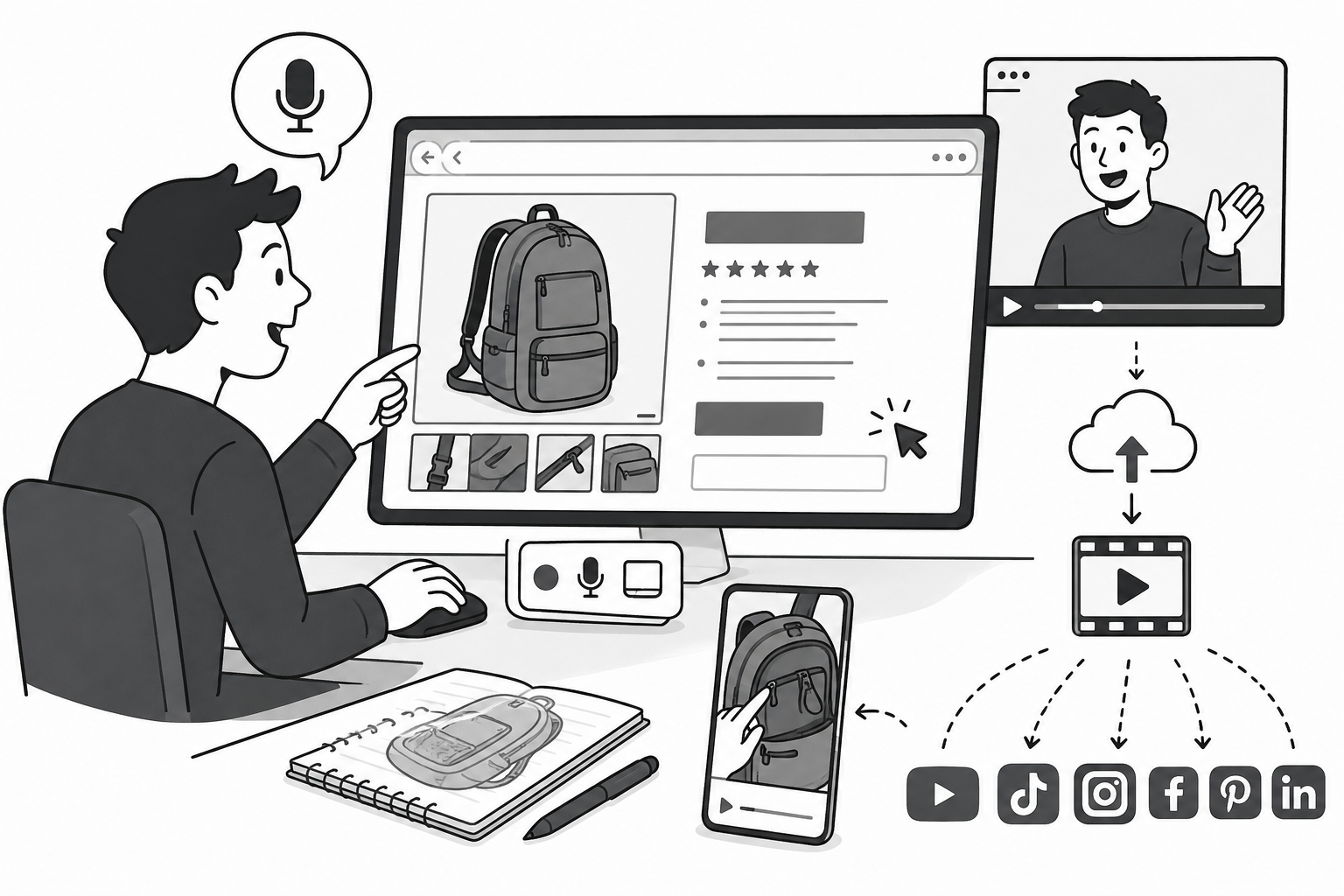
Screen Recording Software for Shopify: The Easiest Way to Get Free Organic Traffic & Sales
Article
Why Most Screen Recording Software Is Terrible for YouTube Videos (And What Creators Actually Need)
Article
System Audio vs. Tab Audio: Important Differences for High-Quality Screen Recording
Article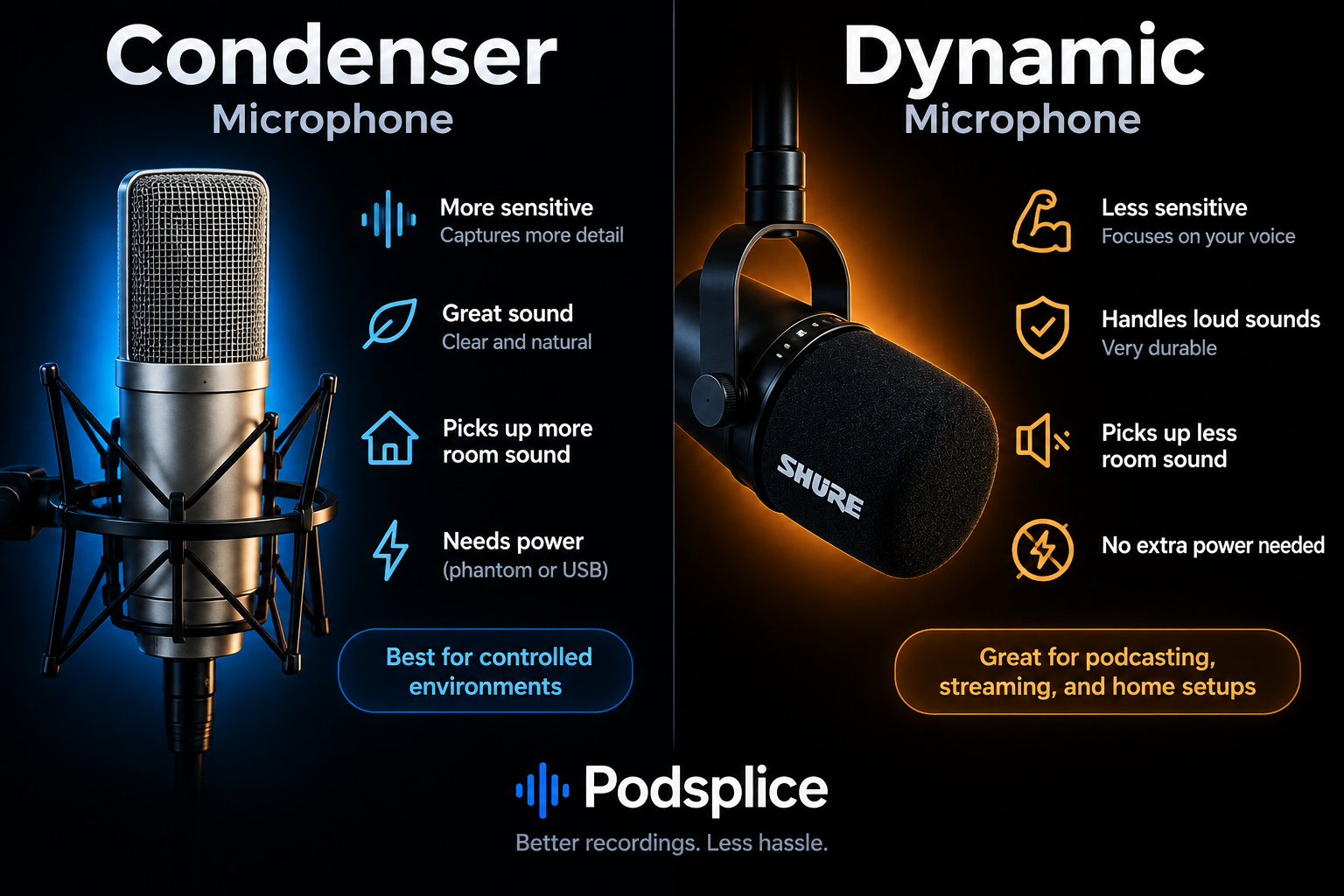
Understanding Directional, Dynamic, and Condenser Microphones for Podcasting
Article
Start Recording in Seconds
No downloads. No setup. Just hit record and share your story with the world in studio quality.
Looking for a Screen Recorder or Remote Recording tool?