
How to Record a Remote Video Lesson with Two Instructors and Screen Share
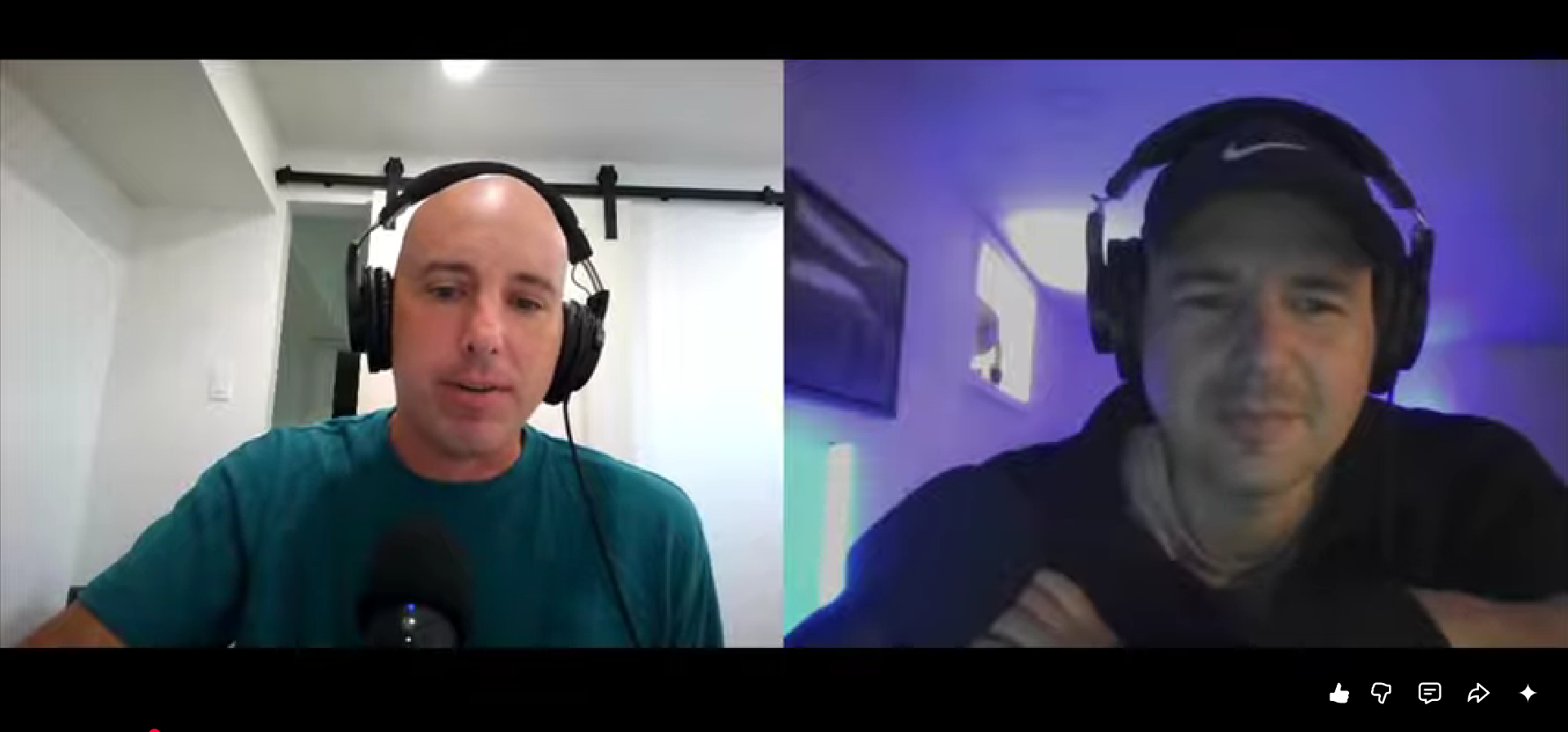
Podsplice lets you record a remote video lesson with two instructors, screen share, and capture system audio—all directly in your browser with no setup.
This means you can:
Record both instructors on camera
Share your screen during the lesson
Capture the system audio (internal/computer audio) from your screen
Save everything in high quality (up to 4K)
👉 In short: it’s the easiest way to record a remote video lesson with screen share and audio that actually works.
Why Most Remote Video Lesson Setups Fail
If you’ve tried to record a remote lesson before, you’ve probably run into this:
The screen share works… but there’s no sound
The guest audio is separate or messy
The recording setup is complicated
Or the audio ends up out of sync
The biggest issue?
👉 Most tools don’t properly record system audio.
What Is System Audio (and Why It Matters)?
System audio (also called internal audio or computer audio) is the sound coming directly from your computer.
For example:
A YouTube video you’re teaching from
Slides with embedded audio
A demo or walkthrough during your lesson
If you’re recording a remote video lesson with screen share, this audio is essential.
Without it:
👉 Your lesson feels broken
👉 Your recording is incomplete
👉 And you end up redoing everything.
I made a video about this here:
Here is a screenshot of the 2 instructor view.
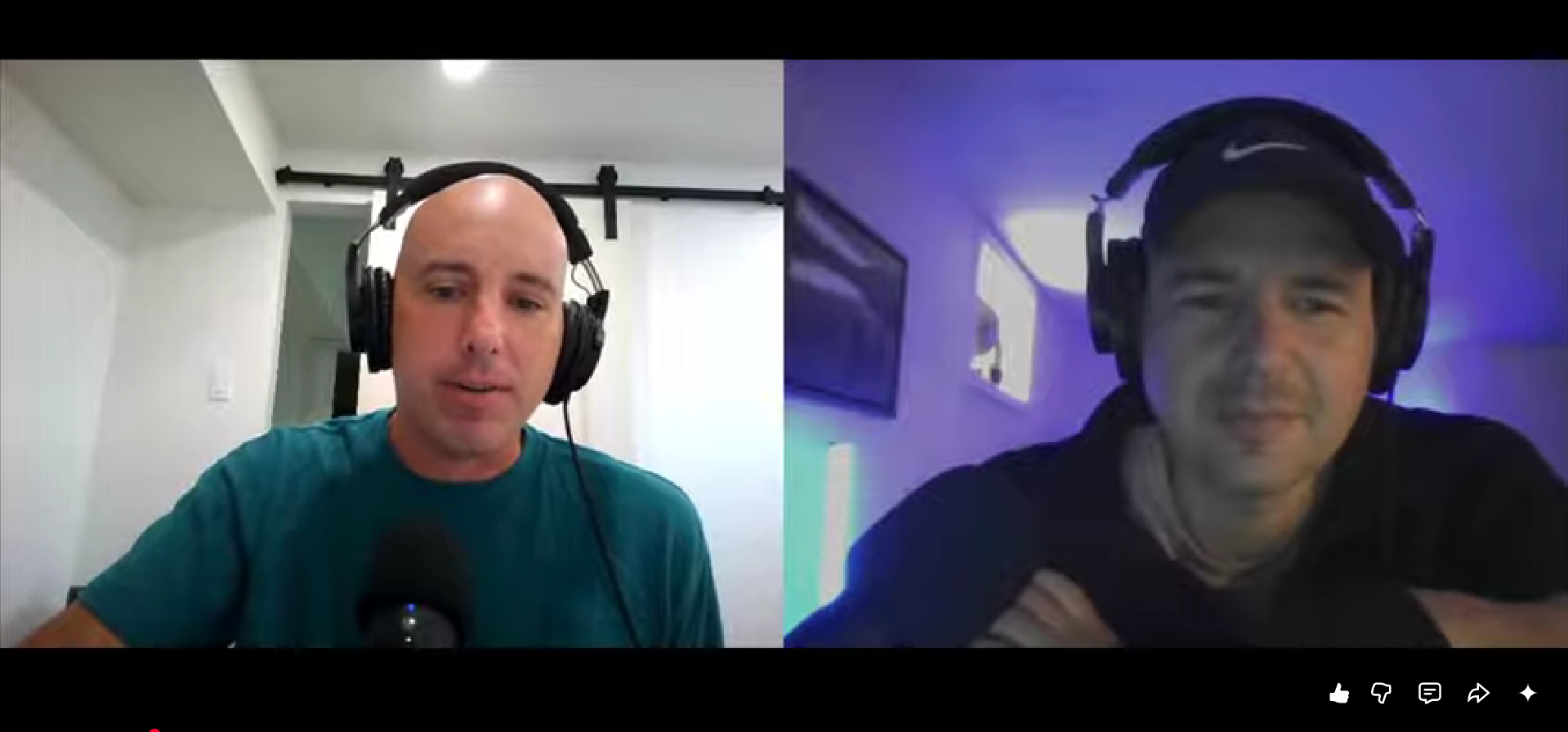
I'm on the right, and I'm using just my built-in webcam for this recording. Podsplice records in up to 4k. I usually use an external webcam, and it looks much better. But honestly, even this looks ok.
Below is a screenshot showing the screenshare. It is showing a YouTube video, and we are both reacting to this YouTube video.
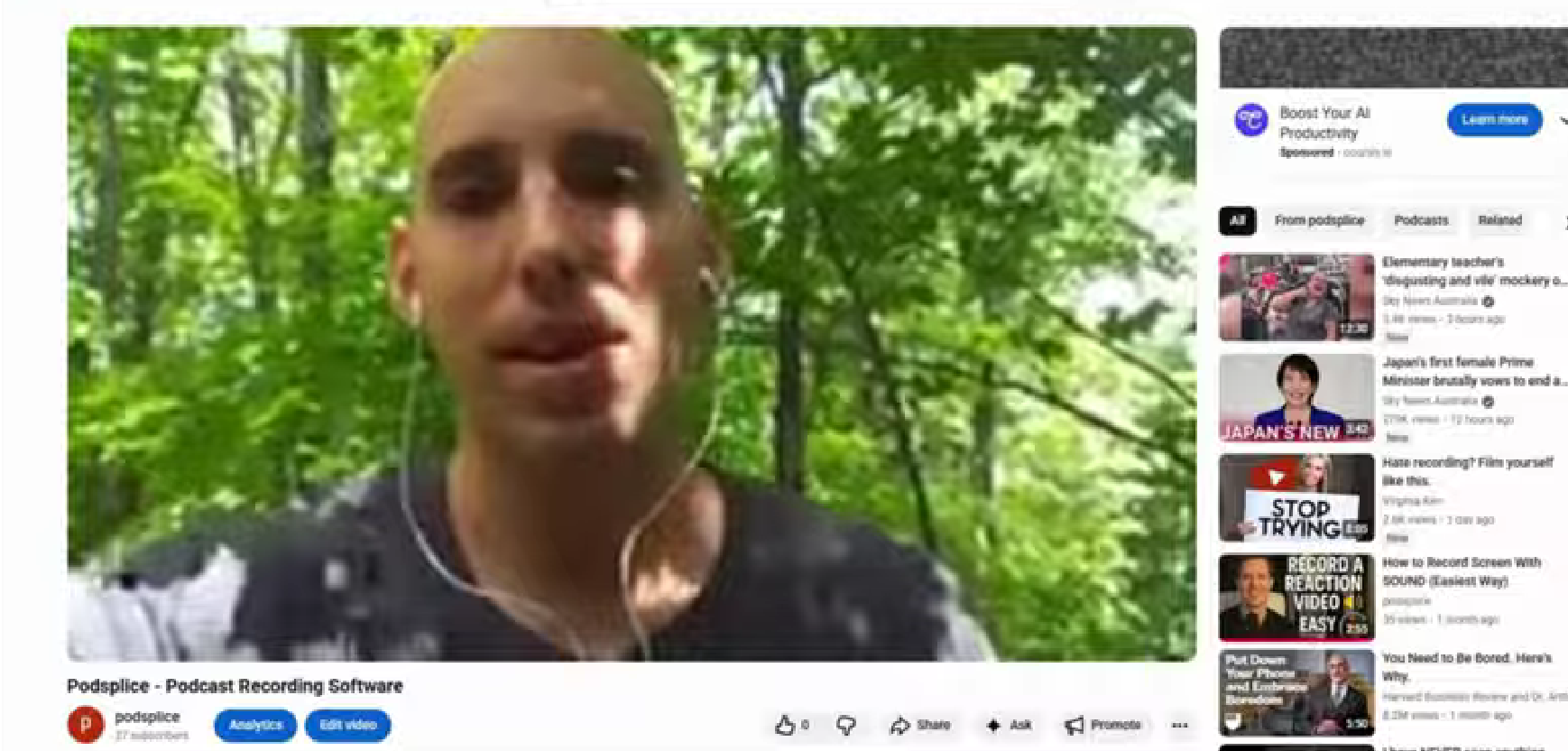
The reason we are showing a video in this screenshare is to show that we can also hear the sound coming from that YouTube video, and Podsplice records this sound (again, this sound is called the system audio or internal audio). Remember, most screen recorders and remote podcasting software don't record this system audio at all.
We made this video about 6 months ago, and I'm realizing now we should probably make another one because we've already made some improvements to Podsplice.
For example, the video playing during the screenshare was a little choppy, and the audio wasn't perfectly dialed in. This feature works a lot better now because of the tweaks that we made.
How to record your screen during a remote podcast?
Step 1:
Sign up for a Podsplice account and log in.
Step 2:
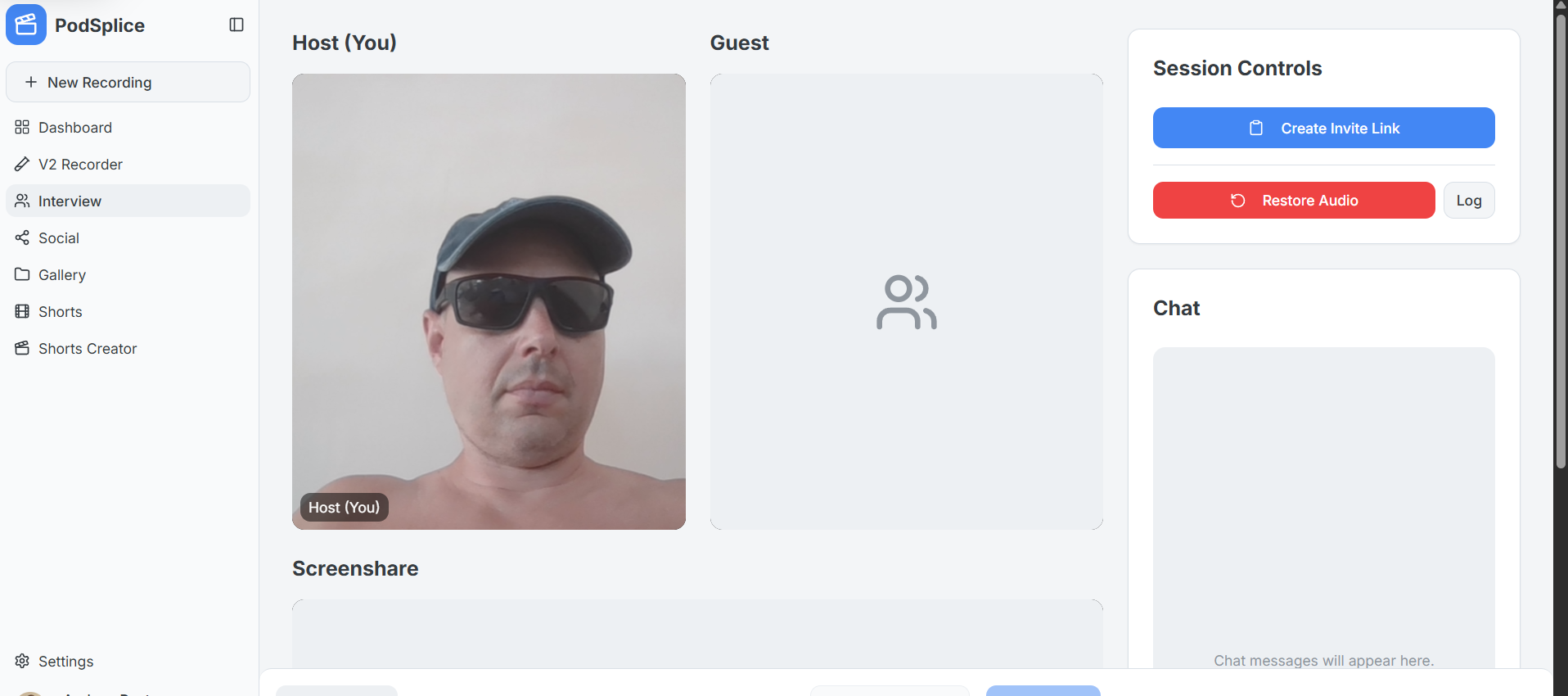
Click on "Interview" and then "Create Invite Link." You can see both of these links in the screenshot here.
Step 3:
Send that link to your guest instructor or podcaster
Step 4:
Choose the camera and mic you want to use from the dropdown menu (super simple)
Step 5:
When you are both ready, press the blue record button at the bottom of the screen.
Step 6: When you want to share your screen, click the "share screen" button. Make sure the "system audio" is toggled to "on" so that you can record the computer sound. Then you press "stop recording" whenever you are done, and that's it.
Final Thoughts
Podsplice is browser-based and extremely easy to use.
No downloads. No installs. No complicated setup.
👉 Just open your browser and start recording.
It’s what I use for:
Reaction videos
Remote podcasts
Video lessons
And honestly…
👉 It’s one of the simplest ways to record high-quality content with screen share + system audio that actually works.
Learn why it is the best and easiest screen recording software to use.

About the Author
Andrew Best
Andrew Best is an entrepreneur, educator, and AI expert with over two decades in online marketing. He co-founded China232 — a podcast and learning platform with 10M+ downloads — and later 88Herbs, a premium supplement company. Andrew now focuses on helping creators leverage AI for podcasting, screen recording, and YouTube content through Podsplice.
More from Podsplice
How to Start a Faceless YouTube Channel Without AI (2026 Guide)
Article
Record Stereo Tab Audio in Chrome
Article
Best Browser for Recording System Audio on Mac and Windows
Article
How to Record Full Screen Webcam and Screen Share at the Same Time
Article
Faceless YouTube Monetization: Why Faceless Does NOT Mean AI Slop
Blog
Start Recording in Seconds
No downloads. No setup. Just hit record and share your story with the world in studio quality.
Looking for a Screen Recorder or Remote Recording tool?