
How to Record a Scam Website Demo with Screen, Voice, and System Audio
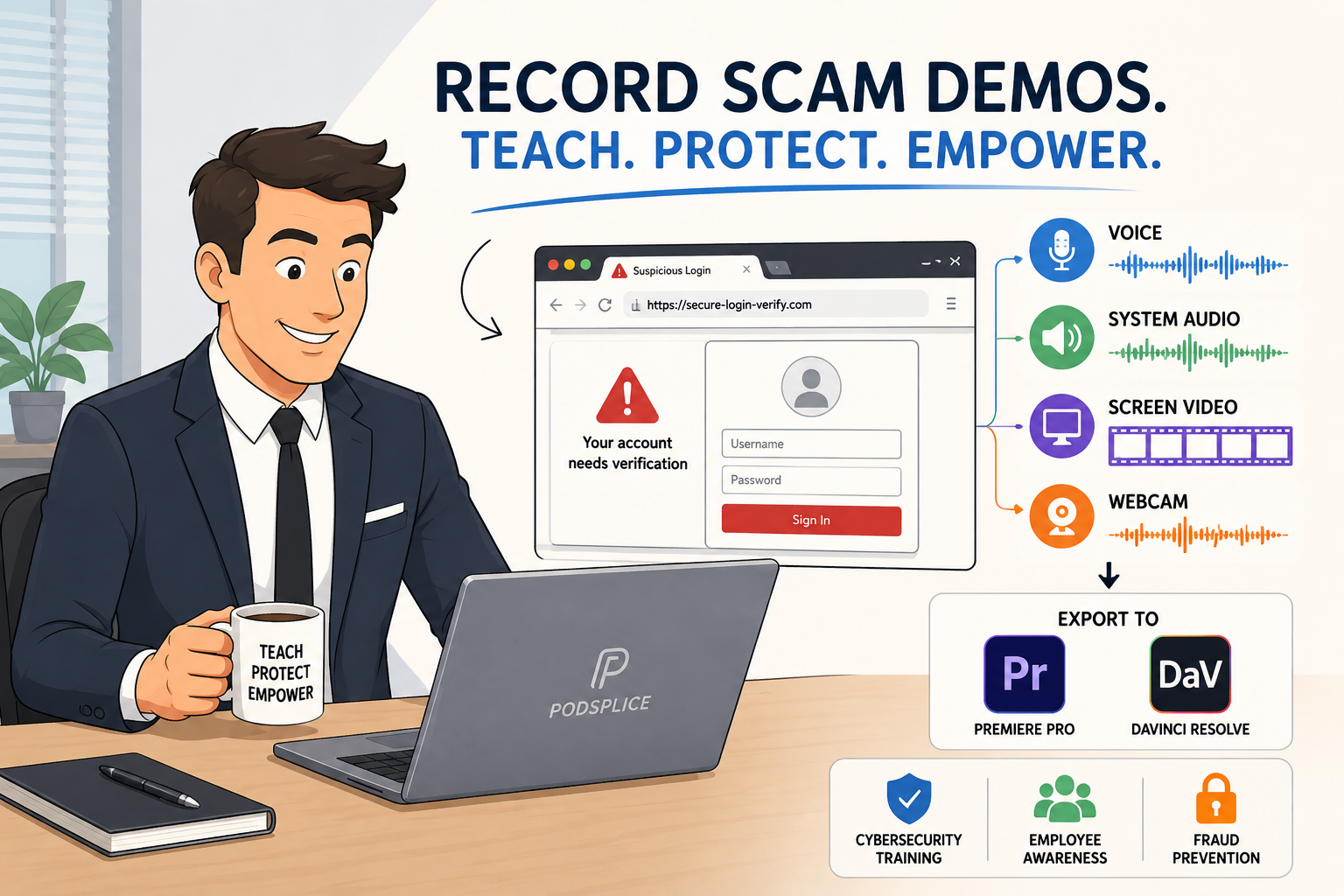
Podsplice lets you record a scam website demo with your screen, microphone, and any audio the website plays—all captured in high quality, on separate tracks, entirely in your browser.
There is nothing to download, nothing to install, and no audio drivers to wrestle with. When you are done, you export clean files that open directly in Adobe Premiere Pro or DaVinci Resolve.
This workflow is built for people who create cybersecurity training videos, phishing walkthroughs, fraud-prevention lessons, and investigative explainers. If your job involves showing other people how scams work, this is the setup worth knowing about.
Why Record a Scam Website Demo?
Telling someone to be careful about phishing is useful. Showing them a real phishing flow is much better.
When people watch a scam play out step by step—the fake email, the suspicious redirect, the login page that mimics a real bank, the pop-up engineered to cause panic—they understand the threat in a way that a verbal warning rarely achieves. The visual context makes it real. That is why scam demos are so effective for employee security awareness training, bank and credit union fraud education, public awareness campaigns, IT consulting, and journalism.
The goal of a good demo is straightforward: show the scam clearly, explain what is happening, and help people recognize the same patterns when they encounter them in the wild.
The Problem With Basic Screen Recorders
A basic screen recorder works fine for simple tasks, but scam demos are more demanding than they look. You may need to capture your screen, your voice, audio playing from the website (called "system audio" or "internal audio"), and sometimes a remote expert interview—all in the same session. If all of that gets flattened into a single mixed file, editing becomes a serious problem.
Maybe your narration is too quiet against a loud website alert. Maybe you stumbled over a sentence and need to re-record one section without redoing the whole demo. Maybe you want to reuse the same screen footage with a cleaner voiceover six months later. When every element is locked into one track, none of that is easy. Separate tracks change the equation entirely. Also, most screen recorders record poor-quality audio. Podsplice records high-fidelity audio at 192 kbps and -16 LUFS.
What You Actually Need to Capture
A proper scam website demo usually requires three distinct elements, each serving a different purpose in the final video.
Screen recording is the visual foundation. It is how viewers follow the scam step by step—the fake URL, the counterfeit branding, the payment page that looks almost real. Without it, you are just describing something instead of showing it.
Microphone narration is what turns a screen recording into a training video. Viewers often miss the warning signs without guidance. Your voice points out the slightly wrong domain name, the pressure tactic hidden in the button copy, the fake trust badge that looks legitimate at a glance. The quality of that narration matters more than most people expect. Viewers will tolerate average video quality, but unclear or uneven audio makes professional training content feel unreliable—which is a problem when the subject matter itself requires trust. Learn more about why Podsplice records the highest-quality audio.
System audio is where many recording setups fall short. System audio is whatever your computer is playing through its speakers or output—and for scam demos, that often matters. Tech support scams use loud alerts and robotic voices to create urgency. Fake investment pages autoplay polished video pitches. Fraudulent webinars use persuasive audio to build false credibility. If your recorder only captures your microphone, viewers miss a significant part of the experience. With system audio, they hear what a victim would actually hear, which makes the demo far more realistic and effective.
Why Separate Tracks Make a Real Difference
The separation between tracks is what makes the recording genuinely useful for professional editing. Instead of one mixed file, you get your microphone narration on its own track, system audio on another, your screen as its own video feed, and your webcam separate if you used it.
In practice, this means you can lower the website's alarm sounds without touching your voice. You can cut a coughing mistake from the narration without losing the screen footage. You can clean up one section without re-recording the whole thing. You can hand the project off to an editor with files that are already organized and clean. For anyone whose final output is going into Premiere Pro or DaVinci Resolve, this is not a small detail—it is the difference between a workable project and a frustrating one.
No Downloads or Installs Required
For cybersecurity teams and organizations with strict IT policies, this is one of the most practical advantages Podsplice offers. Many workplaces restrict what software employees can install. OBS is powerful, but getting it running with the correct audio routing is a real setup task. Desktop recording software means procurement, IT approval, and a learning curve for every new person who needs to use it.
Because Podsplice runs entirely in the browser, none of that applies. You open a tab, choose what you want to record, and start. Onboarding is faster, sharing the tool with colleagues is easier, and there is no configuration standing between you and your first recording.
How the Recording Process Works
The actual workflow is simple enough to walk through quickly.
You open Podsplice in your browser and select the screen, window, or browser tab you want to capture. For most scam demos, a single browser tab is all you need—it keeps the recording focused on the site you are walking through. You turn on your microphone for narration, enable system audio to capture anything the site plays, and begin the walkthrough.
As you record, you move through the scam: the landing page, the fake trust signals, the payment flow, the emotional manipulation tactics, the warning signs that most people would miss on first glance. The goal is not just to show the website but to teach the pattern—how scammers manufacture urgency, how they build false credibility, how the domain name almost matches the real thing.
When you finish, you export your files as separate tracks. From there, you bring them into your editor of choice, add callouts, captions, zoom-ins, or text labels, and produce a polished training asset that can be used for team briefings, client education, social clips, or a full video series.
Remote Expert Interviews
Scam walkthroughs are the core use case, but sometimes the most valuable thing you can add to a training video is another voice. A cybersecurity researcher explaining why a particular tactic works. A fraud specialist describing the psychology behind a romance scam. An investigative reporter walking through how they traced a fake investment scheme.
Podsplice lets you send a guest a link and record the conversation remotely, with each participant captured on their own separate track. They join in the browser, no install required on their end. This makes it straightforward to combine a live scam demo with an expert interview in the same session, and because the tracks stay separate, you can edit each person's audio independently to get a clean, professional result.
What You Can Record
The workflow applies broadly across the types of scams worth documenting.
Phishing website demos are among the most common—walking through a fake login page, pointing out the mimicked branding, the suspicious domain, the urgency baked into the copy. Tech support scam demos benefit especially from system audio, since the fake virus alert or robotic warning voice is often the most alarming part of the experience. Fake investment pages and fraudulent webinars frequently use polished video and persuasive audio to build credibility, and capturing that audio is essential to showing how the manipulation works. Social engineering walkthroughs—demonstrating how a page uses fear, authority, artificial scarcity, or manufactured trust—are often the most instructive category of all, because the psychological mechanics transfer across dozens of different scam types.
Who This Is For
Cybersecurity trainers and fraud-prevention teams are the most obvious audience, but the workflow is useful for IT consultants creating client training materials, banks and credit unions educating customers about fraud, journalists building explainer videos about online scams, YouTubers producing scam-awareness content, security teams running internal employee training, and schools or nonprofits teaching digital safety.
The common thread is simple: someone needs to show how a scam works, explain it clearly, and produce something that can be shared, reused, and edited professionally.
Why Podsplice Fits This Use Case
There is no shortage of screen recording tools. The question is whether a given tool fits this specific workflow without requiring workarounds.
Loom is well-suited for quick internal videos but is not designed for multi-track recording or system audio capture. OBS handles complex recording setups but involves real configuration work and is not browser-based. Traditional webinar tools are built for live events, not walkthroughs.
Podsplice fits because it combines browser-based simplicity with the recording flexibility that scam demos actually require: screen capture, high-quality microphone audio, system audio, separate tracks, remote guest recording, and clean exports to professional editing software. You get ease of use without trading away the editorial control that makes the final video worth making.
Final Verdict
A useful scam demo is more than a screen recording. It requires clear narration, system audio when the website plays sound, and separate tracks if you want to edit the result into something professional. Podsplice provides all of that in a browser-based workflow with no installation required.
Record the walkthrough, capture every audio source on its own track, bring the files into Premiere Pro or DaVinci Resolve, and produce a cybersecurity training video that actually shows people how scams work—and, more importantly, how to spot them.
Start using Podsplice today.

About the Author
Andrew Best
Andrew Best is an entrepreneur, educator, and AI expert with over two decades in online marketing. He co-founded China232 — a podcast and learning platform with 10M+ downloads — and later 88Herbs, a premium supplement company. Andrew now focuses on helping creators leverage AI for podcasting, screen recording, and YouTube content through Podsplice.
More from Podsplice

Kommodo Alternatives: Why Creators Are Choosing Podsplice
Article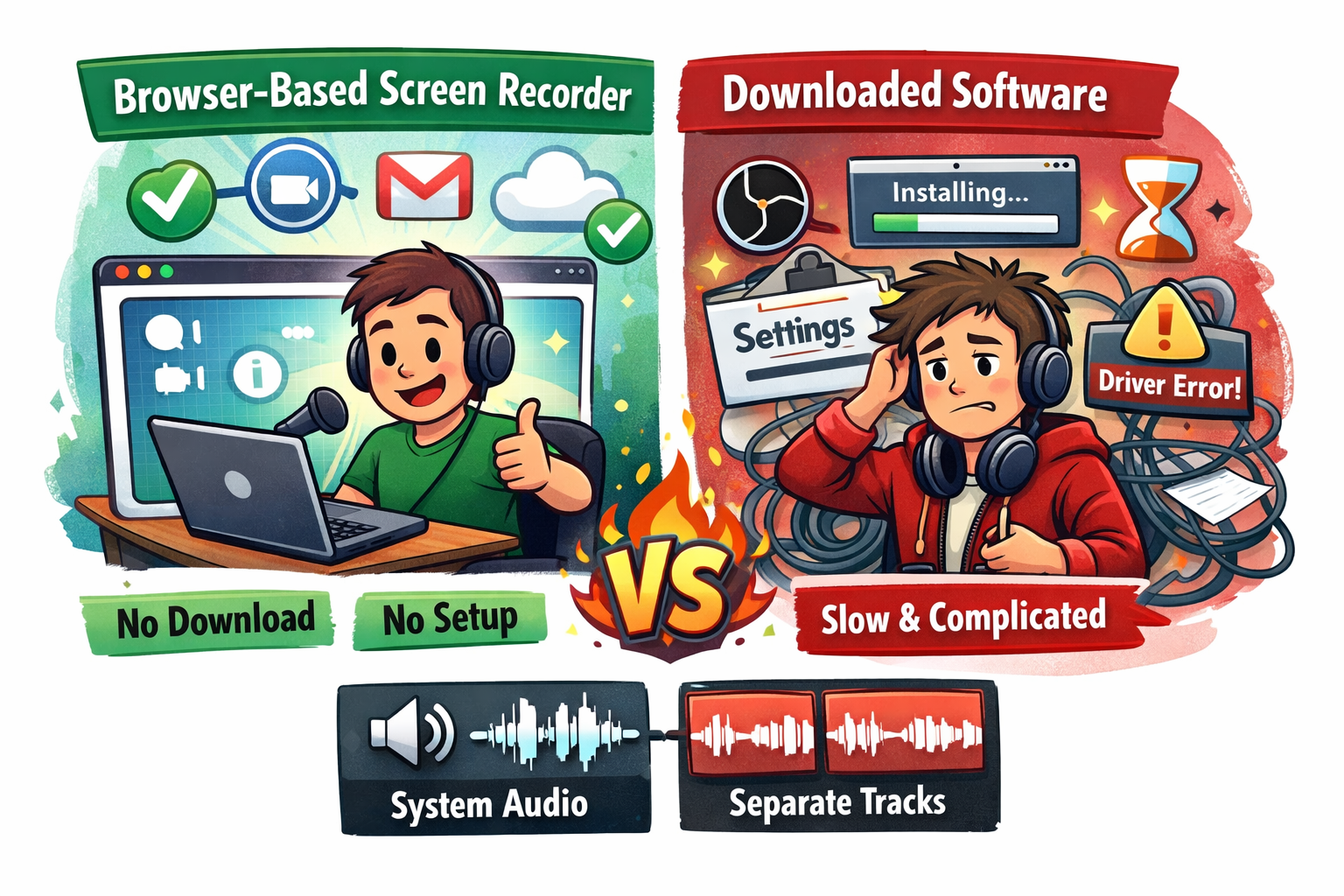
Best Browser-Based Screen Recorder (No Download, No Setup)
Blog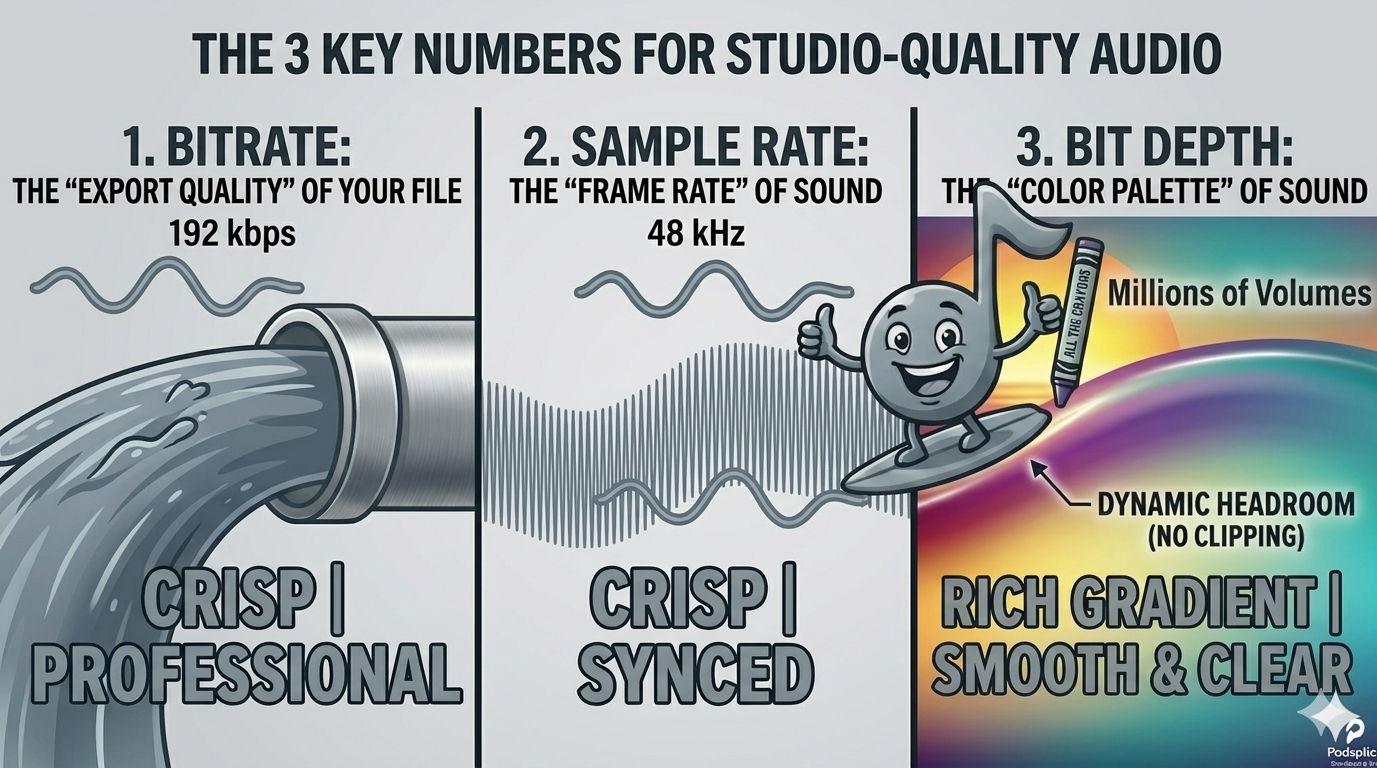
Bitrate vs. Sample Rate: The Creator’s Guide to Crisp Audio
Article
Why Your Screen Recording Has No Sound (And How to Fix It)
Blog
How to Record High-Quality Reaction Videos in Any Browser
Blog
Start Recording in Seconds
No downloads. No setup. Just hit record and share your story with the world in studio quality.
Looking for a Screen Recorder or Remote Recording tool?