
How to Screen Record with System Audio in 2026: The Easiest Way (Complete Guide)

Have you ever finished a perfect 20-minute software walkthrough, only to realize your microphone was crystal clear — but the actual software was completely silent?
I have. It's a brutal feeling.
It's actually one of the most frustrating moments in content creation. You had the perfect demo, but the "Internal Audio" never made it into the file. In 2026, a silent screen recording isn't just a rookie mistake — it's a wasted opportunity that costs you subscribers, students, and sales.
I recently recorded a talking-head walkthrough that earned over $1,000 USD in affiliate commissions. That video was only possible because it took me 20 minutes to record and zero time to "fix" in editing. The secret wasn't a better microphone or a fancier setup — it was capturing my mic and system audio on separate tracks from the start.
Here is the easiest way to record system audio — without downloading or installing a single thing.
⚡ Key Takeaways
System audio = any sound your computer generates internally (video playback, UI sounds, browser media)
The "Mashed Potato" Problem = most recorders combine your mic and desktop audio into one uneditable track
macOS Tahoe (2026) = Apple has made legacy drivers like BlackHole nearly impossible to install without lowering your machine's security
The Modern Fix = a browser-based recorder like Podsplice that captures tab audio natively, with no drivers required
Separate Tracks = the difference between a 12-minute workflow and a one-take gamble
The 3-Step Easy Method to Record System Audio: No Downloads Required
Open Podsplice in your Chrome or Edge browser
Toggle the "System Audio" button to ON
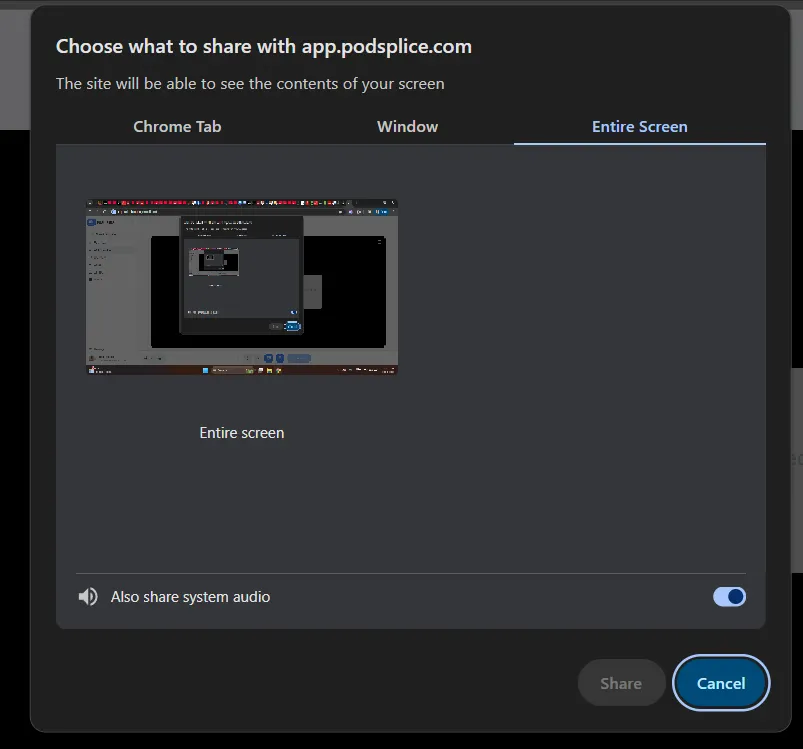
Hit Record — when the browser popup appears, make sure the "Also share system audio" checkbox is clicked
That's it. Because Podsplice runs natively in your browser, it captures the digital audio stream directly using modern Web APIs. There are no drivers to install, no Audio MIDI settings to configure, and it works identically on Mac, Windows, and Chromebooks.
Here is a screenshot of the Podsplice "Also Share System Audio" Toggle.
Everything below explains why this works, why every other method makes you suffer, and why how your audio is recorded — not just whether it's recorded — is what determines how fast you can publish.
What Is System Audio?
System audio — also called internal audio, desktop audio, or computer audio — is any sound your computer generates that isn't coming from a physical microphone. If you can hear it through your speakers or headphones, it's system audio.
Common examples include YouTube video sound (essential for reaction videos and critique content), browser media like UI clicks and audio cues inside SaaS dashboards, video call participants from Zoom or Google Meet, and OS notifications like the Slack "ding" that adds realism to a live tutorial.
Depending on your platform, you'll see this labeled differently.
Mac settings call it Internal Sound. Zoom and Teams call it Computer Audio. OBS calls it Desktop Audio. Browser-based recorders call it Tab Audio or Output Capture. Knowing these synonyms matters — confusion here is where most people lose the audio before they even hit record. When your recorder says "Computer Audio," it means exactly the same thing as what Apple calls "Internal Audio."
Why Most Tools Fail: The "Mashed Potato" Problem
If capturing system audio feels harder than it should, it's not you. There are three real technical reasons this is broken across most tools.
OS-Level Security: Both Windows and macOS are architecturally designed to prevent apps from intercepting each other's audio streams. It's a privacy feature — but it's a content creator's headache.
The Mash Problem: Most recorders that do capture internal audio combine your microphone and desktop audio output into a single, uneditable track. If your background music is slightly too loud, you can't fix it in post. Your voice is buried, and the recording is garbage. You have to start over.
Browser Blind Spots: Most lightweight Chrome extensions only capture screen pixels. They have no access to the audio output stream whatsoever — so tab audio simply doesn't exist to them. And if you do get the tab audio, it's often of very poor quality.
The Mac Nightmare: macOS Tahoe and the End of BlackHole
Mac users have historically had the hardest time with this. For years, the community workaround was to download a virtual audio driver like BlackHole or the older Soundflower, open Audio MIDI Setup (a utility most Mac users have never touched), and create a Multi-Output Device that routes your system audio into a loopback channel.
With macOS Tahoe (2026), Apple tightened its kernel extension policies significantly. Many virtual audio drivers now require you to boot your Mac into Reduced Security Mode via Recovery — effectively lowering your machine's security posture permanently just to record a YouTube video. For creators on Apple Silicon — M3 and M4 MacBook Pro and Mac Studio — the process is even more cumbersome, as the unified memory architecture handles audio routing differently than Intel-era Macs ever did.
You shouldn't have to compromise a $3,000 MacBook Pro just to escape Software Hell.
A browser-based solution for recording internal audio, like Podsplice, is perfect for Mac users. It basically bypasses the macOS because it works directly in the browser, the way a website like Gmail works.
The Windows Struggle
Windows users aren't off the hook either. Default tools like the Xbox Game Bar often skip system audio entirely or fail to capture sound from specific browser tabs. WASAPI loopback — the technical method Windows uses to route audio back into a recording — requires manual configuration that most tutorials gloss over. And even when it works, you're back to the mashed-track problem: one file, no separation, no fixing it later.
Why Podsplice Is the Easiest Way
Podsplice was built to end Software Hell entirely.
Because it runs natively in your browser, it uses the modern Web Audio API and getDisplayMedia() to request the audio stream directly from your operating system — the same way a video call requests your camera. No virtual driver install. No MIDI routing. No Reduced Security Mode warnings. You don't even need to understand any of this, the same way that you don't need to understand how Gmail works in the background. As a user, it just works.
If you can hear it in your headphones, Podsplice can record it. It works on Mac, Windows, and even a $200 Chromebook that desktop recording software doesn't even support. And with tab-specific capture, you select one browser tab to record — your Spotify in another tab stays private, and your notifications don't leak into the recording.
The Real Productivity Unlock: Isolated Tracks
This is the part that changes your entire publishing workflow — not just whether audio is captured, but how it's captured.
Most screen recorders mash your voice and your computer sound into one file. Podsplice records them on separate tracks. Here's what that difference looks like in practice.
Here is a screenshot of Podsplice's separate track recording.
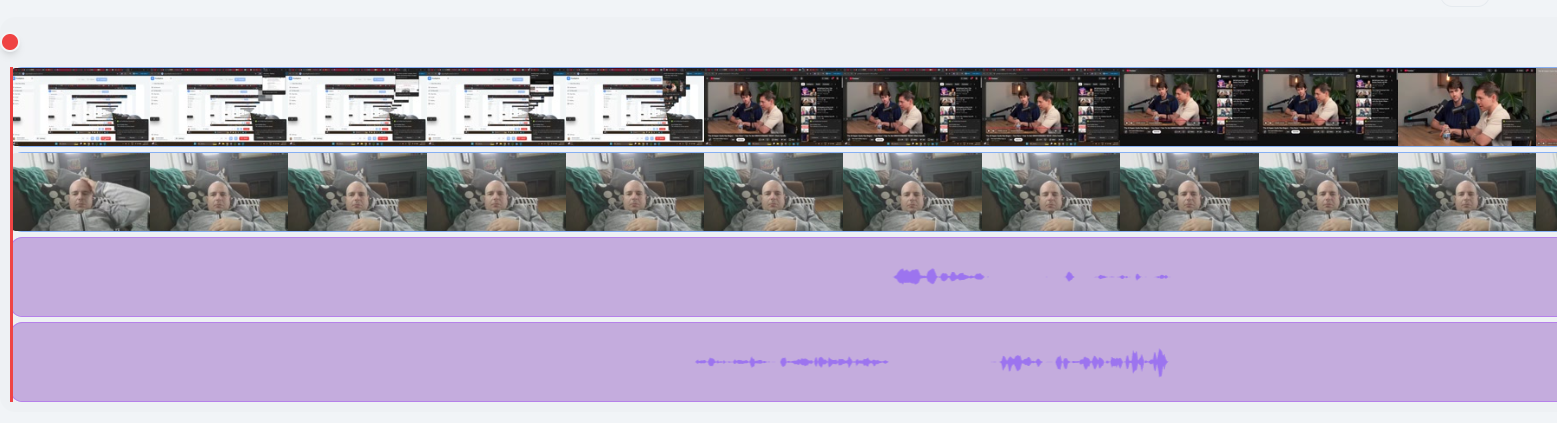
You can see the 2 separate audio tracks at the bottom of the image (one for system audio and one for your mic audio)
You cough mid-demo. With a single track, you cut the cough and also cut the software audio — now the demo has a gap. With separate tracks, you mute the mic for two seconds, and the software audio plays through uninterrupted.
The YouTube clip you're reacting to is louder than your voice. With a single track, you're re-recording. There's no other option. With separate tracks, you pull the system audio level down in post. Done in 15 seconds.
This is how a 10-minute recording becomes ready to ship in 12 minutes.
When you are finished editing the individual tracks (often you don't need to touch them), Podsplice automatically combines the tracks (splices them) perfectly into a single file.
Who Needs to Record System Audio?
In 2026, publishing volume with quality is the competitive advantage. High-fidelity system audio isn't optional for these creator types — it's the difference between content that converts and content that gets skipped.
Reaction video creators, like me, need digital-direct sound. Capturing audio through your microphone introduces echo, compression artifacts, and a room sound that telegraphs an amateur setup to every viewer.
Here is a YouTube reaction video I made explaining how to record reaction videos. (These reaction videos are also called talking head videos.)
Course Creators, also like me, need source material at full fidelity. When you critique a video or walk through a sound-based workflow, your students need to hear it clearly — not a muffled phone-recording-of-a-speaker version. Here is my Udemy instructor profile. You can see I have almost 20 000 students and almost 2500 excellent reviews.
News Analysts and Commentary Channels need source clips that match their studio mic quality. A quality gap between your press conference clip and your voice breaks immersion and quietly undermines your credibility.
Here is a video showing how to make a political news reaction channel.
Affiliate and SaaS Marketers need the actual UI sounds. Showing off a tool like Canva, beehiiv, or Notion is meaningfully more convincing when viewers hear the real clicks and feedback — it signals you're in the product, not just recording screenshots.
Stop Fighting Your Settings
The number one reason creators fail isn't a lack of ideas — it's technical friction. If your setup requires a 45-minute driver installation and a prayer that macOS doesn't break it on the next update, you won't use it consistently. Inconsistent publishing is the slowest way to build anything.
Stop messing with virtual drivers, Multi-Output devices, and mashed audio tracks.
Start using Podsplice — Screen recording with separate mic and system audio tracks, directly in your browser. No drivers. No downloads. No Software Hell.

About the Author
Andrew Best
Andrew Best is an entrepreneur, educator, and AI expert with over two decades in online marketing. He co-founded China232 — a podcast and learning platform with 10M+ downloads — and later 88Herbs, a premium supplement company. Andrew now focuses on helping creators leverage AI for podcasting, screen recording, and YouTube content through Podsplice.
More from Podsplice
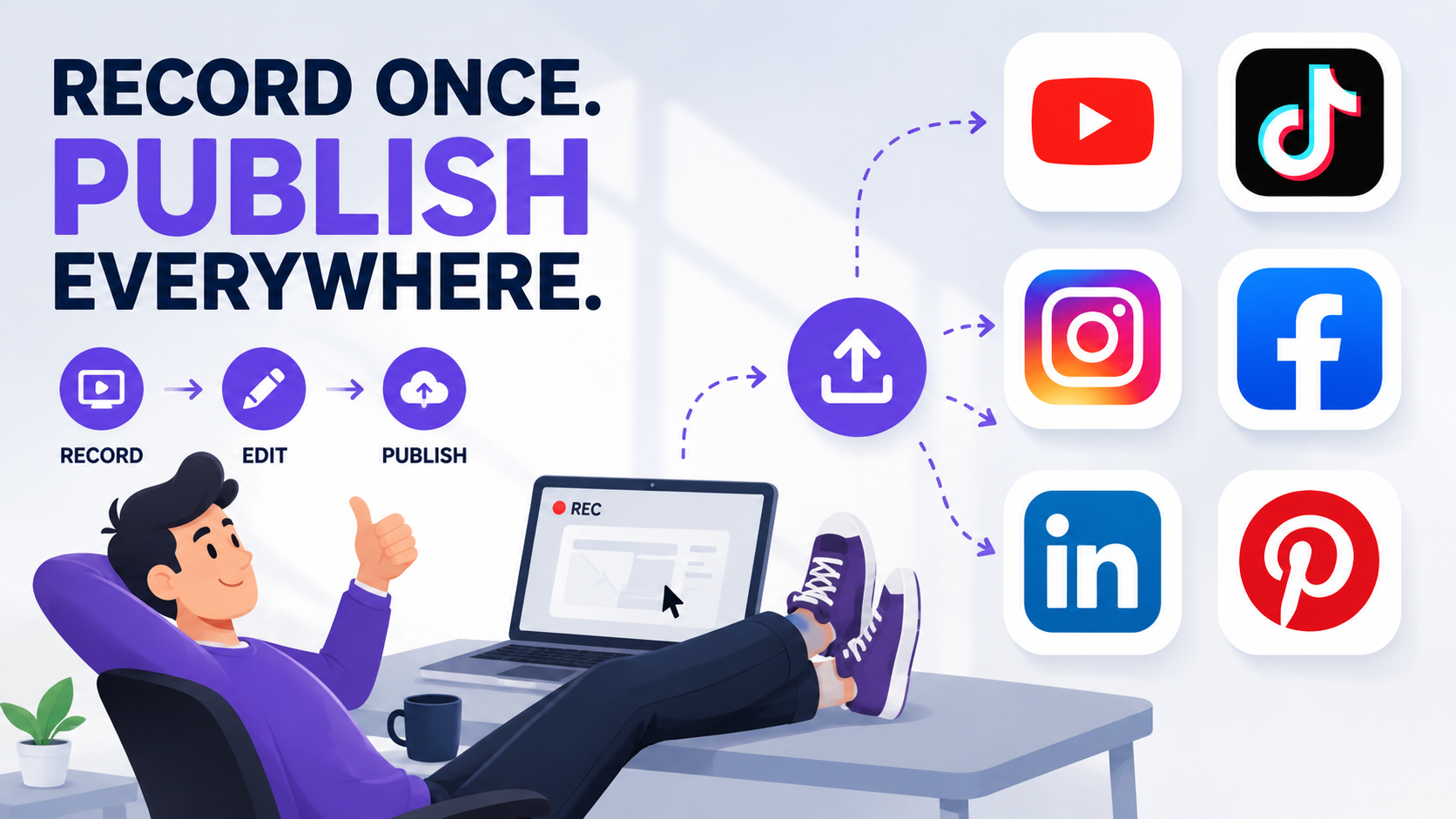
Screen Recording Software That Automatically Posts to Social Media (2026)
Article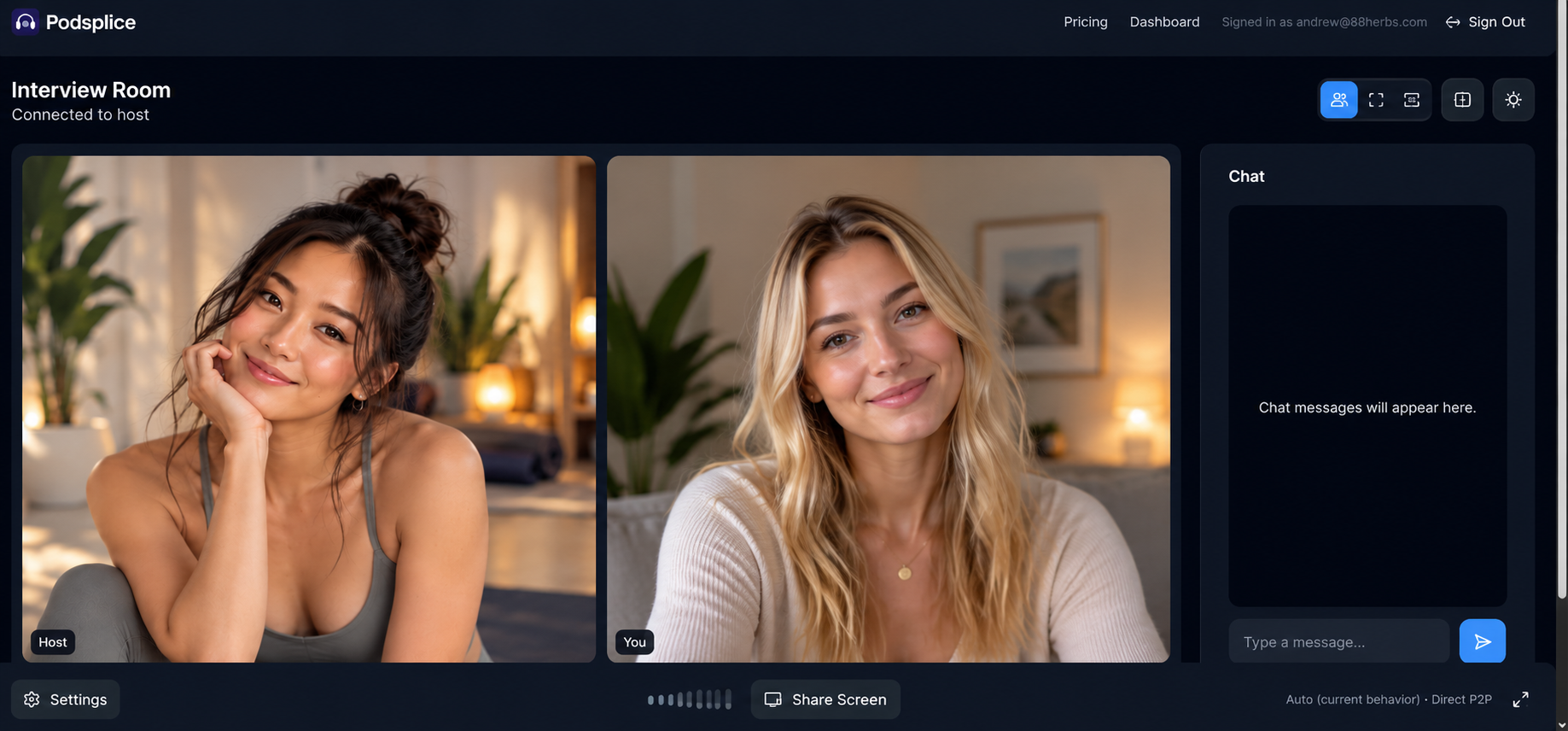
How to Record an Online Coaching Call (Easy + High Quality)
Article
Why Your Screen Recordings Look Blurry (And How to Fix It)
Article
How to Record a Remote Video Lesson with Two Instructors and Screen Share
Blog
How to Make a Reaction Video
Article
Start Recording in Seconds
No downloads. No setup. Just hit record and share your story with the world in studio quality.
Looking for a Screen Recorder or Remote Recording tool?