
Scenes and reusable templates
Get OBS-style scene switching in a simpler workflow: prepare camera, conversation, presentation, and break scenes, then save the complete set in your browser.
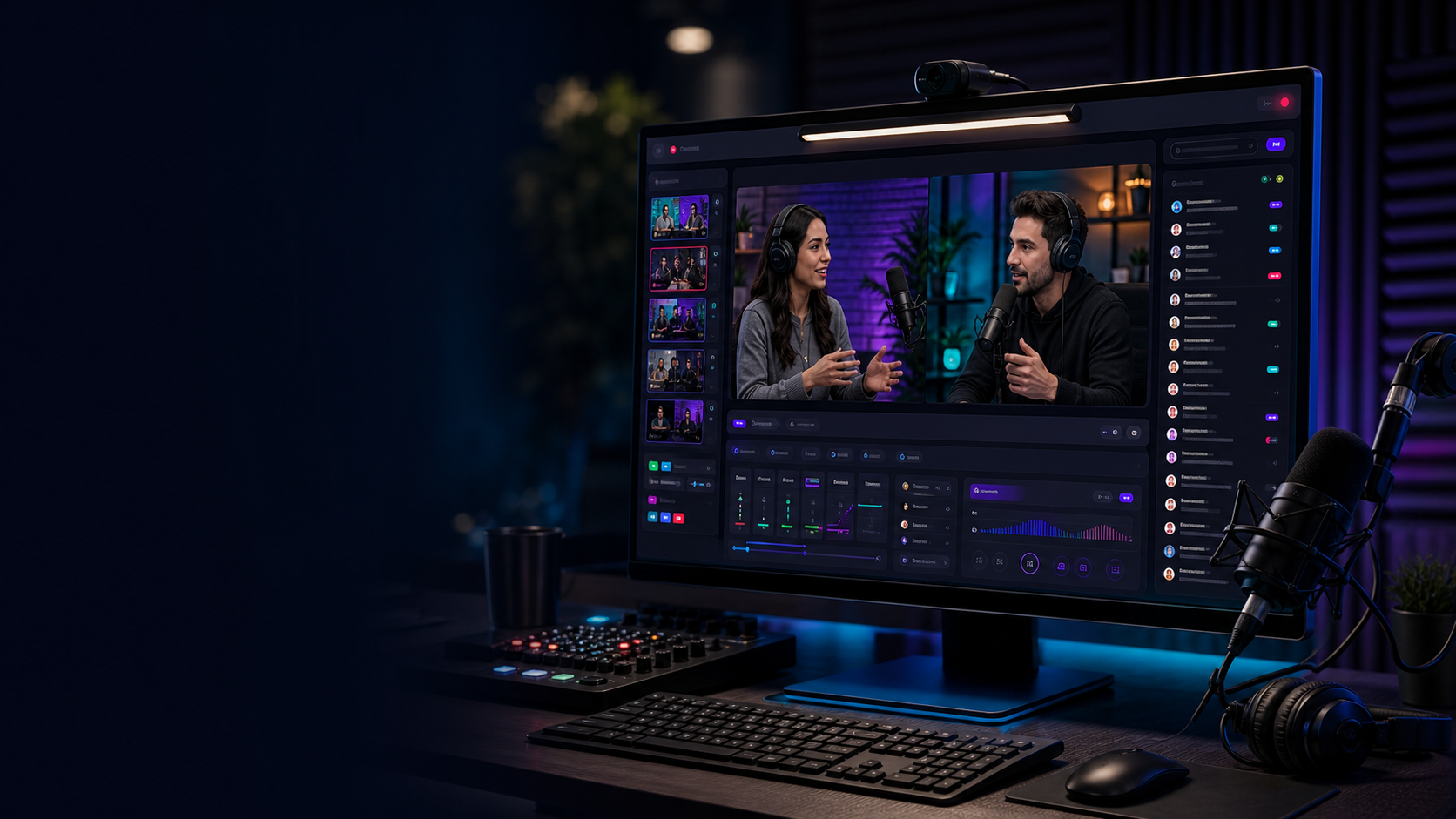
A simpler OBS alternative for creator-led shows. Build scenes, invite a guest, share your screen, add graphics, and send the finished program to YouTube Live—without turning your desk into a control room.
4 layouts
Camera, split, screen, and slate
1 guest
Private live invitation
1080p
Up to 30 fps output
YouTube
Live destination in beta
Who goes live with Podsplice
A live stream works best when it has a purpose. Pick the format that helps your audience learn, decide, ask, or participate.
Conversations that feel present
Create a private guest link, place both speakers in a split scene, and turn audience questions into part of the conversation.
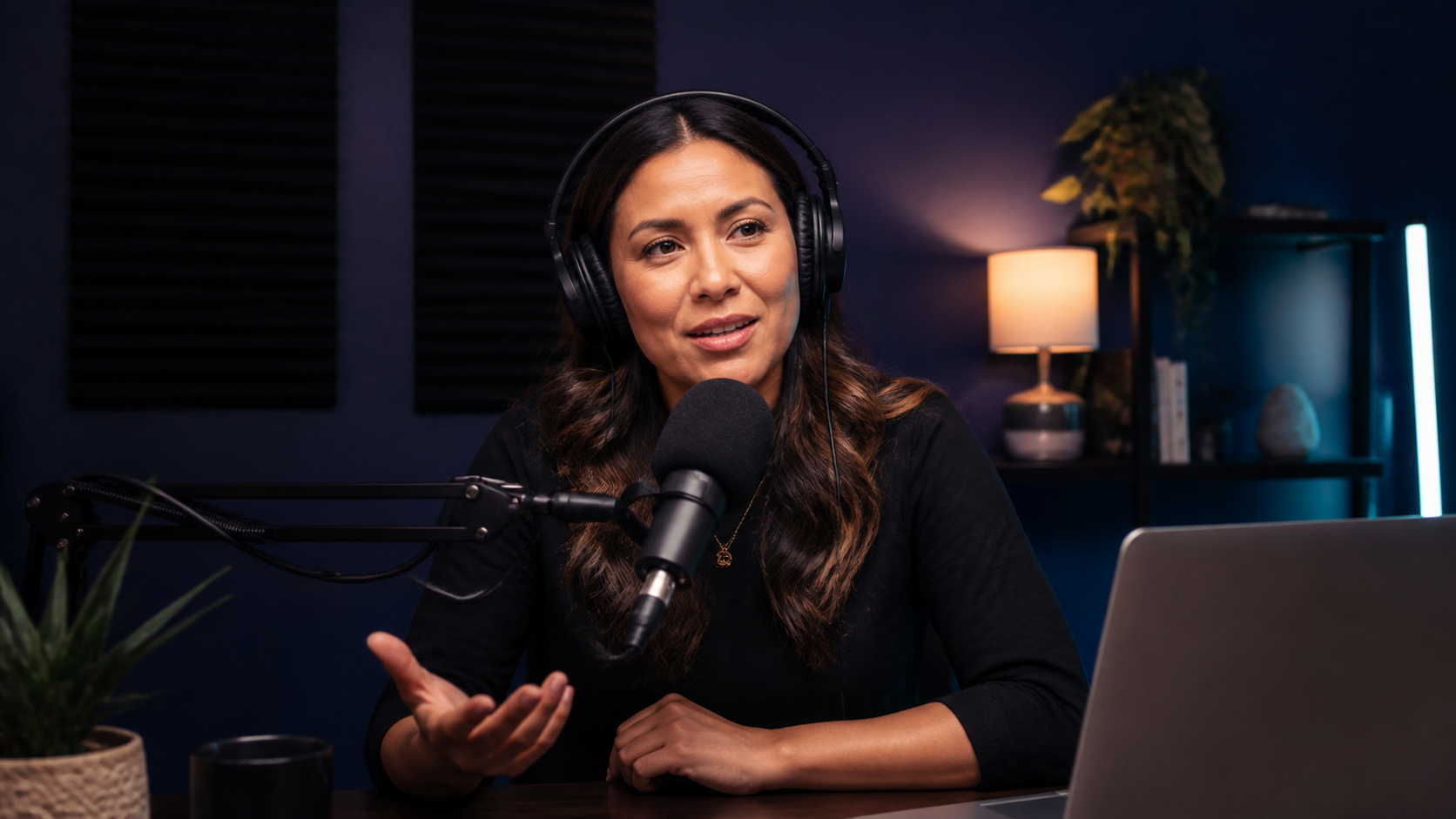
Program preview
Podcast hosts
An easier OBS alternative
If OBS feels like more setup than your show needs, Podsplice puts the scene list, program preview, device controls, guest workflow, and YouTube destination into one focused browser workspace. Try the scene buttons in the mockup.
Live workshop
Plan
Create
Publish
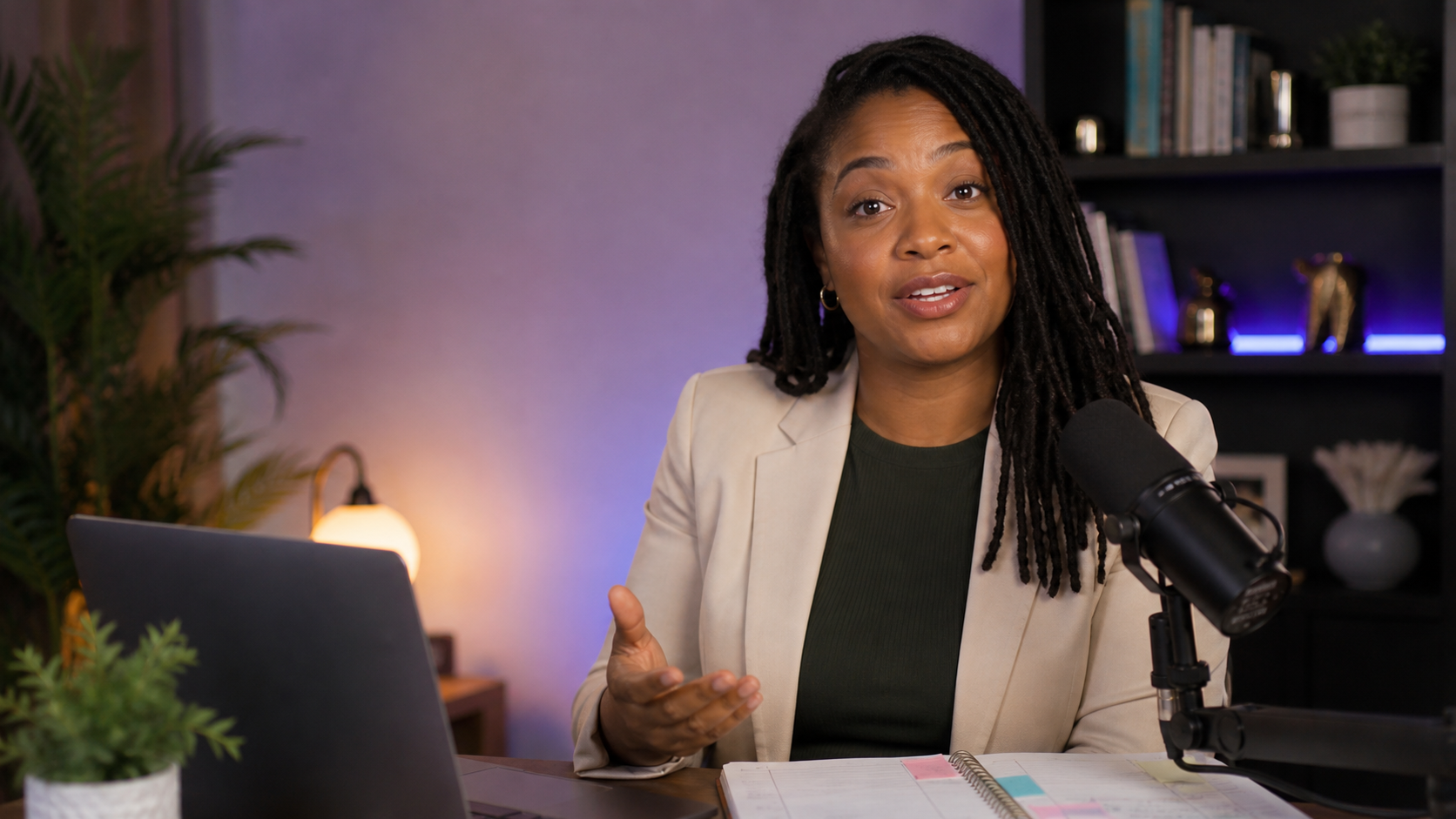
Camera & microphone
Camera
Sound profile
Scene setup
Active scene
Full camera, split conversation, screen + speaker, or a full-screen slate.
Set the title, subtitle, colors, lower third, logo, background, and overlay.
Save the complete scene set as a reusable browser template and switch with hotkeys.
Browser-based
Open the studio without installing broadcast software
Visual scenes
Switch layouts without rebuilding every source
Guest included
Create the private invitation inside the studio
YouTube connected
Set up, start, and follow chat in one workflow
YouTube Live, connected
Connect the channel, confirm the title and visibility, then start the finished program. Unlisted is the safe default for a first test.
The camera, microphone, scenes, and screen can be tested locally before anything is sent.
Read comments, reply as the connected channel, and place a strong question on the program.
The studio explains YouTube's one-time live access requirement and links to the right setup screen.
YouTube Live
Creator channel connected
Nothing is sent until you confirm the broadcast.
Comments & questions
Jordan M. · Question
How do you turn one weekly show into shorter clips?
Show on programAvery Chen
The presentation layout is really clear.
The production toolkit
Get OBS-style scene switching in a simpler workflow: prepare camera, conversation, presentation, and break scenes, then save the complete set in your browser.
Create a private link, let your guest check their camera and microphone, and bring them into a split conversation scene.
Add a background, transparent overlay, logo, title, subtitle, and accent color so the program feels like your show.
Read and reply to live chat from the studio, then feature a useful audience question directly on the program output.
Choose a camera, microphone, and sound profile, then check the microphone level before the destination is connected.
Choose 720p or 1080p at 30 fps and select normal, low, or ultra-low latency for the way you want to interact.
Choose your camera, microphone, sound profile, and output settings.
Prepare the welcome, conversation, presentation, and break moments.
Share one private link and confirm both sides look and sound ready.
Confirm the title and visibility, then send the program when you choose.
Live Studio · Beta
Open the studio, test every source locally, and connect YouTube only when you are ready to take the program live.
Live Studio FAQ
Prepare the studio, invite your guest, check YouTube access, and start only when the program looks right.
Create your account