
Put the speaker in focus
Bring your webcam full screen for a personal explanation or key takeaway. Return to the screen recording when viewers need to follow a demonstration.
Turn a static talking-head video into a more deliberate edit. Podsplice AI Camera adds full-screen moments, close-ups, slow zooms and gentle pans—guided by your transcript, refined by you.
For creators, educators and presenters who want their best ideas to land.
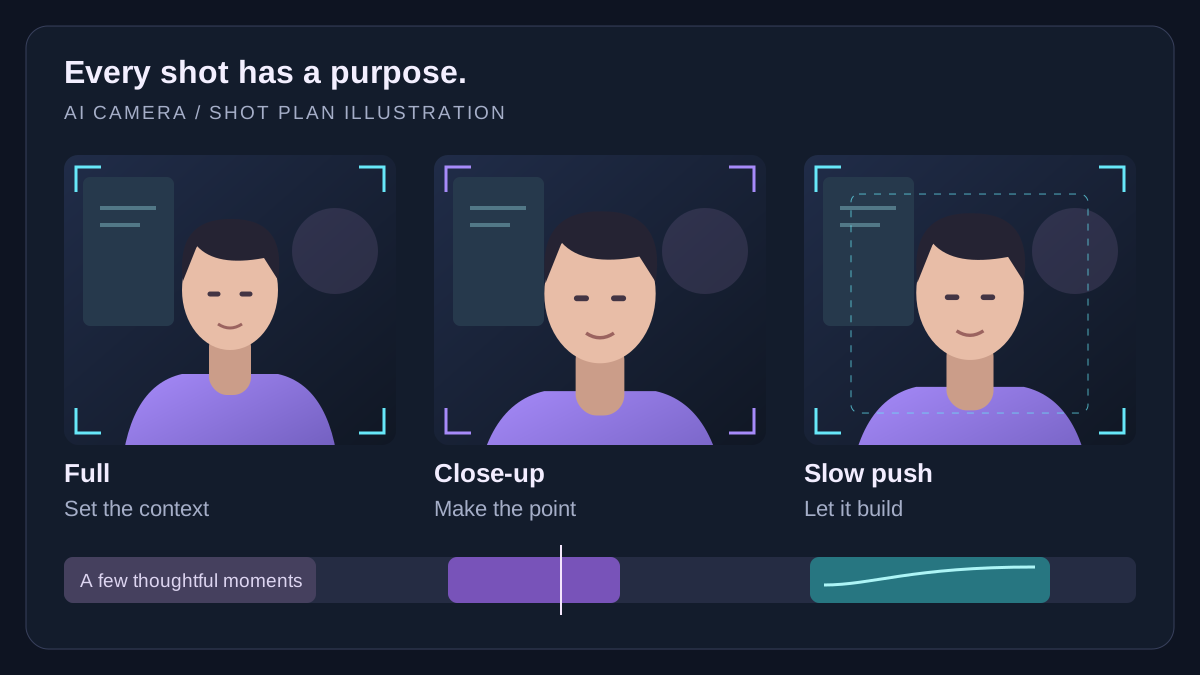
Bring your webcam full screen for a personal explanation or key takeaway. Return to the screen recording when viewers need to follow a demonstration.
A small punch-in or a gradual push can give an important line more visual weight. Space out camera changes so each one has a purpose.
Review suggested moments, choose a shot style and fine-tune the framing. Preview your changes before exporting, or use Undo to try another approach.
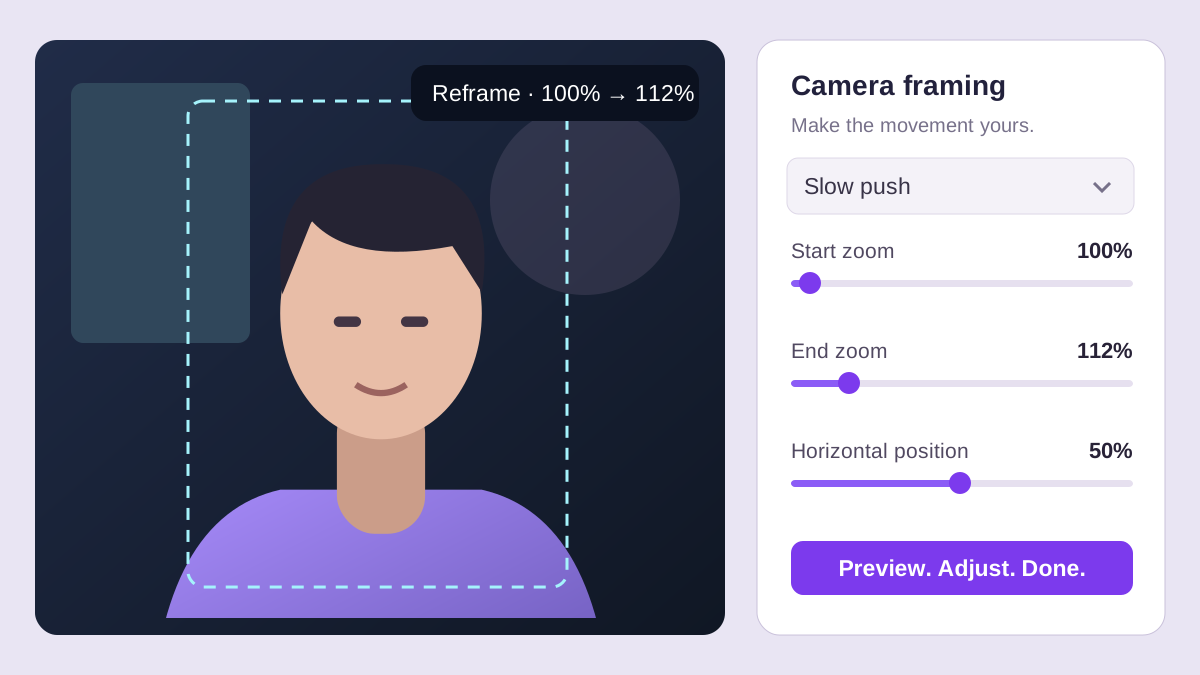
Hover over a full-screen camera preview and choose Reframe. Set the zoom percentage, choose the start and end of a slow push, or adjust the direction and amount of a gentle pan.
Use horizontal and vertical position to keep the subject comfortably framed. The preview updates as you adjust, and the same settings carry through to your exported video.
Choose the framing that serves the line. The original presets keep movement subtle; you can adjust the amounts for each section.
Show the camera at its original framing. A useful change from picture in picture when the speaker, rather than the screen, deserves attention.
A modest digital punch-in makes a key point feel more immediate. The preset starts at 116% zoom; choose a wider or tighter crop in Reframe.
Build emphasis gradually as a thought develops. The default eases from 100% to 112%, with separate start and end zoom controls.
Introduce a quiet horizontal move within a zoomed picture. Control the direction and travel, then check that the subject stays well framed.
Good editing directs attention. In film and trailer work, changing shot size, holding a moment and timing a reveal can make the same material feel more purposeful. These storytelling principles also help a tutorial, presentation or talking-head video.
A wider frame provides context; a closer frame draws attention to expression and detail. Use a punch-in for a meaningful line, a realization or a takeaway. Constant changes make emphasis harder to notice. Adobe’s guide to close-up shots explains how filmmakers use tighter framing to guide attention and convey emotion.
Faster is not always stronger. A held shot gives an audience time to absorb an idea. In Your Edits Look Amateur Because of THIS, Edit with Trevan connects lessons from his Hollywood editing experience to everyday creator footage: vary shot size, give shots a purpose and leave room for a payoff.
Professional editing also uses reaction shots, purposeful B-roll and cuts on motion. AI Camera focuses on the framing part of that craft. For a software walkthrough, keep the demonstration visible while explaining a control, then bring the camera forward for the conclusion. Choose and review those moments yourself.
Podsplice adapts these editing principles to your existing webcam track through digital crops and movement. It does not create a new camera angle or physically move a camera.
Use a regular V2 recording with a separate webcam track. Open its transcript, then expand AI Camera in the editor.
Choose Suggest camera shots. Check the transcript excerpts and times, change presets or deselect shots, then apply the ones that suit your story.
Play through each section. Use Reframe on the preview or Adjust framing on a selected camera section. When it feels right, choose Save & Export.
For more deliberate choices, ask a connected AI assistant to read the transcript and select meaningful camera moments. It can send specific times, shot styles, zoom amounts and reasons through Podsplice MCP.
Try this brief: “Read this transcript. Choose a few moments for a full-screen camera or gentle push-in. Emphasize the main takeaways, avoid covering screen demonstrations, and explain each choice.”
Load the proposal with Refresh shots from MCP, then review and apply it in the editor.
Yes. The editor uses timed words, sentence boundaries and simple emphasis cues to suggest a few moments quickly. For deeper context, a connected AI assistant can read the transcript and send specific shot choices through MCP. Calling MCP without those choices uses the same quick suggestions.
No. Camera shots change the framing during chosen sections. They do not remove speech or shorten the recording. If you also want to remove footage, make those timeline cuts first, then add camera shots.
Yes. Zoom ranges from 100% to 200%. Slow push has separate start and end values. Pan travel ranges from −100% to 100% of the available crop area; negative moves left. Horizontal and vertical positions use 50% as the center.
Digital zoom crops the source image; it does not add detail. Start with modest framing changes and check the result at your export size. A sharper original recording gives you more room to crop.
AI Camera uses your separate webcam track in regular V2 recordings. It does not detect faces or automatically follow a moving subject. A webcam already baked into a screen recording cannot be independently reframed with this feature. Interview framing has its own controls.
Yes. Suggestions are reviewable before you apply them. You can deselect shots, change presets and adjust framing for each section. Use Undo to return to the previous edit.
A few thoughtful full-screen moments. A closer frame for the important line. A gentle move that lets the idea build. Start with your recording and make every camera change earn its place.