
Screen Recording Software. Built for Creators. Made Easy.
Record your screen, webcam, microphone, and system audio directly in your browser on Mac or Windows. Create tutorials, online courses, YouTube videos, and content for your business without complicated software.
- Browser-Based
- Mac & Windows
- No Downloads
- Separate Tracks
- AI Editing
No Downloads. Just Open Your Browser and Record.
Podsplice is a browser-based screen recorder for Mac and Windows. No software to install or complicated settings to figure out. Your recordings are saved in the cloud, so you don't have to manage huge video files on your computer.
- Mac
- Windows
- No installation
- Saved to the cloud
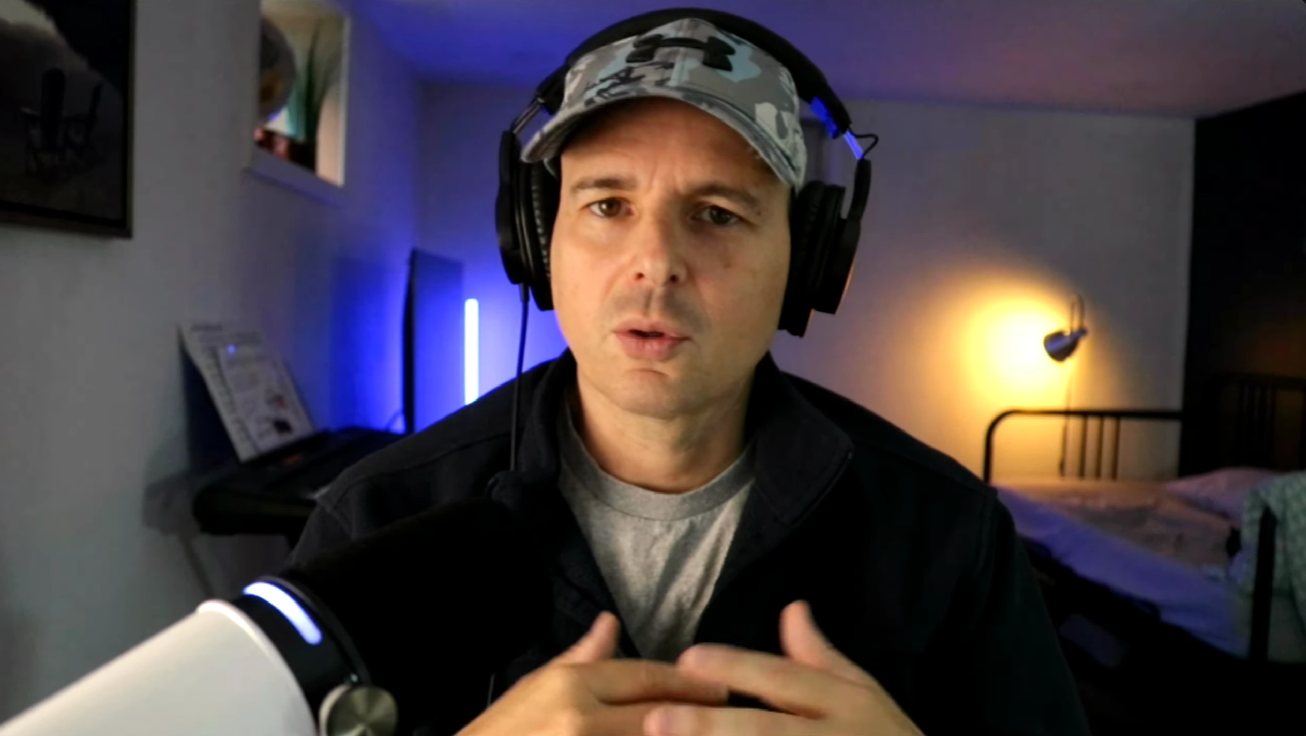
Move Your Webcam. Resize It. Hide It.
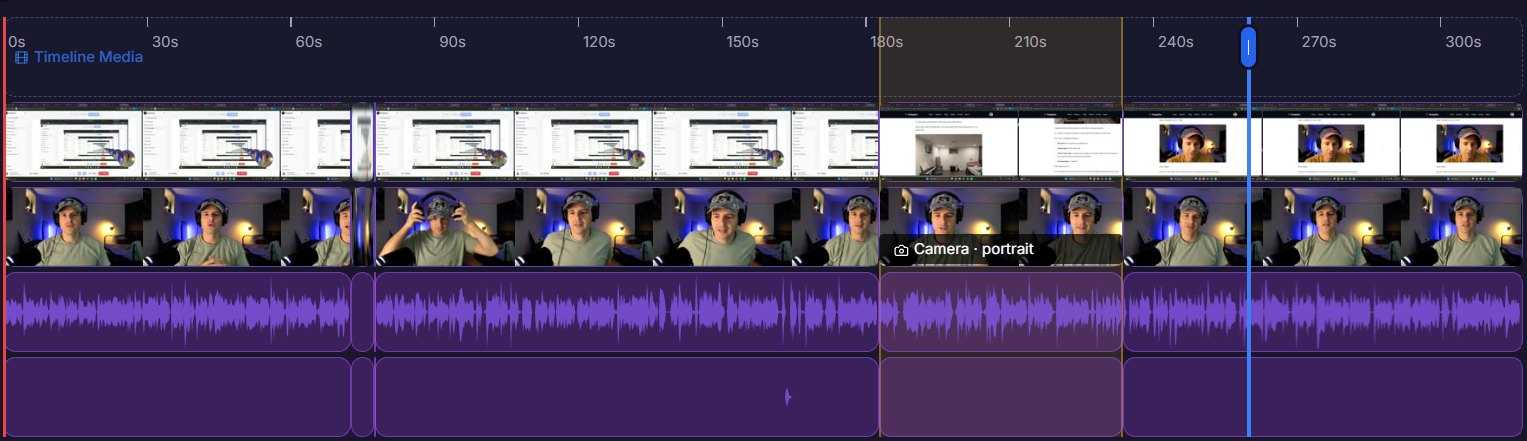
Most screen recorders embed your webcam directly into the screen recording, leaving it stuck in the same position and size. Podsplice records your webcam on its own separate track, so you can move it, resize it, change its shape, or remove it from view entirely—even after recording. Nothing is permanently burned into your screen video.
Hooks that keep people watching
- Open with the payoff
- Cut the warm-up
- Show it, then explain it

Or drag the webcam anywhere. Pull a corner to resize.
Record System Audio. Not Just Your Microphone.
Many screen recorders don't capture system audio, or make it unnecessarily complicated. System audio is the sound playing directly from your computer—like the audio from a YouTube video you're watching.
Podsplice makes it easy to record high-quality system audio alongside your microphone, keeping both on separate tracks. That means you can adjust the video’s sound and your own voice independently when editing.
Two separate tracks: the video and your voice.
Four Separate Tracks. Total Editing Freedom.
Podsplice records your screen, webcam, microphone, and system audio independently. Adjust the sound from your computer without changing your voice, hide your webcam, or rearrange your video after recording.

Crisp Video. Clear Audio.
Record sharp, high-quality screen videos, including up to 4K in supported recording modes, with clear microphone audio. Local recording preserves the original source quality without relying on a compressed video-call stream.
The compressed side is an illustrative effect applied to the same image, not footage from another product.
Record It. Edit It. All in Your Browser.
Trim mistakes, remove unwanted sections, adjust audio, and change video layouts in Podsplice's built-in editor. Go from recording to finished video without switching between programs.
0:00 / 2:22Drag the handles at either end to trim.
You Do the Talking. AI Brings It to Life.
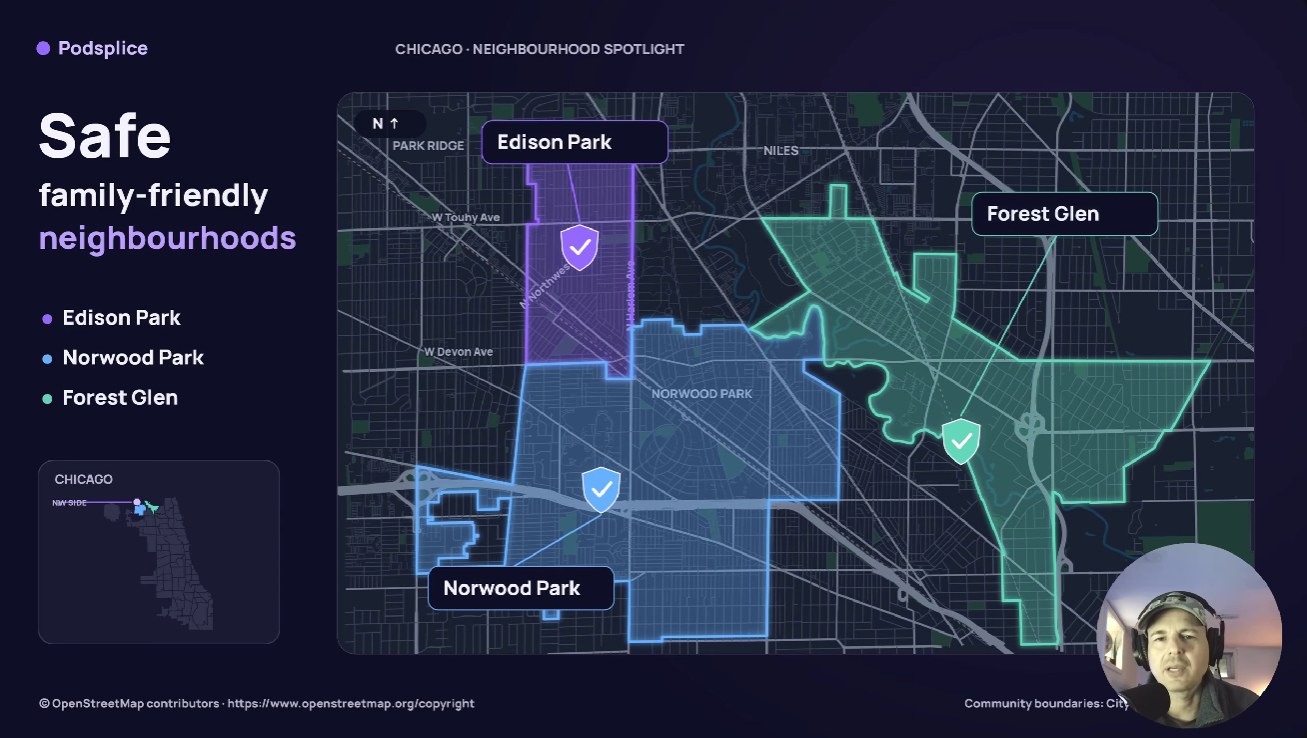
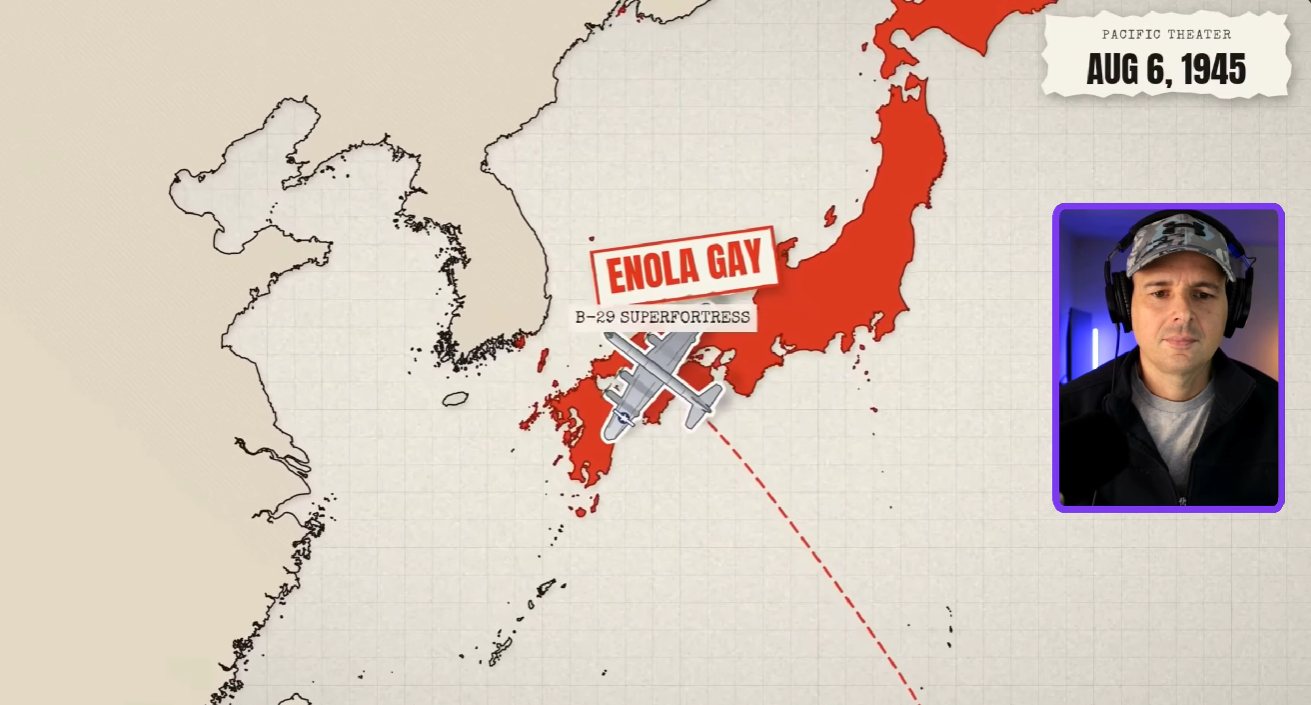
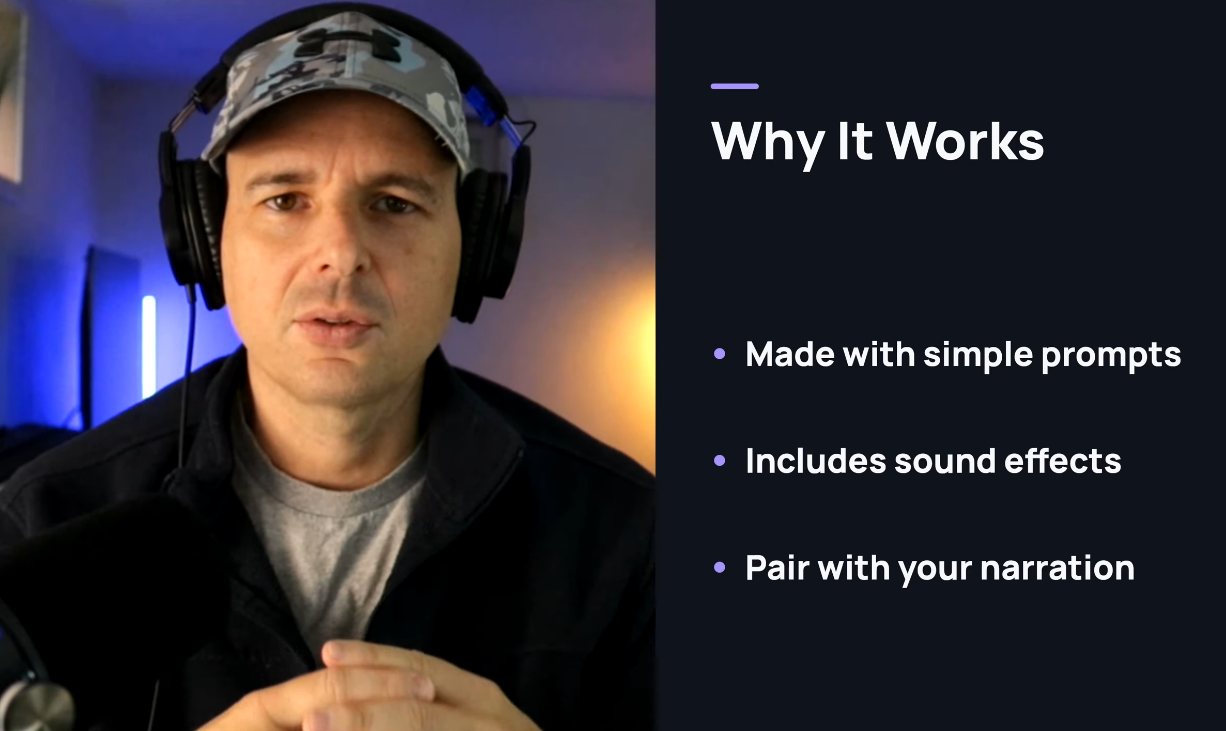
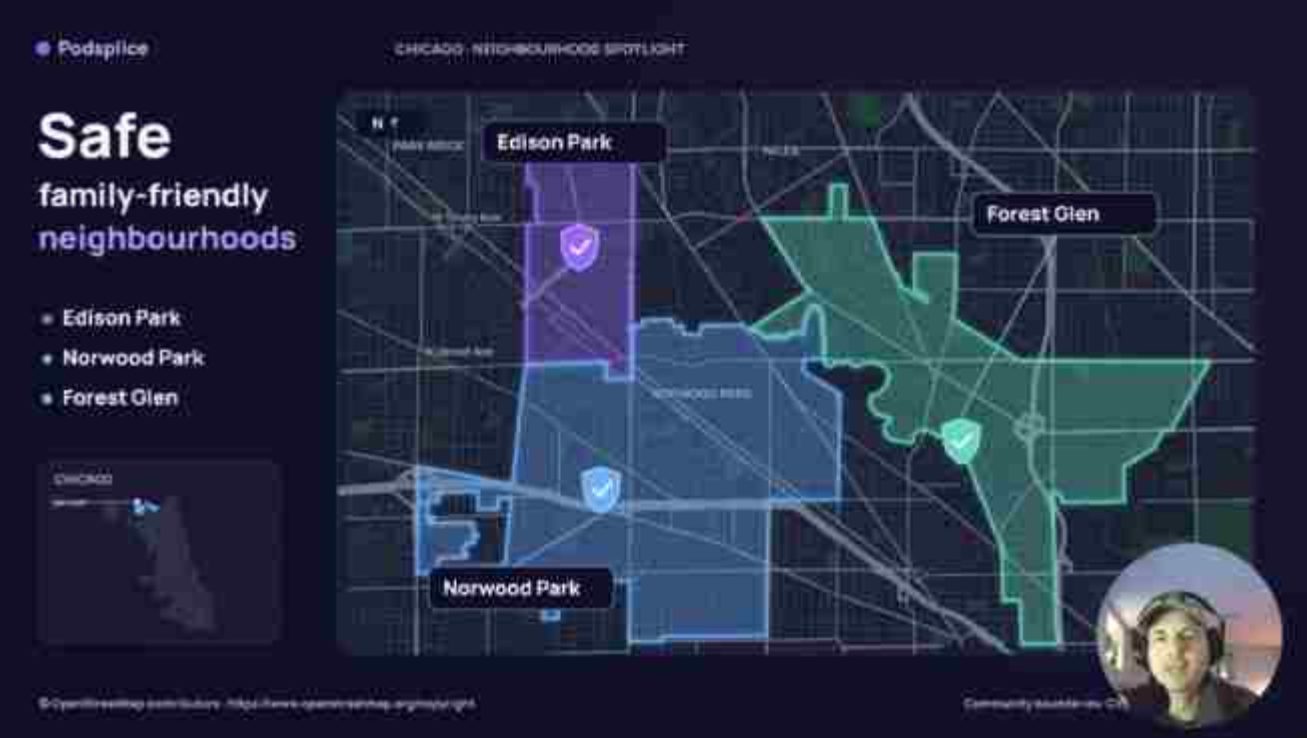
Turn simple recordings into professional-looking videos with AI-generated animated graphics, bullet points, charts, maps, and subtitles. Podsplice helps handle the editing so you can focus on your ideas.
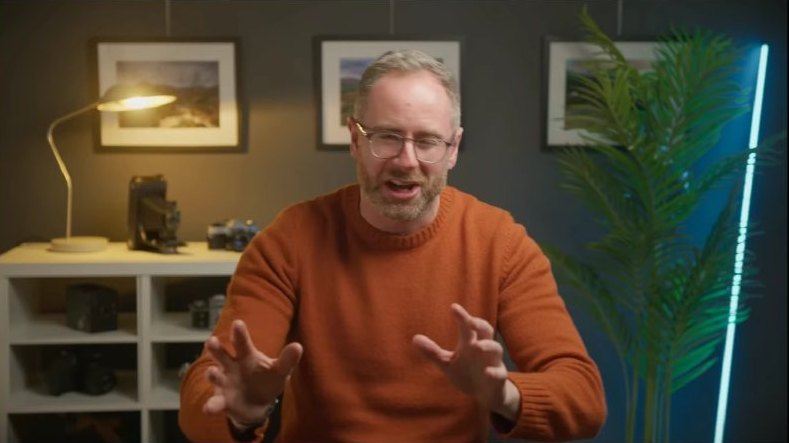
Same recording. Before and after.
Both frames are real: the raw webcam recording, and the version with AI-generated animated bullet points.
Make Tutorials, Courses, and Videos People Want to Watch.
Create software walkthroughs, online courses, educational lessons, product demonstrations, and YouTube videos. Show your screen, explain your ideas, and add visuals that help people understand.
Podsplice editorTutorial · Editing your timeline
Reaction Videos Without the Complicated Setup.
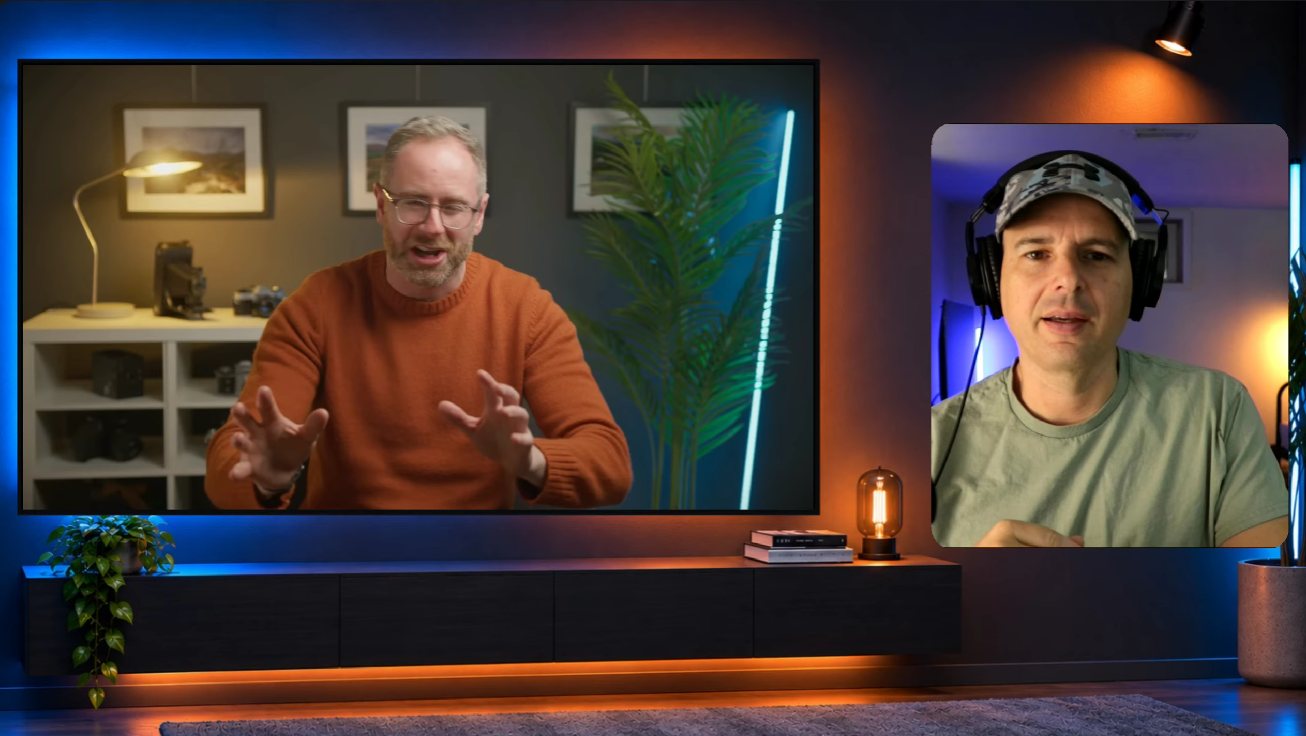
Record the video you're watching, its audio, and your own commentary at the same time. Keep everything on separate tracks so you can change layouts and fine-tune the final recording.
One Recording. A Whole Lot More Content.
Turn your longer videos into YouTube Shorts, Instagram Reels, TikToks, and other social clips. Reframe your footage, add animated subtitles, and create multiple videos from one recording.
Click any format to see it larger. Previews are illustrative reframes of the recordings above.
Finished Your Video? Publish It Everywhere.
Publish videos to YouTube and supported social media platforms directly from Podsplice. No downloading enormous files and uploading them again to every platform.
 YouTube · 16:9 video
Frequently Asked Questions
Do I need to download anything to record my screen?
No. Podsplice is a browser-based screen recorder for Mac and Windows. Open it in your browser and start recording. There is no software to install.
Can Podsplice record system audio?
Yes. Podsplice records system audio, the sound playing from your computer, alongside your microphone and keeps them on separate tracks. System audio support depends on your browser and operating system.
Is my webcam recorded separately from my screen?
Yes. Your screen, webcam, microphone, and system audio are recorded as four separate tracks, so you can move, resize, or hide your webcam after recording.
Where are my recordings saved?
Your recordings are saved in the cloud, so you don't have to manage huge video files on your computer.
Can I record in 4K?
Podsplice records sharp, high-quality screen video, up to 4K in supported recording modes.
Can I edit and publish without other software?
Yes. Trim and edit in Podsplice's built-in browser editor, add AI-generated graphics and subtitles, then publish directly to YouTube and supported social media platforms.
Ready to Record Something Great?
Everything you need to record, edit, and publish professional videos, directly from your browser.
Start Recording with Podsplice