
Why Your Screen Recordings Look Blurry (And How to Fix It)
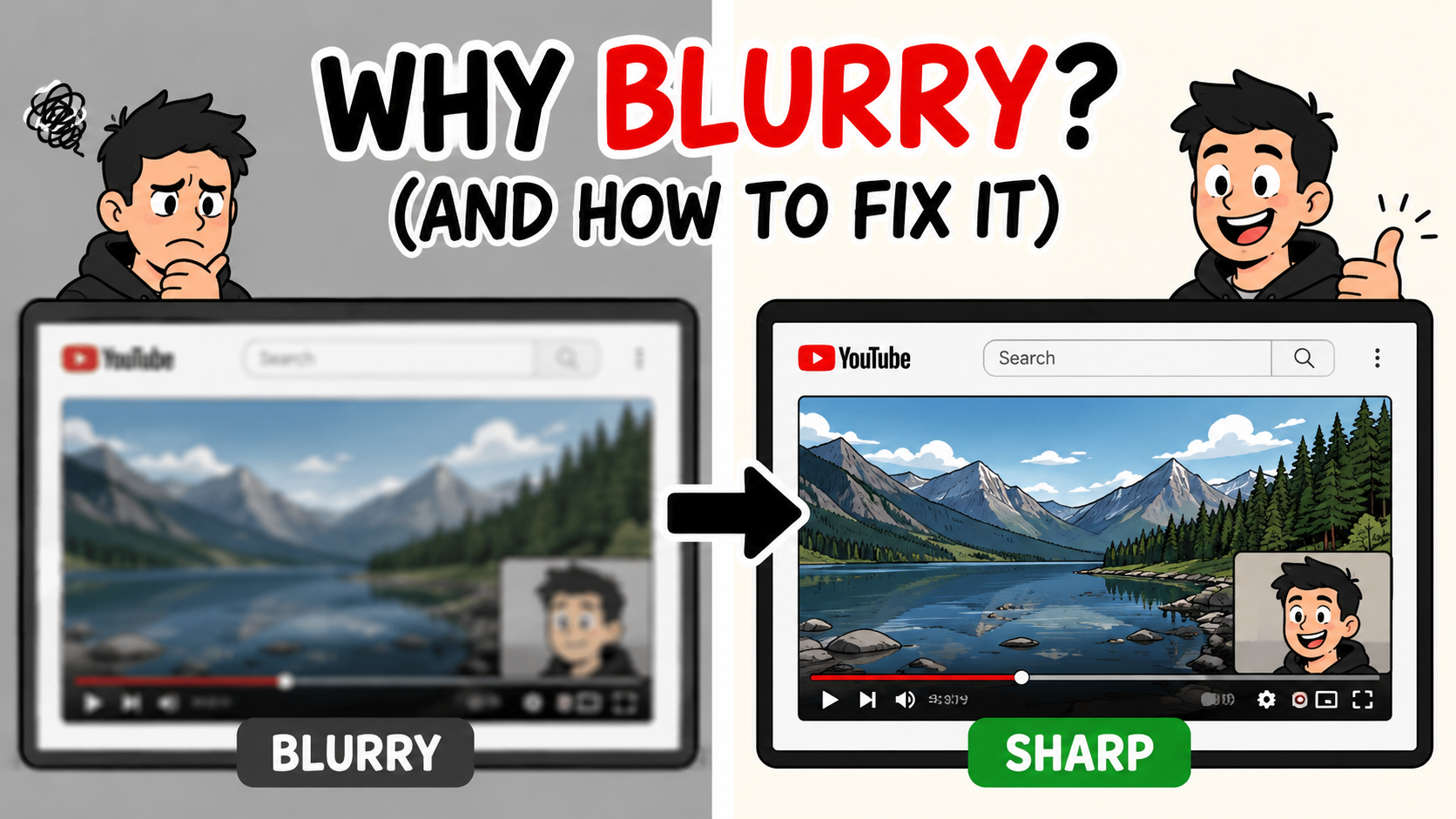
If your screen recordings look blurrier or softer than the original video, you are not imagining it.
I make a lot of screen recording videos where I share my screen and record my face in the corner. If I'm commenting on a news article, I need my audience to be able to read the text of the article while they are watching the video. Most screen recorders completely fail at recording high screen resolution.
Screen recording is one of the hardest types of video to compress properly. Unlike standard camera footage, screens are filled with text, sharp UI edges, browser windows, and motion. These are all things that compression algorithms struggle with. Add subtitles and fast-moving content on top of that, and you have a recipe for visible quality loss. This shows up most noticeably in reaction videos, remote interviews, tutorials, webinars, SaaS demos, and YouTube commentary videos. It even shows up when you are sharing a static page, like an online article.
Podsplice is designed to preserve as much quality as possible while still keeping the workflow browser-based and simple.
Unlike most basic screen recorders, Podsplice screen recorder starts with high-quality creator-focused settings and supports up to 4K recording, VP9 video encoding, high frame rates, local recording workflows, high-quality audio, and separate tracks.
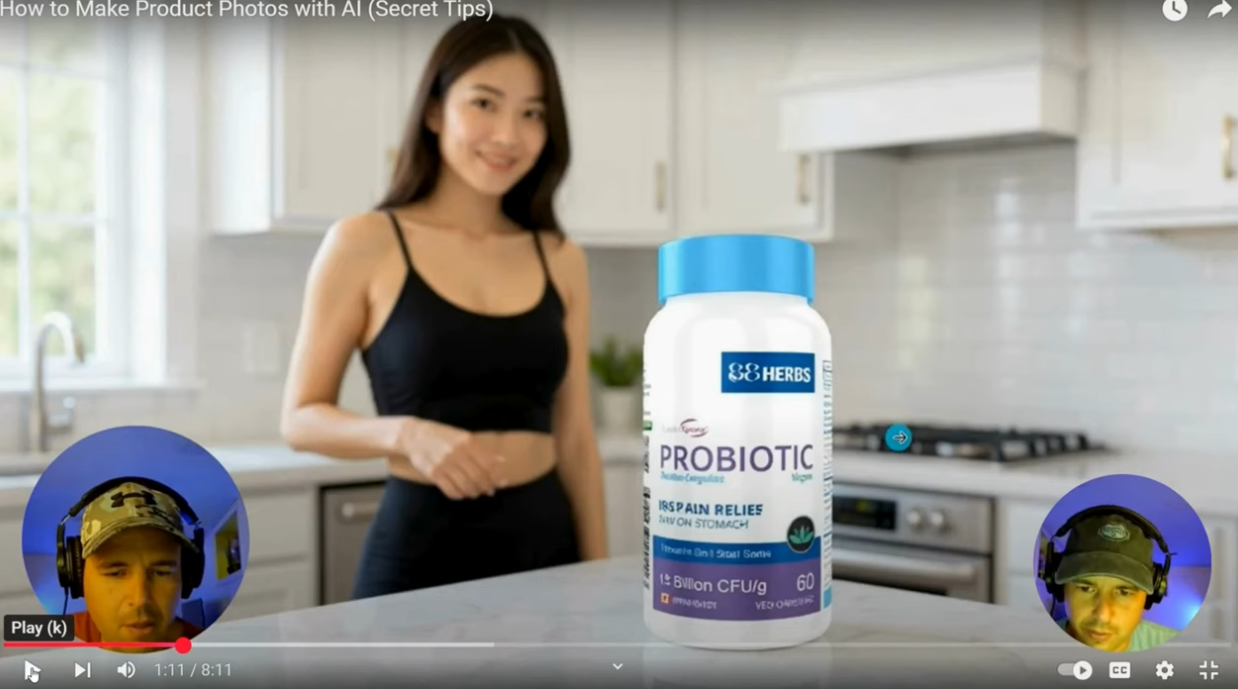
Here is a screenshot from a video I made with Podsplice.
Note: This is kind of "funny", but the screenshot is also somewhat degraded in quality! But you get the point. You can see my face in the corner, and you can read some of the bottle text. The girl in the background is supposed to be "blurry" compared to the bottle, because this was created with a "bokeh" effect.

Below is a screenshot of a reaction video I made with Podsplice. I'm reacting to the original video. You can see a second thumbnail of my face in the corner.
The second screenshot is very, very slightly degraded compared to the original.
The quality is quite good, even with the default settings on Podsplice. (I'll show the advanced settings below in this article if you want to improve the quality even more.)
Why Screen Recordings Never Look Exactly Like the Original
One of the biggest misconceptions about screen recording is that the recorder is somehow "copying" the original video file. That is not what is happening.
A screen recorder captures pixels from your display in real time and then re-encodes those pixels into a new video file. That means some softness or quality loss is completely normal — even high-end desktop software and OBS setups cannot perfectly recreate the original source video pixel-for-pixel.
Reaction videos and remote recordings are especially difficult because they often combine webcam footage, screen share, browser playback, subtitles, motion, and multiple audio and video layers all at once. Every additional layer increases compression difficulty.
The "Compression Sandwich" Problem
This is one of the biggest reasons screen recordings lose quality, and it is worth understanding clearly.
A typical reaction video or screen recording may go through three separate rounds of compression: the original YouTube video is already compressed, the screen recorder compresses it again, and then YouTube compresses it a third time after upload. That repeated encoding process gradually softens detail — text gets fuzzier, browser windows look softer, edges lose their sharpness, and subtitles become slightly harder to read.
The important thing to understand is that a good screen recorder is not trying to achieve some impossible lossless perfection. The goal is to minimize quality loss while keeping the workflow smooth, stable, and easy to use.
Why Text and Browser Windows Get Blurry First
Normal camera footage hides compression surprisingly well. Screen recordings do not.
The reason is that browser windows and desktop screens are full of tiny text, hard edges, menus, dashboards, spreadsheets, and sharp UI elements — exactly the kind of detail that compression artifacts make visible very quickly. This is why tutorials, SaaS demos, coding videos, and reaction channels tend to expose poor recording quality faster than almost any other type of content.
Why Most Screen Recorders Lower Quality
Most screen recorders are making deliberate tradeoffs between quality, performance, and cost.
Desktop screen recorders often record in lower quality to reduce CPU strain, prevent overheating, avoid dropped frames, and keep file sizes manageable. Browser-based recorders often do the same to lower bandwidth costs, reduce server load, and maintain browser stability. Another factor is that most screen recorders are not coded in the best way. The coders just to "record the screen" and they stop short of optimizing every detail. They are just happy that it works at all.
Browser-based screen recorders, like Podsplice, have to pay to record and store everything in the cloud. These costs add up. Podsplice pays for the highest-quality screen recording options because it is built for content creators.
Podsplice leans harder toward creator-quality recording rather than cost or convenience optimization.
How Podsplice Tries to Preserve More Quality
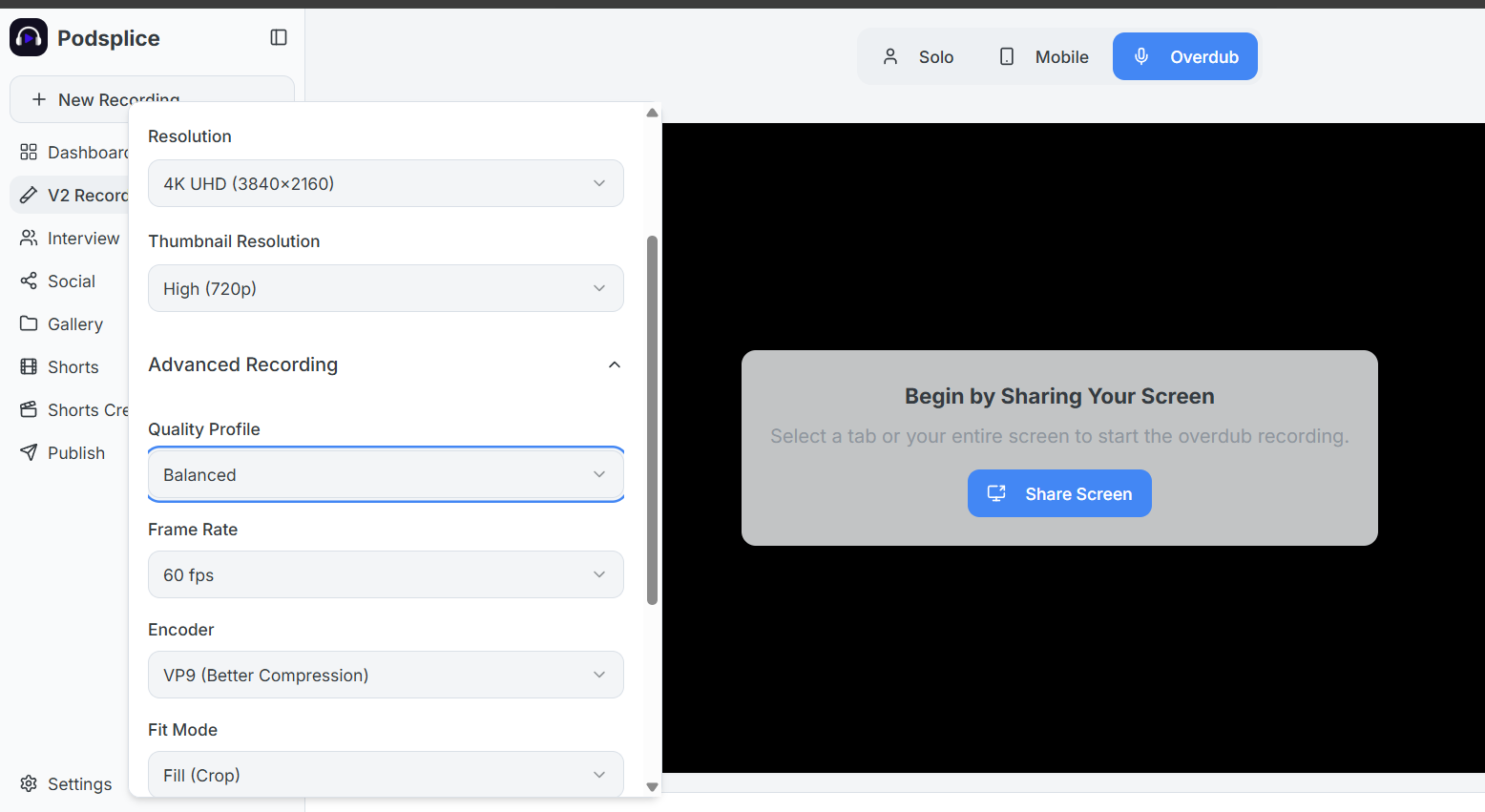
Podsplice starts with high-quality default recording settings built for creators who care about the final output. It supports up to 4K recording, VP9 video encoding, Opus audio, high frame rates, and local recording workflows. Those choices help preserve sharper detail, smoother motion, cleaner text, and better overall video quality — while still keeping the experience browser-based and simple.
For remote interviews and podcasts, Podsplice also uses optimized real-time browser infrastructure designed for low-latency, stable connections. That matters a lot for podcasts, interviews, webinars, and any workflow involving remote guests or collaborative recordings.
Here is a screenshot of the Podsplice recording settings. You can choose up to 4K screen resolution and 60 fps for video.
Fact: Audio quality is also a major consideration when it comes to choosing a screen recorder. Read why Podsplice is the screen recording software with the highest audio quality.
There Is Always a Tradeoff
Higher-quality recording always increases CPU usage, GPU usage, file size, and encoding complexity. That is true for every screen recorder on the market. The challenge is finding the right balance between quality, smoothness, reliability, and workflow simplicity. Podsplice intentionally chooses the higher-quality lane while still keeping things accessible enough for everyday creators.
How to Make Your Screen Recordings Less Blurry
A few practical changes make an immediate difference. Record at the highest practical resolution — 1440p or 4K when possible. Avoid recording in tiny browser windows or introducing unnecessary scaling. Use high-quality recording settings, local recording workflows, and upload in high resolution. Even small improvements in resolution and encoding settings can produce a noticeably sharper result.
Final Thoughts
Screen recordings look blurry because they are being compressed, scaled, and re-encoded multiple times. Some softness is normal and unavoidable. The goal is to minimize that quality loss while keeping the workflow stable and easy to manage.
Most recording tools prioritize lower costs, lower hardware strain, and smaller file sizes.
Podsplice pushes harder toward creator-quality recording while staying browser-based and simple — which is what makes it especially well-suited for reaction videos, remote interviews, tutorials, webinars, podcasts, SaaS demos, and creator workflows in general.
Professional-quality browser recording without OBS-level complexity.

About the Author
Andrew Best
Andrew Best is an entrepreneur, educator, and AI expert with over two decades in online marketing. He co-founded China232 — a podcast and learning platform with 10M+ downloads — and later 88Herbs, a premium supplement company. Andrew now focuses on helping creators leverage AI for podcasting, screen recording, and YouTube content through Podsplice.
More from Podsplice
What Screen Recording Software Do Journalists Use? (Best Recording Software for Investigative Reporters in 2026)
Blog
Best Way to Record Remote Interviews With Separate Tracks for Premiere Pro
Article
How to Record a Remote Video Lesson with Two Instructors and Screen Share
Blog
Why WebM Files Break Your Premiere Pro Workflow (And the Easy Fix)
Article
Why You Should NEVER Record a Podcast in Zoom
Article
Start Recording in Seconds
No downloads. No setup. Just hit record and share your story with the world in studio quality.
Looking for a Screen Recorder or Remote Recording tool?