
How to Blur Sensitive Information in a Screenshot
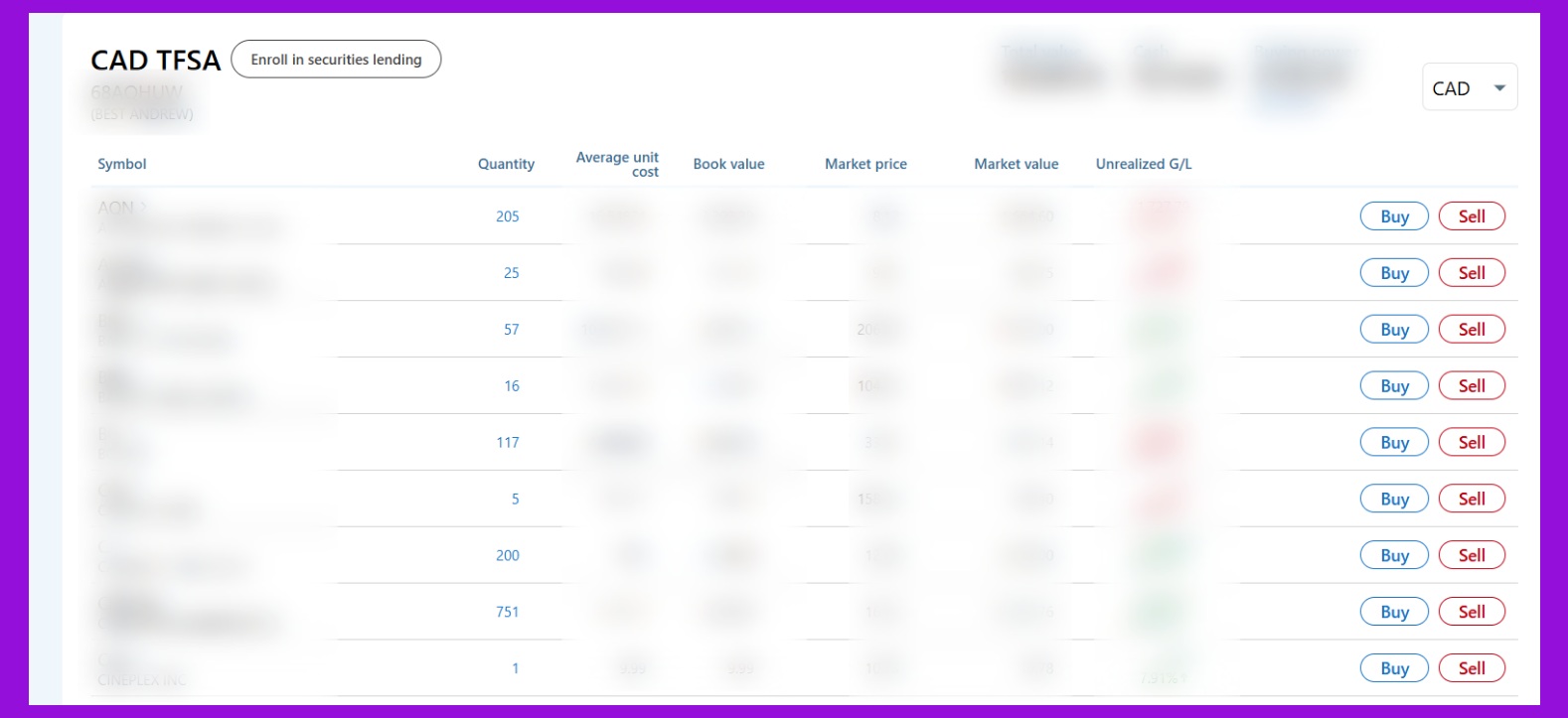
The best and easiest way to blur sensitive information in a screenshot is to use the free Chrome extension Podsplice Capture.
Open Podsplice Capture, take a screenshot, click Blur On, drag over the private information, and save the image. The entire process takes about 10 seconds.
Step 1: Open Podsplice Capture and Take Screenshot
Open Podsplice Capture and click the large purple button that says, "Take Screenshot"
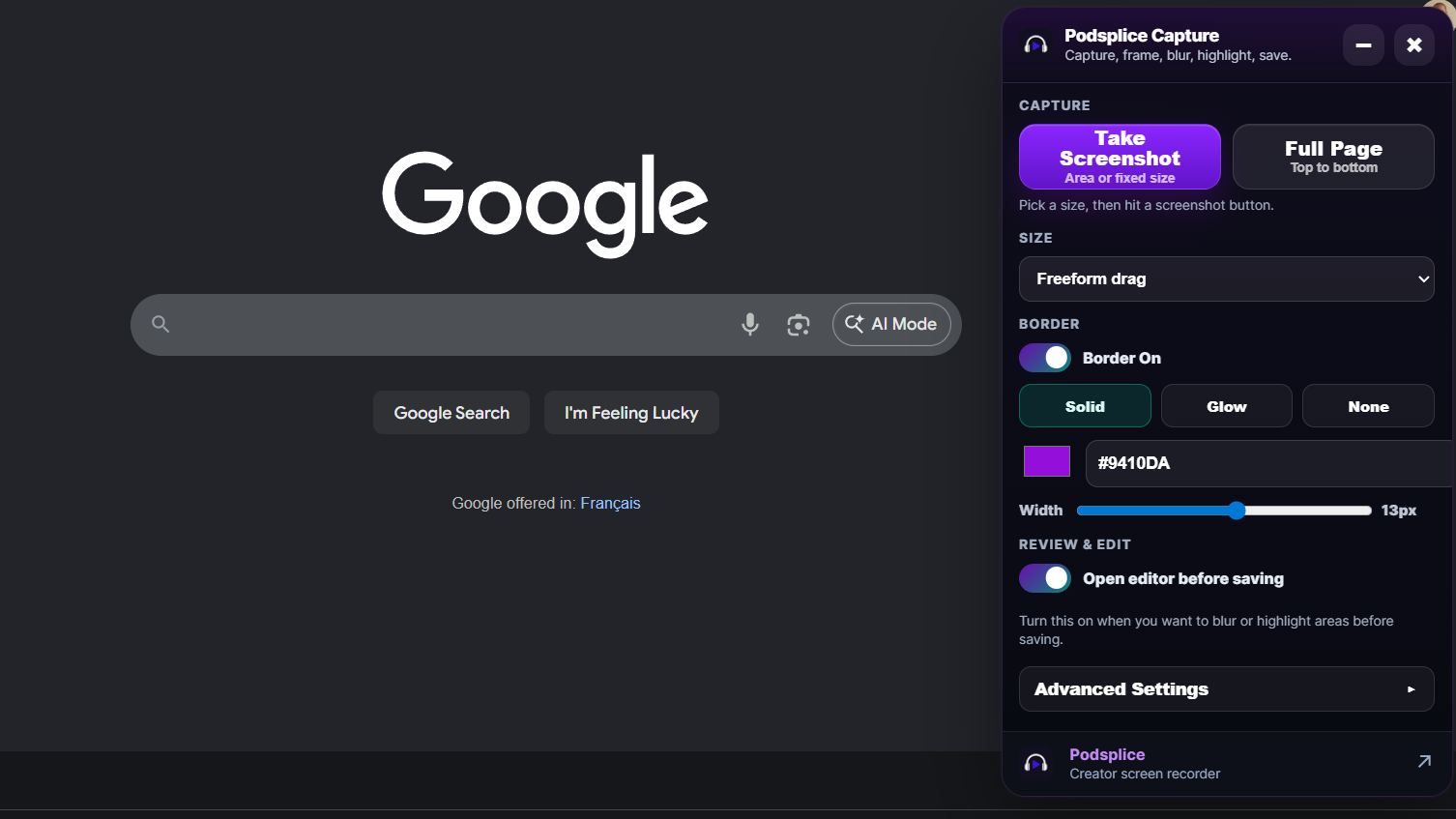
Step 2: Select Blur On
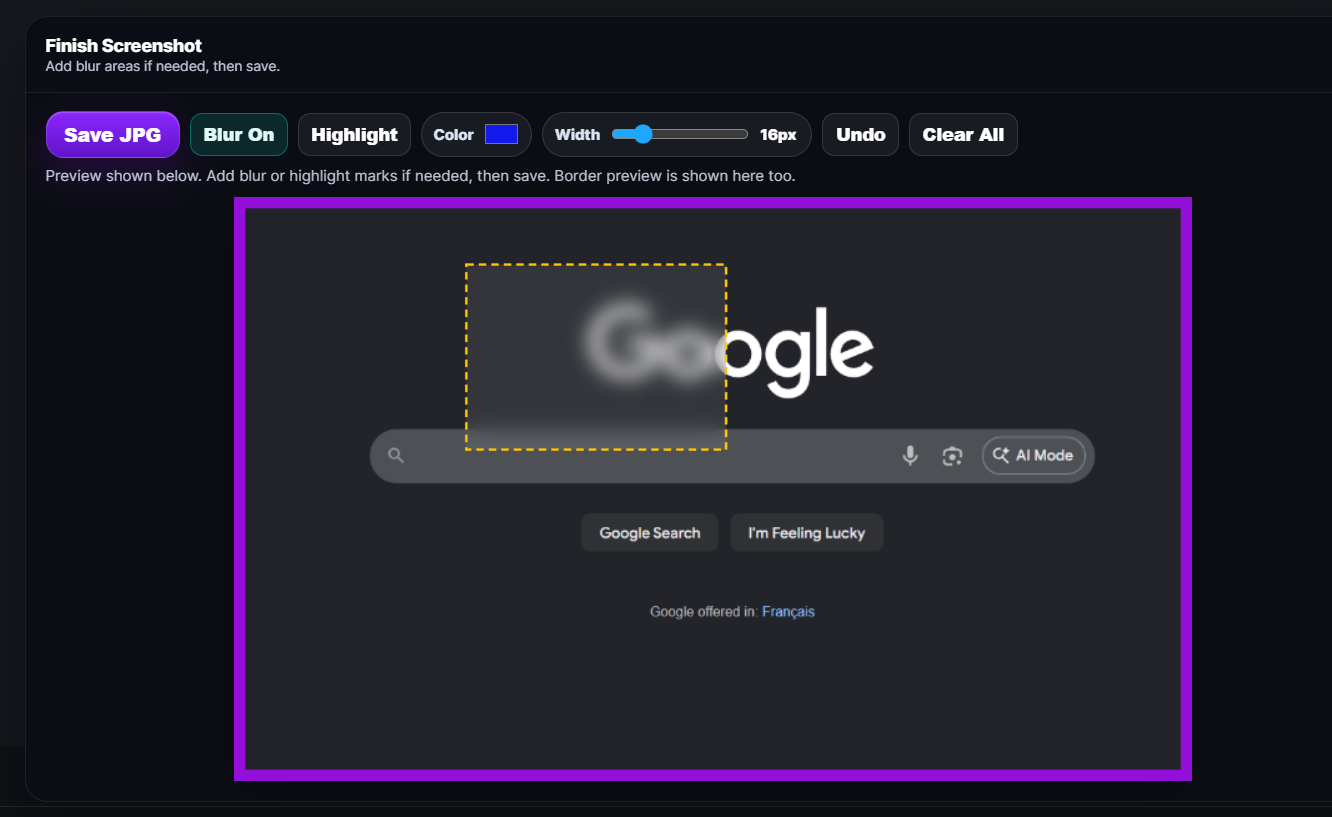
Your screenshot will immediately open up in an editor window.
Click "Blur On"
Step 3: Drag Over the Sensitive Information
Click and drag over the information you want to hide.
This could include:
Email addresses
Phone numbers
Account balances
Customer names
API keys
Passwords
You'll notice in the screenshot above that I hid some of the Google logo. The final result is more "blurred" than this. I use this all the time. People won't be able to figure out what the information which is blurred. It is too blurry.
You can blur multiple parts of any screenshot. Once the "Blur On" is clicked, you can click and drag as many boxes as you want. You might want to show many parts of a screenshot, but just blur a few small sections. Podsplice Capture lets you do this easily.
Real-World Example
Here is an example of a financial screenshot I just took where I blurred my account name, balances, and holdings.
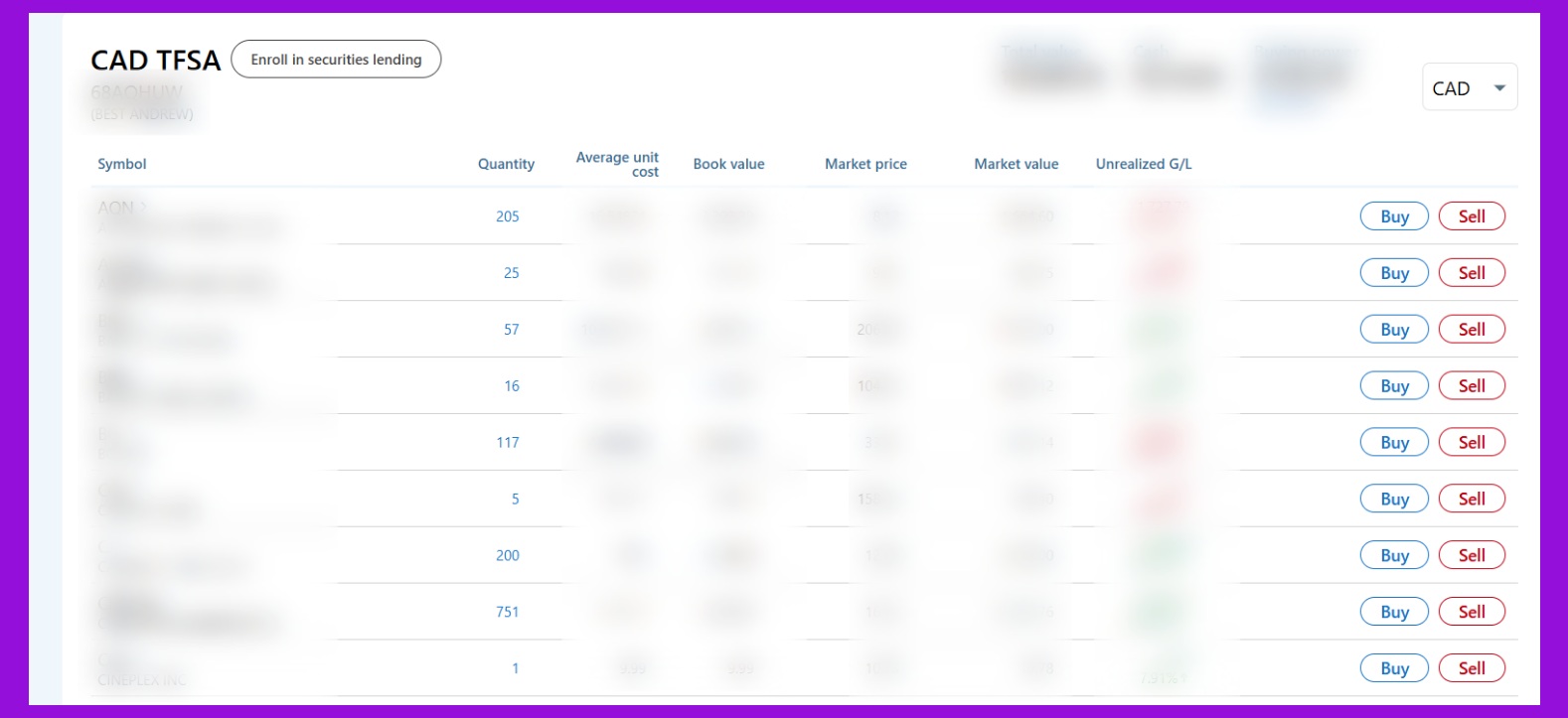
As you can see in the screenshot, it is impossible to read any of my sensitive banking information.
As a side note, you'll also notice I chose to add a custom purple border around this. Podsplice Capture gives you many options to customize your screenshots.
Here is a short video of me using Podsplice Capture to blur a screenshot.
Step 4: Save the Screenshot
Click Save JPG, and your screenshot is ready to share safely.
This entire process takes just a few seconds.
You can do all of this without wasting time opening Canva or Photoshop.
Why You Should Blur Sensitive Information
Screenshots often contain private information that you may not notice at first.
Examples include:
Personal names
Email addresses
Phone numbers
API keys
Passwords
Customer details
Financial data
Sharing this information publicly can create privacy and security issues.
If you publish screenshots in blog posts, tutorials, YouTube videos, newsletters, or social media, it is a good habit to blur anything confidential.
Why I Built Podsplice Capture
I take screenshots every day for articles, tutorials, and videos.
I wanted one tool that could:
Capture screenshots
Add custom borders
Highlight important areas
Blur sensitive information
Save polished JPG images
Without opening Canva or Adobe Photoshop.
That is why I built Podsplice Capture.
I often share screenshots with sensitive information to prove something or to show how to do something when I'm doing screen recording videos.
Podsplice is the best screen recording software for creators.
Podsplice Capture is a nice free addition to your workflow.
More Than Just a Blur Tool
Podsplice Capture also lets you:
Add custom borders
Highlight text or areas
Capture full web pages
Resize screenshots for social media
Export high-quality JPG images
If you create content regularly, it can save a significant amount of time.
Here is a video of me showing how to use many of the free features in Podsplice Capture
Final Thoughts
Blurring sensitive information should be part of your normal screenshot workflow.
With Podsplice Capture, you can hide confidential information in seconds and create professional screenshots without extra editing.

About the Author
Andrew Best
Andrew Best is an entrepreneur, educator, and AI expert with over two decades in online marketing. He co-founded China232 — a podcast and learning platform with 10M+ downloads — and later 88Herbs, a premium supplement company. Andrew now focuses on helping creators leverage AI for podcasting, screen recording, and YouTube content through Podsplice.
More from Podsplice

Record Stereo Tab Audio in Chrome
Article
MP3, AAC, WAV, or WebM? The Creator's Guide to Audio File Formats
Article
How to Record High-Quality Reaction Videos in Any Browser
Blog
Bandicam vs Podsplice: Which Is Better for Content Creators in 2026?
Article
Why WebM Files Break Your Premiere Pro Workflow (And the Easy Fix)
Article
Start Recording in Seconds
No downloads. No setup. Just hit record and share your story with the world in studio quality.
Looking for a Screen Recorder or Remote Recording tool?