
Why Most Screen Recording Software Is Terrible for YouTube Videos (And What Creators Actually Need)
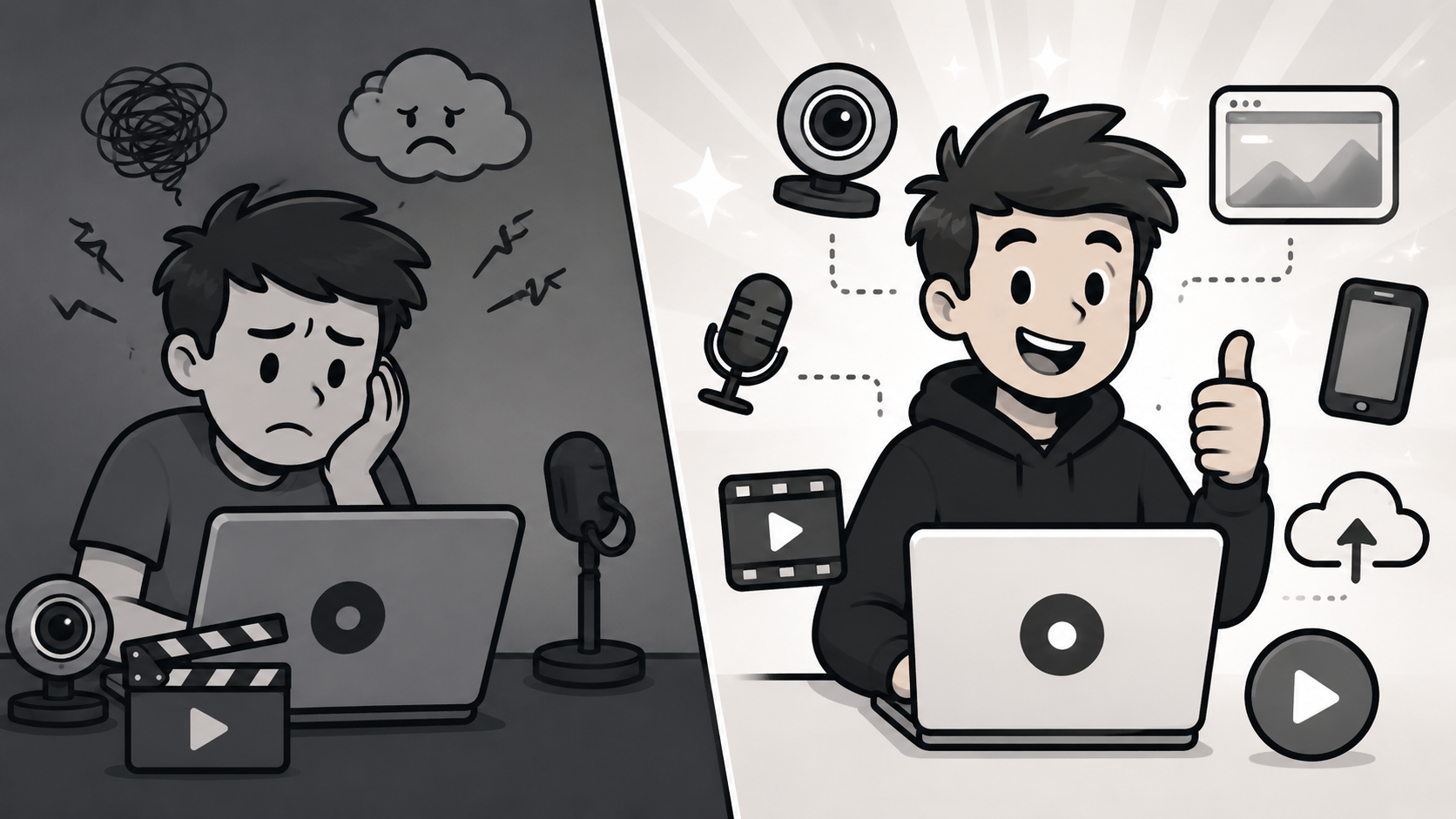
The best screen recording software for YouTube creators is Podsplice. I use it every day to record my YouTube screenshare videos, reaction videos, remote podcasts, create shorts, and automatically post to my social media channels. No other screen recording software can do all of this. Podsplice records in 4K, captures system audio as a completely separate track, records your microphone and webcam independently, creates Shorts automatically, works on Android, and posts directly to social media when you're done.
That's the answer. Now let me explain why every other tool gets this wrong — and why it matters more than most creators realize.
Most Screen Recorders Were Not Built for You
Here's something the screen recording industry doesn't advertise: most of these tools were built for corporate teams, not content creators.
Think about what Loom was designed for. Internal team updates. Sales demos. Corporate onboarding videos. The audience watches once, maybe twice, and moves on. Nobody is uploading a Loom video to YouTube and hoping it gets a million views three years from now.
So those tools optimize for what their actual customers need: small file sizes, fast sharing, and low friction for one-time internal viewing.
That means aggressive compression. Low bitrates. Combined audio tracks. Everything is optimized to be small but not good.
That's completely fine if you're sending a quick update to your manager.
It's a disaster if you're a YouTube creator.
The corporate recorder and the creator recorder need fundamentally different things.
A corporate recorder is optimized for tiny file sizes. It uses heavy compression, combines everything into one audio track, and stops caring the moment the file is shared internally. The recording served its purpose the moment someone watched it once.
A creator recorder is the opposite. It needs 4K video. It needs 192 kbps audio. It needs separate tracks for every source. It needs to think about social media distribution, Shorts creation, and the full workflow that happens after you stop recording.
Most screen recorders were built for the first description. Podsplice was built for the second.
Quality Matters More Than You Think
The biggest mistake YouTube creators make is blaming their camera for blurry videos or their mic for bad audio. Most of the time, it's neither the webcam nor the mic. It's the recorder compressing everything downstream. My videos look and sound great with Podsplice. My mic costs $25 bucks, and my webcam was about $30.
4K Recording
YouTube recompresses every video you upload. That's just how the platform works. When you start with a high-quality 4K source, YouTube's compression takes something great and makes it good. When you start with a compressed 1080p recording, YouTube's compression takes something mediocre and makes it noticeably worse.
Starting at 4K gives you headroom. Starting at 720p leaves you nothing to work with.
Podsplice records your screen in 4K locally, on your computer's hard drive, before anything gets uploaded or compressed. You keep the quality you recorded with.
192 kbps Audio
Bad audio ends YouTube channels faster than bad video. Viewers will watch slightly shaky footage. They will not sit through muffled, tinny, compressed audio.
Think of audio bitrate like a water hose for sound. The old internet standard was 128 kbps — a narrow garden hose that had to squeeze and compress your voice to fit through. That squeezing is exactly what creates that thin, metallic sound you hear on cheap recordings.
Podsplice records at 192 kbps. In 2026, there's no reason to compromise.
Four Separate Tracks
This is the one that catches creators off guard when they first see it.
Most screen recorders dump everything — your voice, your system audio, your webcam — into a single file. That file is what you get. If your mic was too loud, or the system audio drowned out your voice, or you want to cut your face out of one segment, you can't. It's all baked together.
Podsplice gives you four completely independent tracks:
Track 1: Screen capture
Track 2: Webcam video (isolate or hide entirely for faceless content)
Track 3: Microphone audio
Track 4: System audio
Each one is a separate file. Each one is editable independently. You can raise or lower any element in post without touching the others. If something goes wrong on one track, the rest of your recording is still clean.
Most creators don't realize they need this until something goes wrong. After it happens once, they'll never record any other way.
System Audio: The Hidden Pain Point
If you make reaction videos, tutorials, software demos, or course content, you've almost certainly run into this problem.
You record what feels like a great video. You play it back and realize the audio from your screen — the YouTube video you were reacting to, the software you were demoing, the music you were using as a reference — isn't there. Or it's merged with your voice in a way that makes both sound worse.
Most screen recorders either don't capture system audio at all, or they blend it with your microphone into one distorted track.
Podsplice captures system audio as its own dedicated track, completely separate from your microphone. You get the crisp sound from your screen, your voice at full quality, and full control over how they blend in your final edit.
For reaction channels, this isn't a nice-to-have. It's the whole workflow.
Here is a reaction video I made with Podsplice.
Remote Recording: For When You're Not Recording Alone
Every serious YouTuber eventually wants to interview someone. Or record with a co-host. Or react to a video with a collaborator across the country.
Most screen recorders don't solve this at all. They're built for solo recordings, and remote recording is treated as a completely separate category of tool.
Podsplice handles remote podcast recording natively. Your guest joins from their own browser. No downloads, no complicated setup on their end.
More importantly, Podsplice uses Double-Ender technology — each person's audio and video records locally on their own machine and then uploads in full quality. That means even if someone's internet drops mid-recording, the final file has perfectly synced, high-fidelity audio with zero drift.
Compare that to a video call recording, where everything depends on your internet connection the whole time. One bad moment and your guest's audio is choppy for the rest of the conversation.
This opens up a huge range of content: interviews, collab videos, reaction videos with a partner, and remote co-hosting. And it all runs through the same tool you use for your solo recordings.
Here is a remote podcast I recorded with Podsplice (we also share our screen and system audio, which is a rare feature)
AI Shorts Creator: Where It Gets Different
Here's where Podsplice stops being a screen recorder and becomes something else entirely.
Most screen recorders end when the recording ends. You get a file, and you're on your own for everything that comes after.
Podsplice keeps going.
Because Podsplice records your webcam and screen as separate 4K tracks, it can automatically take your horizontal screen recording and reformat it into a vertical stacked layout — your face on top, your screen content on the bottom — ready for YouTube Shorts, TikTok, or Instagram Reels. No timeline editing. No manual cropping. No squinting at aspect ratios for an hour.
You hit record, do your thing, and your long-form recording already has a Shorts version waiting for you.
For creators who are trying to build a presence across multiple platforms simultaneously, this changes the math completely. Your one recording session produces your long-form content and your short-form content. That's the modern creator workflow, and Podsplice is the only screen recorder that's actually designed around it.
Check out this short I made with Podsplice (from a long-form piece of content, including the karaoke subtitles)
Android Recording
Podsplice works in the browser on desktop. It works on Android. iPhone support is coming soon.
That might sound like a minor convenience, but think about what it means for a creator.
You can now record your computer screen from your desktop or browser. You can record your Android screen, your Android camera, add subtitles, and push directly into your upload workflow. As iPhone support arrives, the same workflow covers every device you create on.
Most tools pick one environment and stay there. Podsplice is building toward the point where, wherever you create — desktop, browser, mobile — you have one consistent tool with the same quality and the same workflow.
Here is the Podsplice screen recording Android App.
Here is a video I made with this Android App. (Note, the audio will be better soon because we're adding AI features that will automatically remove background noise like wind, city sounds, birds chirping, etc.) We will also add an AI layer that makes the phone mic sound almost like it was a studio mic.
Auto Post to Social Media
Almost no screen recorders think about what happens after the recording ends. Podsplice does.
Once your recording is done, Podsplice supports posting directly to social media platforms. For a creator, that's the difference between a tool that helps you record and a tool that helps you publish.
The full creator workflow looks like this: Record → Edit → Shorts → Post. Most screen recorders cover the first step and stop. Podsplice covers all four. It is a huge time saver not having to log in, download, and upload for each channel.
Watch this video where we explain the Podsplice auto-posting (This video was also created with Podsplice).
The Recorder You've Been Using Wasn't Designed for This
If you've been frustrated with blurry YouTube exports, muffled audio, or recordings that look fine on your screen but come out worse than expected on the platform — this is almost certainly why.
The tool you've been using was optimized for someone else's use case. It was built for a coworker who watches your video once on a Slack thread, not for a subscriber who found you through search and is deciding in the first ten seconds whether your content is worth their time.
Podsplice was built specifically for creators who publish publicly. That means 4K video and 192 kbps audio as the baseline. Separate tracks so nothing is locked together. System audio captured cleanly. Remote recording for collaborations. Shorts creation baked in. And the ability to go straight from recording to publishing.
If you're building a YouTube channel, you don't need a corporate recorder. You need a creator recorder.
About the Author
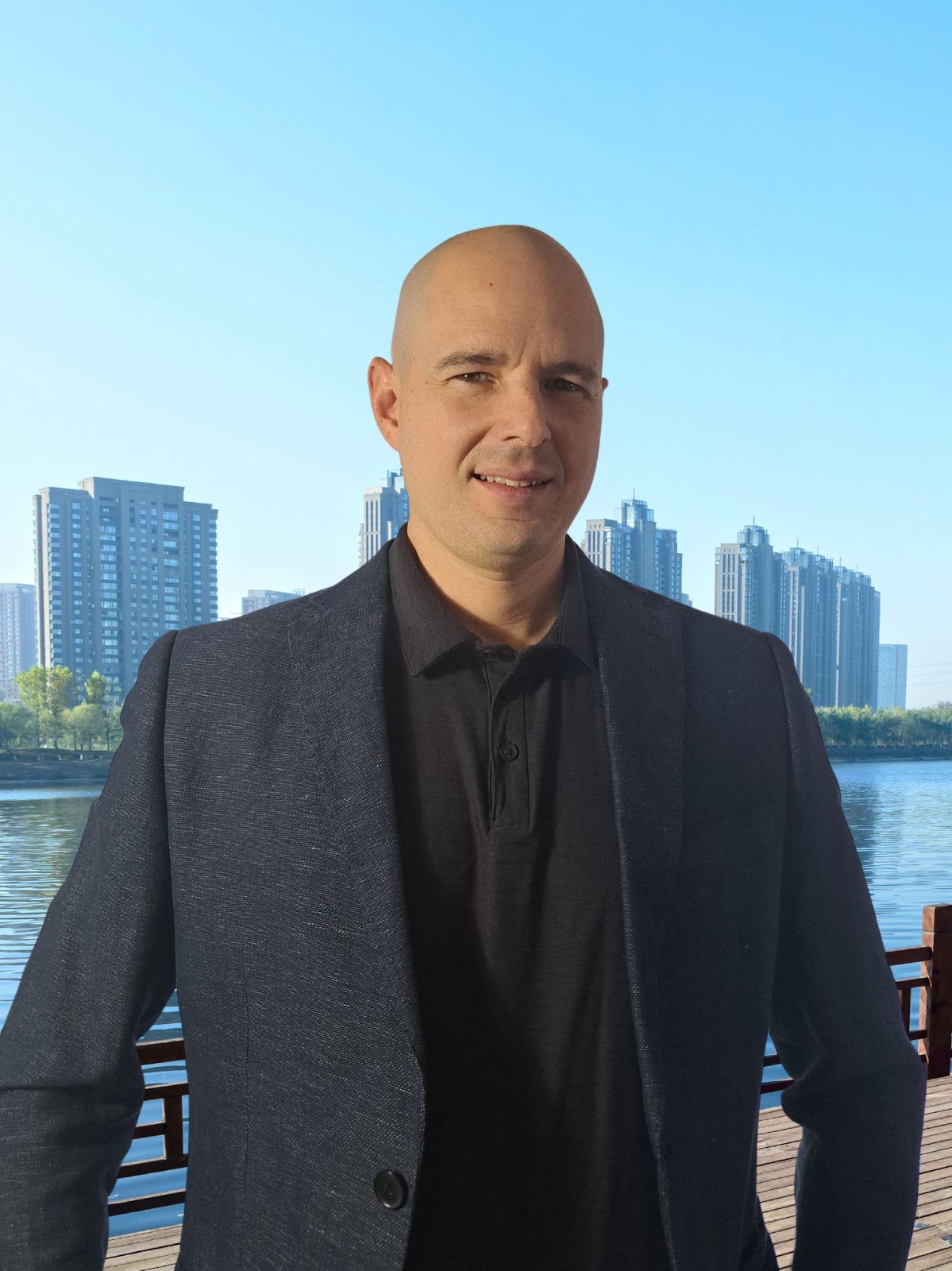
Andrew Best
Andrew Best is an entrepreneur, educator, and AI expert with over two decades in online marketing. He co-founded China232 — a podcast and learning platform with 10M+ downloads — and later 88Herbs, a premium supplement company. Andrew now focuses on helping creators leverage AI for podcasting, screen recording, and YouTube content through Podsplice.
More from Podsplice
How to Create a Podcast Guest Booking Page With a Calendar
Article
Why Your Screen Recordings Look Blurry (And How to Fix It)
Article
Remove Ambient Background Noise From Your Videos
Article
Best Browser for Recording System Audio on Mac and Windows
Article
The Easiest BlackHole Alternative for Recording System Audio on Mac
Blog
Start Recording in Seconds
No downloads. No setup. Just hit record and share your story with the world in studio quality.
Looking for a Screen Recorder or Remote Recording tool?