
How to Record Zoom Meetings With Separate Tracks for Editing
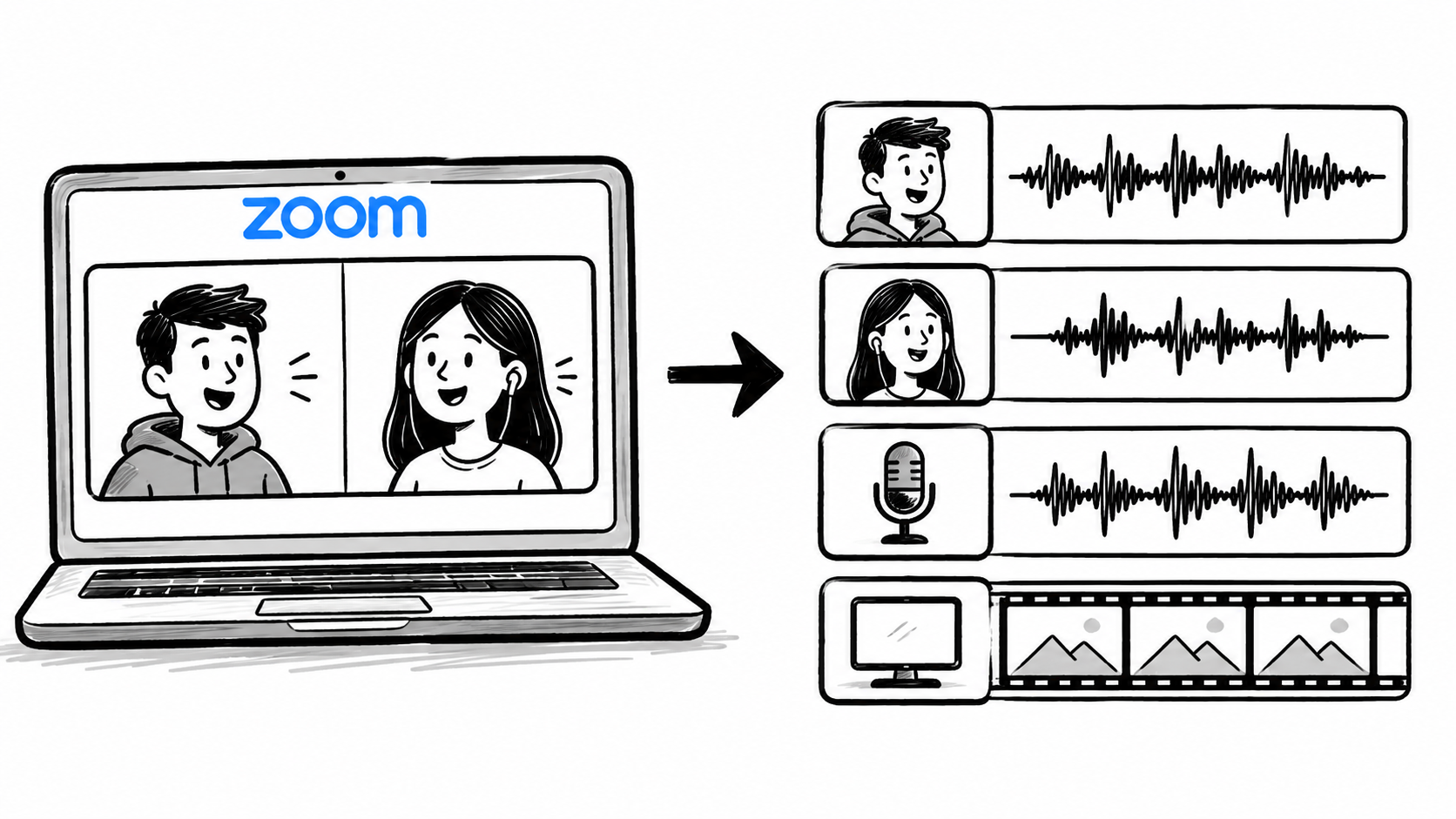
To record a Zoom meeting with separate audio tracks, you need a tool built for content production rather than meetings. Podsplice records your mic, webcam, screen, and system audio as individual tracks, so each source is isolated and ready to edit.
If you've ever tried to edit a Zoom recording, you already know the frustration. The audio is flattened into one file. Your guest's voice and your voice live on the same track. Background noise from either end bleeds into every cut. Volume levels don't match.
Zoom was designed for meetings, not for recording the meetings, editing them, and then putting them on social media.
Meetings and content creation are two different workflows.
I'm going to walk through why separate audio tracks matter so much for editing, what makes typical Zoom recordings fall short for creators, and what a better recording workflow actually looks like in practice.
I will discuss your 2 options:
Record your meeting with Zoom and have Podsplice running in a separate browser tab to record the Zoom meeting.
Use Podsplice instead of Zoom to have and record your meeting. (This is the method I prefer and the one I use myself)
Wait — doesn't Zoom already have a separate tracks option?
It does, sort of. In the Zoom desktop app, go to Settings > Recording and check "Record a separate audio file for each participant." It works, but it only applies to local recordings, only captures audio, and your screen, webcam, and system audio still get flattened into one file. It's a partial fix — not a full production workflow.
Note: You can also use OBS, but as I'll comment on later in this post, OBS is much more complicated.
Why Separate Tracks Matter for Editing
When every audio source lives on its own track, you get real control. You can adjust your guest's volume without touching yours. You can remove a cough or a chair scrape without cutting the surrounding conversation. You can clean up background noise on a single channel instead of destroying the whole mix by trying to fix one person's bad microphone.
In practical terms, separate tracks make all of this dramatically easier:
Independent volume balancing between the host and guest
Targeted noise reduction and cleanup per speaker
Cleaner cuts and transitions in interview editing
Easier subtitle and caption generation by isolating speakers
Better short-form clipping for YouTube Shorts, Reels, and TikTok
Smoother multicam editing in Premiere Pro, DaVinci Resolve, or Final Cut Pro (we have many professional journalists using Podsplice for this purpose)
Faster turnaround on podcast episodes
The Problem With Typical Zoom Recordings
Zoom is excellent at what it was designed to do. For team meetings, client calls, and business communication, it's one of the best tools available. This isn't about Zoom being bad. It's about the fact that Zoom was never designed for content production.
When Zoom records a call, it typically renders everything into a single compressed file. Your audio, your guest's audio, and any system sounds get mixed together before you ever touch an editor. That compression reduces quality. That flattening removes your options. By the time the file lands in Premiere Pro or DaVinci Resolve, you're already working with a degraded version of what was recorded.
Zoom does offer a local recording mode that separates some audio tracks, but it requires every participant to record locally, and the configuration can get messy fast — especially if guests aren't technically comfortable with the setup.
Some creators try to solve this with OBS Studio. OBS is a powerful tool, but it's built for live streaming and screen capture and not creator-friendly remote recording. Getting system audio, mic audio, and webcam all recording cleanly in OBS involves audio routing configurations, virtual audio cables, and, on Mac specifically, third-party drivers like BlackHole that require manual installation and troubleshooting just to get started.
Most creators don't need a broadcast-grade live production setup. They need a reliable, clean recording that's ready to edit. Those are different problems.
A Better Workflow for Recording Remote Content
The shift that makes the biggest difference is moving from a meeting-first tool to a production-first tool.
Podsplice is a browser-based recording platform designed specifically for this workflow. There are no downloads, no installs, no audio routing configurations, and no drivers to troubleshoot. You open it in your browser, choose your inputs, and record.
What you get from a single session:
Your microphone on a separate audio track
Your webcam on a separate video track
Your screen capture on its own track
System audio — what's playing in your browser — recorded cleanly without any routing workarounds
Everything automatically synced and ready to export
Here is what the 4 separate recorded tracks look like with Podsplice.
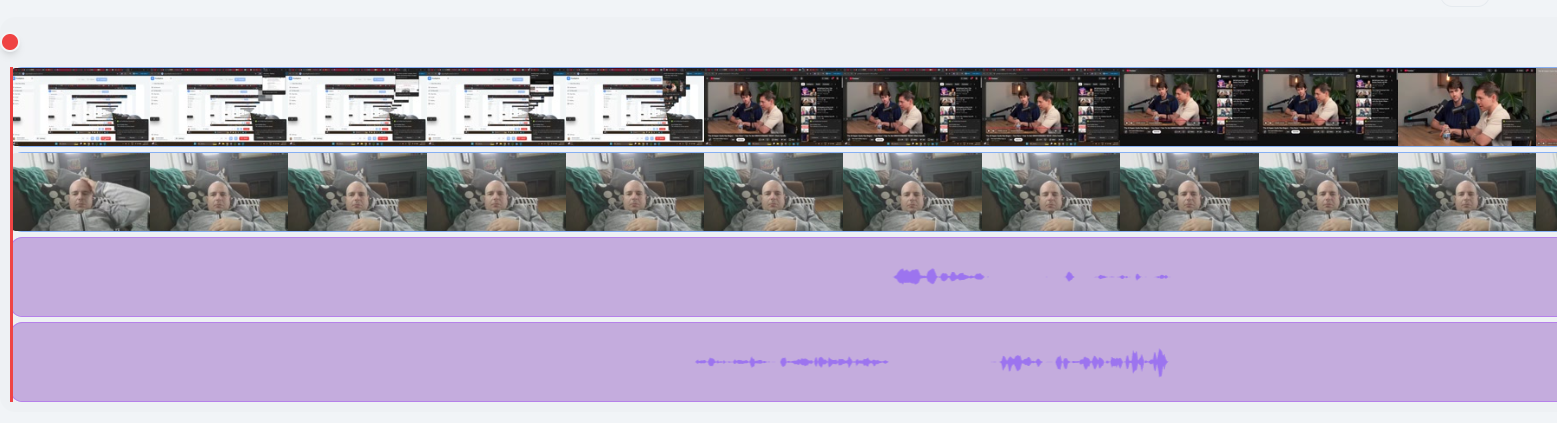
The exports drop directly into your editing workflow — MP4 for video, WAV for audio — with the kind of quality (up to 4K video, 192kbps audio) that holds up whether you're delivering a long-form YouTube interview or slicing clips for Shorts.
Instead of treating your content like a meeting, treat it like a production.
That single reframe changes how you approach the entire workflow — from how you set up the session to how much time you spend in post.
Recording for YouTube, Podcasts, and Shorts
Content creation doesn't end at the long-form video. A one-hour podcast interview is also thirty potential short clips. A 45-minute YouTube conversation is also a week of Reels. The way you record determines how easy or painful the repurposing process becomes.
Podsplice will take your full interview and create several shorts with it.
Here is a video showing how easy it is to create shorts with Podsplice (including karaoke subtitles)
You Can Even Bypass Zoom Altogether
This is the part most creators haven't considered yet.
A lot of people use Zoom for remote recording not because it's the best tool for the job, but because it's familiar. Guests know how it works. You don't have to explain it. The link shows up in an email and everyone joins. That low-friction onboarding is genuinely valuable.
But browser-based recording tools now offer the same frictionless guest experience — without any of the production compromises. With Podsplice, you send your guest a link. They click it. They're in a session. No account required on their end, no software to install, no configuration. The recording happens locally on each person's device, which means quality isn't dependent on either party's internet connection. Then everything syncs automatically in the cloud.
The result is dramatically better source material: no compressed internet audio, no video call artifacts, no "robot voice" from a dropped packet. Just clean, locally-recorded tracks that arrive in your editor already synced.
If you've been using Zoom as a workaround for remote recording because you didn't know there was a production-native alternative, this is the workflow you've been looking for.
Final Thoughts
Separate tracks aren't a power-user feature. They're the baseline for anyone who takes editing seriously. Once you've worked with clean, isolated audio in a timeline, going back to a flattened Zoom recording feels like trying to unmix a smoothie.
The tools to do this right are no longer complicated or expensive. Browser-based recording with separate tracks, 4K video, and studio-grade audio is available today without a single software install or driver configuration. The setup takes less time than the average Zoom waiting room.
Better workflow leads to better content. Not because you're working harder, but because you're starting with better raw material and spending less time fighting your tools in post.
The easier your recording workflow becomes, the easier it is to consistently create high-quality content.
That consistency is what builds an audience.
About the Author
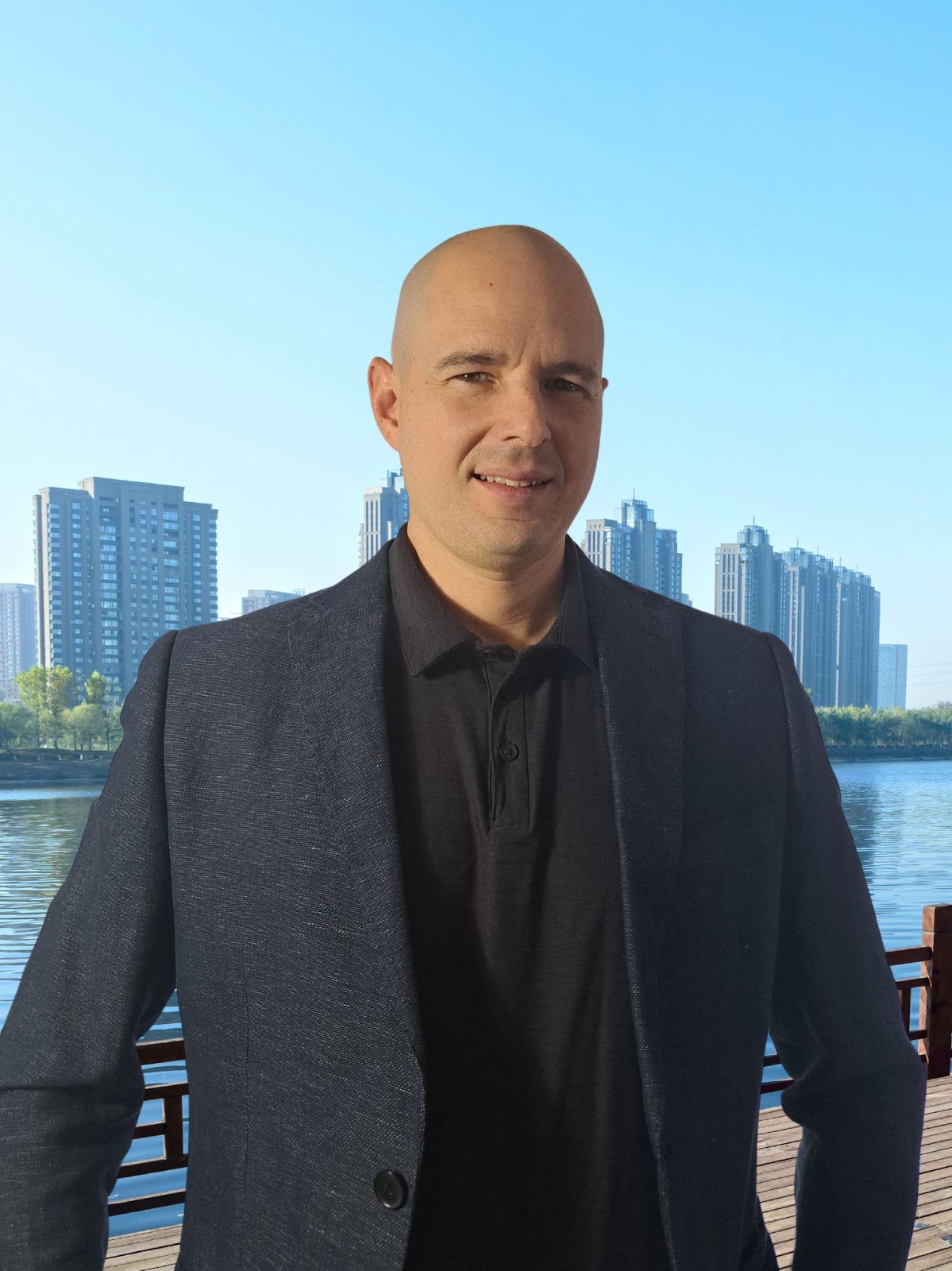
Andrew Best
Andrew Best is an entrepreneur, educator, and AI expert with over two decades in online marketing. He co-founded China232 — a podcast and learning platform with 10M+ downloads — and later 88Herbs, a premium supplement company. Andrew now focuses on helping creators leverage AI for podcasting, screen recording, and YouTube content through Podsplice.
More from Podsplice
How to Start a Faceless YouTube Channel Without AI (2026 Guide)
Article
How to Record Front and Back Camera at the Same Time on Android (for Creators)
Article
Screen Recording Software That Posts Directly to YouTube
Blog
How to Record Full Screen Webcam and Screen Share at the Same Time
Article
Recording a Remote Double-Ender Podcast Interview
Article
Start Recording in Seconds
No downloads. No setup. Just hit record and share your story with the world in studio quality.
Looking for a Screen Recorder or Remote Recording tool?