
System Audio vs. Tab Audio: Important Differences for High-Quality Screen Recording

The sound coming from your computer is called system audio (also internal audio).
And if you want to record the sound coming from your computer, you probably assume you just need to record the system audio and not give it any more thought.
This makes logical sense, but there is more to the story if you want to record the highest quality system audio possible.
Most content creators don't actually need to record all of the sounds coming from their computer. What they usually want to record is the sound coming from a browser tab (we recommend Chrome). An example of this sound would be if you were recording your screen and the sound coming from a YouTube video that you are watching.
This sound coming from your browser tab (like the sound from a YouTube video) is called "Tab Audio".
I'll admit something. Even though I'm helping to create this Podsplice software, I didn't realize there was a meaningful difference between System audio and tab audio until recently.
Tab audio isn't simply system audio with everything else removed. It can take a different path to the recorder, isolating the source from some of the additional variables involved in broader computer audio capture.
For ultra-high-quality screen recording, that difference can matter.
What Is System Audio vs. Tab Audio?
System audio is the sound generated internally by your computer. It can include Chrome, games, media players, desktop applications, meetings, notifications, and other sounds.
Tab audio is much more specific. Chrome can provide the audio associated with one selected browser tab directly to the recorder.

Imagine you're making a YouTube reaction video. The video, music, or interview you care about is playing in one Chrome tab.
You don't really want your computer's audio. You want that video's audio.
From a recording perspective, this matters because they can use different capture paths.
With normal Chrome Tab sharing, Chrome supplies the selected tab's audio stream directly. Broader system or window capture can involve more interaction between Chrome, Windows, playback devices, audio settings, drivers, and other software.
Podsplice lets you easily select whether you choose to record system audio or tab audio.
Why Can Isolating Tab Audio Improve Audio Quality vs. Recording System Audio?
Think about recording music in a studio.
If you want one particular instrument, you generally try to isolate that source rather than capture the entire room and extract the instrument afterward.
System audio isn't literally recorded that way, of course, but the principle is similar: get as close to the source you actually want as possible.
On Windows, broader audio capture can potentially be affected by playback-device enhancements, communications ducking, per-application volume, drivers, Bluetooth modes, or other audio software.
That doesn't mean recording system audio is bad. Podsplice is specifically designed for high-quality screen and podcast recording, and its system audio is more than good enough for most screen recordings. I often record system audio when I make reaction videos.
The point is simpler:
If you only need one Chrome tab, why capture more than one Chrome tab?
Isolating the source can give you a cleaner and more predictable audio path. It also prevents unrelated desktop sounds from becoming part of the tab recording.
If you're moving between applications, recording multiple tabs, recording a game, or need audio from software outside Chrome, system audio is still the obvious choice.

What Does High-Fidelity Audio Actually Mean?
This is where terms such as high fidelity, lossless audio, bitrate, sample rate, mono, and stereo start getting mixed together.
High-fidelity audio essentially means reproducing the original source accurately with minimal unwanted degradation.
But there isn't one magic number that makes audio high fidelity.
Bitrate affects how much data is available to encode the audio. Sample rate describes how frequently the audio signal is sampled. The codec determines how the audio is encoded and compressed. And the capture path determines what signal reaches the encoder in the first place.
That last part is important.
You can encode a mediocre source at an enormous bitrate and still have a mediocre recording.
Likewise, lossless audio doesn't magically restore information that was lost earlier in the recording chain. A lossless copy of a mono source is still mono.
Podsplice uses high-quality Opus encoding rather than claiming its browser recordings are lossless. The goal is to preserve the original source as accurately as practical while keeping recording efficient.
Mono vs. Stereo Audio
This leads to another distinction that matters if you're serious about sound quality for your online courses, screen recordings, or podcasts.
Mono has one audio channel. Stereo has two separate channels: left and right.
For speech, tutorials, meetings, and many podcasts, mono can still sound excellent. There may be little practical reason to need stereo.
Music and professionally produced media are different.
Put on headphones and listen to a song. The vocals may appear in the center while instruments and effects occupy different positions to your left and right. That separation is part of the original production.
Collapse true stereo into mono and the audio doesn't necessarily become bad, but that distinct left/right information is gone.
This matters for reaction creators, music content, movie commentary, course creators working with high-quality media, and anyone who wants to preserve the sound of the original source.
Going a Step Further With Podsplice Stereo Tab Audio
Some of our pro users have been asking for absolutely perfect sound when they record "system audio".
This is why we've been developing the Podsplice Stereo Tab Audio Chrome extension.
In our Windows and Chrome testing, normal Chrome Tab audio was supplied to Podsplice as one channel at 48 kHz.
That's mono.
Our new extension uses Chrome's tabCapture API to connect directly to the selected source tab. In our controlled testing, it produced two channels at 48 kHz, and our analysis confirmed that those channels contained genuinely different left and right information.
In other words, true stereo.
Podsplice then requests 256 kbps Opus when recording that stereo source.
This also demonstrates why bitrate alone isn't enough. Increasing the bitrate of a mono source doesn't recreate stereo. To preserve the left and right information, you need to receive that information from the source in the first place.
For ordinary speech, that's probably unnecessary.
For music, reaction videos, professionally produced media, or other recordings where sound quality really matters, it can make a noticeable difference.
Why Podsplice Cares So Much About Audio
Most screen recording software focuses on recording the screen: resolution. Many of the screen recording software products can't record system or tab audio at all.
Podsplice is different because we built it for high-quality screen recording and podcast recording. It is meant for content creators, not people just playing around and hoping to record their screen for fun.
A reaction creator, YouTuber, podcaster, or course creator isn't just documenting what's happening on a monitor. They're creating finished content that other people are going to watch and listen to.
We don't think audio should be an afterthought attached to a screen recording.
That's why we've put so much work into high-quality microphone and computer audio, separate audio tracks, synchronization, processing, and now direct stereo tab capture.
A beautiful 4K recording with crappy sound is still a crappy recording.
Mac Users: You May Need Tab Audio (System Audio Often Doesn't Work)
There's one more big advantage to tab audio, particularly on a Mac.
Recording internal audio (system audio) on macOS has traditionally been more complicated than it should be. Depending on the workflow, Mac users can end up dealing with permissions, virtual audio devices, routing software, and other workarounds just to record sound their computer is already playing.
Before doing all of that, ask one question:
Where is the audio you actually want coming from?
If it's YouTube, a webinar, an online course, or another source running in Chrome, you may not need to capture Mac system audio at all.
Just record the tab audio.
And if preserving stereo sound is important, Podsplice Stereo Tab Audio takes the same approach another step further.
Sometimes the easiest solution to recording system audio on a Mac is realizing you didn't actually need system audio in the first place.
Here is a video showing how Mac users can record system audio (tab audio) with Podsplice.
Important Note: For Mac users: Use Chrome to record tab audio, NOT Safari.
Which Should You Use?
The decision is pretty simple.
If you're recording audio across multiple applications, playing a game, demonstrating desktop software, or genuinely need everything your computer is producing, use system audio.
If the sound you care about exists inside one Chrome tab, use tab audio.
And if that Chrome source contains music or other professionally produced media where preserving stereo matters, use Podsplice Stereo Tab Audio.
People naturally assume that recording more of their computer must give them a better recording.
Audio often works the other way around.
The best recording source is usually the one closest to the audio you actually want.
Try Podsplice

About the Author
Andrew Best
Andrew Best is an entrepreneur, educator, and AI expert with over two decades in online marketing. He co-founded China232 — a podcast and learning platform with 10M+ downloads — and later 88Herbs, a premium supplement company. Andrew now focuses on helping creators leverage AI for podcasting, screen recording, and YouTube content through Podsplice.
More from Podsplice
How to Get Real Estate Clients With YouTube, Medium, Substack & AI
Article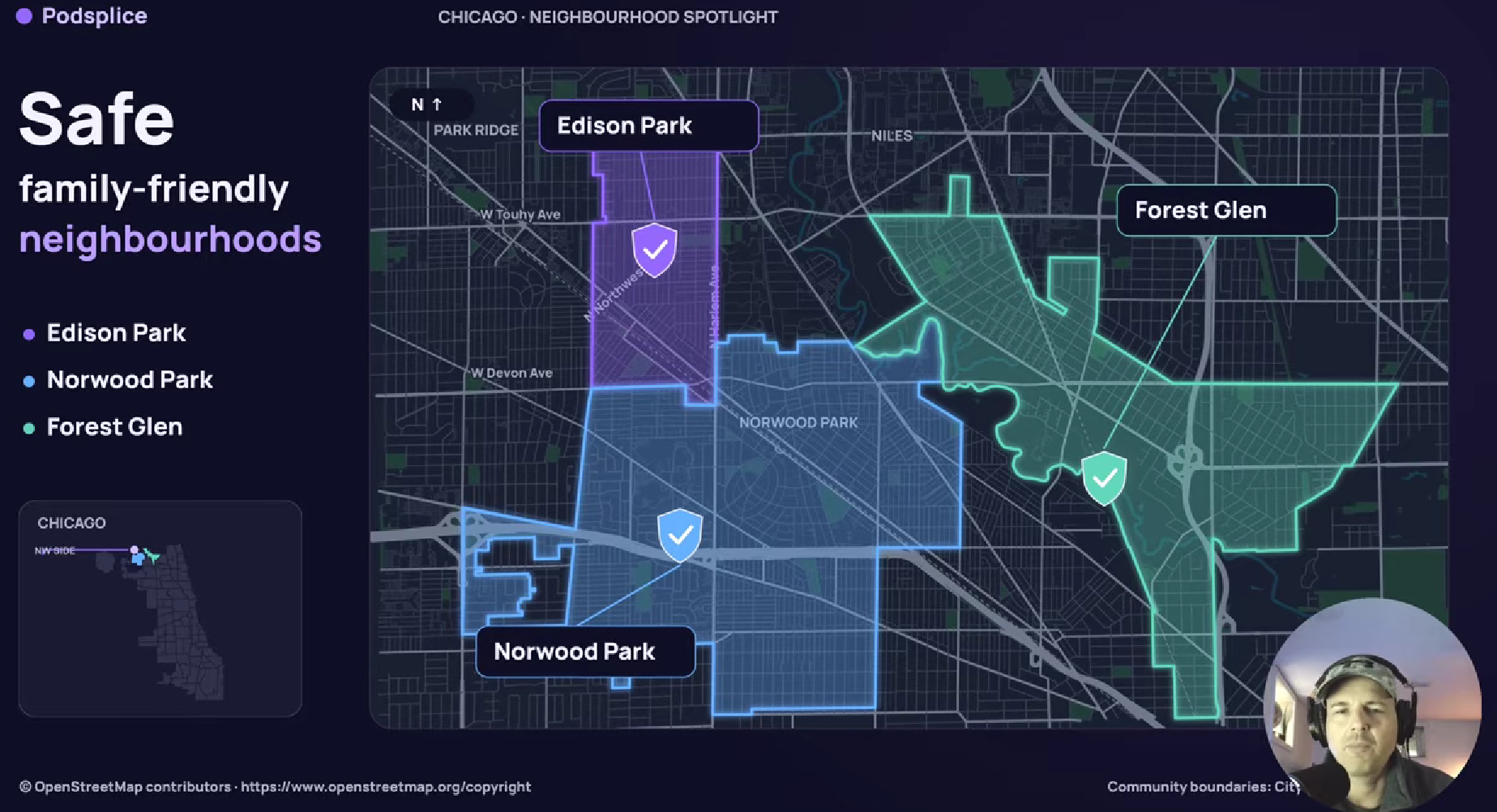
Best YouTube Video Software for Real Estate Agents (2027)
Article
Why Your Screen Recording Has No Sound (And How to Fix It)
Blog
Best Screen Recorder for Mortgage Brokers: Record Loan Walkthroughs, Podcasts, and Social Clips
Article
Why Most Screen Recording Software Is Terrible for YouTube Videos (And What Creators Actually Need)
Article
Start Recording in Seconds
No downloads. No setup. Just hit record and share your story with the world in studio quality.
Looking for a Screen Recorder or Remote Recording tool?