
How to Record Front and Back Camera at the Same Time on Android (for Creators)
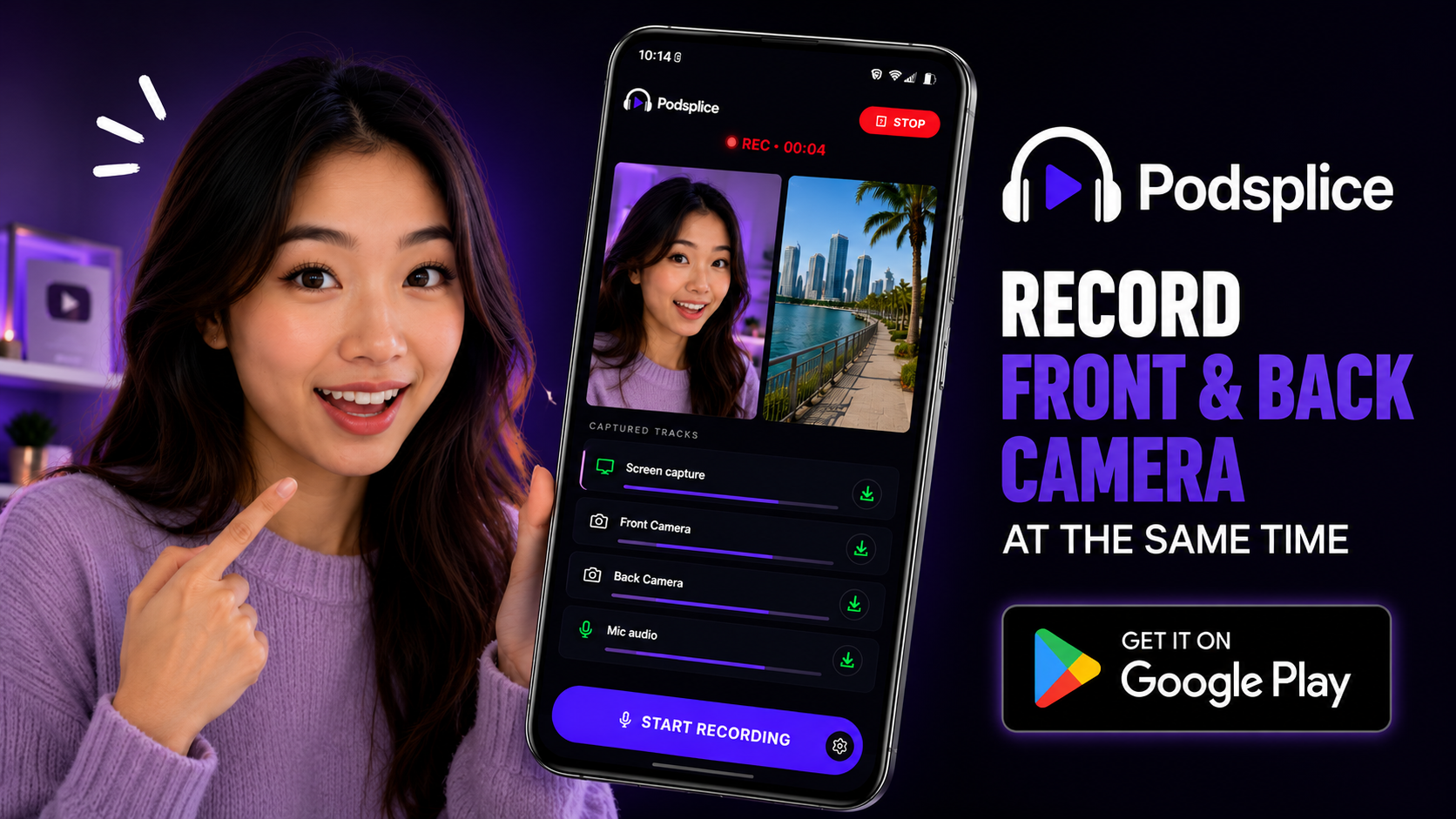
Yes, you can record both your front camera and your back camera at the same time on Android.
Use the Podsplice Android App and put it in "Dual Camera mode". It lets you record your face while simultaneously recording what you are looking at.
After recording, your video automatically uploads to Podsplice.
It then automatically generates karaoke subtitles, which are perfect for social media. From within Podsplice, you can post to YouTube Shorts, Instagram, Facebook, LinkedIn, and TikTok in one click!
This saves so much time you won't believe it.
It is how I'm able to produce more than 10 pieces of video content per day.
Why Use Dual Camera Recording?
Most camera apps force you to choose.
You can either record yourself or record what is in front of you.
With Dual Camera mode, you don't have to choose.
You can show your reaction, explanation, or commentary while also showing the scene around you.
This is useful for:
Walking tours
Travel videos
Product reviews
Real estate tours
Tutorials
Event coverage
Behind-the-scenes content
What Does Dual Camera Recording Look Like?
The screenshot below shows Podsplice's Dual Camera mode.
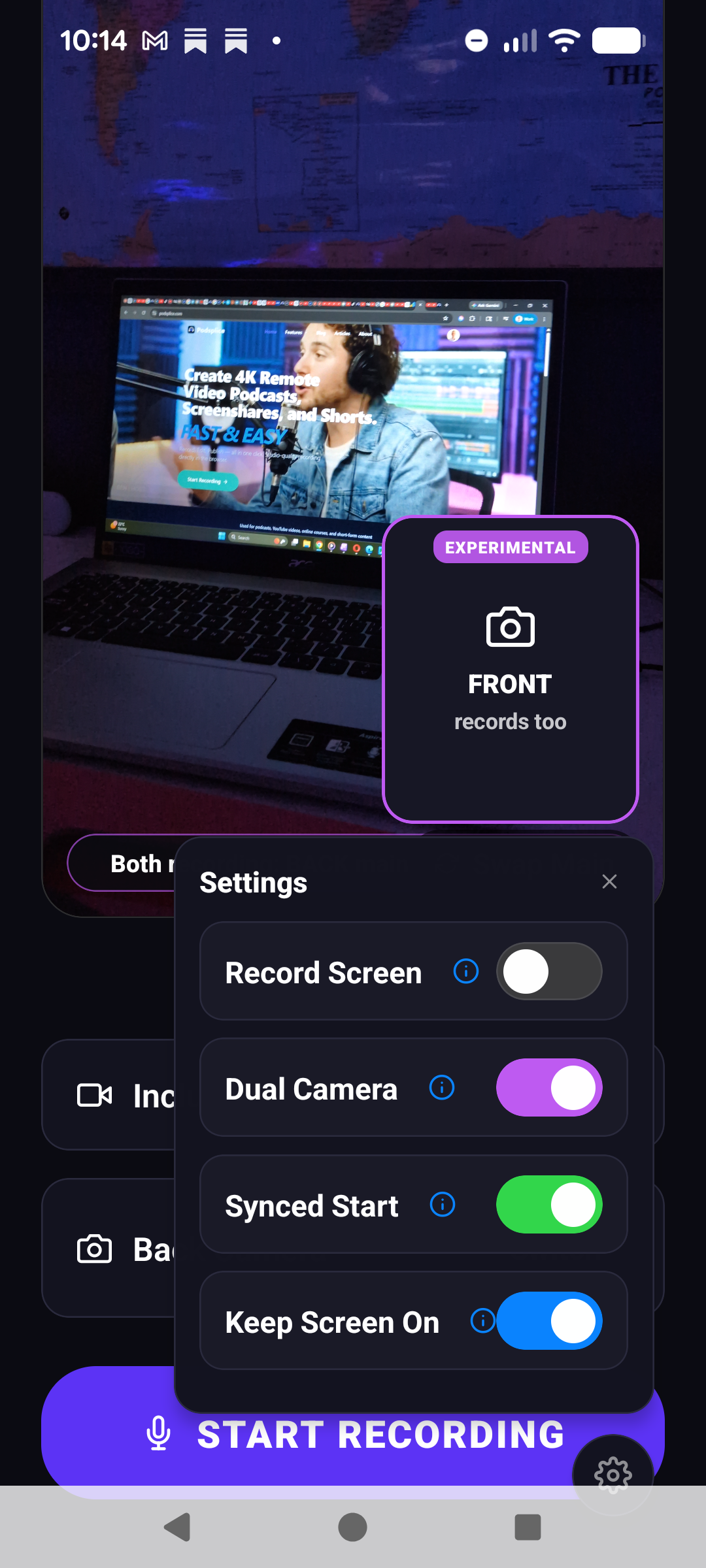
That was a screenshot I just took with the Podsplice App. I'm in my basement with a blue light in the background. When you click "Start Recording", you'll see both what you are looking at and your face at the same time.
After you are done recording, Podsplice gives you the option of showing your face on half the screen and what you are looking at in the other half. OR you can show what you are looking at as most of the screen, and your face in a little circle. The videos from each camera are recorded in separate tracks, and then they are automatically spliced together when you want to publish.
Example Video with Dual Cam
In this example, I am walking around outside while recording both cameras at the same time.
Viewers can see my face, what I am looking at, and the automatically generated subtitles.
This creates a much more engaging experience than simply recording the scene by itself.
How to Record Front and Back Camera at the Same Time on Android
Step 1: Open Podsplice
Open the Podsplice Android app and click the "settings" cog near the bottom right of the screen. Select Dual Camera mode.
Step 2: Start Recording
Press the "Start Recording" button.
Podsplice will record:
Front camera
Rear camera
Microphone audio
At the same time, on separate, high-resolution tracks.
Step 3: Talk and Record
Now simply record your content.
For example:
Walk through a neighborhood
Review a product
Visit a tourist attraction
Explain something to your audience
Your viewers can see both your reactions and the environment around you.
Step 4: Upload Automatically to Podsplice
When you finish recording, your video is automatically uploaded to Podsplice (if you are a paying member of Podsplice, which is awesome for content creators).
There is no need to transfer files between devices or manually upload footage.
Add Subtitles Automatically
Once your video reaches Podsplice, it will automatically generate subtitles for you.
Many creators use subtitles because a large percentage of social media videos are watched with the sound off. Even with the sound on, it makes the video more engaging and keeps people watching longer.
Podsplice can generate karaoke-style captions that highlight words as they are spoken.
Publish Everywhere with One Click
Automatically publishing your Shorts to social media is one of the biggest time savers.
Instead of uploading the same video over and over again, you can publish directly to:
YouTube Shorts
TikTok
Instagram
Facebook
LinkedIn
This saves creators hours every week.
Final Thoughts
If you want to record both the front and rear cameras at the same time on Android, the Podsplice App makes the process simple.
More importantly, recording is only the beginning.
After the recording is complete, your video can automatically move through the rest of your content workflow, including transcription, subtitles, editing, and social media publishing.
For creators, that can mean spending less time moving files around and more time creating content.

About the Author
Andrew Best
Andrew Best is an entrepreneur, educator, and AI expert with over two decades in online marketing. He co-founded China232 — a podcast and learning platform with 10M+ downloads — and later 88Herbs, a premium supplement company. Andrew now focuses on helping creators leverage AI for podcasting, screen recording, and YouTube content through Podsplice.
More from Podsplice

Screen Recording Software That Automatically Posts to Social Media (2026)
Article
Best Reaction Video Software: Why we Built Podsplice
Article
Remove Ambient Background Noise From Your Videos
Article
How to Create a Coaching Booking Page in 5 Minutes (Step-by-Step with Calendar)
Article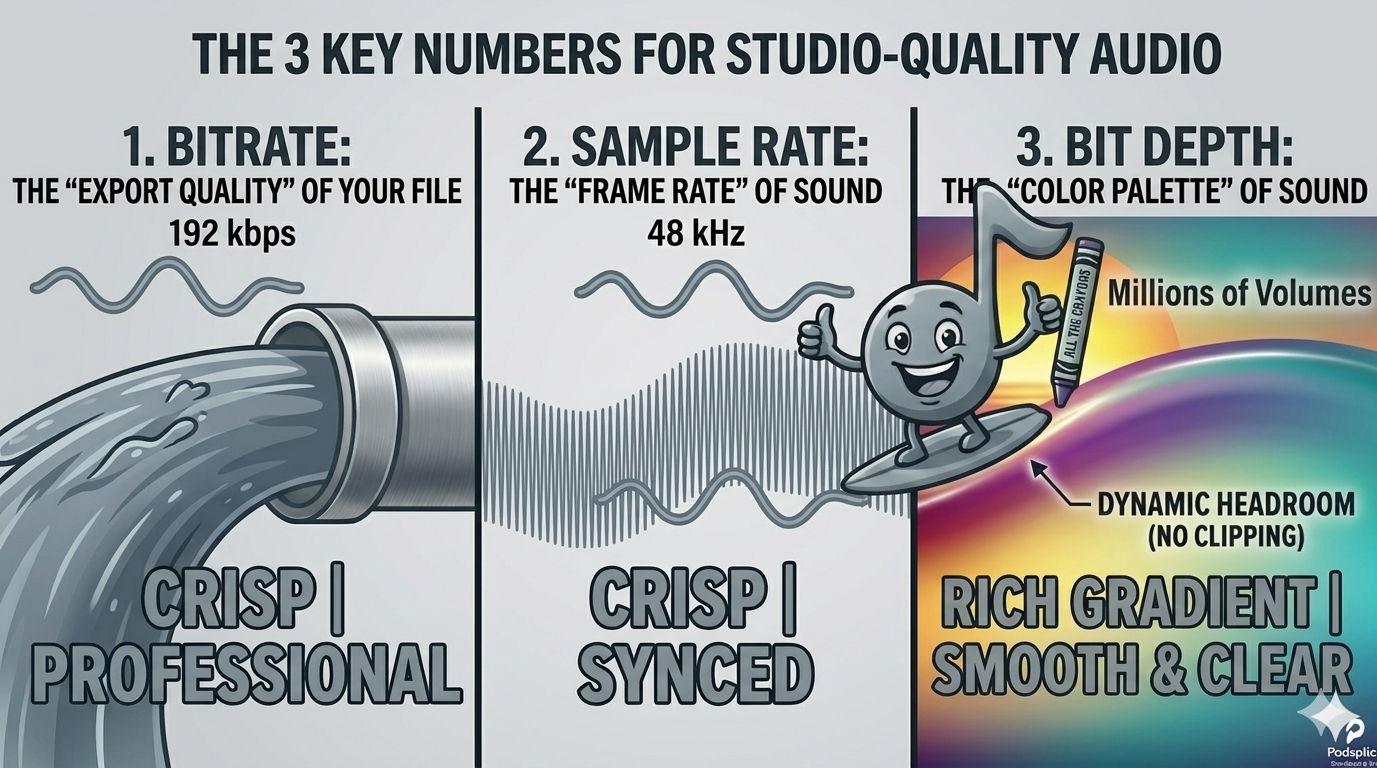
Bitrate vs. Sample Rate: The Creator’s Guide to Crisp Audio
Article
Start Recording in Seconds
No downloads. No setup. Just hit record and share your story with the world in studio quality.
Looking for a Screen Recorder or Remote Recording tool?