
How to Record an Online Coaching Call (Easy + High Quality)
If you run one-on-one coaching calls online, there’s a good chance you’re using Zoom, Microsoft Teams, Google Meet, or another general-purpose meeting platform.
Those tools "work", but coaching calls are different from normal online meetings.
Your clients may be paying hundreds or even thousands of dollars to work with you.
You want the call to look and sound professional; you want your client to be able to join easily, and if you record the session, you want a high-quality recording that doesn’t become blurry or glitchy every time someone’s internet connection slows down.
Think about this. You already have a premium personal coaching brand where someone is trusting you enough to give you serious money to speak with you.
If you give them a Google Meet link (or similar), it makes potential clients question your entire brand.
In this article, I’ll show you how to record an online coaching call in high quality and why you should use Podsplice to host and record your one-on-one coaching call.
I’ll also show you how you can use Podsplice to record a coaching call even if you still want to host the actual meeting on Zoom, Google Meet, Microsoft Teams, or another platform.
Another cool thing I want to tell you is that you can now use Podsplice as a Typeform alternative to let clients book coaching calls with you.
You get your own custom landing page, which we call your own "pod", to have clients sign up and book calls with you. Then you use Podsplice to host and record your coaching call.
Before I get too into the weeds with this, here is what your own "pod" would look like.
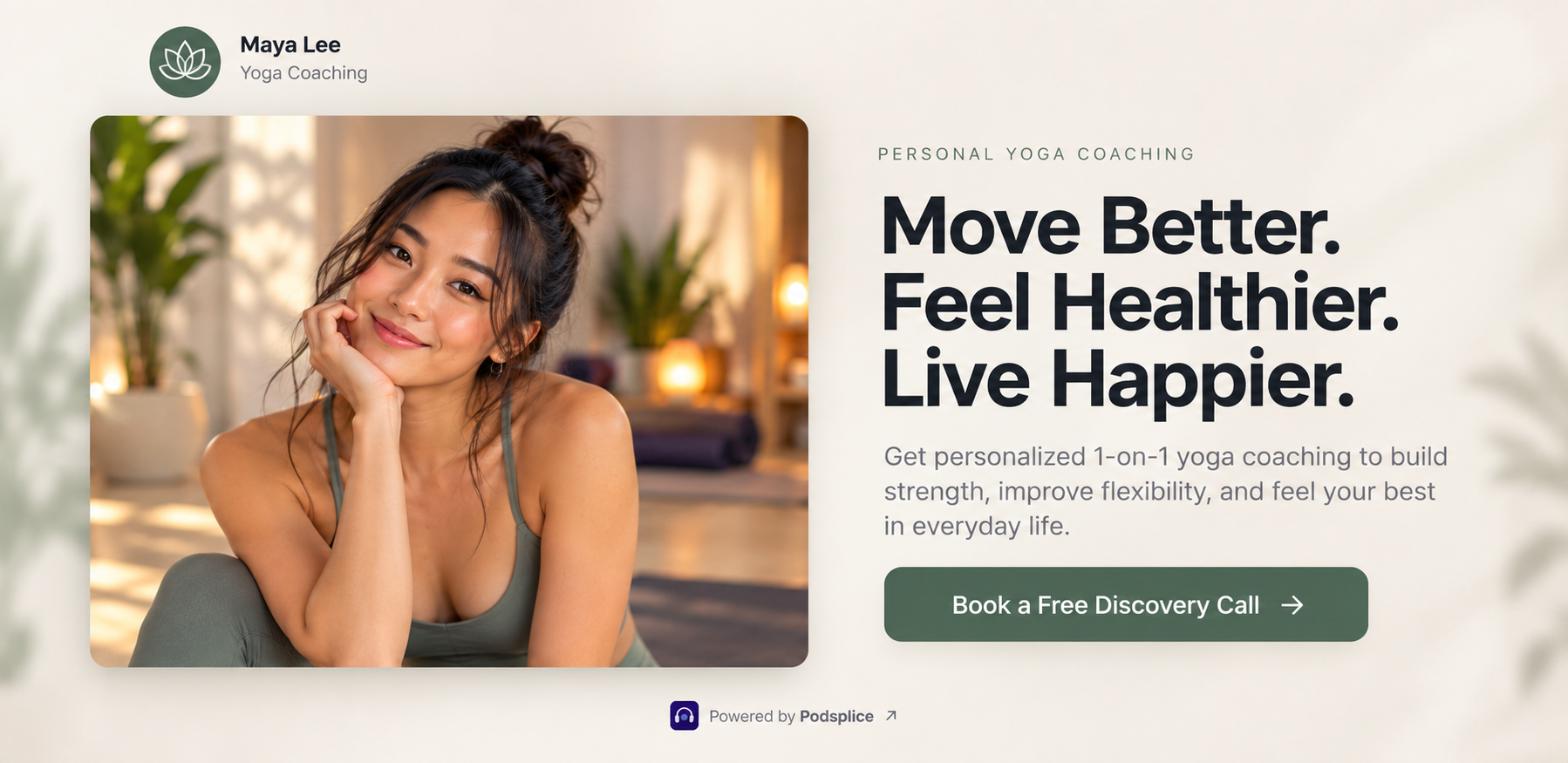
Your Podsplice pod also has a quiz builder, contact form, and calendar to book these calls and screen out anyone you don't want to deal with or who isn't well-suited to work with you.
The Best Way to Record an Online Coaching Call
The easiest option is to host and record the entire coaching call in Podsplice.
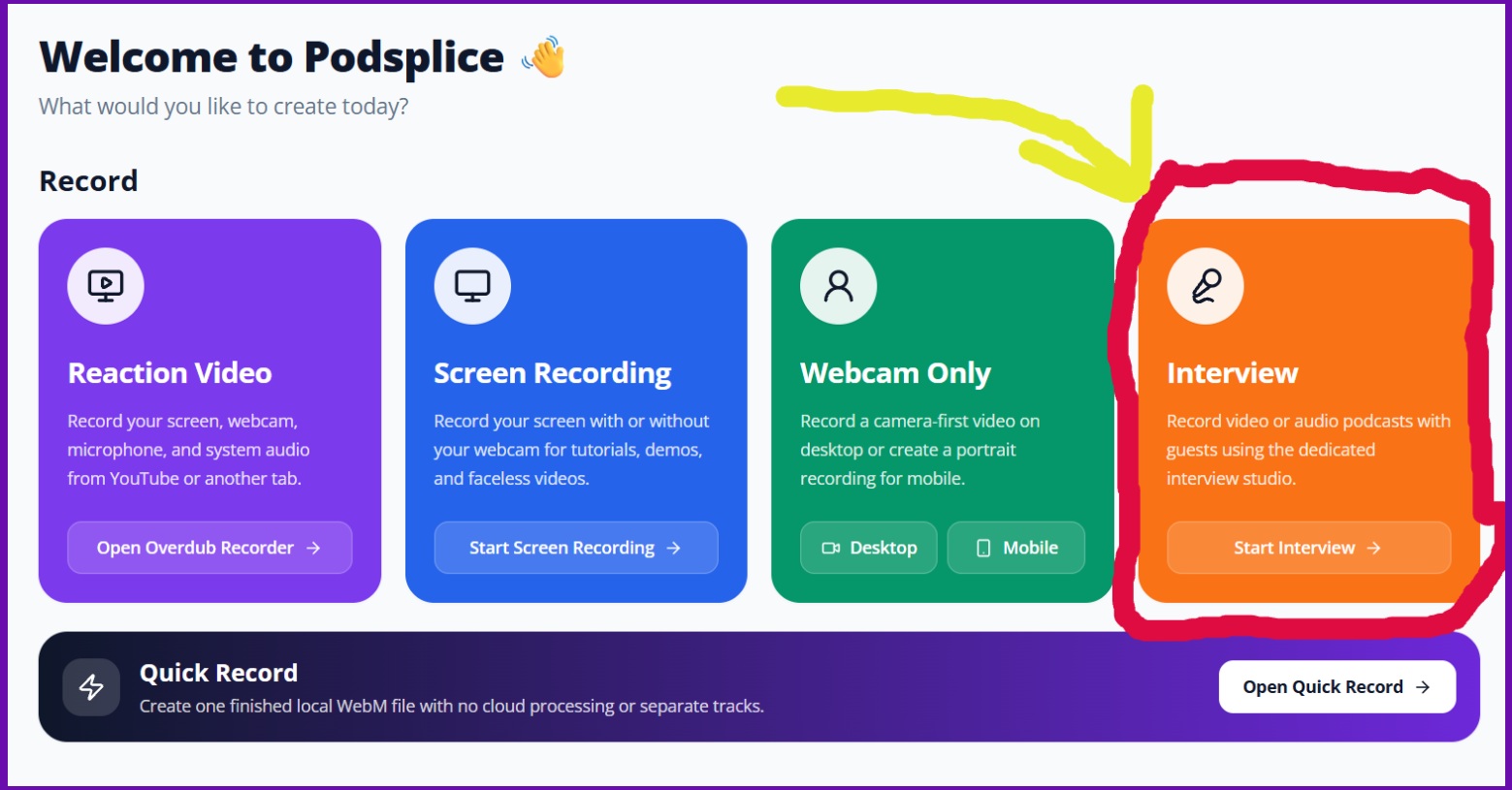
Once you log into Podsplice, start an Interview and choose your camera and microphone.
Then create an invitation link and send it to your client.
Your client clicks the link, chooses their camera and microphone, and joins the coaching call directly from their browser.
There’s nothing for them to download, and they don’t need to create an account or remember a meeting password.
Here is what a Podsplice invitation link looks like when your client opens it.
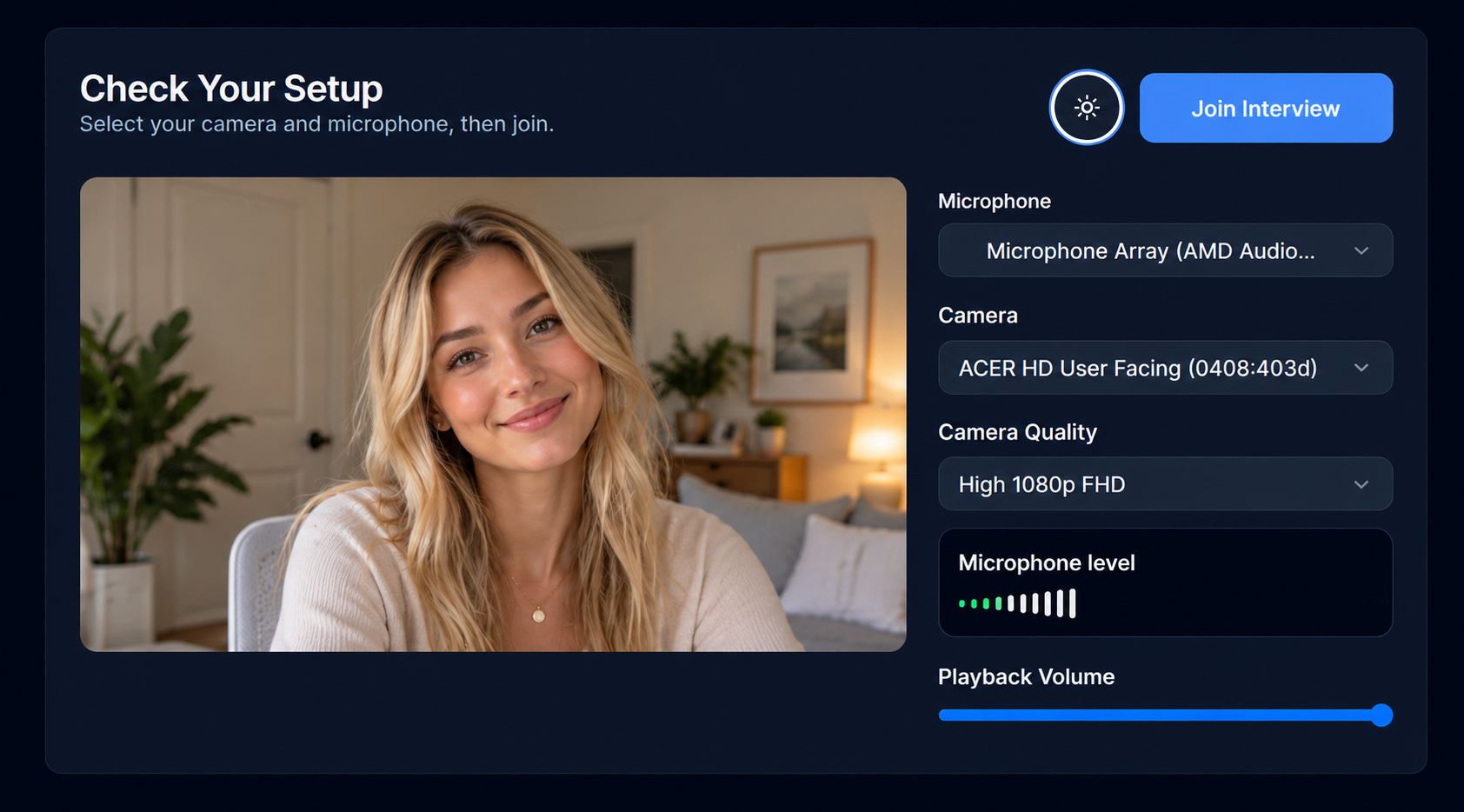
That matters more than you might think. If someone is paying for a premium coaching session, the experience should feel professional from the moment they join. They don't need an account or anything to join a Podsplice coaching call. They click the link and "join interview," and that's it.
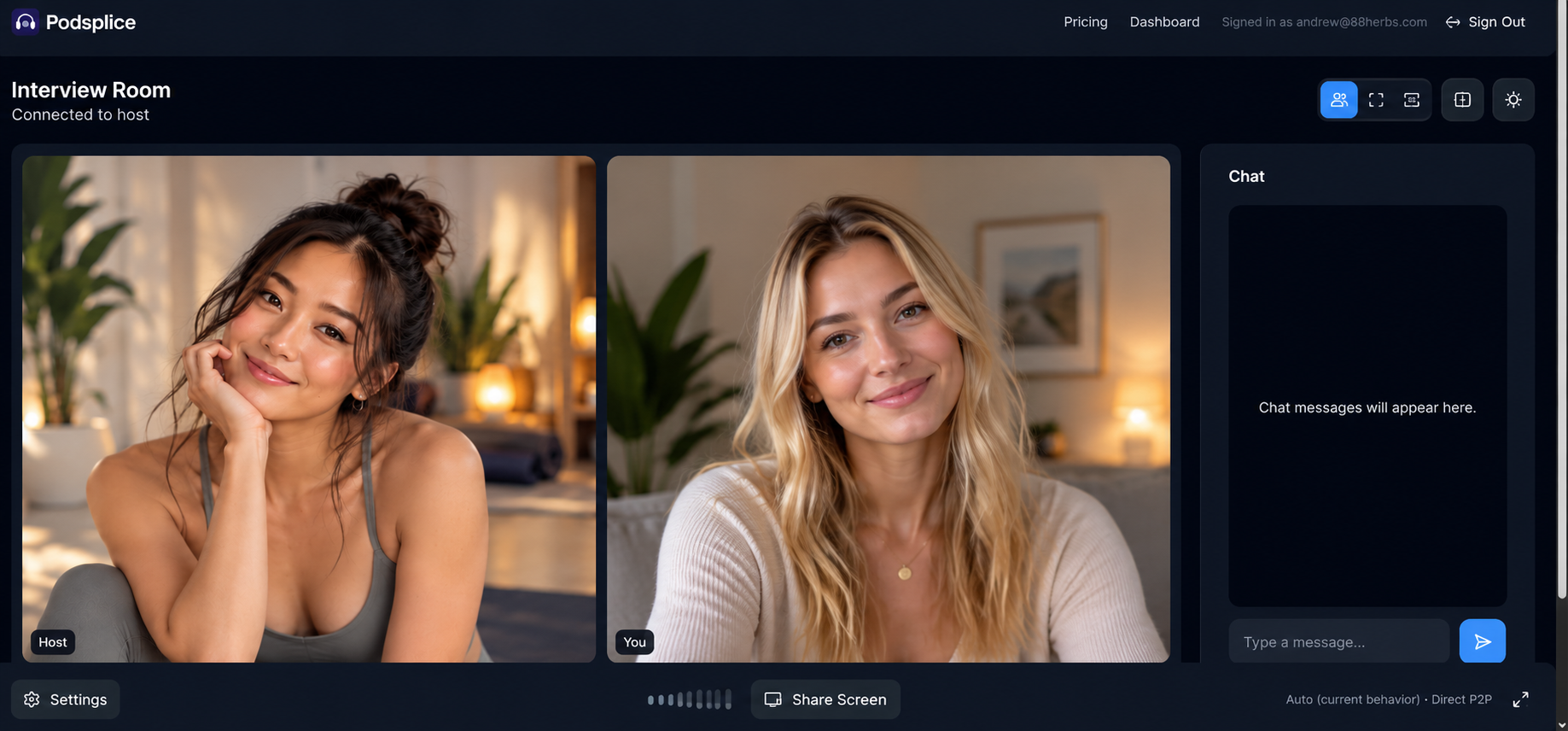
Once they join the interview, this is what the actual video coaching call will look like from the guest's perspective.
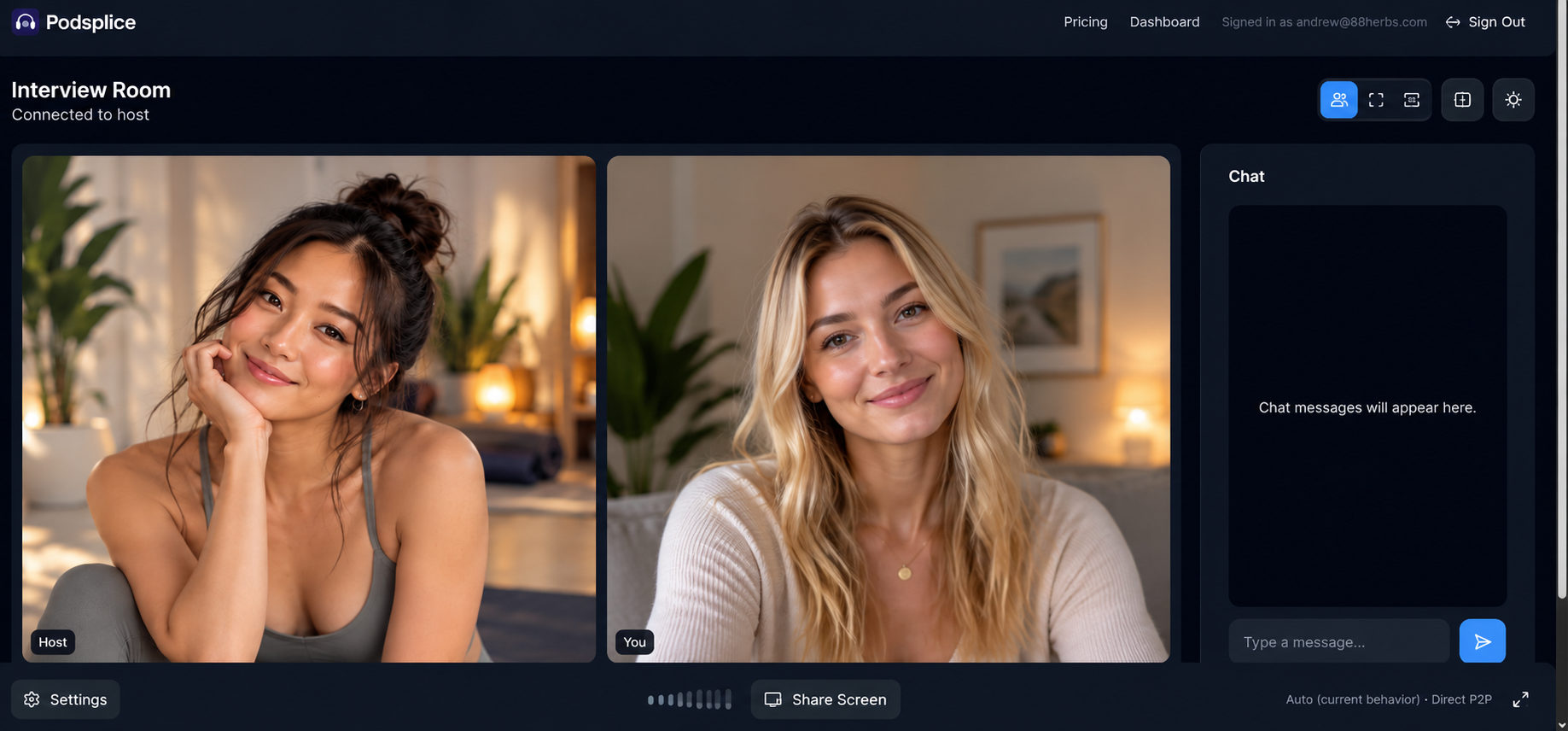
Your view (the host/coach) looks almost identical. But you have a "Record" button as well so you can record the coaching call.
I made a video of this process. I show how I use Podsplice to record an online coaching call step-by-step.
Record Coaching Calls in High Quality
One of the biggest differences between Podsplice and traditional meeting software is how the call is recorded.
Podsplice records each participant locally.
This means the final recording doesn’t have to depend entirely on the quality of the internet connection between you and your client.
If someone’s internet connection temporarily slows down, you may notice it during the live conversation, but that doesn’t have to ruin the final recording.
Each participant is also recorded on a separate track. After the call, the locally recorded files are combined to create the final recording.
This is sometimes called a double-ender, and it’s one of the reasons Podsplice works so well for recording remote podcasts.
The same technology is extremely useful for online coaching calls.
Your client gets an easy online meeting, while you get a much higher-quality recording afterward.
Share Your Screen During a Coaching Call
Screen sharing is particularly important for online coaching.
Depending on what you teach, you might want to review your client’s YouTube channel, website, analytics, presentation, spreadsheet, software, or other material during the call.
Podsplice lets you share your screen while you’re talking.
You can also share system audio, so your client can hear the audio coming from whatever you’re showing them.
For example, if I were coaching someone about YouTube, I could pull up one of their videos, share my screen, play the video, and discuss it with them in real time.
That makes the call much more useful than simply having two faces talking to each other.
Many online meeting software programs have a hard time sharing system audio (also called internal audio). So when you share your screen, you wouldn't be able to share the audio from the screen as well. This is no problem with Podsplice.
Make Your Online Coaching Calls Look Professional
You can also customize the appearance of your coaching call and recording.
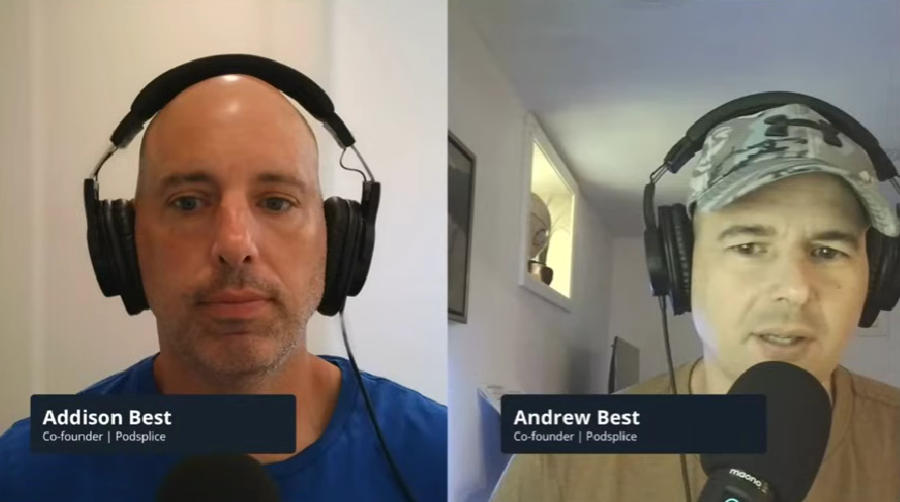
You can add names, branding, and overlays, and change the layout depending on what you’re showing.
Here is a screenshot of a call I had with my brother. I put our names and job titles as overlays. This makes your coaching call recording look professional if you put it on YouTube or other social media channels.
You don't necessarily need any of this if you're having a private conversation that nobody else will ever see.
But it becomes much more useful if you want to use parts of your coaching sessions as content.
Of course, make sure your client knows the call is being recorded and that you have permission before publishing any part of it.
Turn Your Coaching Calls Into Content
Some of your best content might already be hiding inside your coaching calls.
Think about it.
Instead of sitting in front of a camera trying to guess what your audience wants to know, you're answering real questions from real people.
If your client gives you permission to share parts of the conversation, Podsplice can create a transcript of your coaching call and help you turn parts of it into short-form videos.
You can add karaoke-style subtitles and create vertical clips for YouTube Shorts, Instagram, TikTok, and other platforms.
That means a single one-hour coaching call could potentially produce several useful pieces of content.
And those videos can attract the next person who wants to work with you.
Here is a video we made showing how to turn our long-form podcast (coaching call) into Shorts.
With Podsplice, you can also publish your shorts directly to social media without logging in and out, uploading to each platform, etc.
How to Record a Zoom Coaching Call
You don't have to host your coaching call in Podsplice.
If you already use Zoom, Google Meet, Microsoft Teams, or another meeting platform, you can continue using it and use Podsplice to record the call.
Open your meeting normally, then open Podsplice.
Choose the screen-recording option, select the screen you want to capture, enable system audio, choose your microphone and camera, and start recording.
Podsplice can record what's happening on your screen along with the audio from your coaching call.
This is useful if you already have an established Zoom or Calendly workflow and don't want to change it yet.
However, I still recommend hosting the call directly in Podsplice because you get the easier browser-based onboarding, local recording, separate tracks, screen sharing, and recording workflow all in one place.
I explain this in detail in my video about why I don't recommend using Zoom for podcasting.
The Best Coaching Call Software Should Do More Than Video Calls
Zoom, Google Meet, and Microsoft Teams are primarily meeting platforms.
Online coaches have a slightly different set of needs.
You need to attract clients, qualify them, book them, talk to them, share your screen, record the conversation, and potentially turn parts of that conversation into content that attracts more clients.
That's the workflow we're building Podsplice around.
Create Content → Get Discovered → Book Clients → Coach → Record → Create More Content
You don't have to use every part of it.
You can simply use Podsplice to record your coaching calls if that's all you need.
But if you're building a coaching business around YouTube, podcasts, social media, or other content, putting everything together can make the whole process a lot simpler.
Start Recording Your Online Coaching Calls
If you're charging people for one-on-one coaching, the quality of the experience matters.
Your client shouldn't have to install software or struggle to join the call. Your audio and video should be clear. Screen sharing should be easy. And if you're recording the session, you should end up with a recording that actually looks and sounds good.
You can use Podsplice to host and record your coaching calls, share your screen and system audio, record each participant locally, create transcripts and short-form content, and now even give potential clients a place to find and book you.

About the Author
Andrew Best
Andrew Best is an entrepreneur, educator, and AI expert with over two decades in online marketing. He co-founded China232 — a podcast and learning platform with 10M+ downloads — and later 88Herbs, a premium supplement company. Andrew now focuses on helping creators leverage AI for podcasting, screen recording, and YouTube content through Podsplice.
More from Podsplice
Best Screen Recording Software: What to Look For in 2026
Article
Screen Recording Software with Direct Upload to YouTube
Blog
Best Reaction Video Software: Why we Built Podsplice
Article
Why Your Screen Recordings Look Blurry (And How to Fix It)
Article
Best Browser for Recording System Audio on Mac and Windows
Article
Start Recording in Seconds
No downloads. No setup. Just hit record and share your story with the world in studio quality.
Looking for a Screen Recorder or Remote Recording tool?