
Best Reaction Video Software: Why we Built Podsplice
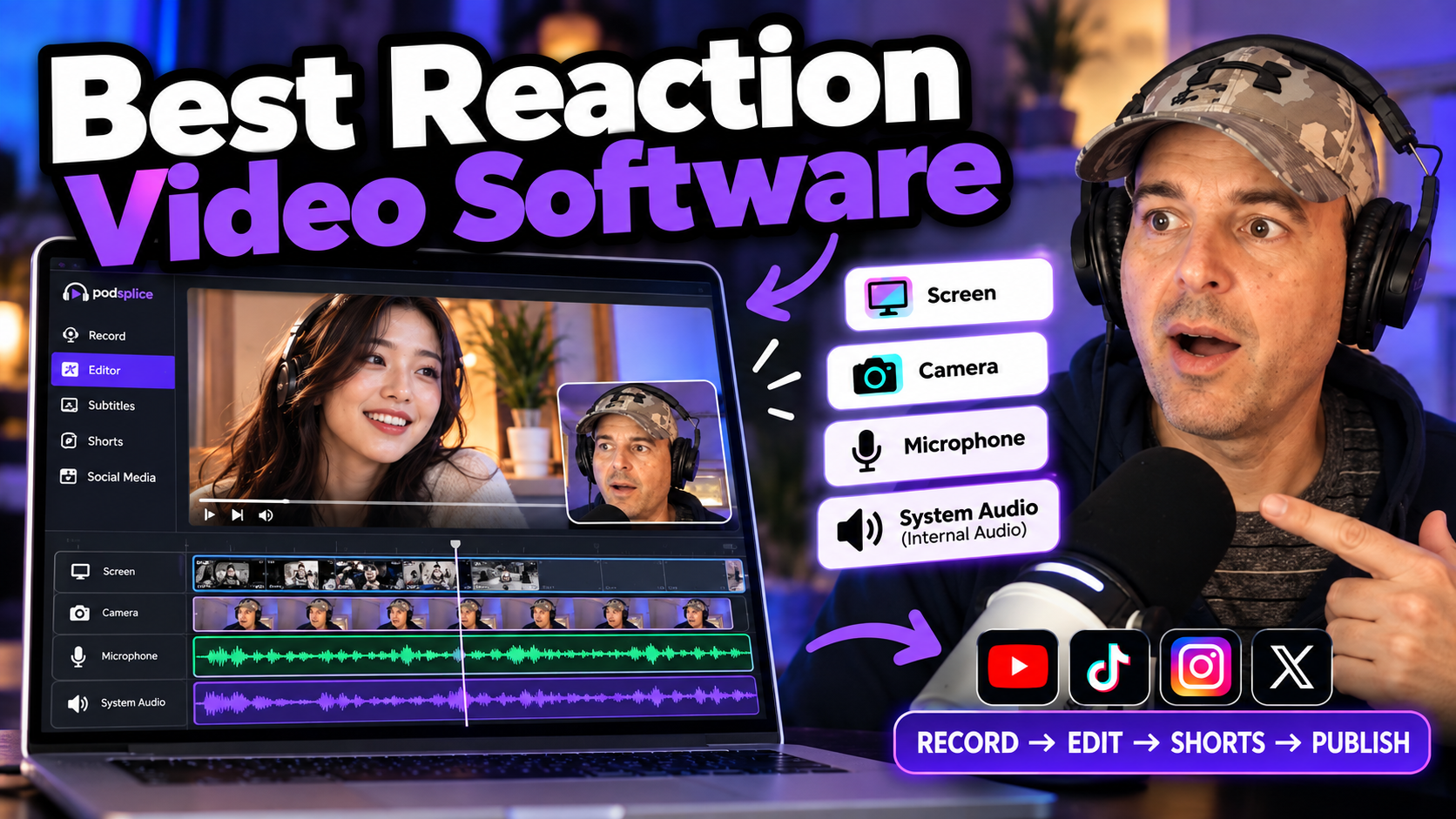
My brother and I have made good money running multiple monetized YouTube reaction video channels.
I realize there are many ways to record your screen and webcam. You can technically use OBS (free). You can piece together different recording and editing tools. I even tried making reaction videos with Canva, which doesn't actually work because its screen recorder doesn't record system audio.
I learned that the best reaction video software isn't just software that can technically make a reaction video.
The real question is: How quickly and easily can you make a high-quality reaction video, turn the best parts into Shorts, and get everything published quickly?
After trying everything, we realized that there wasn't a great software product to make reaction videos.
That's why we built Podsplice.
We know the reality of running reaction channels. We are convinced that Podsplice is the best software for making reaction videos. We also keep improving it by adding new features that are actually useful (not just bloat).
If you're completely new to reaction videos, start with my step-by-step guide on how to make a YouTube reaction video.
What Should the Best Reaction Video Software Do?
For me, reaction video software comes down to five things:
Quality. Speed. Ease of use. Flexibility. Fast publishing.
Here's what I look for.
1. Browser-Based Reaction Video Recording
The best reaction video software should make it fast and easy to start recording.
Podsplice runs directly in your browser. You don't need to download complicated recording software, configure OBS scenes, install virtual audio cables, or move between a bunch of different apps. It runs in your browser the way Gmail does.
Open Podsplice in one tab, open the video(s) you want to react to in another tab, and start recording.
For me, this is a huge deal. The easier it is to start recording, the more content I actually make.
2. High-Quality System Audio (Internal Audio)
This is one of the most important features for reaction videos.
System audio, Mac users sometimes call it internal audio, is the actual sound coming from the video you're reacting to.
Surprisingly, a lot of screen recording software does not capture the system audio at all. If you react to a YouTube or TikTok video, the final recording will be dead silent. You'll hear what you said from your mic but nothing from the video you are reacting to.
Podsplice captures the system audio directly, giving you clean audio from the original video while simultaneously recording your microphone (in a separate track for higher quality). When you are finished recording, Podsplice automatically splices the files together in a perfectly synced final recording.
Ultra-High-Fidelity Stereo System Audio
For most reaction videos, regular system audio recording is all you need.
But if you're reacting to something like a music video or other content with important stereo audio, Podsplice also has a Chrome extension that can capture ultra-high-fidelity stereo system audio.
Here is a video we made (recorded in Podsplice, by the way) to showcase the stereo quality system audio.
Several of our users have been emailing us and telling us how much they like this stereo system audio for their own reaction videos.
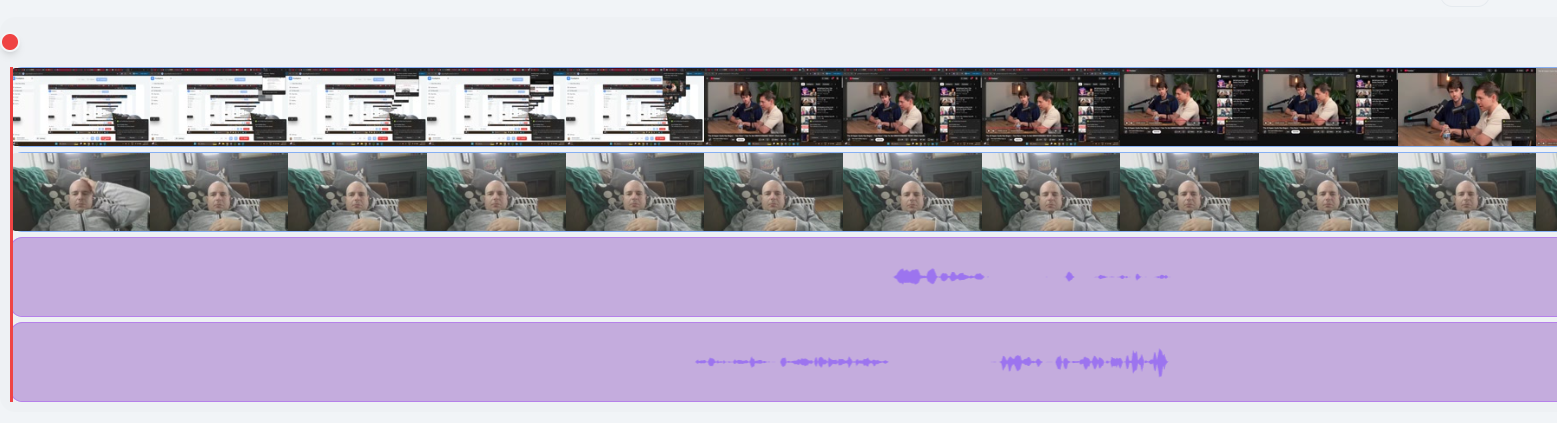
3. Separate Tracks for Everything
This is another huge advantage for reaction videos.
Podsplice records your:
Screen
Camera/webcam
Microphone
System audio
as separate synchronized tracks.
That gives you much more control after you finish recording.
For example, I often start a reaction video with my face full-screen while I introduce the video.
When the reaction begins, I make the original video large and put my face in a small circle or box in the corner.
If I pause the video to make a point, I can go full-screen again.
And because your microphone and system audio are separate tracks, you can adjust their volume independently when you edit.
You're not locked into whatever layout or audio mix you happened to use while recording.
Here is a screenshot of how the 4 separate tracks look. You can click on any individual track to edit it separately if you want.
4. High-Quality Screen, Camera, and Microphone Recording
Quality matters more than you think.
Your screen recording needs to look sharp, your webcam needs to look good, and—most importantly—people need to clearly hear what you're saying.
Podsplice records these sources separately in high quality rather than flattening everything into one recording.
That gives you better source material to work with when you edit your finished reaction video.
Just because a screen recorder "records" something, it doesn't mean they are promising to record a high-quality version that looks and sounds great. It is the same concept with cameras. Just because a camera "takes a photo", it sure doesn't mean that every camera takes equally good photos.
Learn more about why Podsplice is great for high-quality audio recording.
We record at 192 kbps and -16 LUFS. This is industry standard for studio podcast sound.
5. Make Reaction Videos With Someone Remotely
Reaction videos don't have to be one person watching a video alone.
Podsplice also has remote interview and podcast recording, which means you can invite someone else to react with you.
You and your guest can watch the same content, react together, and have your cameras and audio recorded separately.
This opens up another type of reaction content: two-person remote reactions.
You could react to sports clips, news, movie trailers, product launches, YouTube videos, or almost anything else with a co-host or guest who isn't even in the same room.
You can see in the video above that my brother and I recorded that remote podcast with Podsplice, and we reacted to that movie video clip together.
6. Everything Goes Straight to the Podsplice Cloud and Editor
This saves a surprising amount of time.
When you finish recording, you don't want to download huge video files to your computer, open another editing program, upload everything again, wait for the uploads, organize the files, and then start editing.
With Podsplice, your recording goes to your Podsplice cloud account and is ready in the editor.
Your separate synchronized tracks are already there.
So you can go directly from:
Record → Edit
without wasting time downloading and re-uploading giant video files.
Here is a video showing how to easily edit reaction videos with Podsplice.
7. An Easy Editor Built for This Workflow
I don't want to spend my life editing reaction videos.
Podsplice lets you trim your recording, edit individual tracks, adjust audio, and change your visual layout without needing a complicated professional video editor.
You can put your reaction in the corner, make yourself full-screen, switch the source video to full-screen, or change the layout at different points in the video.
The goal isn't to give you the most complicated editor possible.
The goal is to help you make a great reaction video quickly.
Have a quick look at this video I made with Podsplice. I start full screen, and then I react to old clips of myself later in the video. The entire editing process took less than 2 minutes.
8. Turn Your Reaction Videos Into Shorts
One reaction video can give you much more than one piece of content.
Podsplice has a built-in Shorts creator that lets you clip the best moments from your longer reaction video and turn them into vertical videos for YouTube Shorts, TikTok, Instagram Reels, and other platforms.
Podsplice can also automatically transcribe your video and add karaoke-style animated subtitles.
So instead of finishing one reaction video and starting from scratch, you can turn one recording into several pieces of content.
Here is a reaction video Short that was repurposed from a long-form video. All of this was done in seconds in Podsplice.
9. Publish Directly to Social Media
And finally, I don't want to download all those finished videos and manually upload them to every platform either.
Podsplice can publish directly to your connected social media channels. YouTube Shorts, TikTok, Instagram...
That means the entire reaction video workflow can happen inside Podsplice:
Record → Edit → Create Shorts → Add Subtitles → Publish Everywhere
And that's really the point.
The best reaction video software isn't just software that can record a reaction video.
It's software that lets you make high-quality reaction videos, turn them into more content, and get everything published as quickly and easily as possible.
Why I Think Podsplice Is the Best Reaction Video Software
We built Podsplice around the workflow I actually wanted as someone making reaction videos.
You get:
High-resolution screen recording
High-quality microphone audio
High-quality system/internal audio
Optional ultra-high-fidelity stereo system audio with the Podsplice Chrome extension
Camera, screen, microphone, and system audio recorded separately
Automatically synchronized tracks
Flexible layouts after recording
An easy built-in editor
Cloud-based recordings so you don't waste time downloading and re-uploading huge files
A built-in Shorts creator
Automatic karaoke-style subtitles
Direct social media publishing
Most importantly, the entire workflow is designed around speed, ease of use, quality, flexibility, and getting your content published.
I've built monetized reaction channels myself. I don't want software that merely makes reaction videos possible.
Make Your First Reaction Video
If you've never made one before, read my complete step-by-step guide to making a reaction video.
Or jump straight in:
Start using Podsplice.

About the Author
Andrew Best
Andrew Best is an entrepreneur, educator, and AI expert with over two decades in online marketing. He co-founded China232 — a podcast and learning platform with 10M+ downloads — and later 88Herbs, a premium supplement company. Andrew now focuses on helping creators leverage AI for podcasting, screen recording, and YouTube content through Podsplice.
More from Podsplice
How to Record YouTube Audio in a Reaction Video on Mac (Without QuickTime or Plugins)
Blog
Remove Ambient Background Noise From Your Videos
Article
Best Browser for Recording System Audio on Mac and Windows
Article
Why Most Screen Recording Software Is Terrible for YouTube Videos (And What Creators Actually Need)
Article
Kommodo Alternatives: Why Creators Are Choosing Podsplice
Article
Start Recording in Seconds
No downloads. No setup. Just hit record and share your story with the world in studio quality.
Looking for a Screen Recorder or Remote Recording tool?