
Why You Should NEVER Record a Podcast in Zoom
Just because you can technically record a Zoom meeting and turn it into a podcast, it doesn't mean you should.
In this article, I'm going to explain exactly why you should never record a podcast in Zoom, and what you should do instead.
A surprising number of people still do this. One industry report found that more than 37% of podcasters used Zoom to record their interviews, which makes sense because almost everyone already knows how to use Zoom. You send your guest a link, have your conversation, click record, and technically you have a podcast when you're finished.
The problem is that Zoom was built for meetings, not for podcasts or content creators, and there are much better ways to record a remote podcast.
Zoom Is Built for Meetings, Not Podcasts
Zoom is great for what it was designed to do. You send someone a link, have a meeting, talk for an hour, and leave. If you want to keep a record of the meeting, you can record it.
A podcast is completely different because you are creating content that people are actually going to watch or listen to. You care about the audio and video quality, you need to edit the recording (add an intro, put visual overlays on top of each guest, change the layout...), and you probably want to turn parts of it into Shorts, Reels, TikToks, and other content.
Once you start looking at the entire process instead of simply asking whether Zoom has a record button, it really doesn't make much sense to use it for a podcast.
Here is a video I made showing why Podsplice is much better than Zoom for recording remote interview podcasts.
Zoom Doesn't Give You the Best Podcast Recording Quality
Zoom is designed to make sure everyone in a meeting can see and hear each other in real time, even when internet connections aren't perfect. That's exactly what you want from meeting software, but it's not how I want to make the final recording of a podcast.
Podcast recording software can use local recording, sometimes called double-ender recording, where each person's audio and video are recorded locally on their own computer. Your microphone is recorded directly on your computer, while your guest's microphone is recorded directly on theirs, and the recordings are synchronized afterward. You aren't recording the compressed and lower-quality internet stream (which is exactly what you would be doing with Zoom)
This means the finished podcast doesn't have to rely entirely on the audio and video that were transmitted through the live internet call. If you spent a few hundred dollars on a good microphone, I would much rather record the original audio coming into your computer than make the final podcast depend on the processed version needed for a live meeting.
This difference is why some remote podcasts sound and look awesome, while others sound like amateur hour. It's often more about the recording software than about the quality of the microphone or camera.
Bad Internet Shouldn't Ruin Your Podcast
Local recording also matters when someone's internet connection isn't very good. If your guest's connection gets bad for 10 seconds, you might hear their voice break up or see their video freeze during the conversation.
That doesn't mean those 10 seconds necessarily need to be ruined in the finished podcast. If their microphone and camera are being recorded locally, the source recording can still be captured on their computer and synchronized afterward.
This is especially important when you're interviewing guests because you might only get one opportunity to record the conversation. I don't want a temporary internet problem permanently baked into an interview if it doesn't have to be.
And don't forget, even if your internet quality and your guest's internet quality are great, you are still recording a lower-quality stream with Zoom because Zoom compresses the audio and video so that you can see and hear each other in real time (and it is also cheaper for them to compress it a lot).
Stop Sending Your Podcast Guests Zoom Links
The other thing I don't like about Zoom for podcasting is the guest experience. I don't want someone I'm interviewing to have to worry about downloading an app or web app, signing into something, dealing with updates, or going through a bunch of settings before we start recording.
With Podsplice, I create an interview and send the guest a link. They click the link, choose their camera and microphone, and join the interview directly from their browser. They don't need a Podsplice account, and they don't need to know anything about how Podsplice works.
That's basically all I want my guest to have to do. Their job is to show up and have a good conversation with me, while I deal with the recording and production.
Here is what an interview invite link looks like with Podsplice. (This is what your guest sees. No login, no wasting time figuring it out. It's so clean and easy.
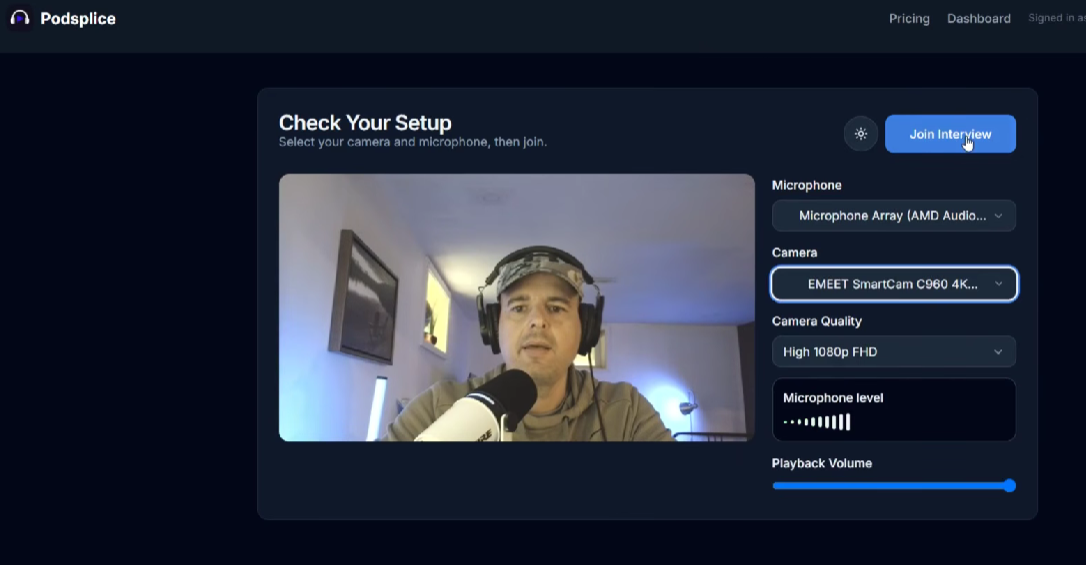
I made a video detailing this exact thing.
Then the Zoom Meeting Ends and You're Stuck With an MP4
This is probably the part I hate most about using Zoom to make content. You finish a great interview, stop the recording, and you're basically left with a large MP4 file on your desktop or a recording sitting in the cloud.
Now what?
Zoom has basically finished its job, but as a content creator, you're nowhere near finished. You still need to turn that recording into an actual podcast that people are going to watch.
Now You Need Another Program to Edit Your Podcast
Even if you barely edit your podcasts, you're probably going to want to cut something from the beginning and end. You might need to remove a mistake in the middle, add an intro, put your logo on the screen, add an overlay, or change the layout depending on who's talking.
If you're starting with a Zoom recording, you now need to take that file into another program, wait for it to import, edit everything, export another large file, and then figure out what you're doing with it next.
None of these individual steps sound like a huge problem, but doing this over and over again is a waste of time and energy that doesn't need to be part of making a podcast. With Podsplice, you can record, edit, and post your podcast.
Your Podcast Should Automatically Become Shorts
An hour-long podcast also shouldn't give you only one piece of content. There might be a great 30-second story at minute 12, an interesting argument at minute 25, or a really useful piece of advice at minute 45.
Those moments can become YouTube Shorts, TikToks, Instagram Reels, Facebook videos, and other short-form content, which means one good podcast can potentially give you a lot of additional content.
If you recorded everything in Zoom, you're once again starting with that MP4 file. Now you need to upload it somewhere else, wait for it to process, find the good sections, turn them into vertical videos, add subtitles, export the clips, and download them again.
This is exactly the type of repetitive work that podcast software should be eliminating.
Podsplice automatically cuts your podcast into short clips, puts karaoke subtitles on them, and posts them to social media for you, directly from within Podsplice. There is no need to keep uploading and downloading your shorts.
Here is an example of a remote podcast short clip we made with Podsplice (it was cut out of one of our long-form podcasts. The subtitles and everything were done automatically.)
Record, Edit, Create Shorts, and Publish in One Place
The workflow makes a lot more sense when the software you use to record the podcast is also designed around what you're going to do with the recording afterward.
With Podsplice, you can record the interview, edit it, add your intro, change the layouts, add your logo and overlays, create short-form clips, add subtitles, and publish your finished content without constantly moving giant files between different programs.
You can also use the AI editor to automatically change the layout based on who's speaking, or turn it off and control the layouts yourself.
The important thing is that when the interview ends, you're not starting from scratch with an MP4 file sitting on your desktop.
Your Podsplice account is connected to your YouTube, TikTok, Instagram, and other social media accounts. So you can post shorts to all your social media channels with one click.
What Should You Use Instead of Zoom for Podcasting?
This is one of the main reasons we built Podsplice. We wanted remote podcast recording to be easy for the guest while giving the person creating the podcast everything they need to turn the interview into finished content.
You create an interview, send your guest a link, and they join from their browser. Podsplice locally records the participants and synchronizes the recordings, and when the interview is finished, you can continue working with the recording in the same place.
You can edit the podcast, use different layouts, share your screen, add your logo and overlays, use AI speaker switching, create short-form clips, add karaoke-style subtitles, and publish the finished content to your social media accounts.
That's a completely different workflow from finishing a Zoom meeting and then figuring out what to do with the recording.
Here is a remote podcast we made with Podsplice. Everything about it was made with Podsplice. Recording, editing, posting, intro, etc.

About the Author
Andrew Best
Andrew Best is an entrepreneur, educator, and AI expert with over two decades in online marketing. He co-founded China232 — a podcast and learning platform with 10M+ downloads — and later 88Herbs, a premium supplement company. Andrew now focuses on helping creators leverage AI for podcasting, screen recording, and YouTube content through Podsplice.
More from Podsplice
Best Browser for Recording System Audio on Mac and Windows
Article
MP3, AAC, WAV, or WebM? The Creator's Guide to Audio File Formats
Article
How to Blur Sensitive Information in a Screenshot
Blog
How to Make Reaction Videos on a Mac: The Easiest Way in 2026
Article
Best Screen Recording Software: What to Look For in 2026
Article
Start Recording in Seconds
No downloads. No setup. Just hit record and share your story with the world in studio quality.
Looking for a Screen Recorder or Remote Recording tool?