
How to Record a Reaction Video with System Audio
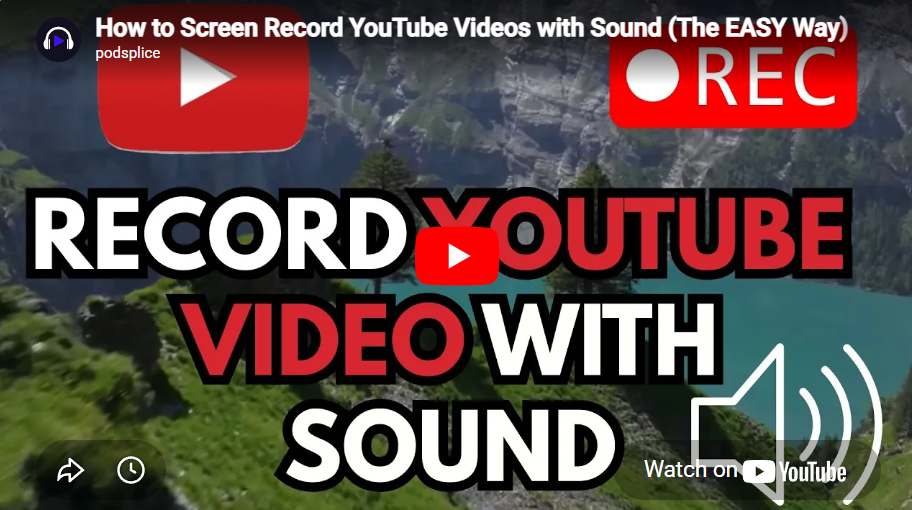
Want to easily screen record a YouTube video with sound, talk over it, and maybe even show your face?
Most ways people try to do this are honestly so annoying. You end up downloading complicated software, messing with audio drivers, or you get the video but the sound is missing!
I am going to show you how to do it the easy way—no downloads required. 👇
🚫 The Problem With OBS and Standard Recorders
If you've ever tried to record system audio before, you know the pain:
❌ Complicated software like OBS bogs down your computer.
❌ Constant updates and confusing settings.
❌ You record a 10-minute clip, only to realize the video is dead silent.
It shouldn't be a nightmare. And with Podsplice, it isn't.
🟢 Step-by-Step: Recording YouTube With Sound
1. Go to Podsplice
Head over to podsplice.com. You don't need to download any apps or drivers. Just click Start Recording.
2. Start a New Screen Share
Inside the dashboard, click Start New Recording and select the screen share option.
3. Toggle System Audio (This is crucial!)
A browser popup will appear asking what you want to share.
👉 Select: Entire Screen
👉 Turn ON: "Share system audio" (This is the magic checkbox that captures the YouTube sound!)
4. Choose Your Extras
If you want to make this a reaction video, turn on your Microphone to record your voice, and your Camera to show your face in the corner.
5. Hit Record & Play!
Start recording, switch to your YouTube tab, and go full screen. That's it! Podsplice is capturing everything flawlessly in the background.
🎛️ The 4-Track Advantage
Here is where Podsplice beats everything else. When you're done, you don't just get one messy video file. You get four completely separate tracks:
🖥️ Screen Recording
🔊 System Audio (The YouTube video sound)
🎤 Microphone (Your voice)
📷 Webcam (Your face)
Because they are separate, you can edit them individually! Realize you look tired? Just hide your face cam track. Cough into the mic? Just mute your microphone track. You have total control.
💡 Who Is This For?
This simple setup is perfect for:
🎥 Content Creators: Easily pulling YouTube clips or making reaction videos.
📚 Teachers & Professors: Recording lectures where you play a video clip and explain it over the audio.
🕹️ Gamers: Recording tutorials without the headache.
Ditch the frustrating software and start making your content the easy way!
More from Podsplice
How to Promote Your SaaS with Screen Recording Demo Videos (2026)
Article
Record System Audio on Mac and Windows
Article
Screen Recording Software for Shopify: The Easiest Way to Get Free Organic Traffic & Sales
Article
Send Podsplice transcripts to Notion
Article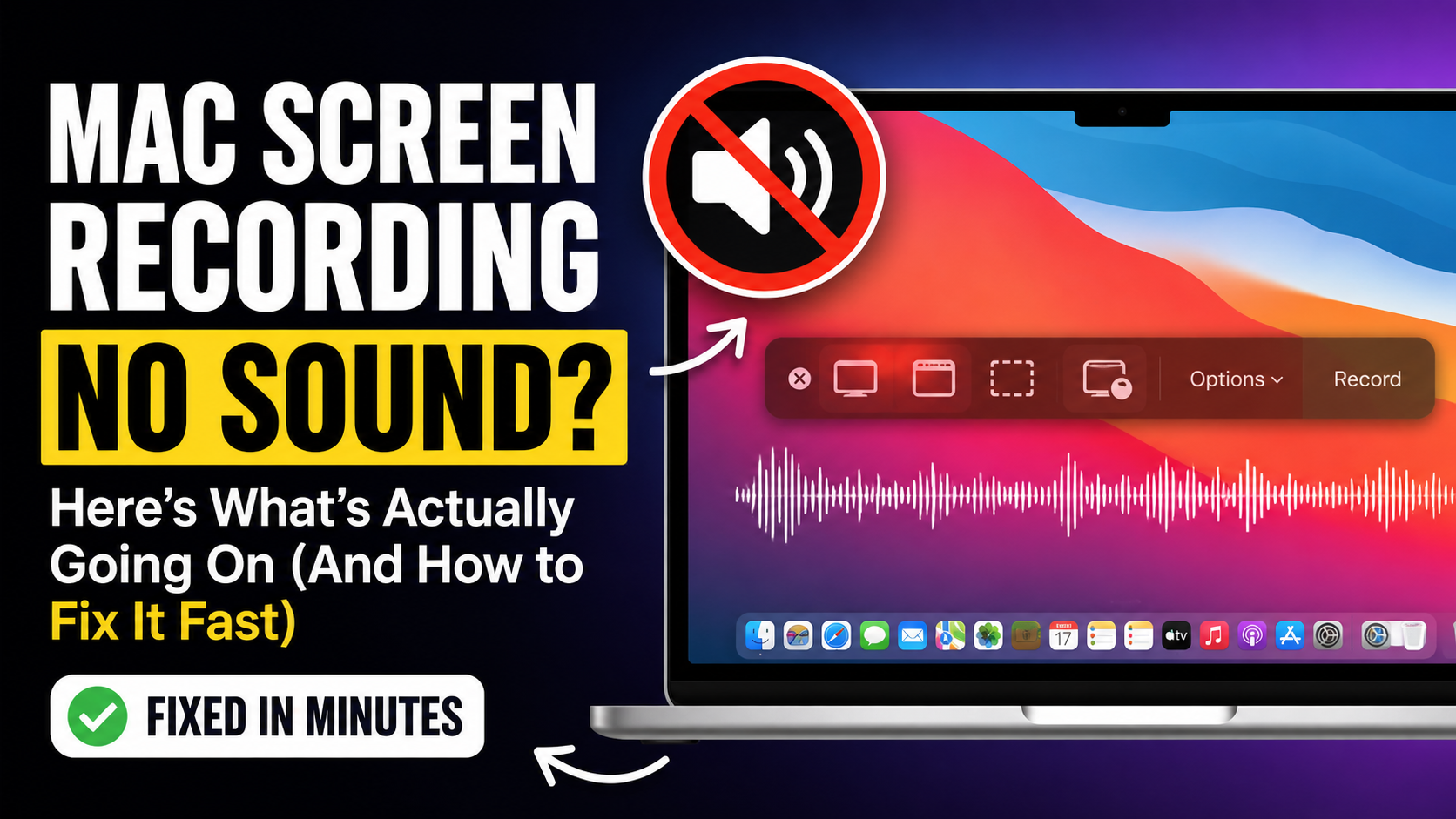
Mac Screen Recording No Sound? Here’s What’s Actually Going On (And How to Fix It Fast)
Article
Start Recording in Seconds
No downloads. No setup. Just hit record and share your story with the world in studio quality.
Looking for a Screen Recorder or Remote Recording tool?