
Keep yourself in the frame
Use picture-in-picture to stay visible while the original video, product, screen or other content remains the focus.
Record your camera, screen and system audio together in high quality. Create YouTube, music, movie, TV, product and commentary reaction videos right from your browser.
Capture everything separately for more control when you edit — including your camera, microphone and the content you’re reacting to.
Use picture-in-picture to stay visible while the original video, product, screen or other content remains the focus.
Record your microphone and supported system audio separately, including stereo audio for music, movies and other sound-heavy reactions.
Bring in a second person remotely and record both cameras alongside the content you're reacting to for co-hosted and two-person reactions.
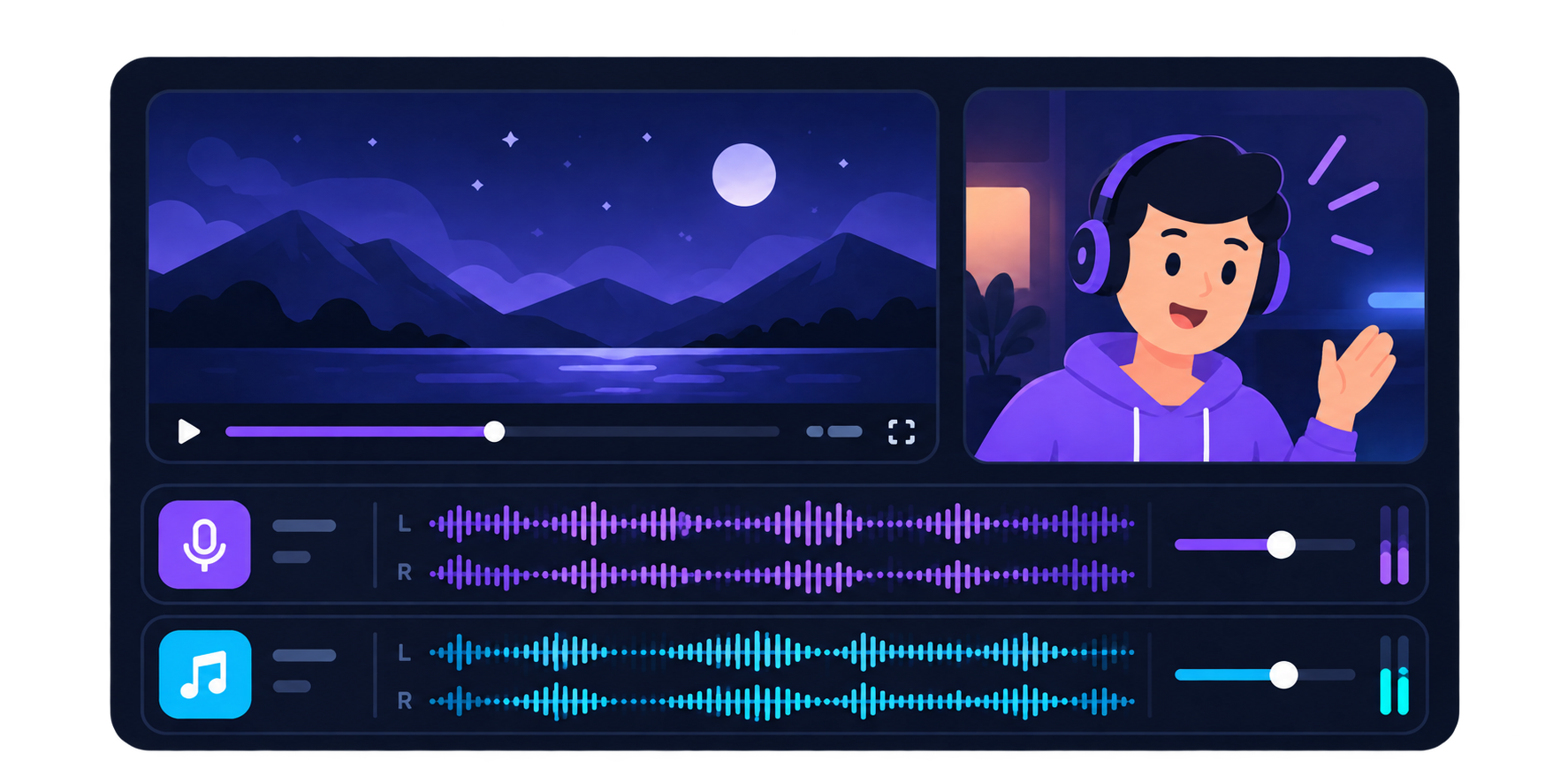
Capture your microphone and supported system audio separately, so your commentary stays clear without sacrificing the sound of the content you’re reacting to.
For music, movies and other audio-heavy reactions, supported browser audio can be recorded in stereo. Adjust levels later, keep your voice separate, and avoid the muddy sound of recording audio through your speakers.
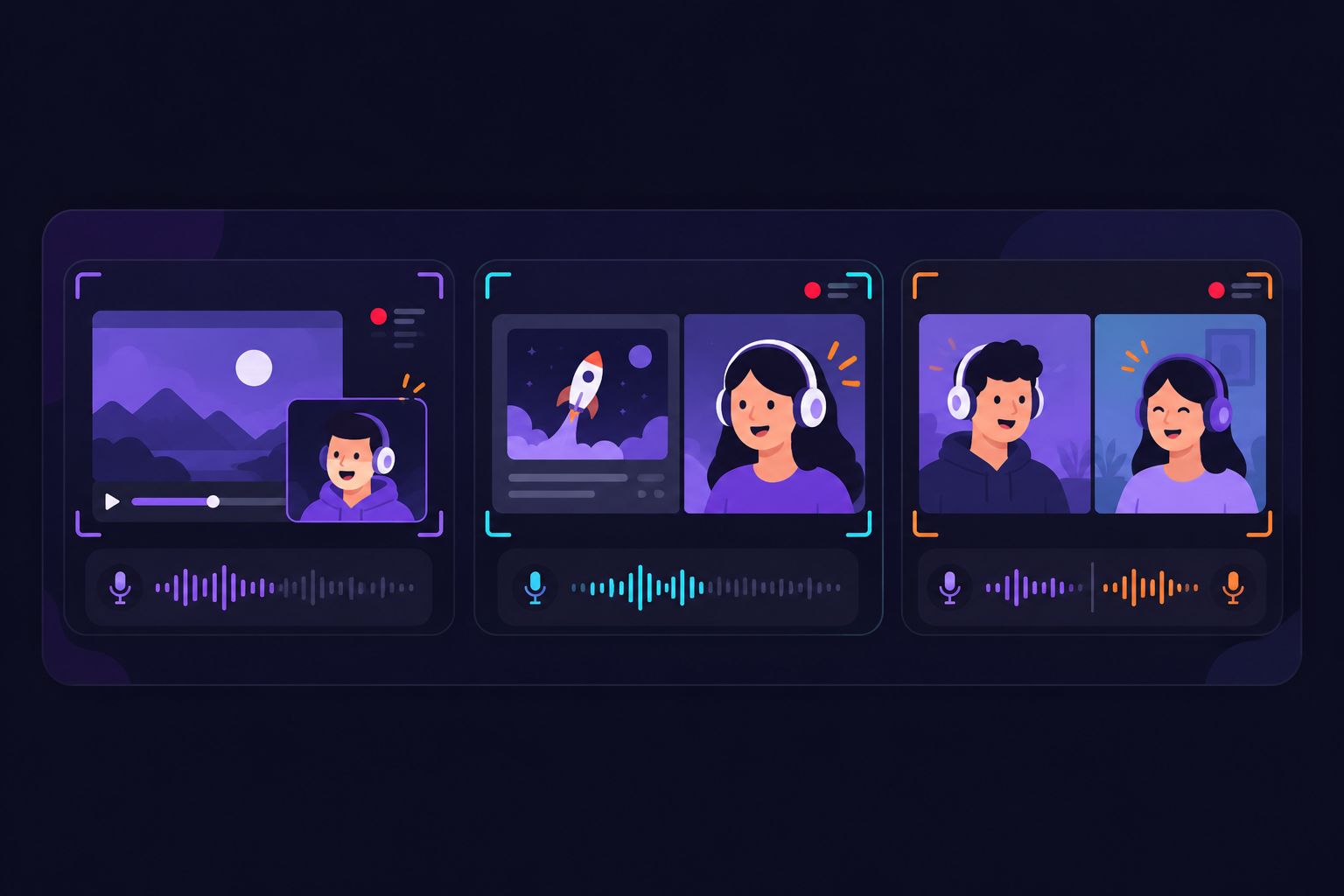
Choose the layout that fits the moment. Keep the source content front and center, make your reaction the focus, or bring in another person.
Keep the original video large while your camera stays visible in the corner. A simple, familiar setup for YouTube, music, movie and product reactions.
Put your reaction and the source content next to each other. Great when your commentary deserves just as much attention as what you're reacting to.
Cut to your camera when you want to explain a point, tell a story or highlight a strong reaction, then return to the original content.
Record with a co-host or guest and keep both people visible alongside the source content. Ideal for remote reactions, discussions and shared commentary.
Reaction videos are simple when the recording setup stays out of the way. Podsplice captures your camera, microphone, screen and system audio as separate synchronized tracks, so you can concentrate on what you’re watching and what you want to say. Podsplice
You can keep yourself in the corner, switch the focus to your reaction, balance your voice against the original audio, and edit everything afterward without having to build a complicated OBS setup.
This walkthrough shows the basic workflow: prepare the video you want to react to, choose your camera and microphone, share your screen with system audio, record your reaction, and then bring everything into the editor. Podsplice
Want to go deeper? These guides cover the full workflow, browser recording and higher-quality audio.
A complete step-by-step guide to recording your camera, microphone, screen and system audio together.
Learn how browser-based reaction recording works and why keeping the different recording tracks separate makes editing easier.
For music, movie and other sound-heavy reactions, use Podsplice Stereo Tab Audio to preserve separate left and right audio information from a Chrome tab.
See why standard system audio and direct stereo tab capture can sound different, especially for music and professionally produced media.
Open the video, music, product demo or other content you want to discuss. Select your camera and microphone, then share the screen or browser tab with audio.
Watch and react naturally while Podsplice captures your camera, microphone and source audio. Keep the tracks separate so you have more control when editing.
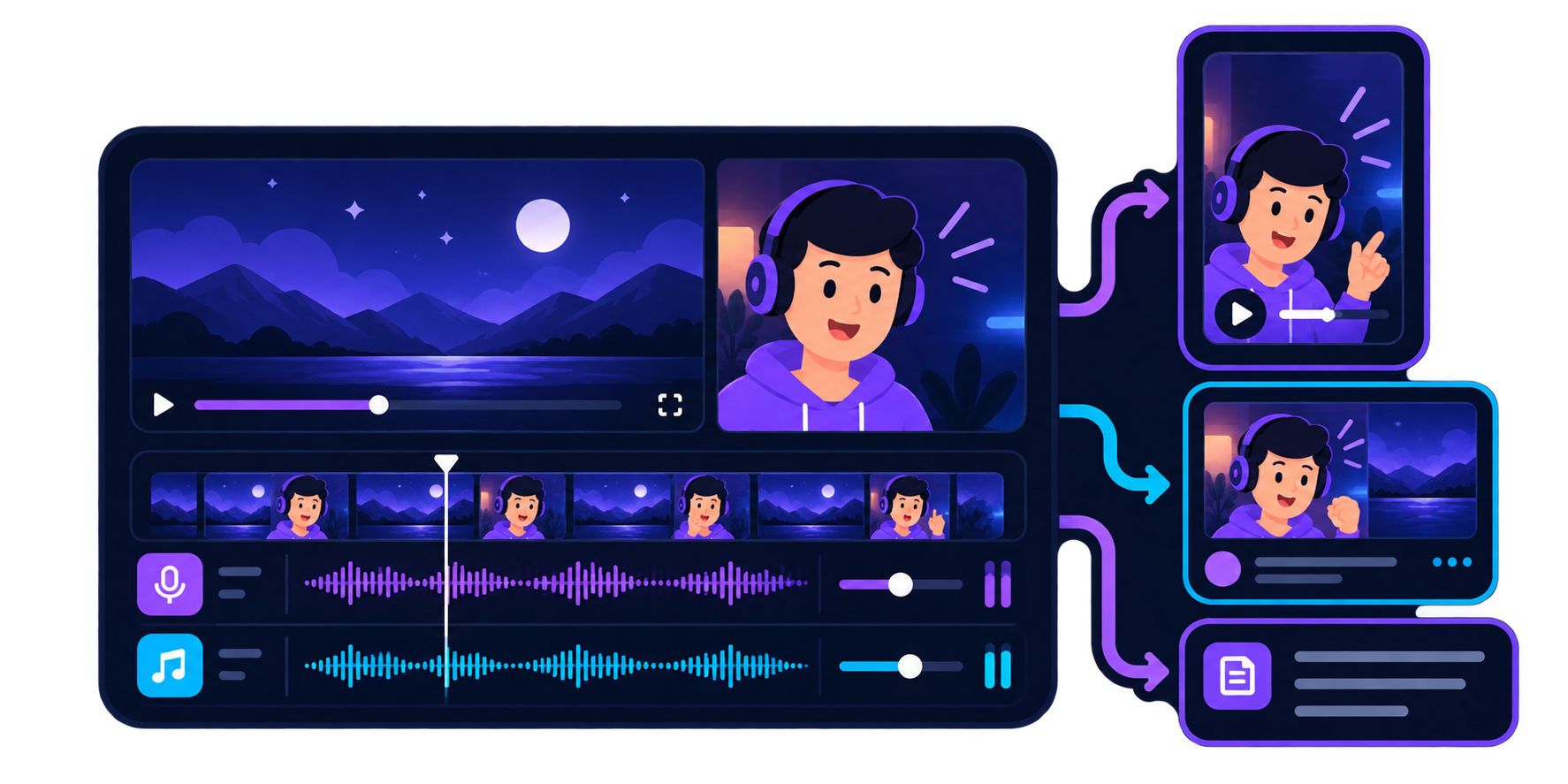
Trim the recording, adjust the layout and audio, then turn the best moments into a finished reaction video or shorter clips for YouTube, Shorts, TikTok and other social channels.
A strong reaction video can become much more than one upload. Take the best moments from a longer recording and turn them into shorter clips for YouTube Shorts, TikTok, Instagram Reels and other social channels.
Use Podsplice to trim the strongest reactions, change the layout for vertical video, add captions, and prepare new clips without rebuilding the project from scratch.
You can also use Podsplice’s AI and MCP tools to work from the transcript, find useful moments, create titles and descriptions, and help prepare content around the recording.
CREATE RESPONSIBLY
Reaction videos often use copyrighted material, so simply putting your camera over someone else’s video doesn’t automatically make the use fair.
In the U.S., commentary, criticism and other transformative uses can qualify as fair use, but fair use is decided case by case using several factors. Adding new meaning, analysis or purpose can help, but there is no guaranteed formula. See the U.S. Copyright Office guide to fair use.
Use the original material as something to comment on, criticize, explain, analyze or discuss. Your reaction and perspective should be a meaningful part of the finished video — not just an introduction before playing someone else’s work.
Where possible, use only the portions needed to make your point. Pause, discuss and move through the source material rather than simply replaying long uninterrupted sections.
The amount and substantiality of the material used is one of the factors considered in U.S. fair-use analysis. Learn more about the four fair-use factors.
A reaction should give viewers a reason to watch your video for your commentary, analysis or perspective.
Be especially careful about creating something that could act as a substitute for watching, listening to or purchasing the original work. The effect on the potential market for the original is also considered when evaluating fair use.
Even if you believe your use qualifies as fair use, your video can still receive a copyright claim or removal request on YouTube.
YouTube also explains that fair use is determined case by case and that automated systems such as Content ID cannot make the final legal determination.
Read YouTube’s Fair Use guidance
Learn about YouTube Content ID claims
You are responsible for the material you record, edit and publish with Podsplice.
Podsplice provides recording and editing tools. It does not give you permission or rights to third-party music, movies, television programs, YouTube videos or other copyrighted material.
When appropriate, use material you own, have permission or a licence to use, or that you otherwise have the legal right to include.
This information is provided for general educational purposes and is not legal advice. Copyright laws and exceptions vary by country and depend on the specific circumstances of each use.
Yes. You can record your camera, microphone and screen while watching content in your browser, then combine everything into a reaction video.
No. Podsplice is designed to make browser-based recording much simpler. You can capture your camera, microphone, screen and supported system audio without building an OBS scene.
Yes. Podsplice can capture supported system/browser audio separately from your microphone. This is particularly useful for music, movie and TV reaction videos.
Yes. Supported browser/system audio can be captured in stereo, which can make a major difference when reacting to music or other content where the original audio quality matters.
Yes. Podsplice's remote recording tools let people record together from different locations, making it possible to create two-person and co-hosted reaction formats.
Yes. You can take reaction recordings and create shorter vertical versions for platforms such as YouTube Shorts, TikTok and Instagram Reels.
Reaction videos can be lawful, but there is no blanket rule that makes all reaction videos legal. In the U.S., commentary, criticism and sufficiently transformative uses may qualify as fair use depending on the circumstances.
Creators are responsible for the material they publish, and copyright rules vary by jurisdiction.
Podsplice can technically record these types of reactions, but creators are responsible for making sure they have the appropriate rights to publish the material they use.
Yes. One of the advantages of keeping recording elements separate is that you have more flexibility to change your layout and edit the finished reaction afterward.
Choose your camera. Choose your microphone. Open the content you want to discuss.
Podsplice handles the recording so you can concentrate on the reaction.
Record. Edit. Repurpose. Publish. All with Podsplice.