
Reaction videos
Record the clip’s tab audio in stereo while your microphone captures your commentary on a separate track.
The official Chrome extension is now available. Connect sound from a chosen tab to the Podsplice V2 Recorder, keep stereo detail when the source provides it, and record your microphone separately for reactions, demos, and commentary.
Record the clip’s tab audio in stereo while your microphone captures your commentary on a separate track.
Show a tab, window, or full screen while capturing sound from the Chrome source tab you selected.
Record remote interviews in Podsplice. When a screen recording needs a clip or demonstration, connect sound from your chosen Chrome tab in the V2 Recorder.

Podsplice Stereo Tab Audio is now available in the Chrome Web Store. It connects sound from the Chrome tab you choose directly to the Podsplice V2 Recorder, so you can record source audio in stereo when the tab provides it. Use it for reactions, music commentary, tutorials, product demos, courses, and other recordings where left and right audio detail matters.
Install Podsplice Stereo Tab Audio from the Chrome Web Store →
The extension works with a Podsplice account and the V2 Recorder in Chrome. It supplies the selected tab's audio; you still choose when to start and save a recording in Podsplice.
Connect the source tab's sound, then record your screen and microphone in Podsplice.
Standard screen sharing can flatten detailed browser audio. The extension carries the selected tab's stereo signal into the recorder when Chrome and the source provide two channels. It cannot create stereo detail from a mono source, but it gives supported audio a better path into your recording.
The audio comes from the Chrome tab where you click the extension. For the video, you can share that tab, another tab, a window, or your screen. This makes it practical to narrate a demonstration or react to a clip while showing the view that best explains it.
Podsplice keeps microphone and tab audio as separate recording sources, giving you room to adjust the balance in the editor. You do not need a virtual audio cable or desktop mixer to connect the Chrome tab.
Install the extension. Open the official Chrome Web Store listing, choose Add to Chrome, and pin the extension if you want its icon visible.
Open the recorder. Sign in to the Podsplice V2 Recorder in Chrome. Choose your camera and microphone, and select the extension stereo option for system audio.
Connect your source tab. Open the tab whose audio you want to capture and click the Podsplice Stereo Tab Audio icon on that tab.
Check the connection. Return to Podsplice and confirm that the source tab and channel information appear. Then choose the tab, window, or screen you want viewers to see.
Record. Start your session in Podsplice. Speak into your microphone while the connected tab supplies its audio; review and edit the tracks after recording.
For a reaction or tutorial, connect the tab playing the source material and record your commentary with your screen or camera. For an interview, Podsplice also supports remote guest recording; explore the interview and podcast workflow. When your recording includes media played from a Chrome tab, the stereo extension is the tab-audio option in the V2 Recorder.
The extension connects only the active Chrome tab where you deliberately click its icon. It does not monitor other tabs, collect browsing history, or store the audio itself. Podsplice records after you start a session. Record only media you have permission to use.
Ready to try it? Install the extension, then open the Podsplice V2 Recorder.
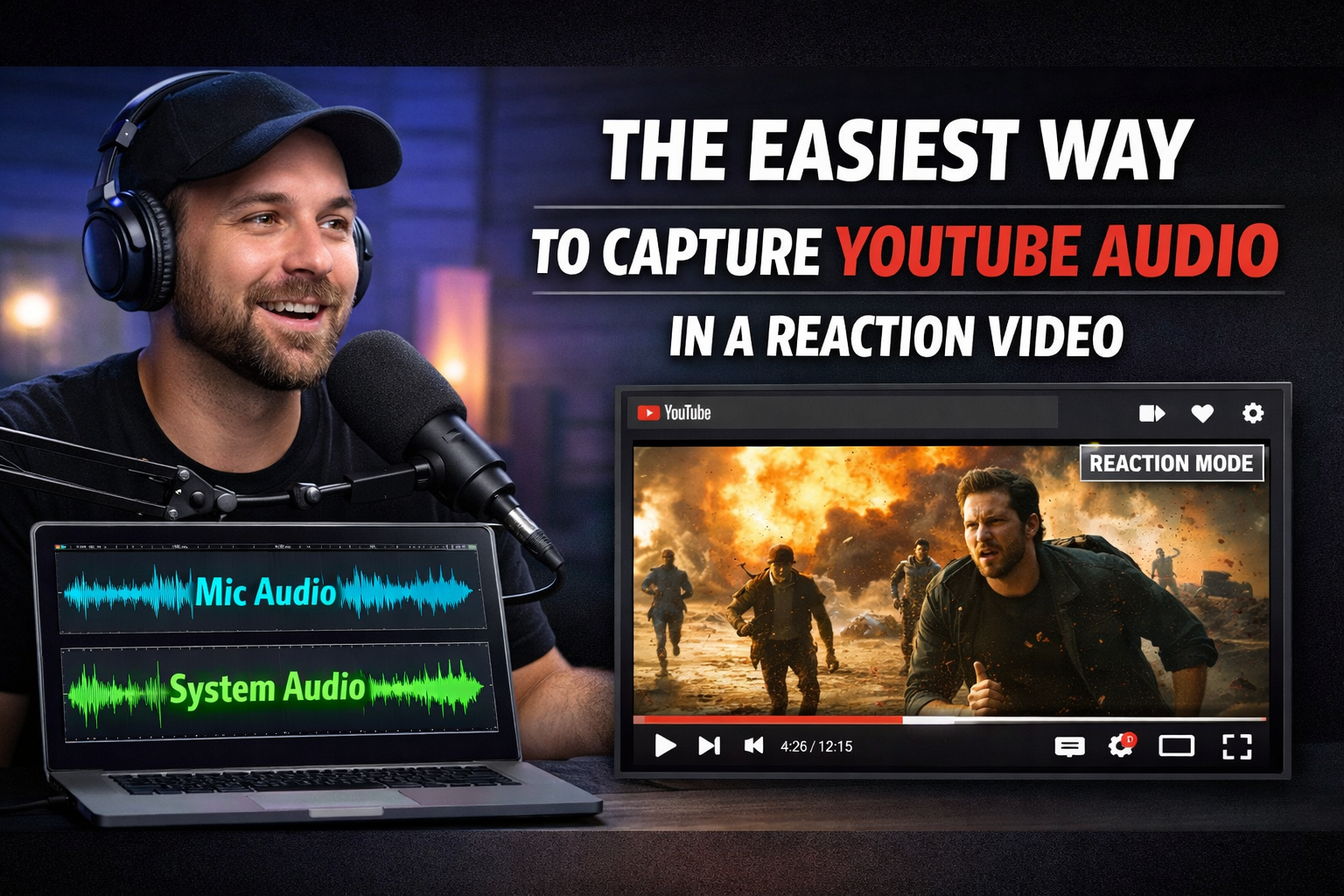
The Easiest Way to Capture YouTube Audio in a Reaction Video
Blog
Real Estate Marketing for Introverts: Get More Clients With YouTube
Article
Screen Recording Software That Posts Directly to YouTube
Blog
How to Start a Faceless YouTube Channel Without AI (2026 Guide)
Article
Beehiiv Podcasts: What You Need to Know
BlogNo downloads. No setup. Just hit record and share your story with the world in studio quality.
Looking for a Screen Recorder or Remote Recording tool?
No. The extension connects the single Chrome tab on which you click it. Other applications and browser tabs are not included in that extension audio stream.
Yes. Your Chrome sharing choice controls the recorded picture. The audio remains attached to the Chrome source tab identified by PodSplice.
No. It only connects the selected tab as an audio source. Nothing is recorded or uploaded until you start and save a recording in PodSplice.
The current extension captures stereo tab audio and PodSplice records it using high-quality Opus audio. It is not mathematically lossless PCM. This provides excellent quality at a practical file size for browser recording. It is much closer to lossless system audio compared with normal system audio capture.
You need Google Chrome, the PodSplice Stereo Tab Audio extension, and a PodSplice account with access to the V2 Recorder.
You should record only content you own or are authorized to use. You remain responsible for complying with copyright, platform rules, and applicable laws.
Connect stereo Chrome tab audio to PodSplice and create fuller-sounding reaction videos, tutorials, demonstrations, and courses.