
Send Podsplice transcripts to Notion

From recording to a useful Notion page
Your recording contains the source material. Notion gives you a place to work with it.
Use the imported transcript to:
Pull out quotes and ideas for social posts.
Draft episode descriptions, newsletters, and show notes.
Collect feedback from an editor or client.
Keep research and publishing checklists alongside the original conversation.
The automation brings in the transcript. You decide what to create from it.
How it works
1. Finish your transcript in Podsplice
Record or upload your content in Podsplice, then generate its transcript. Wait until transcription is complete.
2. Add the recording link to Notion
Create a new item in your connected Notion database. Paste the full Podsplice recording link into the item’s title.
You’re pasting the recording link—not the transcript.
3. Open the page and start working
Zapier finds the recording in Podsplice and adds its transcript to the body of that Notion page.
Read it, edit the text, add comments, or build your content notes around it.
Set it up once
Open the Zapier template.
Connect your Podsplice and Notion accounts.
Give Zapier access to your chosen Notion database.
Select that database and test the workflow with a recording that already has a transcript.
Turn on the workflow.
Use a dedicated database such as Episode Transcripts or Content Inbox so unrelated Notion items don’t start recording searches.
What you need
A Podsplice recording with a completed transcript.
A connected Podsplice account with access to that recording.
A Notion database that Zapier can access. Notion AI is not required.
A Zapier plan that supports multi-step workflows, or an eligible active trial. This three-step workflow does not run on Zapier’s ongoing Free plan.
More from Podsplice
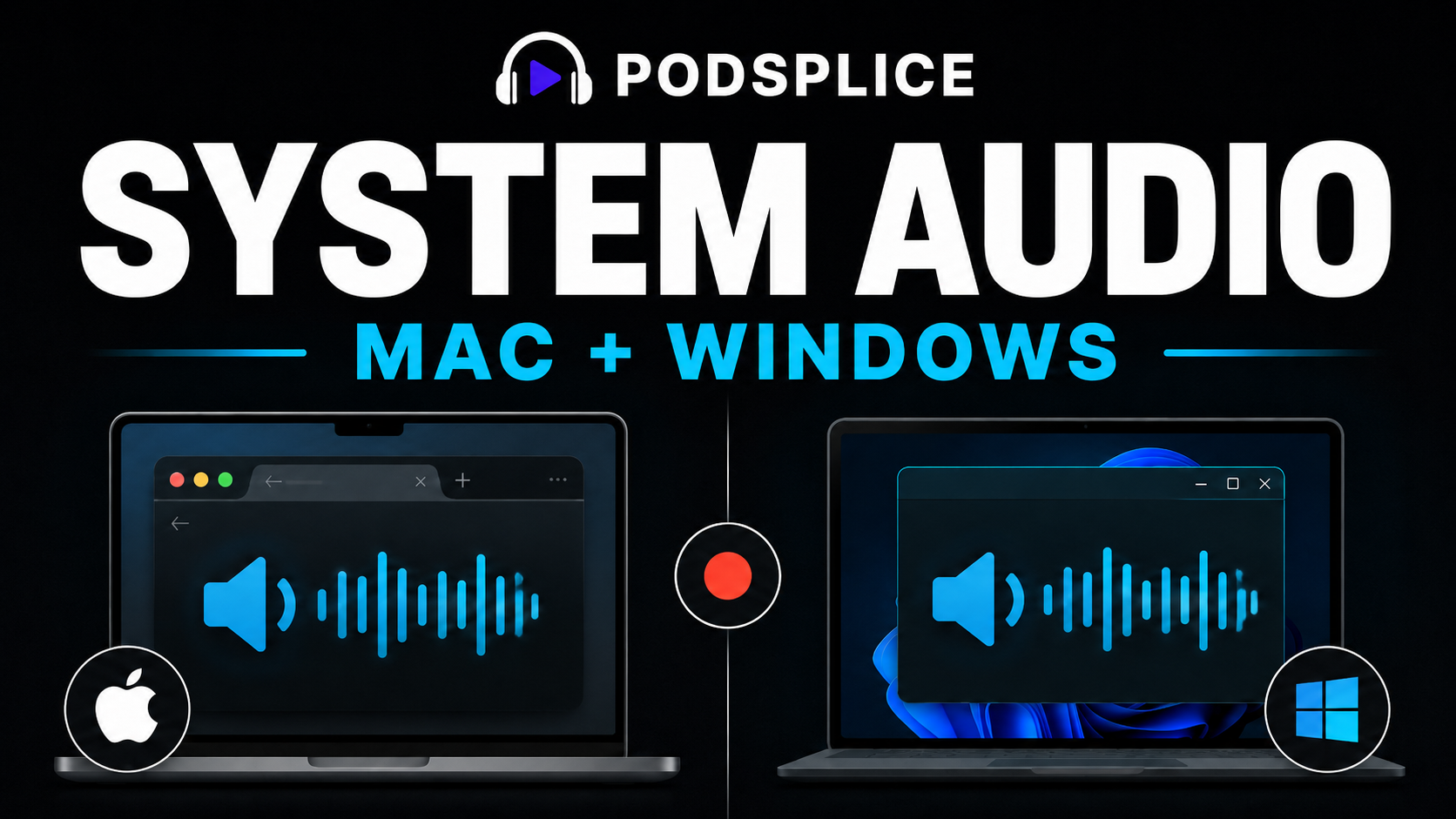
Record System Audio on Mac and Windows
Article
YouTube Shorts vs. Long-Form Videos for Real Estate Agents: Which Is Better?
Article
How to Create Social Media Videos as a Team
Article
Repurposing: Turn Long Podcasts into Viral Shorts
Article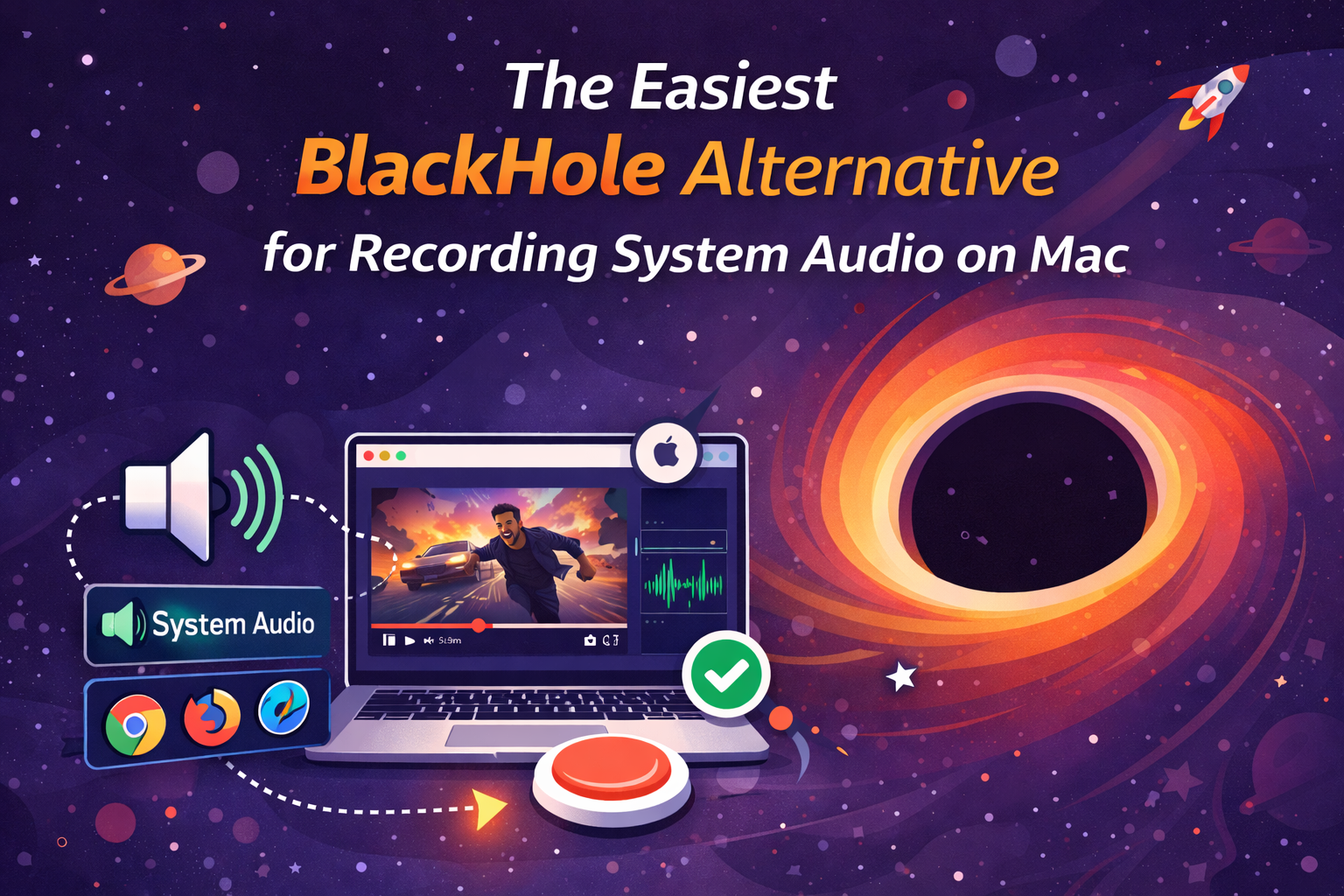
The Easiest BlackHole Alternative for Recording System Audio on Mac
Blog
Start Recording in Seconds
No downloads. No setup. Just hit record and share your story with the world in studio quality.
Looking for a Screen Recorder or Remote Recording tool?