
Best Browser for Recording System Audio on Mac and Windows
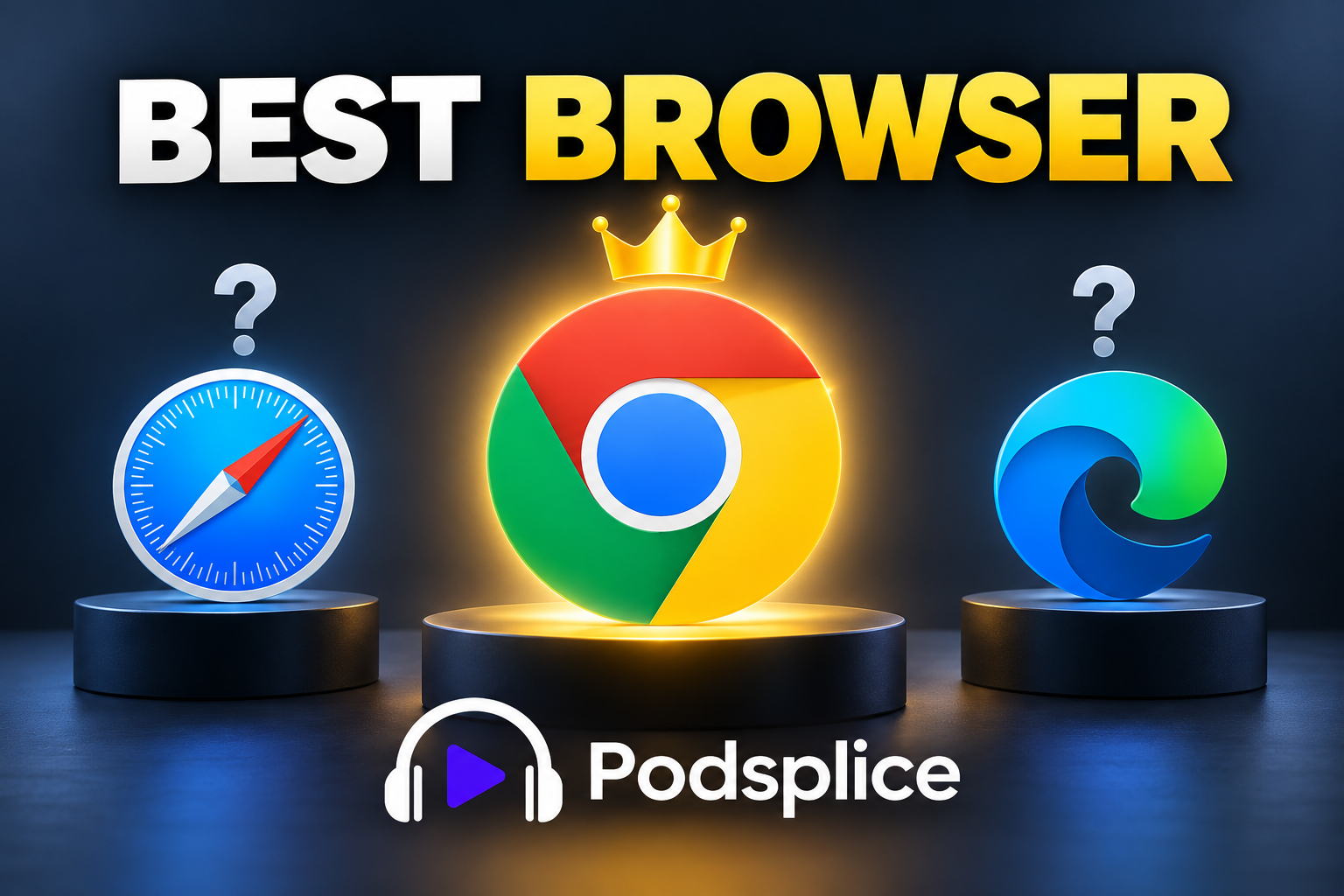
Google Chrome is the best browser for recording system audio.
System audio (Mac users sometimes call it "internal audio") is simply the sound coming from your computer rather than the sound coming into your microphone. System audio could be audio from a YouTube video, website, presentation, browser application, or another program.
Chrome is by far my preferred browser for this because it works on both Mac and Windows, handles browser-based screen and audio sharing well, and has a massive ecosystem of web apps and extensions. It is also the browser we recommend for Podsplice.
Why Chrome Is Best for Recording Screen and Audio
For content creators, Chrome has a few major advantages.
First, it works on both Windows and macOS, so you can use essentially the same browser-based recording workflow regardless of your computer.
Second, Chrome makes it easy to share an individual browser tab together with its audio. This is extremely useful for YouTube videos, reaction videos, tutorials, courses, presentations, and website demonstrations.
Chrome also has a huge extension ecosystem. There are extensions for transcription, video, audio, productivity, AI, publishing, research, and virtually every other part of a creator's workflow. We're actually developing a Podsplice Chrome extension that can record extremely high-fidelity system audio.
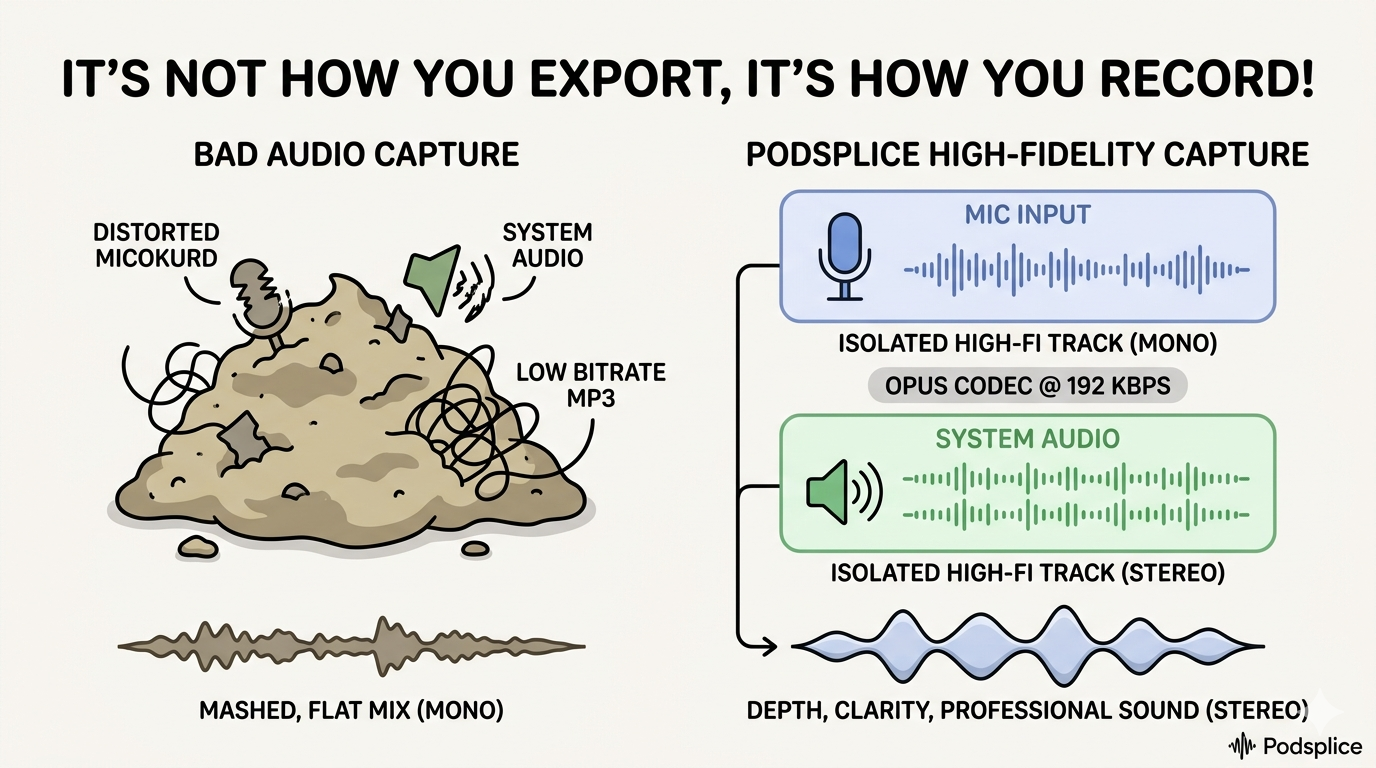
Even the regular Podsplice + Chrome combo for recording system audio gives excellent audio quality for both mic audio and system audio, but the extension takes it up to another level.
Here is a video I made where I capture both my mic audio and the system audio together, and on separate tracks. I used Podsplice to record, and I recorded it inside my Chrome browser.
You can listen for yourself, but I think the system audio sounds pretty good here, even though the person speaking (Alex Hormozi) is outside and not in his studio.
Another thing is that Chrome is much more open than other browsers. Apple's Safari is too restrictive with "privacy". Chrome let us optimize Podsplice for everything we wanted to do in order to get the highest quality screen and audio quality.
Finally, Chrome is built around the enormous Chromium and web-app ecosystem. That's particularly useful for software like Podsplice because you can do serious recording work directly through the browser rather than relying on traditional desktop recording software.
Recording System Audio on Mac vs. Windows
There is one important difference between Mac and Windows.
Mac: Chrome Tab Audio
On Mac, the most reliable browser-based method we've found is to share the specific Chrome tab containing the audio you want to record and turn on Share tab audio.
Technically, this is tab audio rather than capturing every bit of internal audio produced by your Mac. In practice, however, that's usually exactly what a content creator wants.
If you're making a reaction video to YouTube, for example, you want the audio from the YouTube tab. You don't need notification sounds or audio from unrelated applications mixed into your recording.
The same applies to website demonstrations, online videos, presentations, courses, and most other browser-based content.
Learn more about the easiest way to record internal audio on a Mac.
Windows: More System Audio Options
Windows gives you more flexibility. You can share a Chrome tab, an individual window, or your entire screen, with broader options for capturing system/internal audio.
If everything you're recording is inside Chrome, sharing a specific tab can still be the cleanest option. If you're moving between several applications, recording the screen with system audio may make more sense.
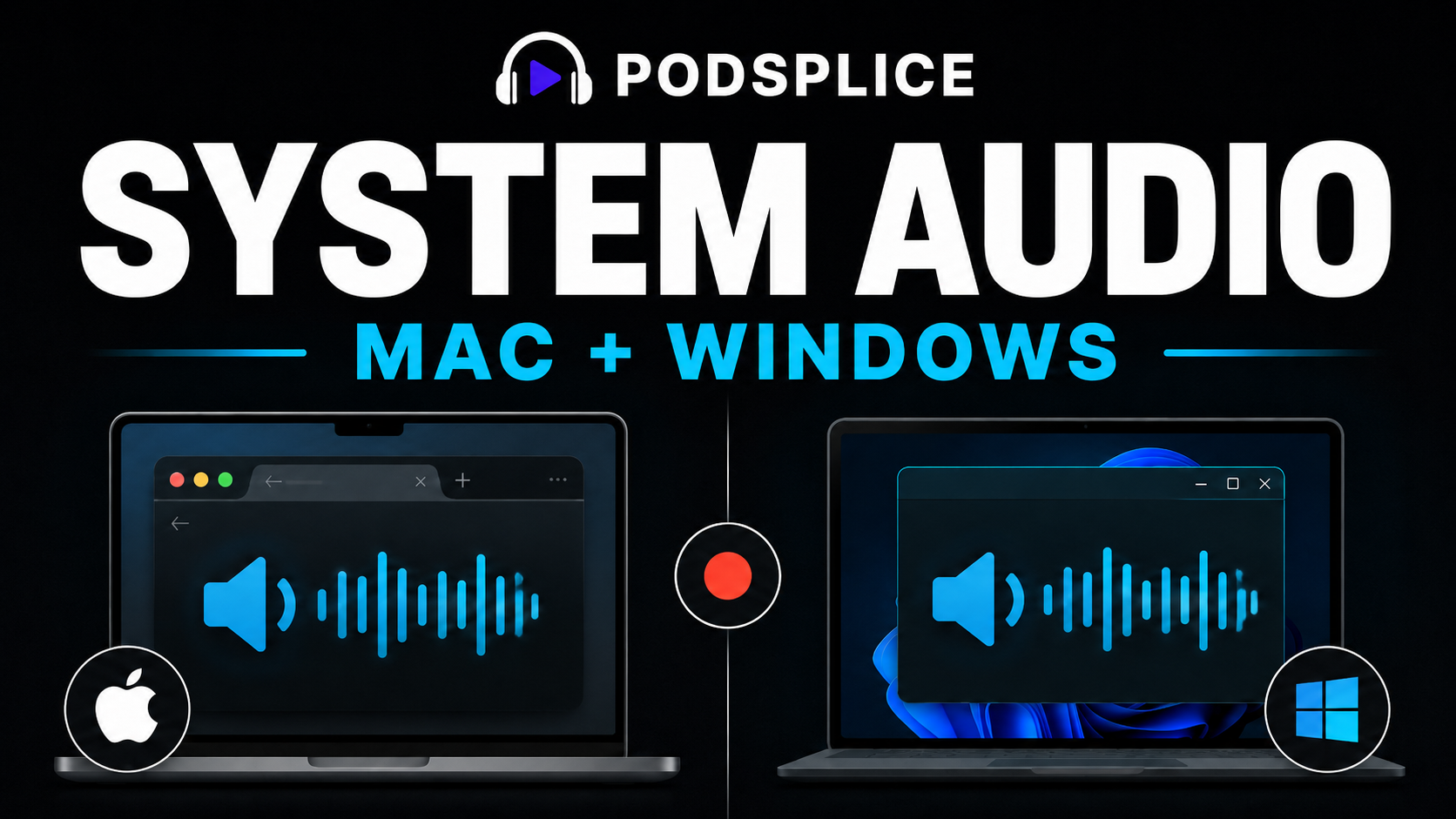
Here is a video we made showing how to record system audio on both Mac and Windows (very easy!)
Why Tab Audio Is Usually Enough on Mac
The difference between system audio and tab audio sounds more significant than it usually is.
When people search for a way to record internal audio, they often want to record something they're watching or demonstrating online. In that situation, the audio they need is already coming from Chrome.
Sharing only that tab can actually produce a cleaner recording because you're deliberately capturing the content you want instead of every sound the computer makes.
For Mac creators using Podsplice, the workflow is therefore very simple:
Chrome → Share Chrome Tab → Share Tab Audio → Record
For screenshots and complete instructions, see our Mac and Windows system audio recording guide.
Why Not Safari?
Safari is a good general-purpose browser on Mac, but Chrome is our preferred browser for screen recording with audio.
Chrome gives us a straightforward tab-audio workflow, a much larger extension ecosystem, and one browser we can recommend across both Windows and Mac.
Safari is also limited to Apple's ecosystem, while Chrome gives creators a more consistent cross-platform workflow.
Safari also tends to block the system (internal) audio recording due to "privacy" reasons. We have several Mac users who are happily using Chrome and Podsplice together. They all tell us that Chrome is far better for recording internal audio (again, usually just tab audio for Mac users).
What About Microsoft Edge?
Microsoft Edge is also based on Chromium and can work well for browser-based recording.
However, we recommend Chrome as the primary browser for Podsplice because of its combination of cross-platform support, widespread use, enormous extension ecosystem, and the amount of creator software built around it.
Chrome isn't the only browser capable of screen recording. It's simply the one we prefer for this workflow.
Chrome + Podsplice
Chrome handles the browser-level screen and audio sharing, while Podsplice handles the recording itself.
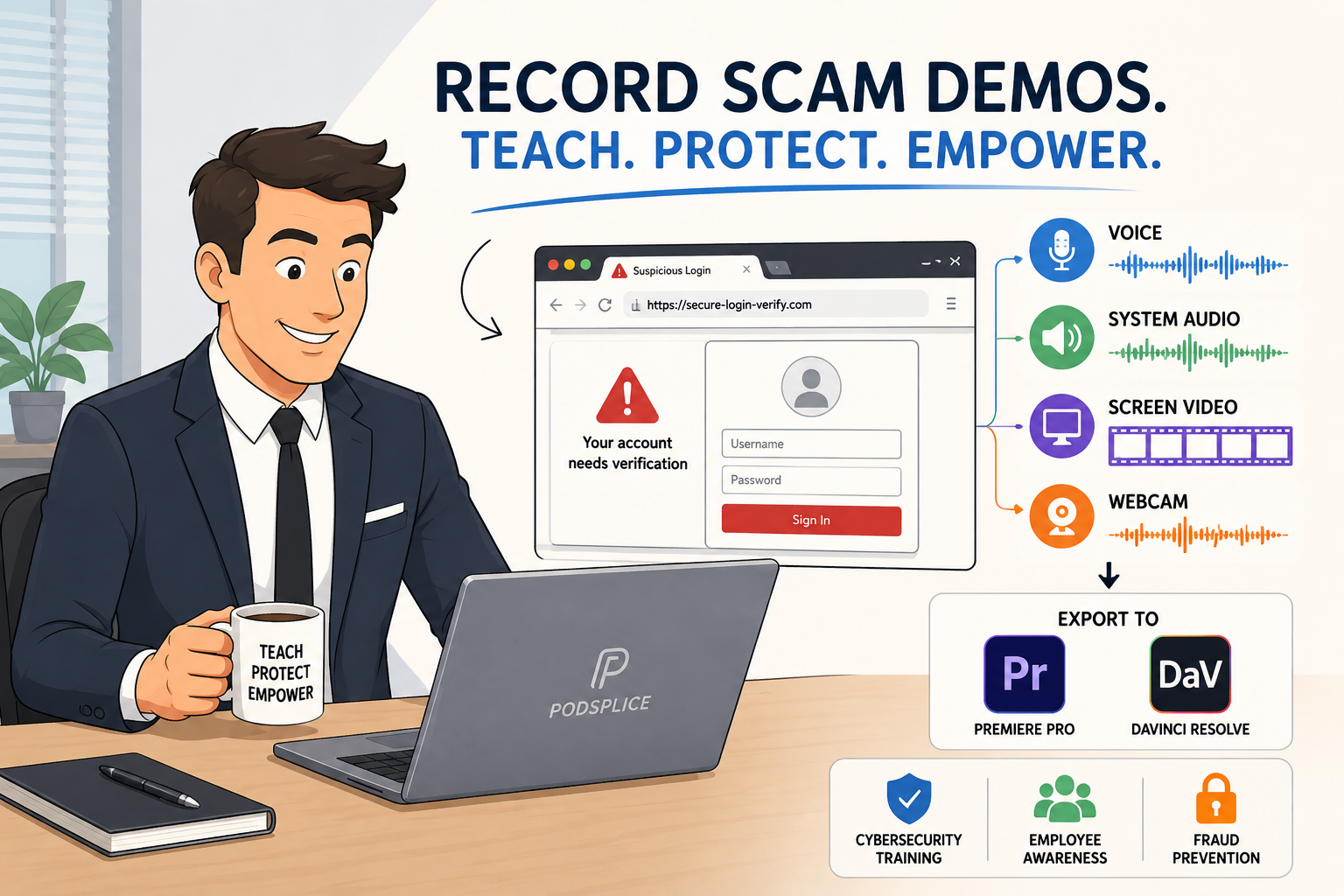
With Podsplice, you can record your screen, webcam, microphone, and system or tab audio together. These sources can also remain available as separate tracks, giving you much more flexibility when editing.
For example, you can resize or remove your webcam, adjust your layout, create a faceless screen recording, or work with the individual recording tracks without having to record everything again.
You also don't need a Chrome extension to use Podsplice. Open Podsplice in Chrome and start recording. As I mentioned above, we're developing a Chrome extension to make that browser workflow even more useful in the future.
Start using Podsplice. You will love it!
You can even record system audio when doing a remote Podcast interview with Podsplice + Chrome
Check out this video we made with Podsplice and Chrome.
With Podsplice, all tracks are recorded separately and in high quality. Then they are automatically spliced together at the end for ease and quality. If you want to hear the part where we share system audio, click to the 4:30 mark of the video.

About the Author
Andrew Best
Andrew Best is an entrepreneur, educator, and AI expert with over two decades in online marketing. He co-founded China232 — a podcast and learning platform with 10M+ downloads — and later 88Herbs, a premium supplement company. Andrew now focuses on helping creators leverage AI for podcasting, screen recording, and YouTube content through Podsplice.
More from Podsplice

Start Recording in Seconds
No downloads. No setup. Just hit record and share your story with the world in studio quality.
Looking for a Screen Recorder or Remote Recording tool?