
How to Change the Size and Shape of Your Webcam Recording Circle in a Screen Recording Video
You Deserve Control Over Your Layout
With most screen recorders, like Canva, you’re locked into a box—or more accurately, a circle. They give you one fixed size in one fixed location. If that circle happens to block a button, a subtitle, or a key piece of data on your screen, you’re out of luck. You either live with a bad video or start the recording all over again.
But as a creator, you want options. You might prefer a square or rectangle to fit your brand’s aesthetic. You might need your webcam to be slightly larger to show a big reaction, or smaller to keep the focus on your presentation.
Ultimately, you want control. Podsplice gives you that power by letting you fix your layout after the recording is finished.
1. Choose Your Vibe: Circle, Square, or Rectangle
The classic circle is great, but it isn't always the right fit. In the Podsplice V2 Editor, you can instantly swap your webcam shape to match your content's style.
Circle: The industry standard for a clean, minimal look.
Square: A modern, bold frame that stands out.
Rectangle: Perfect for "Studio" style setups where you want to show more of your background.
Don't forget, it's not just the shape that is important. It's nice to be able to resize it and move it to exactly where you want it to be.
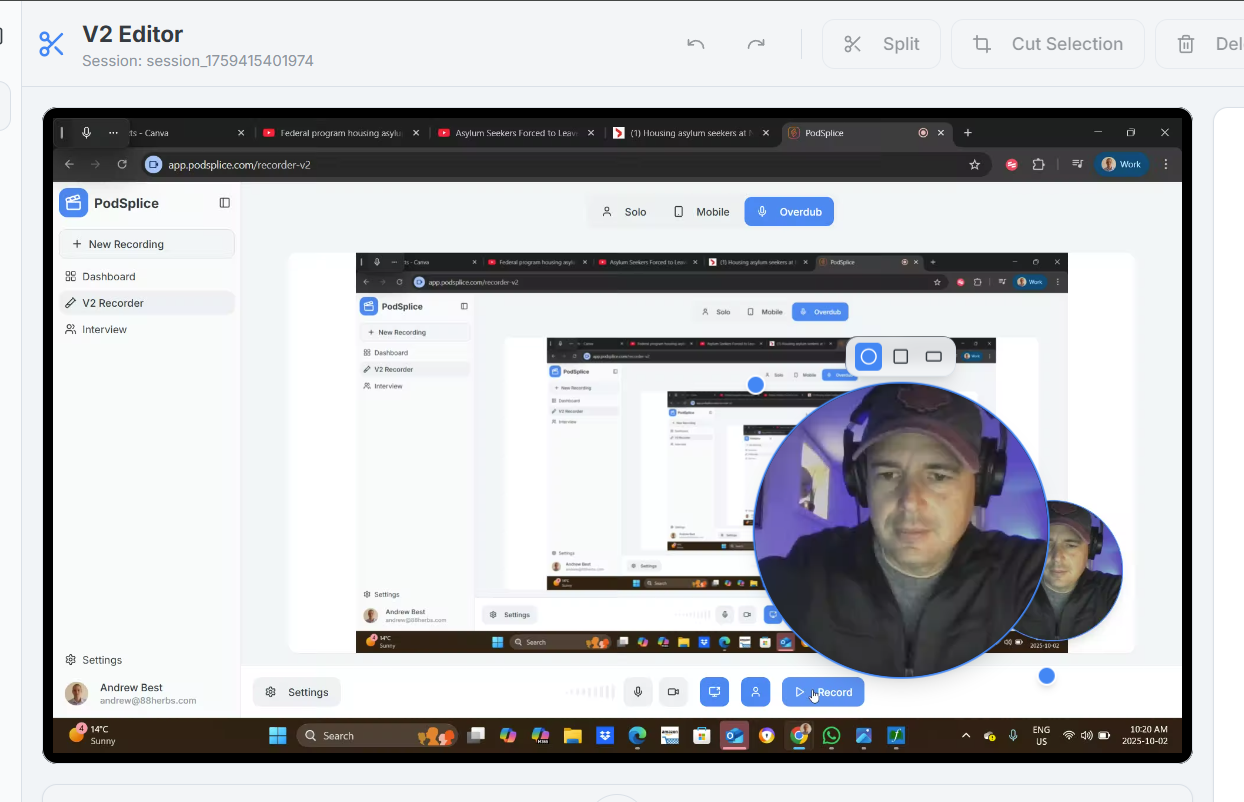
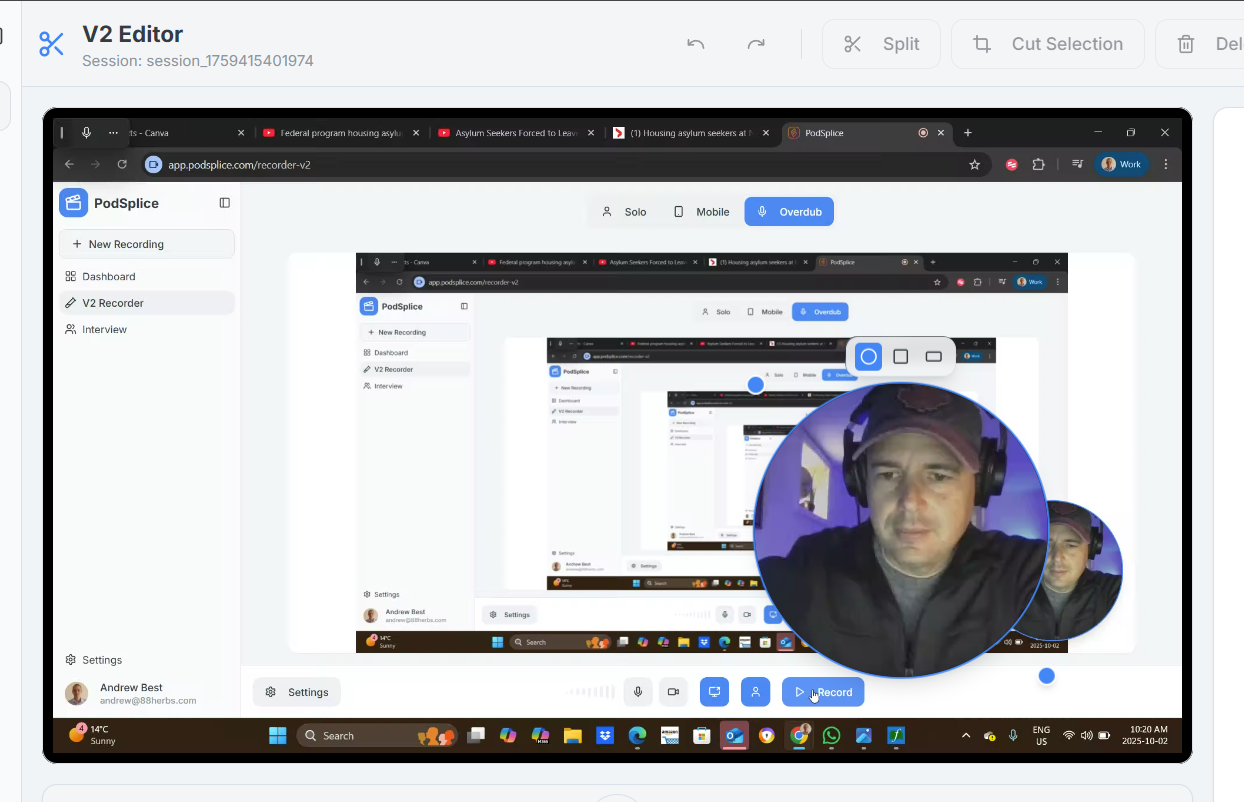
Here is a screenshot of the classic circle webcam look. I made it slightly larger and moved it to the left so you can see. Also, if you look at the top of the circle, you'll see the three options where you choose the shape (circle, square, or rectangle). You can click the corner to resize or just click the entire thing and drag it where you want it to be exactly. It is very easy
2. Move and Resize with Zero Effort
The biggest headache with traditional recorders is that the webcam is "burned" into the video file. In Podsplice, your webcam and screen are separate layers. Found out your face was blocking a key detail? Just fix it in post.
To Relocate: Simply click your webcam feed and drag it to any corner—or even the center—of the screen.
To Resize: Click the corner of the webcam frame and drag. Make yourself the star for an intro, then shrink yourself down when it’s time to focus on the screen content.
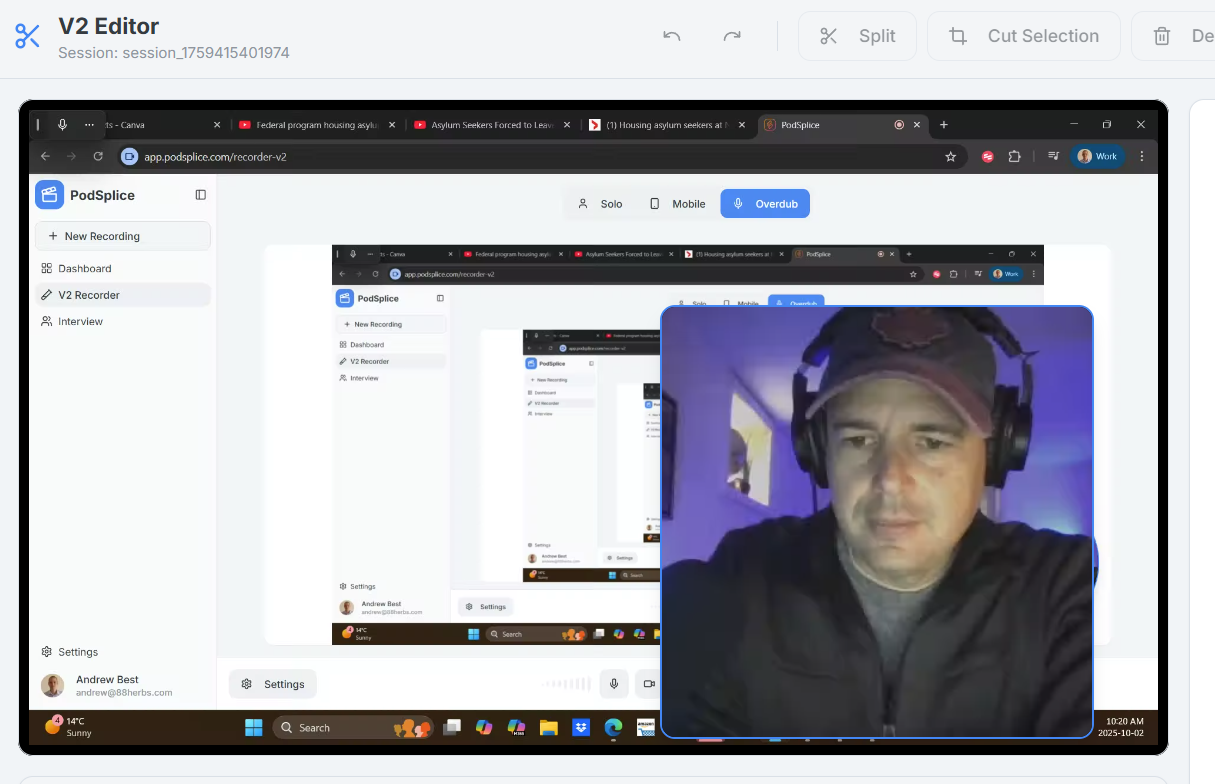
Here is a screenshot of the square look. I made it even larger just to show you the idea.
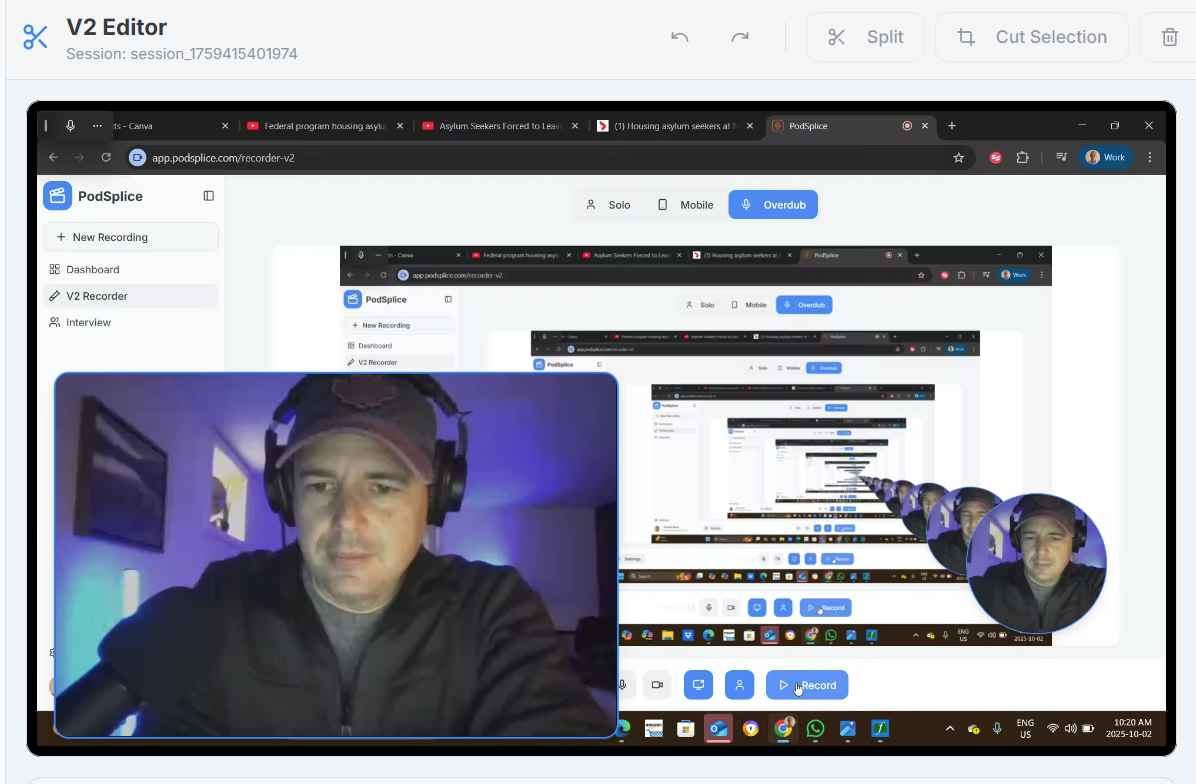
Here is a screenshot of the rectangle. All of these are from the same recording. I made the rectangle very large and moved it to the bottom left of the screen. I'm trying to show you the options you have and how they would look.
3. Optimized Performance: Why 720p is the "Sweet Spot"
Podsplice now allows you to adjust your webcam preview quality up to 720p before you record.
The recording I did here in this sample was actually only in 240p. I chose it to be very low because I was actually planning on doing a faceless video, so I wanted the least amount of bandwidth going to the webcam. Even 240p doesn't look bad if the webcam (circle) is small.
720p is very clear for a small webcam recording.
Podsplice still lets you upload the entire video to 4k.
While other platforms might try to push 4K for everything, we built Podsplice for speed and quality. Since your webcam is typically an overlay (a "thumbnail" view) on a much larger screen recording, 4K is overkill. It eats up processing power needlessly.
By capping the preview at 720p, we ensure your editing experience is lightning-fast and lag-free, while still looking crystal clear in your final high-definition export.
How to Customize Your Webcam Layout in Podsplice:
Record your video using the Podsplice V2 Recorder.
Enter the Editor: Once your recording is complete, click on your webcam track.
Reshape: Use the menu to toggle between Circle, Square, or Rectangle.
Resize: Grab the corner handles and drag to your desired scale.
Position: Click and hold the center of the webcam to move it to the perfect spot.
The webcam shape is just one of many reasons Podsplice is cool.
Check out more aspects of a great screen recorder.

About the Author
Andrew Best
Andrew Best is an entrepreneur, educator, and AI expert with over two decades in online marketing. He co-founded China232 — a podcast and learning platform with 10M+ downloads — and later 88Herbs, a premium supplement company. Andrew now focuses on helping creators leverage AI for podcasting, screen recording, and YouTube content through Podsplice.
More from Podsplice
How to Make Your Screen Recordings Sound Incredible (The Easy Way)
Article
How to Record a Reaction Video with System Audio
Article
How to Record YouTube Audio on Mac (The Easiest Way in 2026)
Article
How to Record a Scam Website Demo with Screen, Voice, and System Audio
Article
How to Make Reaction Videos on a Mac: The Easiest Way in 2026
Article
Start Recording in Seconds
No downloads. No setup. Just hit record and share your story with the world in studio quality.
Looking for a Screen Recorder or Remote Recording tool?