
How to Record Full Screen Webcam and Screen Share at the Same Time
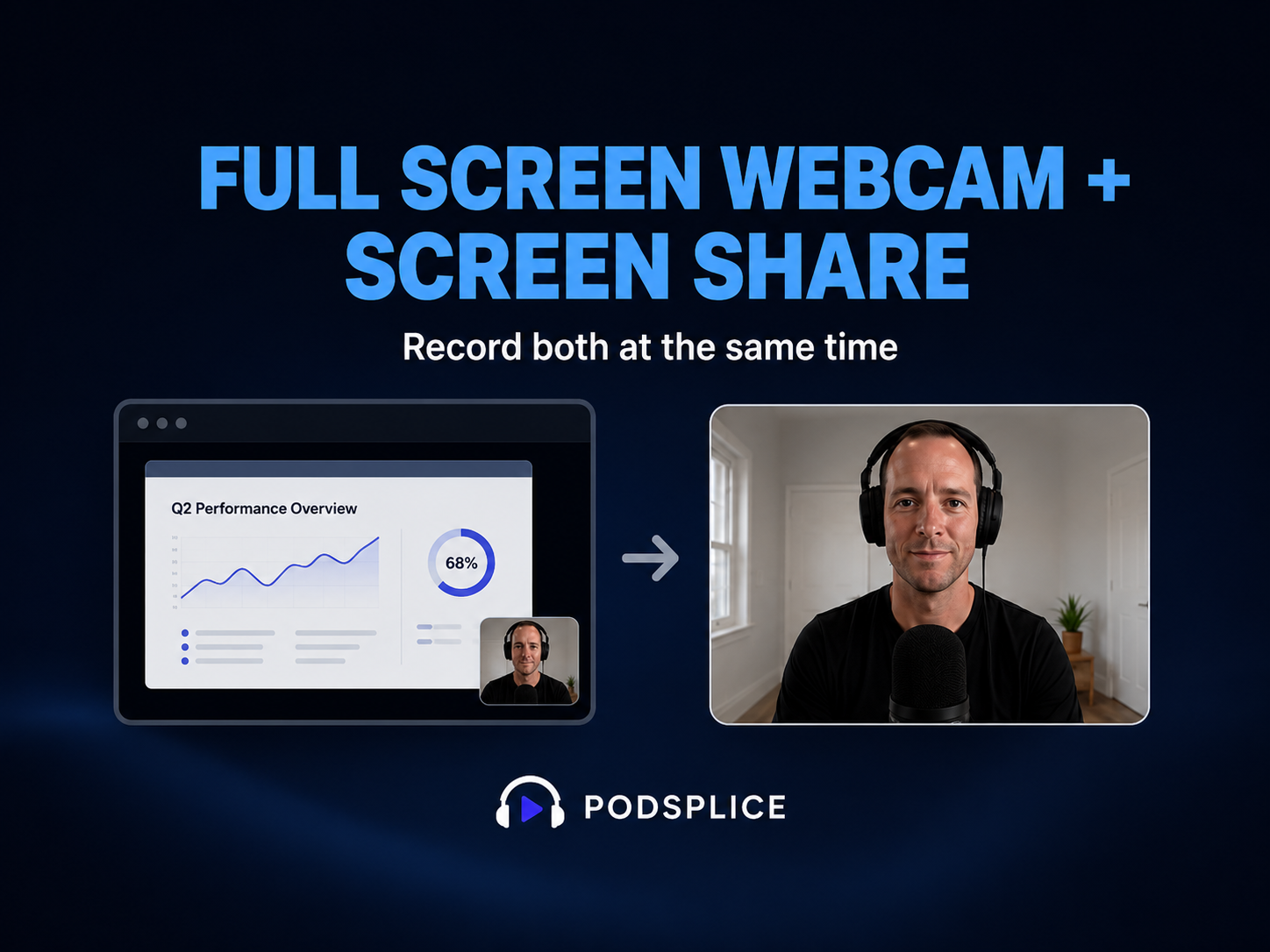
Sometimes you want to record your screen, but you also want to show your face clearly.
For example, you may want to start a video by talking full screen, then switch to your screen share, then come back to your face again when you explain something important.
In Podsplice, you can record your webcam and screen share at the same time. Then, after recording, you can choose how each part of the final video should look.
You can show:
Full screen screen share
Screen share with webcam in the corner
Full screen webcam
This is useful for tutorials, lessons, reaction videos, product demos, and screen recordings.
Why This Is Useful
A normal screen recording can feel a little flat if the whole video only shows your screen.
A small webcam thumbnail helps, but sometimes your face should be bigger. This is useful when you are explaining something, introducing the video, reacting, or speaking directly to the viewer.
The key is to record both your screen and webcam in good quality first.
Then you can choose the layout later in the editor.
Record both tracks first. Choose the view later.
Before You Record
Before starting, check your recording settings.
Open the Podsplice recorder and choose the recording mode that includes your screen and webcam.
Then go to your settings and check:
Microphone
Camera
Camera resolution
Screen share settings
If you want to use your webcam full screen later, make sure the camera is recorded in high quality. If the webcam is only recorded as a small low-quality thumbnail, it may not look good when shown full screen.
How to Record
1 - Open the recorder
Go to the Podsplice recorder and choose the screen recording option or use Overdub mode.
2 - Turn on your webcam
Make sure your camera is selected and working.
3 - Share your screen
Choose the screen, window, or browser tab you want to record.
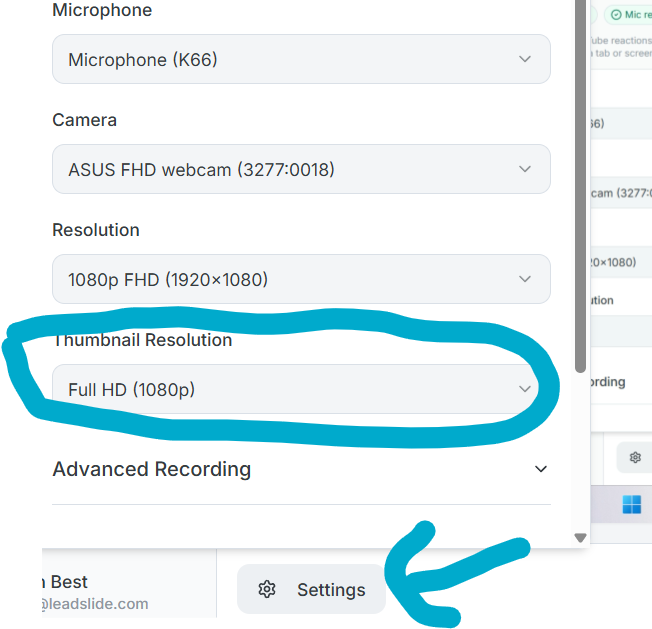
Make sure to click the settings at the bottom and choose a high quality thumbnail recording. This is the setting that records the webcam. So after you can show it in high quality in full screen if you want.
4 - Start recording
Record your video like normal. You can talk, show your screen, and use the webcam thumbnail while recording.
5 - Finish the recording
When you are done, stop the recording and open it in the Podsplice editor.
How to Show Webcam Full Screen Later
After recording, open the video in the editor.
Most screen recordings will show the screen share as the main video, with your webcam as a smaller video in the corner.
To show your webcam full screen for one part of the video:
1 - Move to the part of the timeline you want to change
Choose the moment where you want your face to become full screen.
2 - Create a section
Use the section tool to mark the part of the video you want to change.
3 - Select the camera track
Choose the webcam/camera view for that section.
4 - Choose full screen
Set the camera to full screen for that section.
Now that part of the final video will show your webcam full screen instead of the screen share.
When you want to go back to the screen share, create another section and switch the view back.
When to Use Full Screen Webcam
Use full screen webcam when your face is the main focus.
This works well for:
Introductions
Explanations
Reactions
Teaching moments
Important points
Outro messages
Use screen share when the viewer needs to see what you are doing.
Use your screen when you are showing something. Use your face when you are explaining something.
Keep It Simple
You do not need to switch views too often.
A few clean switches can make the video feel better. Too many switches can be distracting.
A simple flow could be:
Start with full screen webcam
Switch to screen share for the tutorial
Show webcam full screen for an explanation
Go back to screen share
End with full screen webcam
This makes the video feel more natural without making it too busy.
Record Webcam and Screen in High Quality
The most important part is recording both your webcam and screen share in good quality.
Once both are recorded, you can decide later how the final video should look.
This gives you more control when editing and helps make your screen recording feel more polished.
More from Podsplice
Why Your Screen Recordings Look Blurry (And How to Fix It)
Article
What is the Easiest Screen Recorder to use for Making Online Courses
Article
Screen Recording Software That Automatically Posts to Social Media (2026)
Article
How to Record Zoom Meetings With Separate Tracks for Editing
Article
Repurposing: Turn Long Podcasts into Viral Shorts
Article
Start Recording in Seconds
No downloads. No setup. Just hit record and share your story with the world in studio quality.
Looking for a Screen Recorder or Remote Recording tool?